
HIGHLEVEL · FIND THE FIRST BROKEN STEP
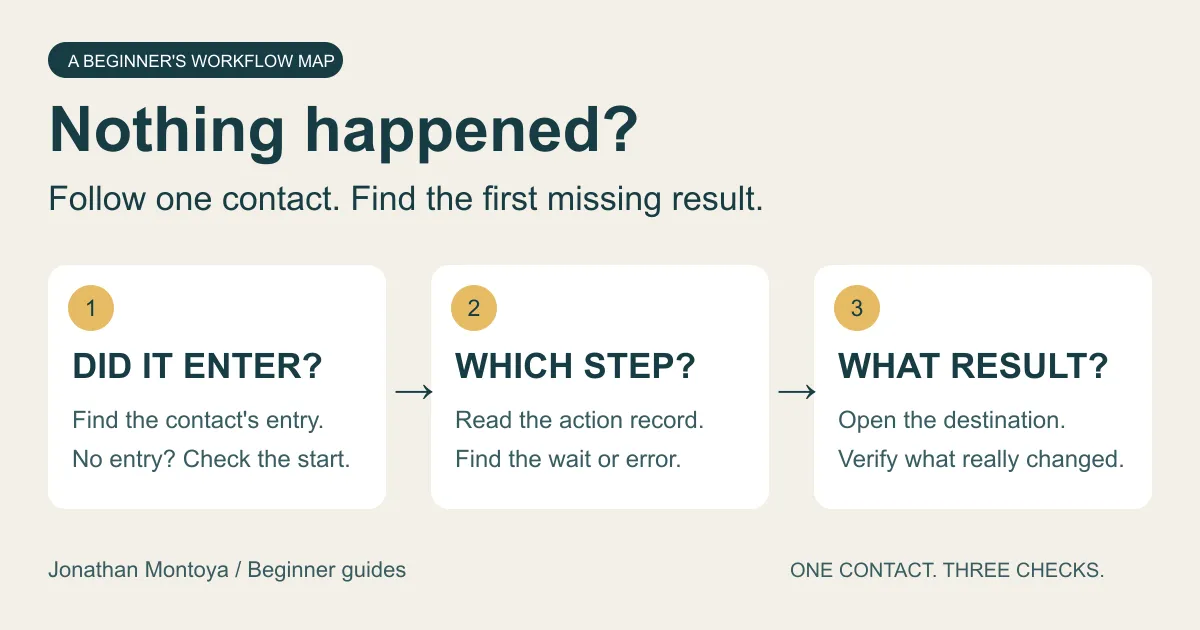
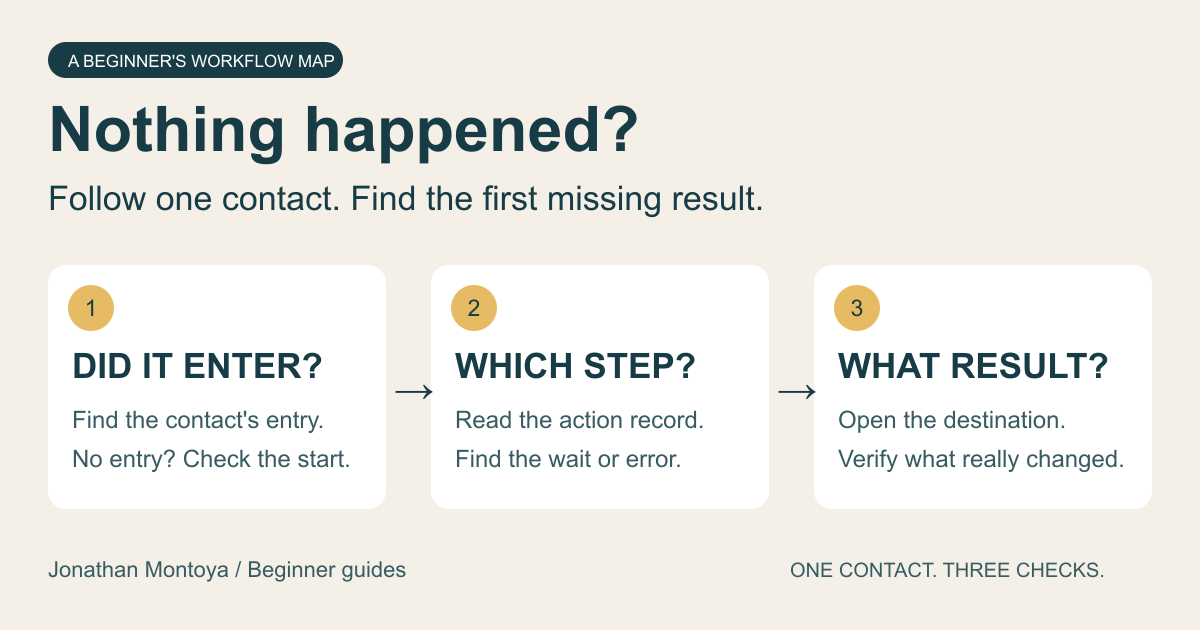
You built the steps. You saved the workflow. Nothing seems to happen. Before you rebuild it, find out whether one specific contact ever entered.
This is a documentation-based guide with fictional examples. It does not claim that a workflow was repaired in your account. Official sources were rechecked October 27, 2026. This article was restored after the site migration.
1. Turn “it’s broken” into one checkable question
A workflow is a list of steps that starts when something happens. HighLevel calls the starting event a trigger. A contact entering the list is an enrollment. The record of what each step did is an execution log.
Instead of “my follow-up isn’t working,” write: “When my test contact submitted the quote form at 2:10 p.m. Mountain Time, I expected a task called Review quote request. I cannot find that task.” Now you have a person, a time, a starting event and an expected result.
Use a contact you control for any new test. Inspect existing records first. Do not repeatedly enroll a real customer just to see what happens; a test can send messages or make changes.
Contact: the test record I control
Workflow: Quote request follow-up
Event: submitted the quote form
Time and time zone: 2:10 p.m., Mountain Time
Expected: one task named Review quote request
Observed: task not found
Next question: did this contact enter this workflow?
If you cannot name the result, pause here. “The automation ran” is too vague to verify. A saved task, a changed field or a received message is a result you can check.
2. Choose the route that matches the evidence
In the relevant HighLevel business account, open Automation → Workflows and select the workflow. Review Enrollment History for your contact and test time, then Execution Logs → View Details for the relevant run. Check date filters and time zones before deciding a record is missing. HighLevel’s official logs guide explains these views and the contact-path display.
| What you find | Investigate next | Do not conclude yet |
|---|---|---|
| No matching enrollment | Starting event, selected form/calendar, filters and workflow status | That the email or task action is broken |
| Contact entered; a step is waiting | The condition or time that step expects | That waiting means failure |
| Contact entered; an action reports an error | That action’s details and inputs | That every earlier step failed |
| Contact exited or took another branch | The recorded path and exit reason | That the contact should have reached every action |
| Action completed; result missing | The actual destination record, inbox or connected app | That “completed” proves the business outcome |
Route A: the contact never entered
First confirm you opened the right business account and workflow. Similar names make it easy to investigate the wrong copy. Compare the intended event with the trigger that is actually selected. A form submission and a newly created contact are different events; write down which one your process needs.
Check both whether changes are saved and whether the workflow is published. Those are separate states. In the builder’s Stats View, available trigger statistics can show attempted, matched and unmatched contacts. Inspect the specific contact’s result rather than relying on a total count. See the official builder walkthrough.
Before changing a filter, explain its purpose. If a filter deliberately limits the workflow to one service, removing it may enroll people who should never receive that follow-up. Record the mismatch, change only what is wrong, and test that intended rule.
Route B: the contact entered but stopped before the result
Read the last recorded step. HighLevel can show the contact’s path and distinguish completion from removal by this workflow or another workflow. That is more useful than guessing from the picture of the whole automation. Match the action name and time to the test you are investigating; an old successful run does not explain a new failure.
If the contact is waiting, write down what releases the wait. If a branch skipped your expected action, compare the condition with this contact’s actual data. If there is an error, copy the exact error text before editing anything. “Step 4 failed because the selected account was disconnected” gives you a repair target; “HighLevel is broken” does not.
The builder can flag supported configuration problems through Resolve Errors. Fix the listed missing or disconnected settings. Clearing that list does not prove a live run will succeed; setup checks and execution failures are different. HighLevel explains the distinction here.
Route C: the step completed, but you still cannot see the outcome
Check the destination you named in step one. For a task, look for the expected title and assigned person. For a field update, open the correct contact. For a connected app, inspect the intended account and record. For an email, check the message’s delivery evidence and your test inbox; continue with the dedicated form submitted but no email guide rather than rebuilding the workflow.
Keep two separate notes: what HighLevel reports and what you observed in the destination. If they disagree, that disagreement is the useful finding.
3. Work through a simple fictional example
Imagine a cleaning business has a quote-request workflow. Its intended result is an internal review task. A beginner submits a practice form but cannot find the task.
- Write the event: practice form submitted at 2:10 p.m.
- Check entry: there is no enrollment for that contact at that time.
- Inspect the trigger: it is restricted to a different form.
- Confirm the intended rule: only requests from the current quote form should enter.
- Change that one setting: choose the correct form, save, and check publication status.
- Repeat the event with a controlled contact: then inspect entry, the task action and the actual task.
These are hypothetical observations, not a recorded customer test. The lesson is where the investigation starts. Editing the task title would not have fixed a contact that never entered.
Now imagine a second result: the contact entered, but a Wait step has not released it. The form setting is no longer your first suspect. Your next question is what that wait is expecting. Follow the evidence even when the original symptom sounds identical.
4. Test one change and write down the result
Choose a narrow practice workflow or isolate a controlled test path before publishing changes that could reach customers. Read each action from beginning to end, including actions after a wait. Make sure you know which messages, records or external tools it can affect.
The builder’s Test Workflow button is useful, but HighLevel notes limitations when repeatedly using the same contact. Confirm the real starting event in a controlled published test as well. Changing an upcoming action can affect contacts already progressing through the workflow; do not assume edits only affect new arrivals. Both points are documented in the builder guide above.
For connected-app actions, Test Action can execute a real request against the selected account. An action that creates a record or sends a message can actually do so during the test. Use an appropriate test destination and inspect the confirmation carefully. Official integration-test behavior.
- Repeat the same intended starting event.
- Find the new enrollment and its time.
- Read the relevant action result.
- Inspect the destination yourself.
- Record pass or fail, with evidence for each.
If the result is still wrong, keep the observation and change one more thing. Avoid changing the trigger, waiting rules and message content together: even if the next test works, you will not know what fixed it.
Keep a one-page repair record
Download the workflow repair record
The worksheet keeps the event, entry, step and outcome together. It also gives you a concise support handoff if you cannot resolve the issue.
Workflow and business account:
Test contact I control:
Starting event:
Time and time zone:
Expected destination result:

ENTRY: matching enrollment found? Evidence:
STEP: last recorded action/status/error:
OUTCOME: what I observed at the destination:

One setting changed and why:
Retest time:
New entry / step / destination observations:
Pass or fail:
Remaining question for support:
When to ask support for help
Send the workflow name, affected contact reference, exact test time and time zone, expected result, actual result, and the relevant error or screenshot through the official support channel. Remove unrelated customer details from screenshots. Explain the one change you tested. A short, reproducible example is more actionable than an entire workflow export with no explanation.
You are done when: the intended event produces the intended result for your controlled test, and you can point to the entry, action and destination evidence. That proves this test, not every future customer scenario. If your process also has branches, repeat the check for each important route before relying on it.
