
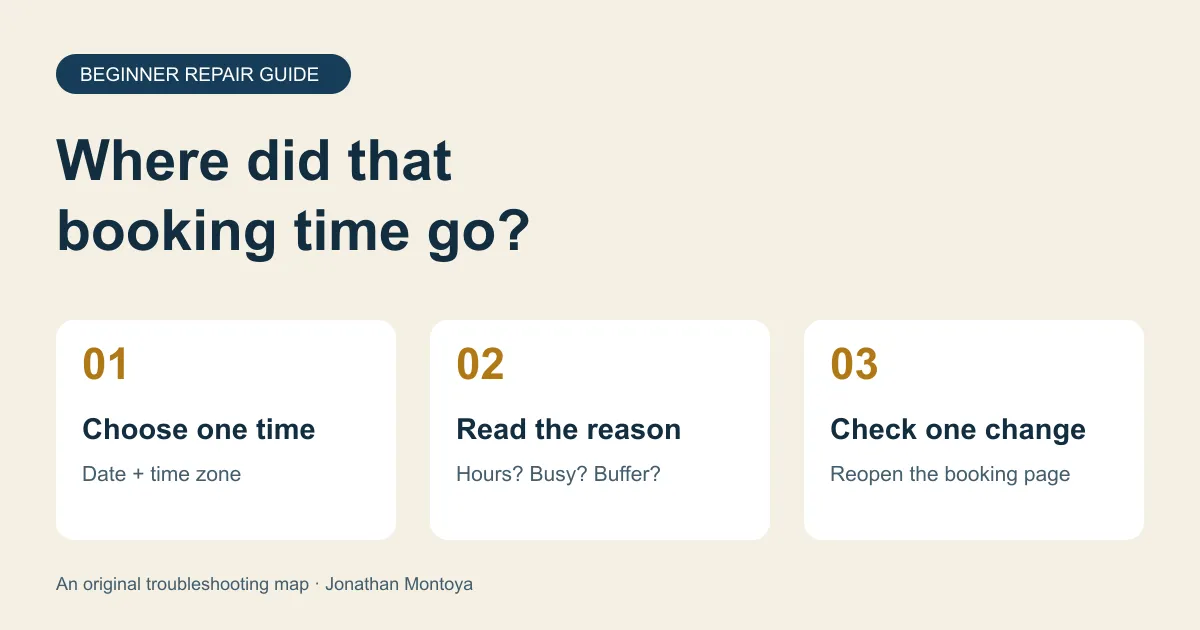
GoHighLevel Calendar No Available Slots? Fix It
HIGHLEVEL · BEGINNER TROUBLESHOOTING
GoHighLevel calendar no available slots usually means one missing time, not a full rebuild. You expected a customer to book Tuesday afternoon. They opened the page and found nothing. Start with that one time, not a complete calendar rebuild.
This is a documentation-based guide, not a report of a repair performed in your account. Menu names come from HighLevel’s help articles, last checked November 9, 2026, and can vary by account. It focuses on a missing appointment time; email delivery is a separate troubleshooting job. For a form-triggered message, use the missing form email guide.
1. Turn “the calendar is broken” into one clear question
Use this sentence: “On [date], [person] should be available for a [length] appointment starting at [time] in [time zone]. Why can’t someone book it?”
For example: “On Tuesday, December 1, 2026, Maya should be available for a 30-minute consultation at 2 p.m. Denver time.” Maya and this situation are fictional. The point is to choose something specific enough to check.
Keep the booking page open next to the calendar settings. Record the calendar name and assigned person before editing. If you manage several calendars, a similar name is not enough. Compare the actual booking link. Save the existing setting values so you can undo a change that does not help.
2. Ask the troubleshooting tool why that time is missing
Go to Settings, then Calendars, and click Calendar Settings at the top. Find the calendar and click the wrench icon next to it. If you are already editing that calendar, click Troubleshoot Calendar in the top right corner instead. Select the date on the grid, then hover over the missing time to see its reason code in a tooltip. HighLevel’s troubleshooting view uses the logged-in user’s time zone, so match that to the customer-facing page before comparing times. The tool first creates possible slots from the calendar’s availability and interval; time outside that range may have no slot to inspect. For example, with hours of 10 a.m. to 12 p.m. and 60-minute intervals, only 10 and 11 appear. See the official troubleshooting guide.
- USER: No assigned person is free. Check: that person’s availability and whether anyone is assigned.
- COLLECTIVE: One or more required people are busy. Check: each required person’s schedule.
- CONFLICT: An event in a connected Google or Outlook calendar. Check: the connected calendar event, and whether it is real.
- BOOKED: Already booked in HighLevel. Check: the existing appointment.
- BLOCKED: Time was blocked by hand. Check: the blocked slot, and who added it.
- NOTICE: Too soon to book. Check: the minimum scheduling notice setting.
- TOOFAR: Too far in the future. Check: the allowed booking date range.
- DAYLIMIT: The day’s appointment limit is reached. Check: the daily appointment limit.
- SLOTMAX: The slot’s booking limit is reached. Check: max bookings per slot.
- BUFFER: Buffer time blocks the slot. Check: pre and post buffer settings (step 4).
- DURATION: The gap is too short for the appointment. Check: appointment length versus the open gap.
- PAST: The time has already passed. Check: nothing to fix, so pick a future time.
- LOOKBUSY: Hidden by the Look Busy setting. Check: the Look Busy setting.
- NO SEATS: All seats are taken. Check: seat limit for the event.
- RESOURCE: A required room or resource is not free. Check: the resource booking.
Codes and meanings are from HighLevel’s troubleshooting guide, checked November 9, 2026.
These reasons are clues, not instructions to delete things. A real appointment or time-off block should usually stay. Ask the calendar owner whether the missing time was genuinely meant to be available. Sometimes the correct result is to keep it unavailable and offer another time.
3. Check whether a one-day override replaced the normal day
Weekly working hours are the recurring schedule. Date-specific hours replace that schedule for the selected date. They do not simply add extra hours. Review both in the calendar’s Availability settings (Settings, then Calendars, then the calendar, then Availability). HighLevel explains the override behavior here.
Before changing the hours, say the intended schedule aloud: “On this date, we want customers to book between ___ and ___.” That catches misunderstandings faster than repeatedly clicking different settings.
4. Check the breathing room around appointments
A buffer is reserved time before or after an appointment, for preparation, travel or cleanup. HighLevel considers the buffer requirements of both the existing appointment and the new one. An empty-looking gap may therefore be too small. Turning off Show buffer time in the calendar view only hides the blocks. It does not remove them. The real settings are Pre buffer time and Post buffer time in the calendar’s Availability settings, as described in HighLevel’s buffer guide.
For a fictional example, imagine a consultation followed by required cleanup. The calendar may be doing its job by protecting that cleanup period. Do not remove the buffer merely to make the page look fuller. Confirm what the business needs before shortening it.
5. Change one thing, then check the same time again
- Record the old value and why a change is justified.
- Save one change approved by the calendar owner.
- Reopen the actual public booking link.
- Select the same date and time zone you recorded earlier.
- Check whether the expected start time appears.
- If appropriate, complete a controlled booking using your own test details and verify the assigned person, date and time. Follow the normal cancellation process afterward.
Record “slot is visible” separately from “booking completed.” They are different results. A visible time does not prove a reminder reached an inbox or a customer attended. If the expected slot remains missing, go back to the reason shown rather than changing three more settings at once.
Worked example: one missing 2 p.m. slot
Everything in this example is made up for teaching. No real account or customer is shown.
| Calendar | “Consultation,” a 30-minute calendar with one assigned person, Maya |
|---|---|
| Date and expected time | Tuesday, December 1, 2026, 2:00 p.m. |
| Booking page time zone | Denver (Mountain Time) |
| Your logged-in time zone | New York (Eastern Time), so the troubleshooting grid shows the slot at 4:00 p.m. |
| Reason code on hover | BUFFER |
| What was found | An existing appointment runs 1:00 to 1:45 p.m. with a 15-minute post buffer, so Maya is held until 2:00. The calendar also has a 15-minute pre buffer, so a 2:00 booking needs Maya free from 1:45. Those two overlap from 1:45 to 2:00, so 2:00 cannot be offered. |
| Owner decision | Keep the post buffer for notes. Set the pre buffer to 0, since the business does not need prep time. |
| Retest | Reopen the public booking link, choose December 1 in Denver time. 2:00 p.m. now appears. Record “slot visible.” A test booking is a separate check. |
The math is the whole lesson: 1:45 plus the 15-minute post buffer is 2:00, and 2:00 minus the 15-minute pre buffer is 1:45. If the owner had wanted both buffers, the right answer would be to offer 2:15 instead, not to delete a buffer.
Use this worksheet instead of starting over
Download the missing-time worksheet
The worksheet keeps the date, time zones, reason, old setting, change and observed result together. If you need support, share that concise record with customer details removed. “Tuesday at 2 p.m. shows CONFLICT in this calendar” is much easier to investigate than “none of it works.”
Open the full worksheet here
ONE MISSING BOOKING TIME, WORKSHEET
Use a fictional example or your own test details. Leave customer data out.

Calendar name and booking URL:
Calendar type and assigned person:
Date being checked:
Expected start time and duration:
Booking-page time zone:
Logged-in troubleshooting time zone:
Converted matching time, if zones differ:

Is the whole day missing, or one appointment time?
Exact reason shown by the native troubleshooting tool:
Weekly working hours:
Date-specific hours on this date:
Relevant busy event, existing booking or manual block (no private details):
Required pre/post buffer:

Owner-approved change, if any:
Old value (so it can be restored):
New value:
Time change saved:

Reopened public booking page and selected same date/time zone? Yes / No
Expected time now visible? Yes / No
Controlled test booking completed? Not tested / Yes / No
Correct person, date and time on resulting booking? Not tested / Yes / No
Test booking cleaned up through normal cancellation process? Not applicable / Yes / No
Any unexpected effect on other times?
Final result: resolved / still missing / more evidence needed
Next action and person responsible:

A visible slot is not proof of a completed booking or delivered reminder.
Make the check part of ongoing service
If you help a local business maintain its setup, keep this record alongside its monthly service checklist. When an AI phone assistant offers booking, also run the broader call-answering test plan; a working calendar alone does not prove the whole caller experience works.
For a broader beginner learning path, explore my free AI agency program. It is my own program, so I have a financial interest in it. It is a learning program, not a promise to repair an account automatically.
Affiliate disclosure: If you are still choosing software, my HighLevel link may earn me a commission if you purchase. Review the current offer and costs. Existing users can carry out these checks in their account without signing up again.
More from my YouTube channel
These two videos give broader HighLevel and agency context. Neither one is a calendar troubleshooting walkthrough, so use the steps above for the repair itself.
Sources rechecked November 9, 2026. Screenshot of the troubleshooting tool still needed from a real account with customer data removed. Examples and worksheet are original teaching aids. No customer account repair, real booking, email delivery or business outcome is claimed.
Frequently asked questions
Why is my GoHighLevel calendar showing no availability at all?
HighLevel says this usually means no user is assigned, no availability is set, or the calendar sync is disconnected. Open the troubleshooting tool and hover over a missing time to see the exact reason code.
How do date-specific hours work in GoHighLevel?
Date-specific hours replace the weekly working hours for that date. To extend a day, enter the full range you want, such as 9 a.m. to 8 p.m., not only the extra hours.
Does buffer time hide calendar slots?
Yes. A new booking must fit the buffers of both the existing appointment and the new one, so a gap can look open but still be too short. Hiding buffers in the calendar view does not remove them.
Why does the troubleshooting tool show a different time than my booking page?
The tool uses the logged-in user’s time zone, not the contact’s. Convert the time before you compare.
Should I disconnect my other calendar?
First identify the specific conflict and whether it is real. Removing a connection just to open a time can hide commitments the business still needs to honor.
Should I rebuild the booking page?
No. First compare the booking URL and calendar settings. Rebuilding a page does not show why one time is unavailable.
What if I still cannot find the reason?
Keep the last known settings, save your worksheet and ask HighLevel support to inspect that exact case. Mark it unresolved until the expected time actually appears.
Want an AI team for the rest of your business?
Disclosure: I am a co-founder of AIM Agent and have a financial interest in the product.
AIM Agent is an AI Chief of Staff for business owners. It comes with an AI C-suite (COO, CMO, CFO, CRO and CTO), a Business Bot Builder and 100+ business skills, and it runs on AIM OS, a private vault that holds your notes and memory.
Here is what you get:
- An AI Chief of Staff that helps you plan and run your business
- An AI C-suite: COO, CMO, CFO, CRO and CTO
- A Business Bot for each business or project. Give it a real task and it brings the work back for you to review
- 100+ business skills for content, offers, research and more
- Step by step setup guides and email support
