
To set up a GoHighLevel Voice AI agent, open AI Agents > Voice AI > Agent List in your sub-account, a workspace for one business. Click + Create Agent and pick Create Custom Agent. Set the voice, write a prompt and add a greeting. Save it and try a Web Call. When it works as planned, use Deploy to link a phone number, set the call rules and try a live call.

Disclosure: I earn a commission if you buy HighLevel through my links, at no extra cost to you. I am not HighLevel and do not speak for it.
Key takeaways
- Start with one job for the agent. A short list of tasks is easier to check.
- Use a Knowledge Base for facts about the business. Add actions for tasks like a transfer or a booking.
- Web Call lets you try the agent in your browser. Use a phone call to test a transfer.
- On Deploy, check the number, routing and hours. Then dial the line to see where the call goes.
- Phone charges still apply when an AI plan covers the AI part of a call.
How to set up a GoHighLevel Voice AI agent
A voice agent can answer calls, ask for details and act on what the caller says. For your first build, pick one job. A repair shop, for instance, might start with a line that answers shop hours and sends repair questions to the front desk.
Start in the sub-account for that business. You need View & Manage Voice AI Agents to open the Agent List and build an agent. Have the approved facts for the business ready. If you want the agent to make a transfer, book a visit or start a workflow, have the line, calendar or workflow ready too. You can wait to pick a phone number until you deploy.
- Open the Agent ListIn your sub-account, go to AI Agents, then Voice AI, then Agent List.
- Create a custom agentClick + Create Agent. Pick Create Custom Agent and click Continue.
- Set up the agent in BuildName it. Pick a voice, model and language. Set the time zone, write the prompt and set the welcome message. Save your work.
- Add facts and actionsPick a Knowledge Base and tell the agent when to search it. Add the actions the agent needs and set the rules for when each one runs.
- Test in the browserSave your changes as the HighLevel guide directs. In Test Audio, choose Web Call. Pick inbound if asked, then start the call. If you set up Call Transfer, check it with Phone Call or on the deployed line.
- Deploy to a phone numberOpen Deploy. Pick a number or a Number Pool, which routes multiple numbers to one agent. Set Call Routing and Working Hours, then save and call the number from outside HighLevel.
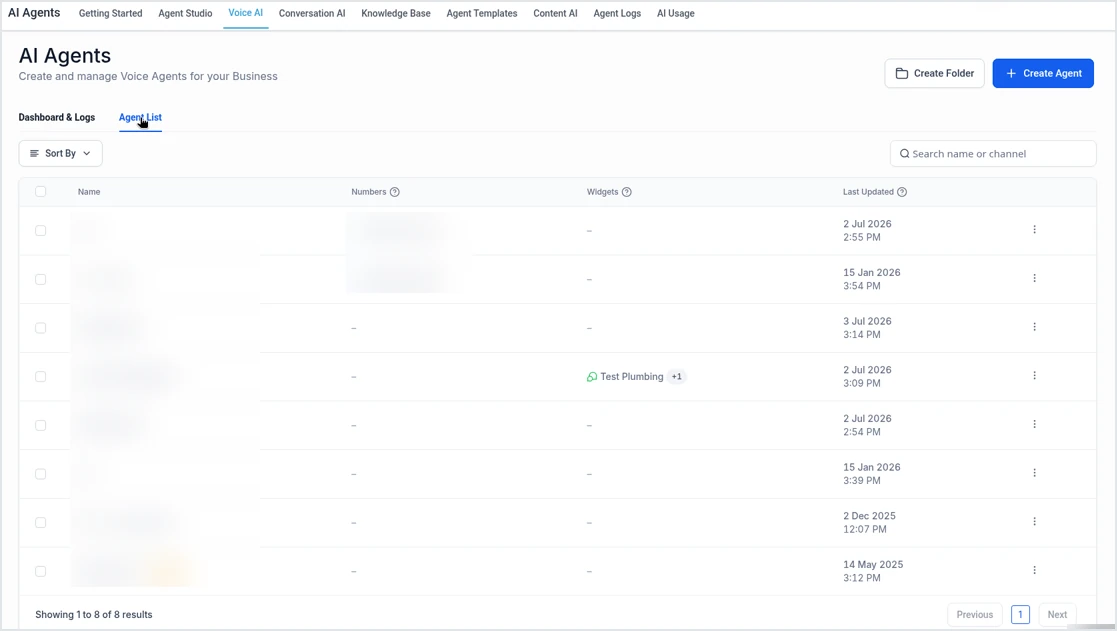
Create Custom Agent is the path used in this GoHighLevel AI voice agent tutorial. Browse Marketplace starts from an agent someone has built. Check its prompt, actions and linked tools before you put it on a line. Use Flow Based Builder if you need to draw set paths for a call with several branches.
Use Voice AI for the phone setup in this guide. If your job starts with a chat, see the GoHighLevel Conversation AI guide. The GoHighLevel AI guide covers the wider set of tools.
Write the prompt and welcome message
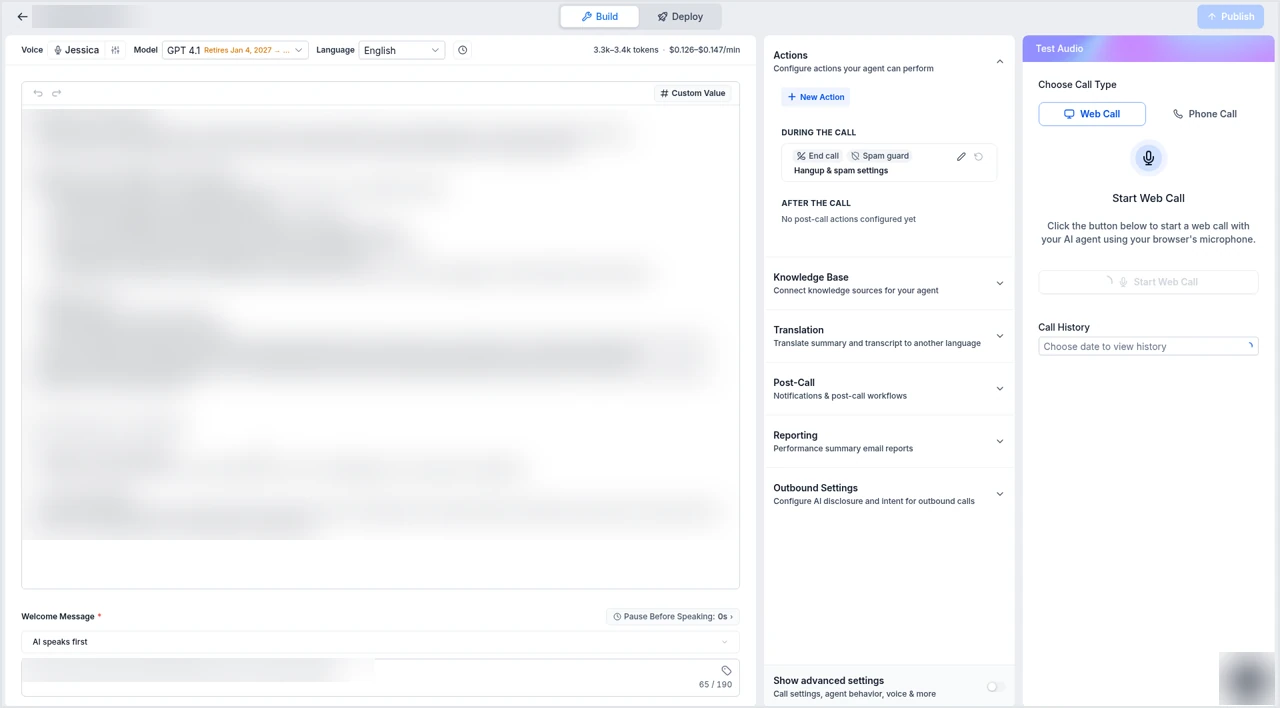
The screenshot shows one agent setup. You can see Publish and the Start Web Call button. The estimate shown is for that setup. See the cost section below for HighLevel's published pricing.
On Build, name the agent so your team knows its job. Pick the voice, model and language. Use the clock icon to set its time zone. Then write the prompt. This is where you spell out what the agent should ask, which topics it can handle, when to run an action and how to end a call.
Set the Welcome Message on its own. This is the greeting the agent says at the start of the call. Try 'Hi, I'm the repair shop's AI assistant. How can I help?' Where the option is available, choose who speaks first. Set the pause before the agent speaks. Save, then listen to how the first few seconds sound in a test.
Add business facts and call actions
Open Knowledge Base and pick the one for this business. Add or update sources for the questions you expect. Start with facts like your hours, services and policies. Tell the agent when to look there. If the answer is missing, tell it to say so and give the caller a next step.
Next, open Actions and click + New Action. Pick a type and give it a name you can spot in a test. Set the rule for when it should run, fill in the required fields and save. For the repair shop, the transfer rule should match the prompt. Set the front desk as the transfer target.
| Action | What to set and check |
|---|---|
| Call Transfer | Choose the line that should get the call. Check that it rings in a phone test. |
| Appointment Booking | Connect the right HighLevel calendar. Ask for a visit. Check that the agent offers an open slot and confirms the booking. Look for it on that calendar. |
| Update Contact Field | Pick the field to store a detail from the call. Check the saved value. |
| Trigger a Workflow | Pick the workflow and set when it should start. Check the result after the test. |
Use an after-call action when a task can wait until the caller hangs up. In Post-Call, check who gets a notice and whether the summary should go into the contact notes. If you turn off the note, the summary stays in the Voice AI logs.
Leave the default call settings in place if they fit. If the agent reacts poorly to silence or talks over the caller, turn on Show advanced settings to review the call and behavior controls. Change one thing and try the same call again.
Set up outbound calls only if you need them
HighLevel's setup guide says outbound Voice AI needs approval and compliance setup. Get consent before placing outbound calls. For a Speech-to-Speech agent set up to dial out, set the outbound welcome message, then open Outbound Settings. Set AI Disclosure, review Verbal Opt-out and save. The outbound test may stay out of reach until the setup is complete. See the GoHighLevel outbound calls guide for that path.
Run a GoHighLevel Voice AI demo with Web Call
HighLevel's setup guide says to save the agent before testing. Open Test Audio and pick Web Call. If you see a choice of scenarios, choose inbound for this setup. Click Start Web Call to start in your browser. Speak as a customer would. For the shop example, try 'Are you open this Saturday?' Check the reply against the hours in the Knowledge Base.
On the next call, ask a question your sources leave open. Does the agent admit it needs help? Give it a vague request, like 'I have a problem with a repair.' Listen for a clear follow-up. Pause for a bit, then try speaking while the agent talks. Check how it reacts in both cases.
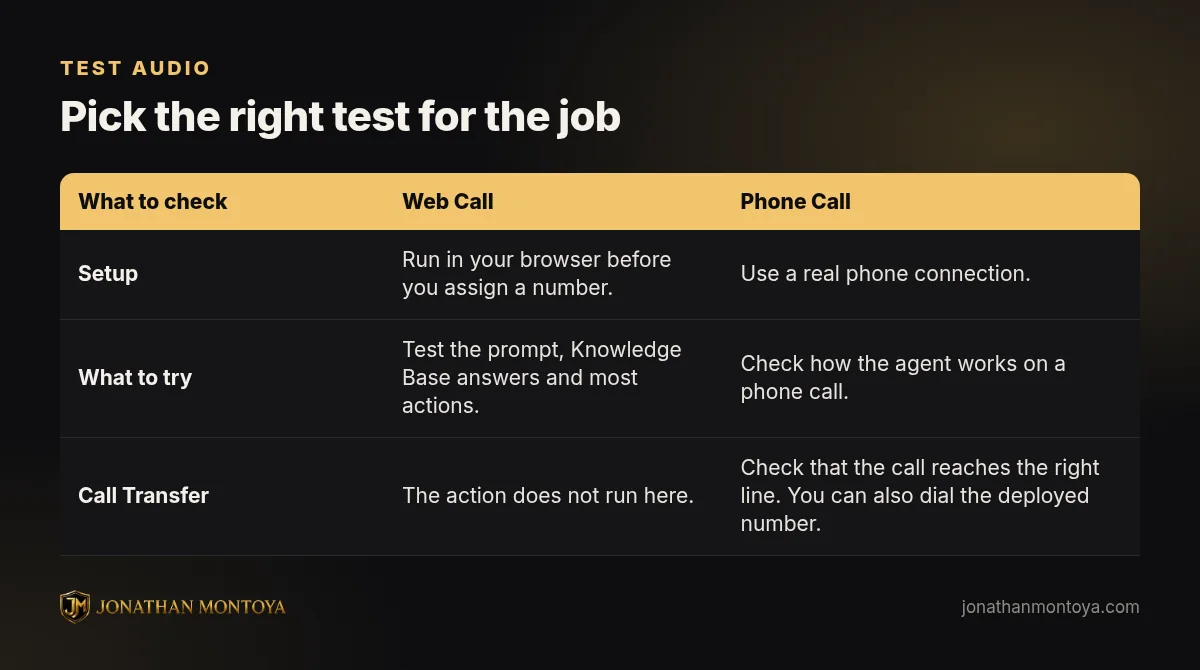
Use Web Call to check the prompt, Knowledge Base answers and most actions. For actions you check in the browser, try a request that should start the action and one that should leave it idle. Check Call Transfer with Phone Call or on the live number. Then open the call history. Check the transcript, recording, summary and action results. Fix the source if a fact is wrong. Fix the prompt or action rule if the agent takes the wrong step. Save and repeat the same test so you can compare the calls.
Want to try the browser demo with your own prompt? My HighLevel link shows a 30-day free trial on HighLevel's own offer page (checked Nov 18, 2026). HighLevel's standard pricing page lists 14 days. Usage fees may apply during the trial.
Start HighLevelDeploy the agent to a phone number
Open Deploy. In Phone, choose an eligible LC Phone or Twilio number, or a Number Pool that sends calls from several numbers to one agent. You can buy a new number on the Deploy screen if needed. Check that the number you want is the one you assign.
Under Call Routing, choose Answer Calls Directly if the agent should pick up first. Pick Use as Backup if it should take the call when the main path goes unanswered. Under Working Hours, choose All Hours or set days and times under Custom Schedule.
Check the line's inbound call flow, forwarding, timeout, voicemail and fallback. Save the Deploy settings and dial the number from outside HighLevel. If you chose backup, let the main path go unanswered in the test. If you set hours, check where the call goes outside those hours too.
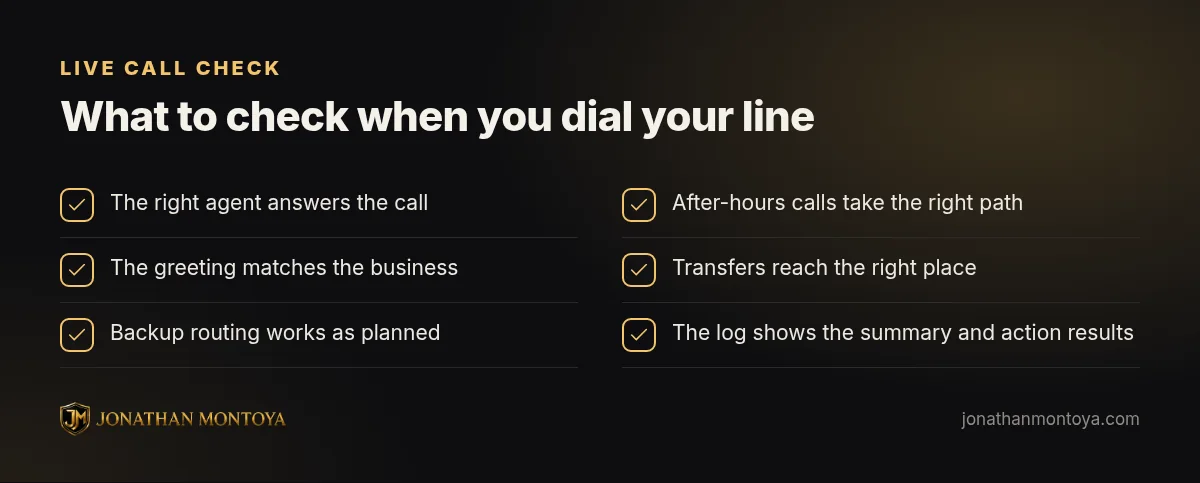
If the wrong person or agent picks up, start with the number and the call path. If the right agent picks up but gives the wrong answer, go back to Build. This gives you a simple way to find which settings to check first.
Fix missing Voice AI access
If the Agent List is missing, ask a sub-account admin to open Settings > My Staff. Edit the staff user, open Roles and Permissions and scroll to AI Agents. Turn on the access the user needs and save.
| Permission | What it lets the user do |
|---|---|
| View & Manage Voice AI Agents | Create, edit and delete agents, and assign numbers. |
| View Voice AI Agent Goals | Read agent goals. |
| View & Manage Voice AI Agent Goals | Edit goals, including the Knowledge Base and advanced actions. |
| View Voice AI Dashboard | Review test and live call data such as transcripts, summaries and recordings. |
Both goal permissions depend on View & Manage Voice AI Agents. You need View & Manage Voice AI Agent Goals to upgrade to the new Voice AI experience. Dashboard access has its own toggle. If someone on your team will only review calls, check the dashboard toggle for that user.
What does GoHighLevel Voice AI cost?
HighLevel counts inbound calls, outbound calls and widget use in the same bucket of AI Agent minutes. Check your sub-account's AI Employee plan to see how many minutes it covers.
| AI billing option | Voice AI coverage |
|---|---|
| Pay per use | Billed as you use it. |
| AI Employee Starter, $20 a month | Voice AI is pay per use. This plan is only for eligible Founder agencies. |
| AI Employee Growth, $50 a month | 100 Voice AI minutes a month, shared across inbound calls, outbound calls and widget use. |
| AI Employee Unlimited, $97 a month | Unlimited Voice AI, subject to fair use. |
Prices are in USD per sub-account. When an included limit runs out, extra use pauses by default. Your agency can turn on Extra Usage in AI Suite to keep using supported products at pay-per-use rates.
For pay-per-use calls, the cost depends on the voice setup. For Speech-to-Speech, the model sets the per-minute rate. For traditional Voice AI, HighLevel adds the per-minute Voice Engine and text-to-speech costs, then adds the cost of the language model tokens used in the call. Tokens are small bits of text the model reads or writes. Two calls of the same length can use different amounts. Phone System charges still apply to phone calls on every plan.
See the HighLevel Voice AI cost guide for a closer look at the bill, or the AI Employee guide for what else the plans cover.
Build your first HighLevel voice agent
Start with one call type. Try it in your browser, then check your live line before you route calls from customers.
When you start HighLevel through my link, you also get my GHL Clone for free. It is a done-for-you affiliate system I spent 11 months building. You can copy it in about 5 minutes, add your own affiliate link and share it. There is no website to build and no emails to write.
Start HighLevelGet the free GHL CloneMy HighLevel link shows a 30-day free trial on HighLevel's own offer page (checked Nov 18, 2026). HighLevel's standard pricing page lists 14 days. Disclosure: I earn a commission if you buy HighLevel through my link, at no extra cost to you. The GHL Clone is my own system, and I earn a commission if you later pay for HighLevel. What anyone earns depends on their own work, and no one can promise a result.
Voice AI setup FAQ
Can I try a GoHighLevel Voice AI demo without a phone number?
Yes. Save your agent and open Test Audio. Choose Web Call and select inbound if asked. Start the test in your browser. You can hear the greeting and try its answers before you assign a number.
Why is Voice AI missing from my sub-account?
Ask an admin to check View & Manage Voice AI Agents for your user. That is in Settings, My Staff, Roles and Permissions, then AI Agents. Access is set for each sub-account.
Can a GoHighLevel AI voice agent book appointments?
Yes. Add the Appointment Booking action and connect the right HighLevel calendar. Ask for a visit in a test call. Check that the agent offers an open slot and confirms the booking. Then look for the booking on that calendar.
Why did my call transfer fail in the browser demo?
Call Transfer does not run during a Web Call test. Try Phone Call in Test Audio or dial the deployed number. Check that the call reaches the right person or line.
Can a GHL AI voice agent make outbound calls?
HighLevel supports outbound calls for Speech-to-Speech agents with the required approval and setup. Get consent before placing outbound calls. Set the outbound greeting and AI Disclosure. Review Verbal Opt-out and save.
Why does my Voice AI agent miss calls after I assign a number?
Check that the number is tied to the right agent. Then look at Working Hours and Call Routing. If the agent is a backup, review where the call goes first. Forwarding, timeout and voicemail can affect the call path.
Do I need AI Employee to use Voice AI?
You can pay per use. AI Employee Growth includes 100 shared Voice AI minutes a month. Unlimited covers Voice AI under fair use. If you reach an included limit, your agency can turn on Extra Usage in AI Suite to pay for more use on supported products. Phone System charges still apply to phone calls on any plan.
Sources, checked Nov 18, 2026
Affiliate disclosure: I earn a commission if you buy HighLevel through my links, at no extra cost to you. Freedom Launch Accelerator and the GHL Clone are my own programs. HighLevel is a trademark of HighLevel, Inc. This site is not run by or affiliated with HighLevel.
