
Grok Bot · Plugins
Practical Plugins work with Grok Bot and human approvals.
Grok Bot plugins live under Connect Apps. Settings docs say apps are not in settings. Open Connect Apps in the sidebar to find apps and packaged skills, then manage installed apps from the connected count.
I checked Settings, Computer and apps, and skills docs on November 5, 2026. This post is how to install, authorize, and tune plugins without turning your Bot into a junk drawer.
TL;DR
Open Connect Apps, install the app, Authorize in the browser, confirm it shows under Installed, then enable only the tools you need. Admins on Teams and Enterprise may restrict apps. Prefer plugins over browser clicks when both exist.
Why Plugins needs a clear Bot lane
Plugins reduce brittle UI clicks. Computer and apps docs say connected apps for services like Gmail, Notion, and Slack are more reliable than clicking through a website when one exists.
The loop I run
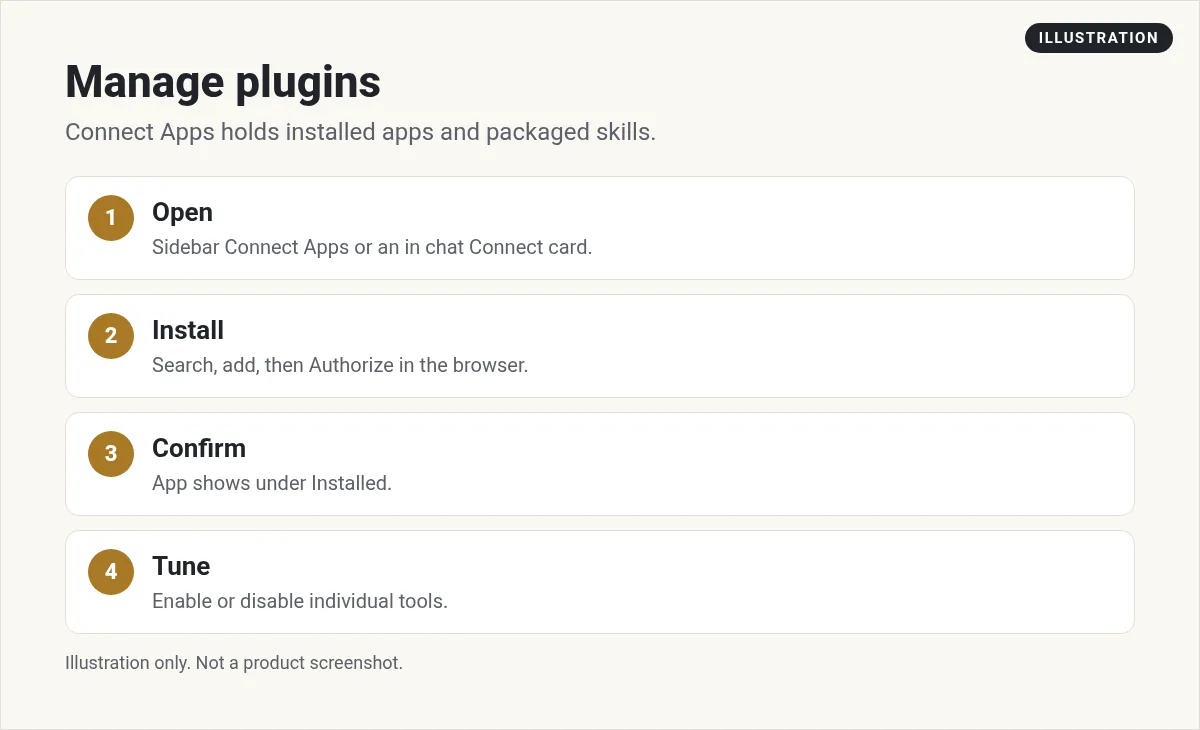
- Open Connect Apps from the sidebar or an in chat Connect card.
- Search, add, then Authorize or Authenticate in the browser.
- Confirm the app under Installed. Use Reconnect if sign in fails.
- Disable tools you do not need.
- Ask the Bot to use the plugin by name before it opens a site.
From the Grok channel (not mine): What is new in Grok Bot, including connector updates.
How I practice the first ten days
Days one and two are setup only. Connect the app or finish browser sign in. Write the standing rules in chat and ask the Bot to remember them. Do not turn on routines yet.
Days three to five are supervised drafts. Sit with the Bot while it works. Approve or reject each risky step. Save the prompts that worked as a short checklist in /workspace.
Days six to eight add one routine with a narrow window. Keep Ask first on send, publish, buy, and delete. Watch the first three runs live.
Days nine and ten are cleanup. Remove tools you do not need. Tighten Auto-review. Delete scratch files. Confirm Secrets and Vault items are least privilege.
If anything feels off, pause the routine. A paused Bot is cheaper than a bad send.
Mistakes I see
- Turning on five routines on day one.
- Letting the Bot email before draft quality is proven.
- Using two Bots as if they had separate computers.
- Pasting secrets into chat instead of Vault or 1Password.
- Skipping Connect Apps when a plugin already exists.
- Ignoring CAPTCHA and SSO handoffs until a task stalls.
What good looks like
Good means the Bot returns a draft you would send with light edits. Good means you can explain every money move or outbound message from the chat log. Good means routines wait for you when approvals expire. Good does not mean the Bot runs the company alone overnight. When you hit that bar, expand the lane. Add a second Bot only when the first one has a clear job and a clear handoff.
Team and shared computer notes
Your personal Bots share one cloud computer, files, and browser sessions. The FAQ says the computer is assigned per user, not per Bot, and that you should not use separate Bots as a security boundary. Keep Secrets, Vault, and Ask first rules tight. On Teams and Enterprise, an admin may restrict which apps members can use. Approvals from routines expire after about 30 minutes per the FAQ.
Safety defaults I keep
- Ask first for send, publish, delete, purchase, and production changes.
- Prefer Connect Apps plugins over raw browser clicks when the catalog has the app.
- Keep passwords in Vault or 1Password. Never paste them into chat.
- Put durable files in clear /workspace project folders so handoffs survive.
- Review the first week of any new routine live before you trust it.
Also see my Grok Bot safety and Grok Bot connectors posts.
Copy and paste prompts
List my installed Connect Apps and which tools are enabled.
Install the Google Drive app if missing, then confirm Installed.
Standing rule: prefer Connect Apps tools over browser clicks when both can do the job.
My related posts help with the edges: safety, connectors, and specialist lanes that sit next to this one.
Operating notes that save rework
Write the Bot job in one short paragraph. Name the systems it may touch. Name the actions that always need Ask first. Keep that text in the Bot profile and paste it again after big memory changes.
When a task fails, ask for the exact blocker: missing plugin, expired approval, CAPTCHA, SSO, or a site that blocks automation. Fix the blocker once. Do not restart the same blind click path five times.
Store durable outputs in /workspace with clear folder names. Put the final answer in the chat or link it clearly so handoffs do not depend on a hidden file. For spreadsheets, confirm the connected Google account can edit the file. Viewer shares stay view only per the Computer and apps docs.
For money, customers, or candidates, keep a paper trail in chat. If you cannot explain the action from the thread, do not allow Always allow yet.
Review weekly. Delete dead routines. Rotate Secrets when people leave. Re read Auto-review rules after any team policy change. Small hygiene beats a dramatic rebuild.
When to add the next Bot
Add a new Bot when the first one has a stable job and a stable handoff, not when you feel busy. Clone the rules that worked. Change only the lane. Keep the shared computer in mind. More Bots are not more isolation.
If two lanes need the same login, prefer one connector with clear prompts over two casual browser sessions. If an admin restricts apps, solve that before you invent a fragile workaround.
Example week in plain words
Monday: confirm connectors, refresh standing rules, and run one supervised draft task end to end.
Tuesday: turn the best prompt into a short checklist file in /workspace and try it once without edits.
Wednesday: add a single routine with a narrow window. Keep Ask first. Watch it live.
Thursday: fix the first failure mode you saw, whether that was a missing plugin, an expired approval, or a vague prompt.
Friday: write a five line handoff note for a teammate. Include the Bot name, the job, the Ask first list, and the folder where files live.
Next week: only then expand scope. Breadth without a stable lane creates noise. Depth in one lane creates trust. Trust is what lets you add the second Bot without chaos.
If a stakeholder asks what the Bot did, you should be able to point to the chat log and the /workspace folder in under a minute. If you cannot, the lane is not ready for Always allow on anything that leaves the building.
Keep the bar simple: if you cannot explain the last Bot action from the chat log in one minute, pause Always allow and go back to Ask first for a week.
A business team inside Grok Bot
Specialist work still needs a full business team around it.
AIM Agent is an AI Chief of Staff for business owners. It comes with an AI C-suite (COO, CMO, CFO, CRO and CTO), a Business Bot Builder and 100+ business skills, and it runs on AIM OS, a private vault that holds your notes and memory. AIM Agent is a ready-made AI business team that works inside Grok Bot, so you skip the setup and get to work.
Here is what you get:
- An AI Chief of Staff that helps you plan and run your business
- An AI C-suite: COO, CMO, CFO, CRO and CTO
- A Business Bot for each business or project. Give it a real task and it brings the work back for you to review
- 100+ business skills for content, offers, research and more
- Step by step setup guides and email support
So your Bots work inside a business system, not a pile of chats.

Want an AI team to help run your business? Meet AIM Agent, an AI Chief of Staff for business owners. I am a co-founder of AIM Agent and have a financial interest in the product.
Get a business team inside Grok Bot
AIM Agent gives you an AI Chief of Staff, an AI C-suite, and 100+ business skills, with step by step setup guides and email support.
See AIM AgentFrequently asked questions
Where do I install plugins?
Connect Apps in the sidebar.
Are apps in Settings?
No. Settings docs say open Connect Apps.
Admin blocks?
Teams and Enterprise admins may restrict apps.
Plugin vs browser?
Prefer the plugin when it exists.
Business team?
AIM Agent gives you an AI Chief of Staff, an AI C-suite, and 100+ business skills inside Grok Bot.
Sources
Checked November 5, 2026. Plans, prices, and rules can change.
