
Grok Bot · Connectors
Grok Bot connectors are what let a Bot actually work in your apps. Here is how to connect them, what each one can and cannot do, and how to fix the common problems.
Grok Bot connectors are the difference between a Bot that gives advice and a Bot that does the work. Once your email, calendar, and Slack are connected, a Bot can sort, draft, and plan inside them.
The docs call these apps. I read the official Connect apps guide on October 28, 2026. Here is how to set them up, what they can do, and the safety rules I follow.
TL;DR
Grok Bot connectors, called apps in the docs, let your Bots work with services like Gmail, Google Calendar, Sheets, Slack, Notion, and 1Password. To add one, open Connect apps in the sidebar or tap a Connect card in chat, find the app, choose Authorize, and finish the login in your browser. An app can only do what your account can already do. Connected apps are available to every Bot on your account. AIM Agent gives you a business team ready to work across these tools.
What a connector is
The help center says: "Apps let your Bots work with external services." The docs add that apps "are more reliable than clicking through a website when one exists." The Bot can still use its browser for sites with no app.
App connections belong to the account you signed in to Grok Bot with. The login tokens stay off the Bot's computer. The docs say they are held on the connector backend, "and the Bot invokes tools without receiving them."
How to connect an app, step by step
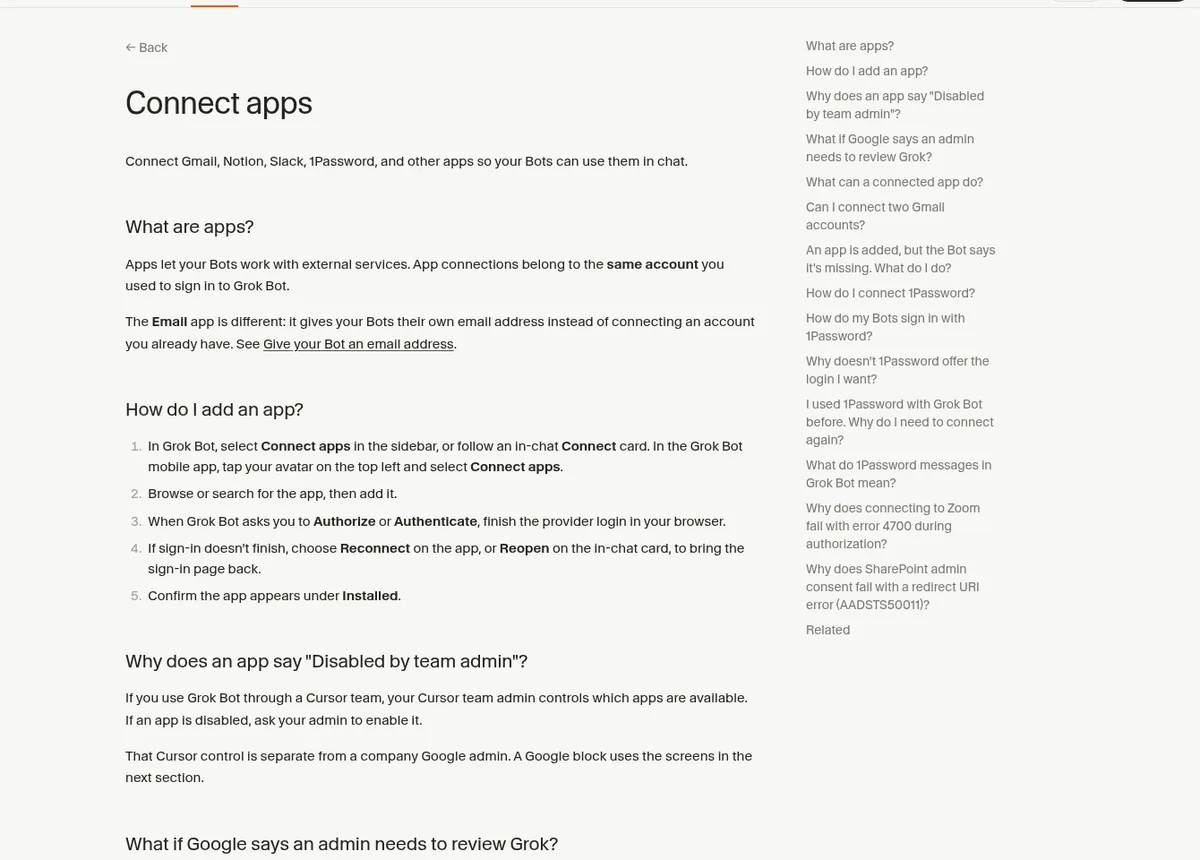
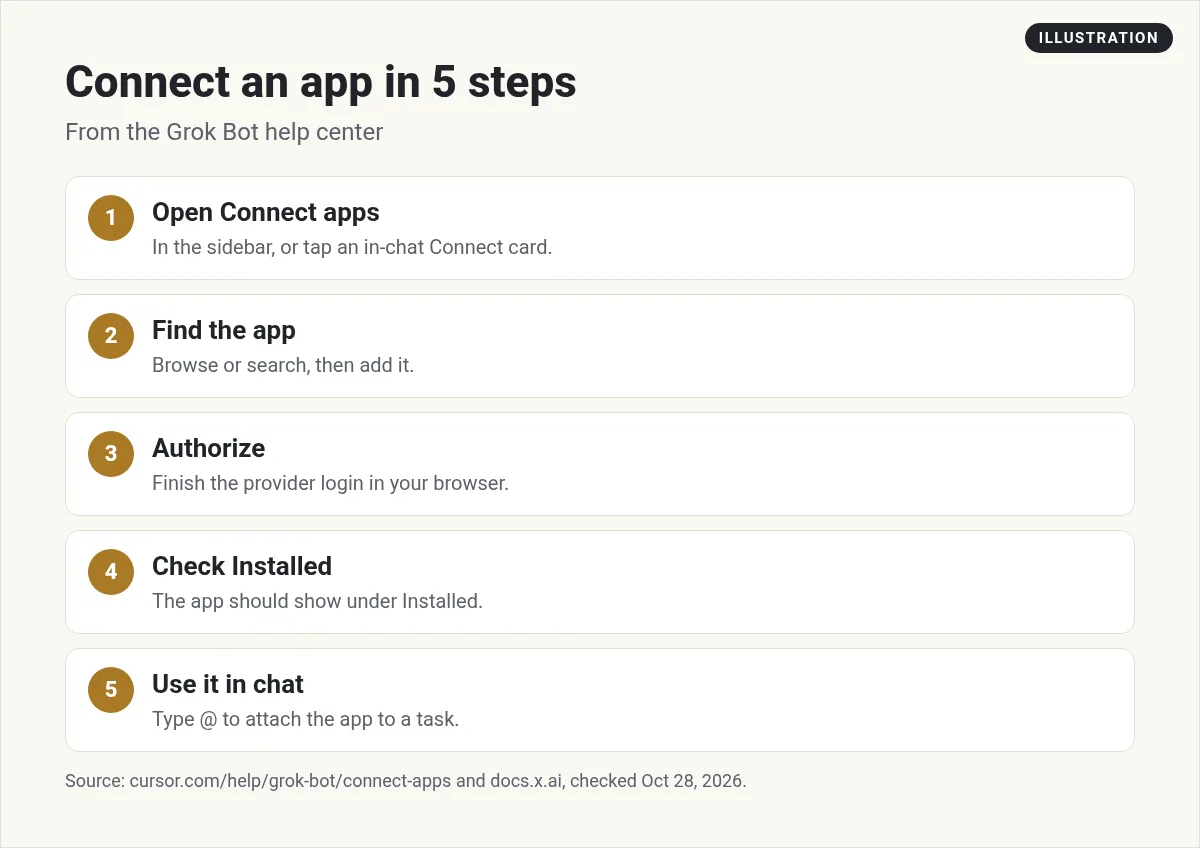
- Open Connect apps. It is in the sidebar. You can also follow an in-chat Connect card. On the phone, tap your avatar at the top left and choose Connect apps.
- Find the app. Browse or search, then add it.
- Authorize. When Grok Bot asks, finish the provider login in your browser.
- Check Installed. The app should show up there.
- Use it. In chat, type @ to attach the app to a task.
You can also just ask. The docs' example is "Add the Linear app." The Bot finds it, installs it, and shows a Connect card when you need to sign in.
What each popular app can do
The rule for every app: it "can do only what that account can already do in that service. It cannot raise your access, and it cannot change sharing."
| App | What the Bot can do | Good to know |
|---|---|---|
| Gmail | Search and read mail, draft and send, apply labels | One mailbox at a time |
| Google Calendar | Read calendars, create and update events, check free time, answer invites | Cannot change Meet settings or add a Zoom link |
| Google Sheets | Read and edit cells in sheets you can edit | Finding files uses the Drive app |
| Slack | Post as the Slack user you connected | Only in channels that user can post in |
| 1Password | Sign in to sites with logins you approve | Your Bots never see the values |
Gmail: one mailbox at a time
This one surprises people. "Gmail connects one mailbox at a time." You cannot keep a personal and a work Gmail connected at the same time. To switch, disconnect one and authorize the other.
Also remember that a connected app is available to every Bot on your account. If a Bot should not touch a mailbox, disconnect it. Some other apps, like Notion, can connect a second account.
Want your Bot to have its own inbox instead? The Email app gives your Bots their own address at mail.grokbot.com. You get one address, and you cannot rename or delete it, so pick the name with care.
Passwords: Vault and 1Password
For websites with no app, the Bot signs in on its own browser. It uses a login saved in Vault first, then a connected password manager like 1Password, then asks you with a Secure Form.
With 1Password, "You approve each login in 1Password, and 1Password fills it in. Your Bots never see the values." It only offers logins from your own Personal vault, called Private on Family accounts, not shared vaults. It needs 1Password 8.12.42 or later.
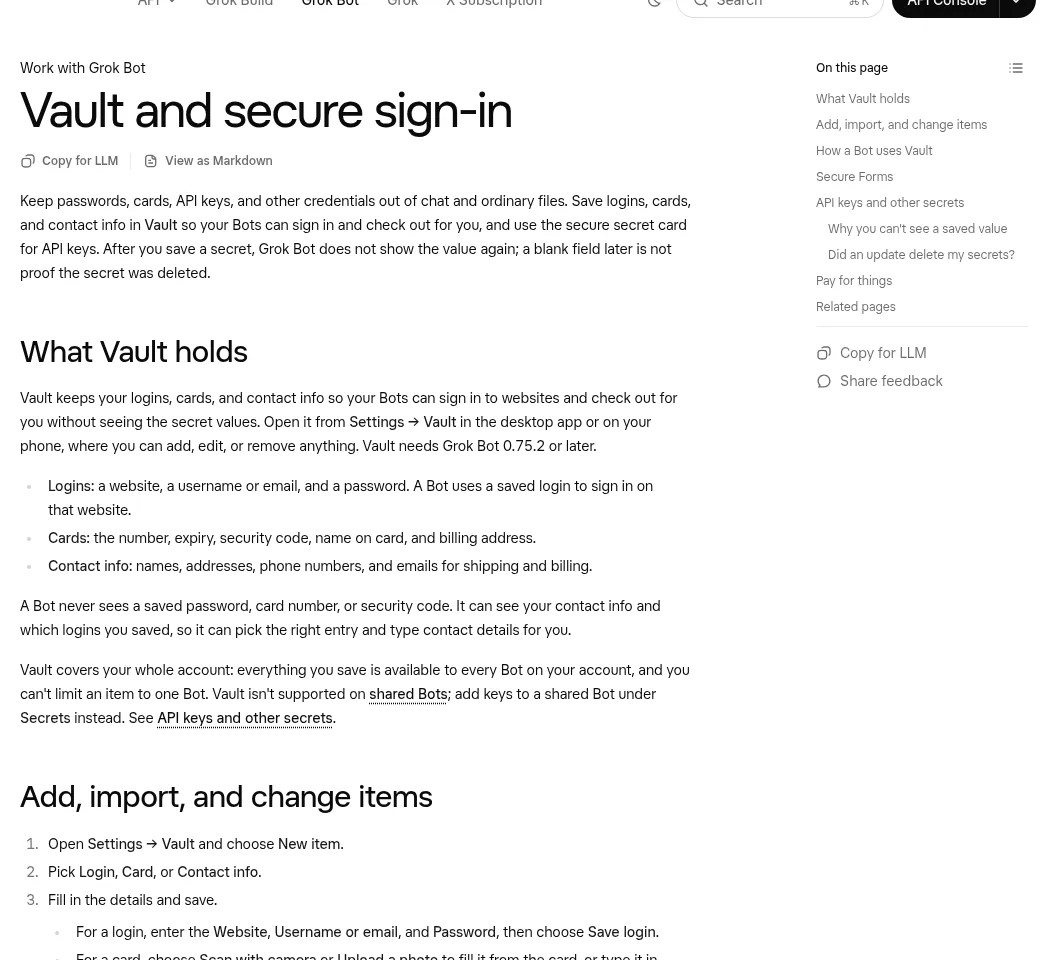
Never paste passwords or one time codes into normal chat. For an API key, use the secure secret card the Bot sends.
Fixes for common connector problems
- The Bot says the app is missing. "Added means the app is installed, not that you are signed in." Open the app and choose Authenticate if it shows Needs auth or Disconnected.
- Sign in did not finish. Choose Reconnect on the app, or Reopen on the chat card.
- It says Disabled by team admin. On a Cursor team, your admin controls which apps are on. Ask them.
- Google says an admin must review Grok. A company Google account may block it until IT trusts the app named Grok. A personal Gmail account does not need an admin.
- Zoom fails with error 4700. The help center lists this as a known issue with no workaround yet.
From the Airdev channel (not mine): Airdev explains Grok Bot for beginners and connects tools like ClickUp and Google Calendar for a team of Bots.
Which apps to connect first
If you run a small business, here is the order I suggest. Each step unlocks a new kind of job:
- Email. Inbox sorting, follow up lists, and reply drafts.
- Calendar. Meeting prep and a daily plan.
- Slack or your team chat. Digests of what changed and what needs you.
- Sheets or your notes app. Reports and tracking.
Got a tool that is not in the catalog? The docs say a Bot can also add an MCP server by URL or by a command on its computer. A server on a private network asks for your approval first. If you are not technical, stick with the catalog apps.
My safety rules for connectors
- Connect only the apps a job needs. Start with one.
- Give each Bot a lasting rule like "never send external messages without approval."
- Check what an app can do before you connect it.
- Disconnect apps you stop using.
Put your connected apps to work faster
Once Gmail, Calendar, and Slack are connected, the next question is: what should my Bots actually do in them every day? That is where most owners get stuck.
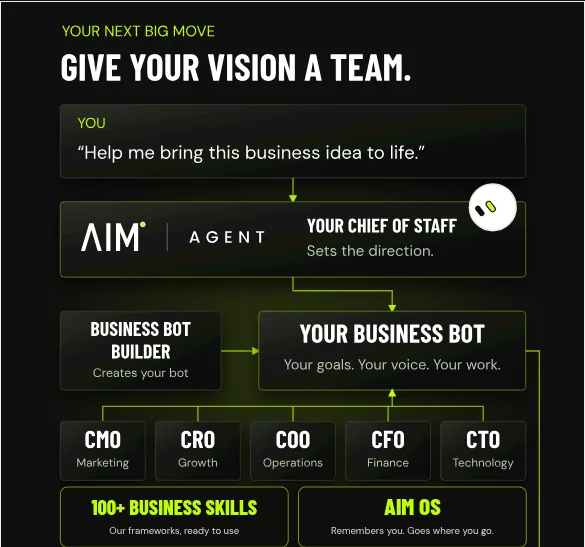
AIM Agent is an AI Chief of Staff for business owners. It comes with an AI C-suite (COO, CMO, CFO, CRO and CTO), a Business Bot Builder and 100+ business skills, and it runs on AIM OS, a private vault that holds your notes and memory. AIM Agent is a ready-made AI business team that works inside Grok Bot, so you skip the setup and get to work.
Here is what you get:
- An AI Chief of Staff that helps you plan and run your business
- An AI C-suite: COO, CMO, CFO, CRO and CTO
- A Business Bot for each business or project. Give it a real task and it brings the work back for you to review
- 100+ business skills for content, offers, research and more
- A step by step setup guide, with email support until your first bot finishes a real task
You connect your tools, then hand real business work to a team that already has roles for planning, marketing, sales, operations, money, and tech.
Next, see what to do with your connected apps in Grok Bot use cases, or follow the full Grok Bot setup guide. If you already automate with Zapier, my Zapier pricing guide is a good read too. I also connect AI tools live in my free MakerAI workshop.
Connect your tools, then hand off real work
AIM Agent gives you an AI Chief of Staff, an AI C-suite, and 100+ business skills. Give it a real task and review what comes back.
See AIM AgentFrequently asked questions
What are Grok Bot connectors?
They are apps that let your Bots work with services like Gmail, Calendar, Sheets, Slack, Notion, and 1Password. The docs call them apps.
How do I connect Gmail to Grok Bot?
Open Connect apps in the sidebar or tap a Connect card in chat, add Gmail, choose Authorize, and finish the login in your browser.
Can I connect two Gmail accounts?
No. Gmail connects one mailbox at a time. Disconnect one to authorize another.
Can every Bot use a connected app?
Yes. A connected app is available to every Bot on your account. Disconnect it if a Bot should not use it.
Does the Bot see my passwords?
No. Vault and 1Password fill logins without the Bot seeing the values. Never paste passwords into chat.
Why does my Bot say an app is missing?
Added means installed, not signed in. Open the app and choose Authenticate if it shows Needs auth or Disconnected.
What should I do after connecting my apps?
Give your Bots real work. AIM Agent gives you an AI Chief of Staff, an AI C-suite, and 100+ business skills to start with.
Sources
Checked October 28, 2026. Plans, prices, and rules can change.
