
Grok Bot · Setup
Grok Bot setup takes one sitting if you follow the order in the official guide. Here is each step in plain words, plus the shortcut if you want a full business team ready to go.
Grok Bot setup is easier than most people expect. There is no workflow builder and no code. You install an app, sign in, and tell your first Bot what its job is.
I followed the official Get Started guide on October 28, 2026, and watched the top setup videos from the last two months. Here is the clean, step by step version for beginners and busy owners.
TL;DR
To set up Grok Bot, install the desktop app from x.ai/bot (macOS, Windows, or Linux), sign in with your Cursor account, and open the first Bot, which is named Grok Bot. Give it one clear job, then one real task with a clear finish line. Let it sign in to tools through Vault or a Secure Form, review the result, and save what works as a skill or routine. If you want a business team ready on day one, AIM Agent skips most of this.
Before you start
You need a plan that includes Grok Bot. The Get Started guide lists the eligible plans, and they change, so check the official page for your account. You also need a computer running macOS (Apple silicon or Intel), Windows (x64 or Arm64), or Linux (x64 or Arm64).
One note from the guide: Grok Bot needs cloud data storage. If your account uses the old Privacy Mode (Legacy), it will ask you to switch before you start.
Step 1: Install the app
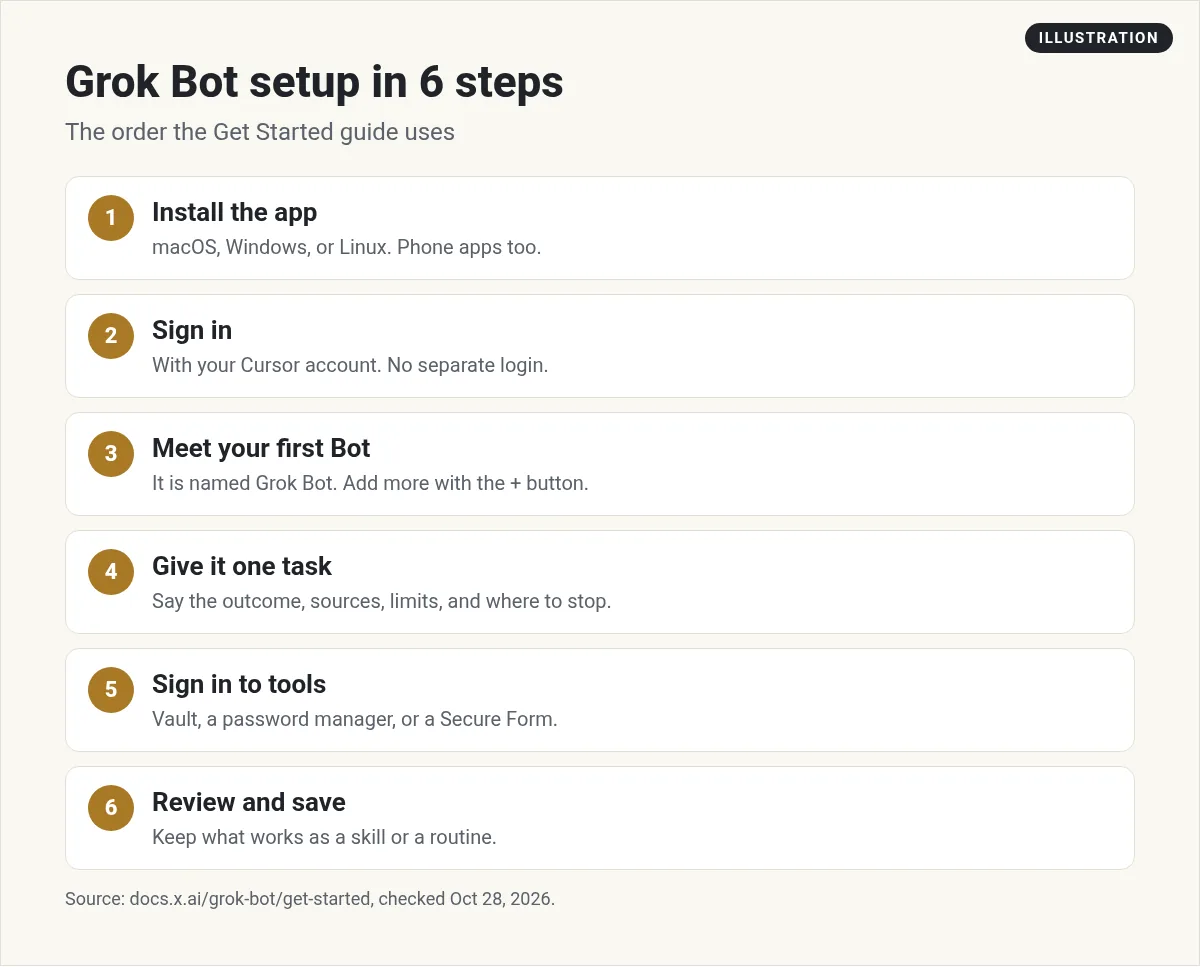
Go to x.ai/bot or the Cursor download page and grab the installer for your computer. The guide says the app "checks for updates automatically," so you only do this once.
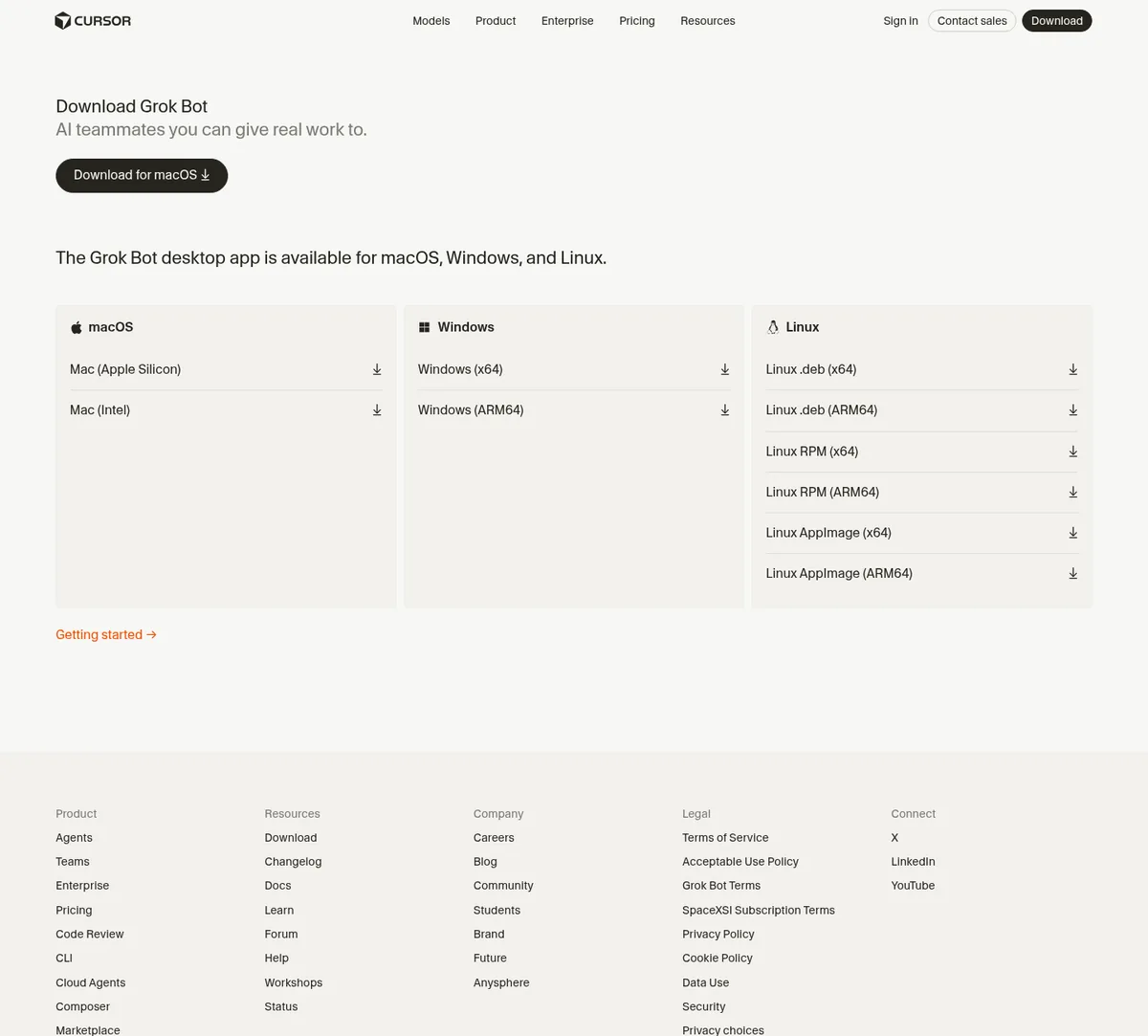
On a phone, install Grok Bot from the App Store or Google Play. The guide says the iPhone app needs iOS 18 or later, and the Android app needs Android 9 or later. Your phone connects to the same Bots and the same cloud computer as your desktop.
My advice: do your first setup on the desktop. The guide says some things stay on desktop, like teaching a workflow by demonstration and testing routines.
Step 2: Sign in
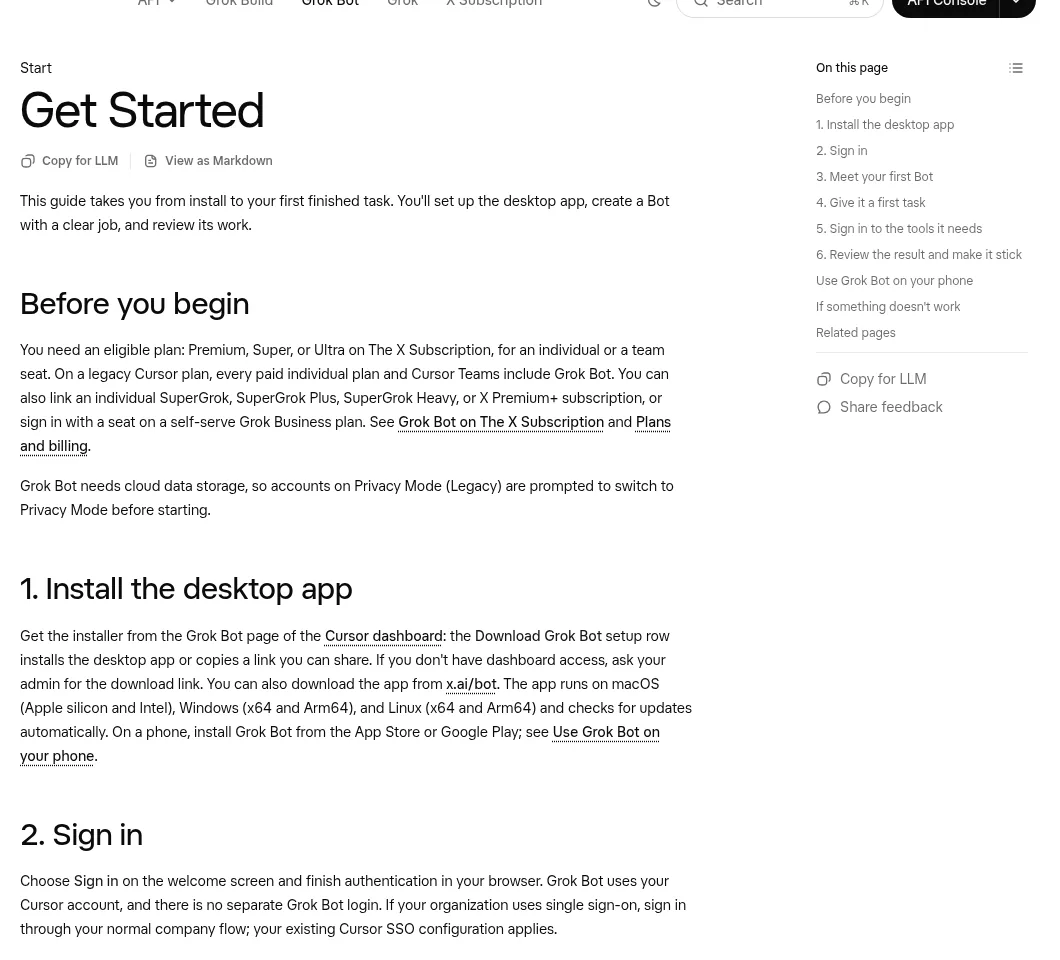
Choose Sign in on the welcome screen and finish in your browser. The guide says Grok Bot "uses your Cursor account, and there is no separate Grok Bot login." If your company uses single sign-on, use your normal company sign-in.
If your access comes from a linked Grok subscription, the app asks you to link it. If sign-in gets stuck, the guide's first tip is simple. Fully quit and reopen the app.
Step 3: Meet your first Bot
After a short intro, Grok Bot sets up your first Bot. It is named Grok Bot, and a chat with it opens. To add more, click the + button in the sidebar, then Create a Bot.
Here is the tip that matters most. The guide says to give each Bot one main job in its first message and "ask it to remember how it should work." It also says "A focused Bot builds more useful context than one catch-all helper."
So do not start with "help me with everything." Start with one job, like this:
Your job is my inbox. Each morning, sort new email into reply today, can wait, and ignore. Draft replies for the reply today pile in my voice. Never send anything. Remember this for future work.
The Kevin Stratvert video shows this exact flow. It builds an inbox tracker for a donut shop and connects Gmail right from the chat.
From the Kevin Stratvert channel (not mine): A clear beginner walk through: create a Bot, name it, connect Gmail from the chat, and let it set up a routine.
Step 4: Give it a first task
Type in the message box, or dictate with Cmd or Ctrl+D on desktop. You can also start a voice chat.
The guide says a strong request covers five things: "the outcome, the sources that matter, the constraints, the deliverable, and where the Bot should stop for you." For a five minute first win, the guide suggests you attach a document and try:
Summarize this document in five bullets. List every date, decision, and open question in a separate section, and cite the section for each item. Don't change the source file.
That last line is a good habit. Tell the Bot what it must not touch.
Step 5: Sign in to the tools it needs
When the Bot reaches an app that needs a login, it uses a login saved in Vault or a connected password manager. Or it asks you to type it into a Secure Form. The guide says "The Bot never sees the password." The login then stays on its computer for next time.
For single sign-on, a passkey, or a captcha, the Bot hands you the computer. You click Open computer, finish the step, and give control back.
For apps like Gmail, Slack, and Notion, you can connect the app instead. The help center says to select Connect apps in the sidebar, or follow the Connect card that shows up in the chat, then choose Authorize and finish the login.
Step 6: Review and make it stick
Look at what the Bot made. Ask for changes. When you like a format, say so out loud: "Use this format every time. Remember it." When the process works, save it as a skill or a routine.
Before you let any Bot send, post, delete, or buy, read the approvals page in the docs. My rule is simple. For the first two weeks, every Bot drafts and I approve.
Setup mistakes I see most
- One Bot for everything. It gets confused. Make a new Bot for each job.
- No stop point. Always say where the Bot should stop for you.
- Passwords in chat. Use Vault or a Secure Form, never the chat box.
- Too many routines too soon. Each run uses your usage. Start with one.
For a full list, see my post on what Grok Bot is, then the first week tutorial.
The shortcut: skip the setup and get to work
The steps above get you one working Bot. A real business needs more than one. You need someone to plan, someone to write, someone to sell, and someone to check the numbers. Building and tuning all of that yourself takes weeks.
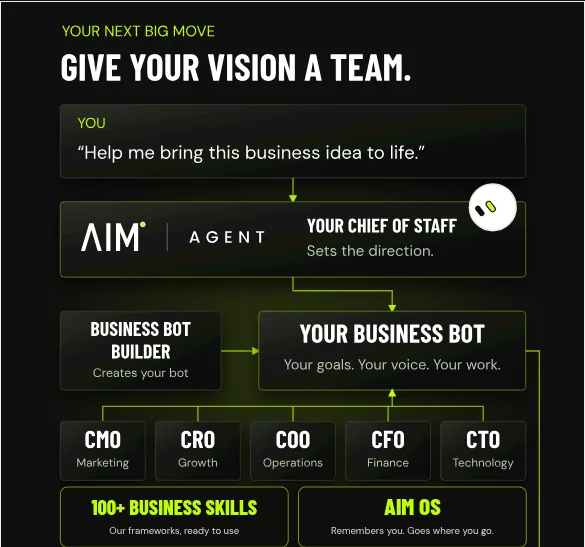
AIM Agent is an AI Chief of Staff for business owners. It comes with an AI C-suite (COO, CMO, CFO, CRO and CTO), a Business Bot Builder and 100+ business skills, and it runs on AIM OS, a private vault that holds your notes and memory. AIM Agent is a ready-made AI business team that works inside Grok Bot, so you skip the setup and get to work.
Here is what you get:
- An AI Chief of Staff that helps you plan and run your business
- An AI C-suite: COO, CMO, CFO, CRO and CTO
- A Business Bot for each business or project. Give it a real task and it brings the work back for you to review
- 100+ business skills for content, offers, research and more
- A step by step setup guide, with email support until your first bot finishes a real task
You still review the work. You just skip the weeks of figuring out which bots to build and how they should talk to each other.
If you like learning with others, I also show AI tools on real business tasks in my free MakerAI workshop.
Want your AI team set up for you?
AIM Agent gives you an AI Chief of Staff, an AI C-suite, a Business Bot Builder, and 100+ business skills. Give it a real task and review what it brings back.
See AIM AgentFrequently asked questions
How do I install Grok Bot?
Download the installer from x.ai/bot or the Cursor download page. The desktop app runs on macOS, Windows, and Linux, and updates itself. Phone apps are on the App Store and Google Play.
Do I need a separate Grok Bot login?
No. The Get Started guide says Grok Bot uses your Cursor account and there is no separate Grok Bot login.
What should my first Bot do?
Give it one main job, like sorting your inbox, and ask it to remember how it should work. The guide says a focused Bot builds more useful context than a catch-all helper.
Does the Bot see my passwords?
The guide says the Bot uses Vault, a connected password manager, or a Secure Form, and never sees the password.
Can I set up Grok Bot on my phone?
Yes. The iPhone app needs iOS 18 or later and the Android app needs Android 9 or later. Teaching by demonstration and testing routines stay on desktop.
Is there a faster way to set up a full AI team?
Yes. AIM Agent gives you a ready-made AI business team with an AI Chief of Staff, an AI C-suite, and 100+ business skills, so you skip most of the setup.
Sources
Checked October 28, 2026. Plans, prices, and rules can change.
