
Grow on social · Freedom Threads
You already made the video. Here is how to turn it into clips, posts, images and an email, one simple step at a time.
To repurpose YouTube videos, you take one video you already made and turn it into many smaller pieces. One video can become a few short clips, several text posts, a set of image posts and an email to your list. You do not need to film anything new.
This guide shows you how to do it, one step at a time. You will learn how to pick the right video, pull out the best parts and shape them for Shorts, TikTok, Instagram, Facebook, X and Threads. You will also learn how to stay clear of copyright trouble and how AI can help with the first draft.
Quick answer
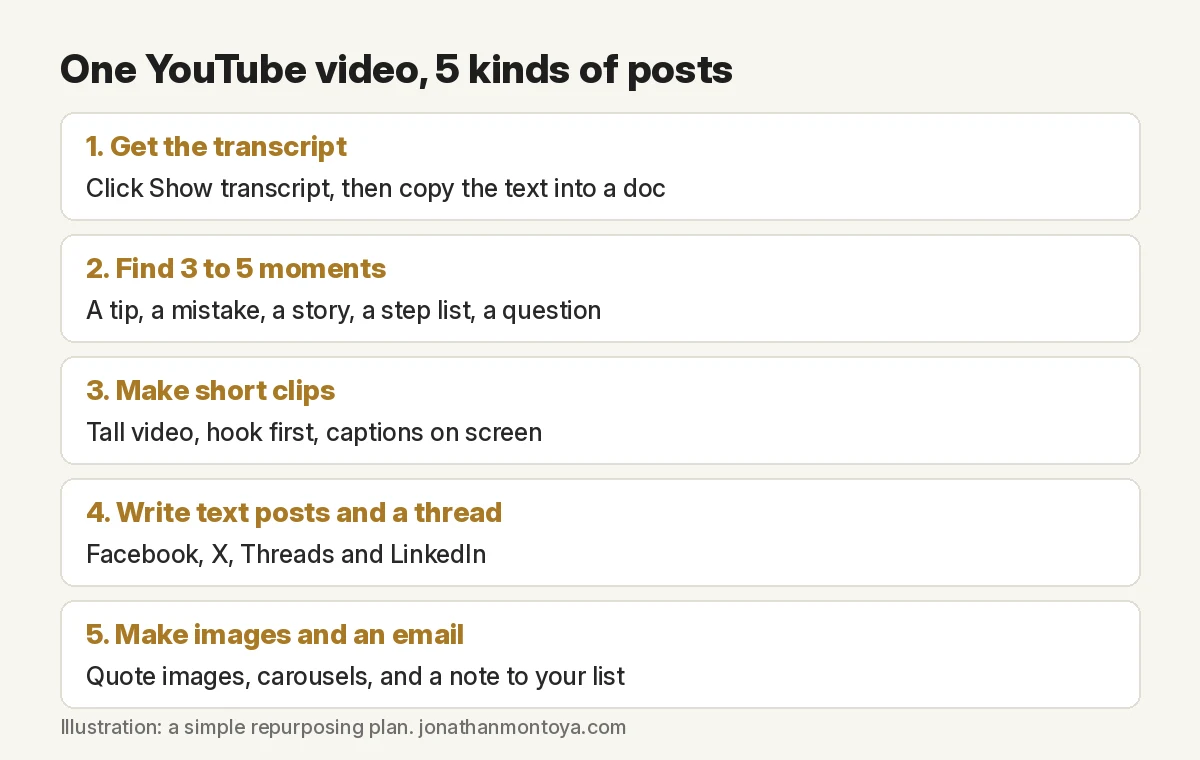
Pick one video you made that teaches one clear lesson. Open the transcript and find 3 to 5 moments that make sense on their own. Cut those into short, tall clips for Shorts, TikTok and Reels. Rewrite them as text posts, a thread, a carousel and an email. Check every piece and make it sound like you before you post.
What it means to repurpose a YouTube video
Repurposing means you reuse the ideas in your video in a new form. You are not just posting the same link everywhere. You are cutting, rewriting and reshaping the content so it fits each place you post.
Think of your video as a big meal. Repurposing is serving it as smaller plates. Each plate is made for a different table. People who never watch long videos can still get your best ideas.
Step 1: Pick the right video
Not every video is a good fit. Start with one that has a strong core. Look for these three things.
- You own it. Only use a video you made yourself, or one you have clear permission to use. That includes the music and images in it.
- It teaches one clear lesson. A video with one main point is easy to break into parts. A video that jumps between ten topics is harder.
- It answers a question people ask. Think about what your customers, clients or viewers ask you often. A video that answers one of those questions is a great place to start.
Step 2: Get the transcript
A transcript is the words from your video written out as text. It is the most useful thing you can have for repurposing. It lets you read your video instead of watching it again and again.
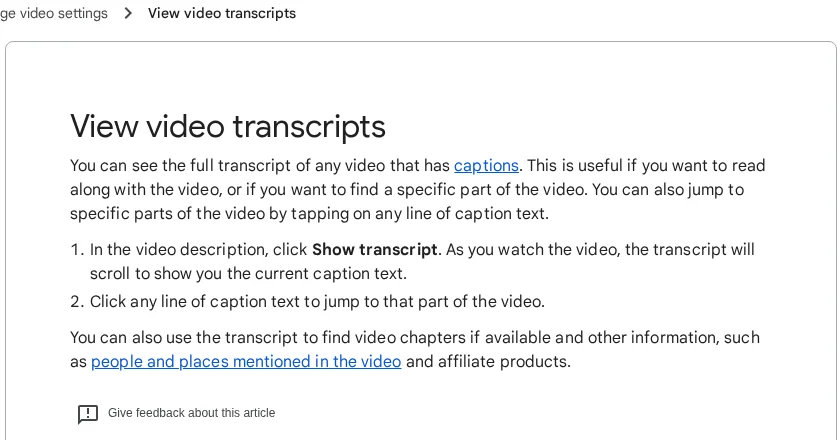
YouTube Help says you can see the full transcript of any video that has captions. Go to the video, open the description, and click “Show transcript.” The transcript opens and scrolls along as the video plays. You can read it and copy the parts you need.
If you wrote or fixed the captions on your video yourself, you can start with that text.
Paste the transcript into a plain document. Clean it up a little. Remove filler words like “um” and join lines that break in the middle of a sentence. Now you have a written version of your video to work from. For a full worked example, see how to turn one YouTube video into 5 Facebook posts.
Step 3: Find 3 to 5 strong moments
Read through the transcript with a highlighter, or just bold the best lines. You are looking for 3 to 5 moments that can stand on their own. Each one should make sense even if someone never sees the full video.
Here are the kinds of moments that work well:
- A tip. One clear thing the viewer can do right away.
- A mistake. Something people often get wrong, and how to fix it.
- A story. A short example from your work or life that makes the point real.
- A step list. A simple process, like three steps to do something.
- A question answered. A common question and your direct answer.
Write down the start and end time for each moment. This makes it easy to find them again when you cut clips.
Step 4: Turn moments into Shorts, TikTok and Reels
Short, tall clips are the simple way to repurpose YouTube videos for TikTok, for Instagram and for Shorts. Take each strong moment and cut it into its own clip.
YouTube Help says Shorts creation tools make short videos up to 3 minutes long. Each app has its own rules, so check the current settings in the app before you post.
Follow these simple rules for every clip:
- Make it tall. Use a vertical video shape. Crop your clip so your face or the main action stays in the center.
- Put the hook in the first line. The first thing you say should give people a reason to keep watching. Start with the problem, the mistake or the result.
- Add captions on screen. Some people watch with the sound off. Captions help them follow along.
- Keep one idea per clip. Do not squeeze three tips into one short video. Make three clips instead.
You can share the same clip on Shorts, TikTok and Instagram Reels if it fits each app’s rules. Write a fresh caption for each one so it fits the place you post it. If you would rather not show your face, read my guide to faceless YouTube Shorts.
Step 5: Turn it into text posts and threads
Not everyone wants to watch a video. Some people like to read. Text posts fit Facebook, X, Threads and LinkedIn. Use your transcript to write them.
Here are five easy post types you can pull from one video:
- A lesson post. Share the main lesson in a few short lines. End with one action the reader can take.
- A mistake post. Start with the mistake. Explain why it hurts. Then share the fix.
- A checklist post. Turn your step list into a simple list people can save.
- A short story post. Tell the story from your video in a few sentences. Share what you learned.
- A thread. Write a series of short posts where each part builds on the last. Start with a strong first post, then walk through the steps one by one.
Change the tone a little for each place. A Facebook post can feel friendly and personal. A LinkedIn post can feel a bit more work focused. On X and Threads, keep posts short and clear. For more post ideas, see how to create content that helps people.
Step 6: Make image posts and carousels
Image posts let people get one idea at a glance. A carousel is a set of images people swipe through. Both are easy to make from your transcript.
Keep it simple:
- Quote images. Pick one strong line from your video. Put it on a clean background with large text.
- Step carousels. Put one step on each slide. Use the first slide as the hook, like the problem you solve. Use the last slide to sum up.
Use one quote or one step per slide. Big text, few words. If a slide feels crowded, split it in two.
Step 7: Send it to your email list or blog
Your email list is made of people who already said yes to hearing from you. Send them the main idea from your video.
Write a short email. Share the key lesson in a few paragraphs. Add one tip or story from the video. Then invite readers to watch the full video if they want more.
You can do the same thing on your blog. Turn your cleaned up transcript into a written article. Add headings so it is easy to skim. Place the video near the top so readers can watch or read, whichever they like.
A simple one week plan
Here is a simple way to spread one video across a week. Change it to fit your schedule.
| Day | What to post | Where |
|---|---|---|
| Monday | Short clip with your best tip | Shorts, TikTok, Instagram Reels |
| Tuesday | Lesson post or mistake post | Facebook, LinkedIn |
| Wednesday | Thread that walks through the steps | X, Threads |
| Thursday | Carousel with one step per slide | Instagram, Facebook |
| Thursday | A second short clip | Shorts, TikTok, Instagram Reels |
| Friday | Email with the main lesson and a link to the full video | Email list or blog |
Next week, pick a new video and do it again. Over time, you build a steady flow of posts from videos you already made.
Can you reuse YouTube videos without copyright problems?
The safest rule is simple. Only repurpose videos you made, or videos you have clear permission to use. Do not download someone else’s video and post clips as your own.
YouTube Help lists a few options for using content that belongs to someone else. These include getting permission from the owner, fair use, and following the terms of a Creative Commons license. YouTube Help also says that none of these options guarantee you will avoid copyright issues on YouTube.
This guide is not legal advice. If you are not sure whether you can use a video, get advice from a lawyer before you post it.
How AI can help
AI writing tools can help you get started. You can paste your transcript and ask for a first draft of your posts. This is useful when you are staring at a blank page.
But AI is a helper, not the final word. You still need to do two things:
- Check the facts. Make sure every claim matches what you said in the video. Remove anything that is not true.
- Make it sound like you. Change words and phrases so the post sounds like you talking. Add your own examples.
Here is a simple prompt you can try: “Here is the transcript of my YouTube video. Write three short Facebook posts from it. One should share the main lesson, one should explain a common mistake, and one should be a short checklist. Use simple words and short sentences. Only use ideas from the transcript.”
Mistakes to avoid
Posting the same text everywhere. Each place has its own style. Rewrite your caption or post so it fits where it lives.
Cutting clips with no hook. If the first line is slow, people scroll past. Start each clip with the problem, the mistake or the result.
Leaving out captions. Some people watch with the sound off. Without captions, they miss your message.
Trusting the AI draft without checking. AI can get facts wrong or sound stiff. Read every draft, fix errors and make it sound like you before you post.
Where Freedom Threads fits
You can do every step in this guide by hand. If you want help with the writing part, Freedom Threads is my own tool for that job.
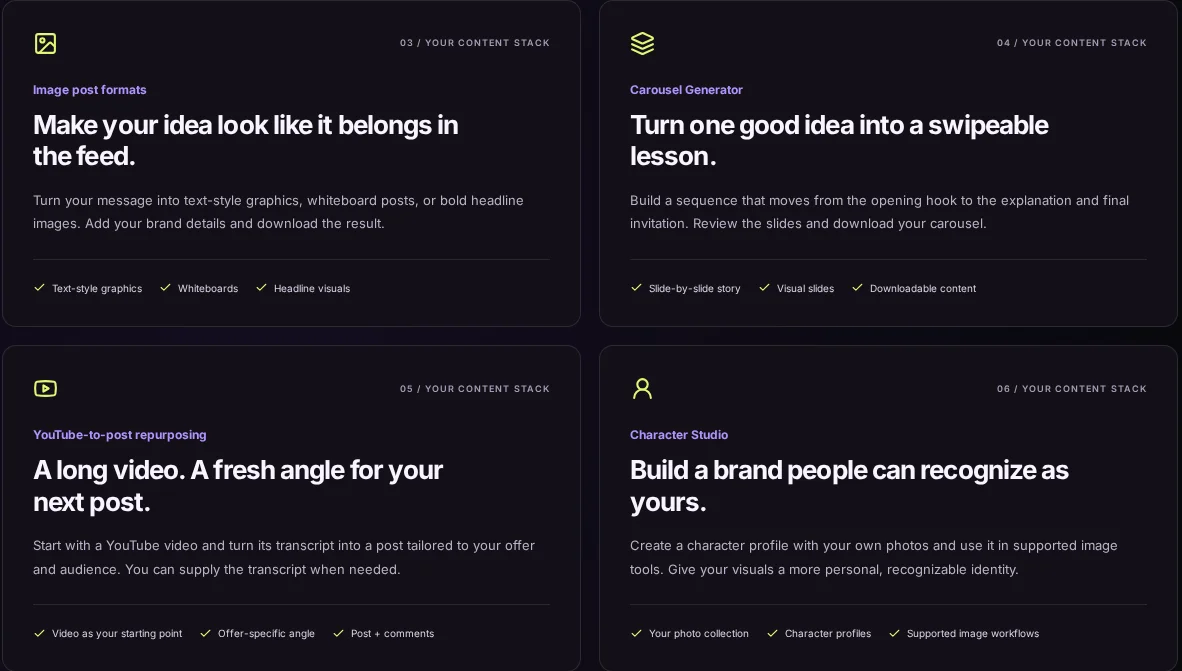
Its site lists a YouTube to post feature: you start with a YouTube video, and it turns the transcript into a post shaped for your offer and audience. You can paste in the transcript yourself when needed. It also builds follow up comments, image posts and carousels. You still pick the hook, edit the words and decide what to post.
Freedom Threads is my own product, so I have a financial interest in it.
Turn your next video into posts
Freedom Threads helps you turn a YouTube video into Facebook posts, follow up comments, image posts and carousels. You review and edit every post before it goes out.
See Freedom ThreadsFreedom Threads is my own product, so I have a financial interest in it.
Frequently asked questions
How do I repurpose YouTube videos?
Pick one video you own, get the transcript and find 3 to 5 strong moments. Turn those moments into short clips, text posts, image posts and an email. Rewrite each piece so it fits the place you post it.
How do I repurpose YouTube videos for TikTok?
Cut one strong moment from your video into a tall, vertical clip. Start with a hook in the first line and add captions on screen. Keep one idea per clip and check the app’s current settings before you post.
How do I repurpose YouTube videos for Instagram?
Post your short vertical clips as Reels. You can also make image posts and carousels with one quote or one step per slide. Write a fresh caption that fits Instagram.
How do I repurpose YouTube videos for Shorts?
Pick a moment that makes sense on its own and crop it to a vertical shape. YouTube Help says Shorts creation tools make short videos up to 3 minutes long. Add a strong hook and captions.
How can I reuse YouTube videos without copyright problems?
Only repurpose videos you made or have clear permission to use. YouTube Help lists options like permission, fair use and Creative Commons, but says none of them guarantee you avoid copyright issues. If you are not sure, get legal advice.
Can AI help me repurpose my YouTube videos?
Yes. AI can draft posts from your video transcript. You still need to check the facts and change the words so it sounds like you.
What is Freedom Threads?
Freedom Threads is my own tool that helps you turn a topic or a YouTube video into Facebook posts, follow up comments, image posts and carousels. You read and edit every post before you share it.
Sources
Checked November 19, 2026. Platform rules and features change.
