
Build with AI · Claude Code
If the terminal scares you, the VS Code extension is the friendlier way to use Claude Code. Here is how to set it up in about ten minutes and make your first change safely.
Claude Code started in the terminal. For a lot of people, that black screen is where they quit. The VS Code extension gives you the same Claude Code in a normal chat panel, right next to your files.
I followed Anthropic's VS Code docs and the Marketplace listing on October 21, 2026. Here is what you need, how to install it, how to review Claude's changes before they land, and when you still want the terminal.
Quick answer
To use Claude Code in VS Code, install the free Claude Code extension from the Extensions view, open the panel with the Spark icon, and sign in. You need a recent VS Code and a paid Claude plan (Pro, Max, Team, or Enterprise) or a Claude Console account. Anthropic's docs list VS Code 1.94.0 or later, while the Marketplace listing says 1.98.0 or higher, so update VS Code to be safe. Start in Manual mode so Claude shows each change and asks before it edits. Checked October 21, 2026.
What the VS Code extension is
Anthropic's docs call the extension a native graphical interface for Claude Code inside your editor. They also say it is the recommended way to use Claude Code in VS Code.
In plain words, you get a chat panel instead of a terminal. You type what you want. Claude reads your files, proposes changes, and shows them side by side so you can accept or reject them.
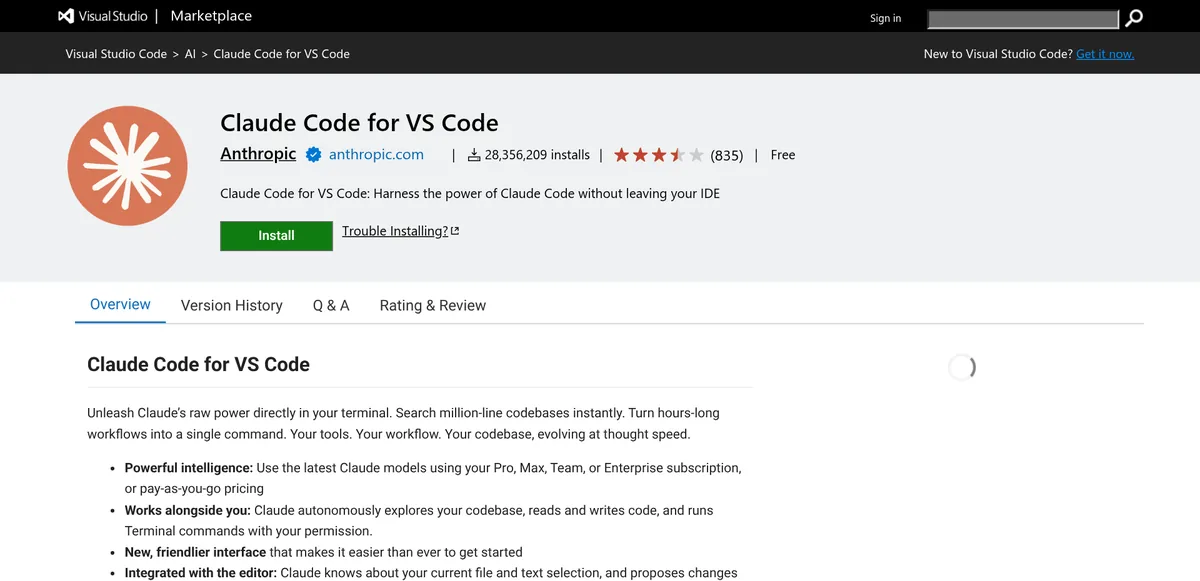
The extension is listed as Free on the Visual Studio Marketplace. On October 21, 2026, the listing showed more than 28 million installs. The extension is free, but Claude Code itself needs a paid plan or a Console account.
What you need first
- VS Code, up to date. Anthropic's docs say version 1.94.0 or later. The Marketplace listing says 1.98.0 or higher. The two numbers do not match, so update to the newest version and you are covered.
- A Claude account that includes Claude Code. The docs say any paid Claude plan works (Pro, Max, Team, or Enterprise), or a Claude Console account. No API key is needed.
The free Claude plan does not include Claude Code. Claude's pricing page lists Pro at $17 a month with yearly billing ($200 up front) or $20 billed monthly. Max starts at $100 a month. Prices checked October 21, 2026. For more on cost, see my Claude Code pricing guide.
How to install Claude Code in VS Code
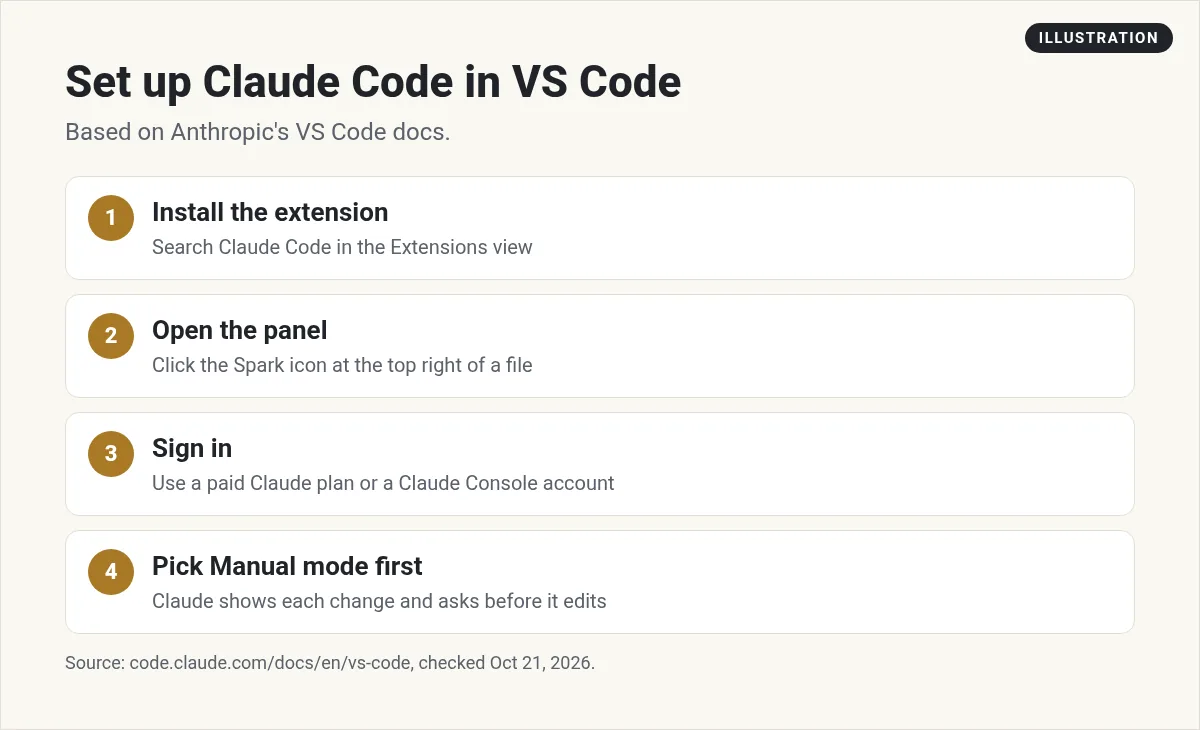
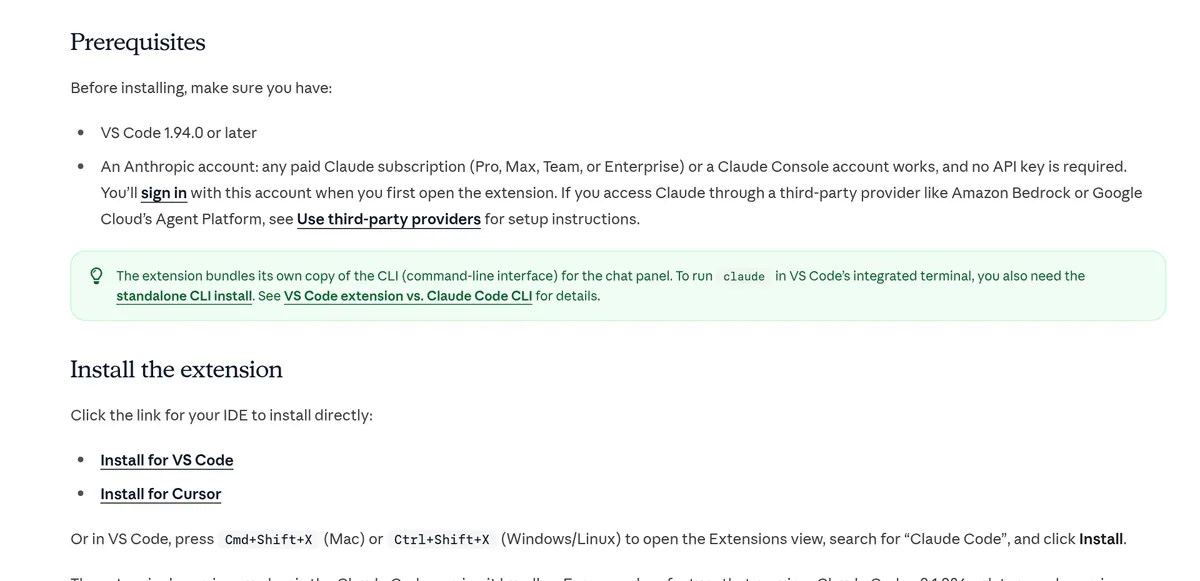
- Open the Extensions view. Press Cmd+Shift+X on a Mac or Ctrl+Shift+X on Windows.
- Search for Claude Code. Pick the one from Anthropic and click Install.
- Reload if needed. If it does not show up, restart VS Code or run Developer: Reload Window from the Command Palette.
Using Cursor instead? The docs give a direct install link for Cursor too. The extension also installs in other VS Code style editors, like Devin Desktop or Kiro, through the Open VSX registry.
Open the panel and sign in
- Open a file. Then click the Spark icon at the top right of the editor. It only shows when a file is open.
- Or use the side bar. The Spark icon in the left bar opens your list of sessions. It is always there.
- Sign in. Click Sign in and finish in your browser.
After you sign in, a Learn Claude Code checklist appears. Click through it once. It is a quick tour of the basics.
You can also run Claude Code: Open Walkthrough from the Command Palette any time for a guided tour. And you can drag the Claude panel anywhere in VS Code, so put it where it feels natural, like the right side of the screen.
Make your first change safely
Look at the bottom of the prompt box. It shows the permission mode. This decides how much Claude can do without asking.
- Manual: Claude shows a side by side view of each change and asks first. You can accept, reject, or say what to do instead.
- Plan: Claude describes what it will do and waits. VS Code opens the plan as a document you can comment on.
- Edit automatically: Claude edits without asking.
- Auto: a classifier reviews most actions instead of asking you.
When you are new, switch to Manual. Then try a small, safe ask, like explain what this file does or add a comment above this function. Read the change. Accept it. That is your first loop.
Handy features in the panel
- It sees your selection. Highlight code and Claude knows you mean that part.
- Point to exact lines. Press Option+K on a Mac or Alt+K on Windows to insert a file and line reference, like @app.ts#5-10.
- Mention files and folders. Type @ and part of a name. It matches loosely, so @auth finds auth files.
- Share terminal output. Type @terminal: and the terminal's name so Claude can see an error without copy and paste.
- Paste images. Paste a screenshot straight into the prompt box.
- New lines. Press Shift+Enter to add a line without sending.
- Rewind. Hover over a message to find the rewind button and roll file changes back to that point.
Extension vs terminal: what is different
The extension and the terminal version share the same engine, but they are not identical. The docs list a few gaps.
| Feature | Terminal (CLI) | VS Code extension |
|---|---|---|
| Commands and skills | All | Some (type / to see them) |
| MCP servers | Yes | Yes |
| Checkpoints | Yes | Yes |
| ! shortcut to run commands | Yes | No |
| Tab completion | Yes | No |
One more thing trips people up. Installing the extension does not let you type claude in a terminal. The extension has its own private copy. If you want the terminal version too, install it separately. Then open VS Code's built in terminal with Ctrl+` and type claude.
Should you use the extension or the terminal?
Here is my simple rule. If you are new to code, start with the extension. You can see your files, see each change side by side, and click to accept or reject. That makes it much easier to learn what Claude is doing.
Move to the terminal later if you need something the extension does not have, like every command or the ! shortcut. Many people end up using both. They chat in the panel and open the terminal for the odd command.
Whichever you pick, your project rules carry over. Anthropic's overview says each surface uses the same Claude Code engine, so your CLAUDE.md files, settings, and MCP servers work across all of them.
And if you would rather not touch code at all, that is fine too. An AI app builder that hides the code may suit you better while you learn.
Common problems and quick fixes
- No Spark icon at the top. Open a file first. Or use the icon in the left bar, or click Claude Code in the bottom right status bar.
- Stuck on Not logged in. Reload the window from the Command Palette.
- Extension missing after install. Restart VS Code or reload the window.
- claude not found in the terminal. The extension does not add it. Install the terminal version.
- Older VS Code. Update it. The docs and the Marketplace list different minimum versions.
What to do next
Once the extension works, learn a few habits that make Claude far more reliable. My beginner guide to Claude Code covers the basics, like CLAUDE.md and saving your work with Git. If you are choosing between editors, read Cursor vs Claude Code.
Claude Code in VS Code setup
Nothing you check here is sent or saved. Download it if you want to keep it.
Set up the tool. Then build something real.
In my free workshop, I show how regular people pick a simple app idea and build it with AI, step by step.
Join my free AI workshopFree to join. No credit card needed.
Frequently asked questions
Is the Claude Code VS Code extension free?
The extension is listed as Free on the Marketplace, but Claude Code needs a paid Claude plan (Pro, Max, Team, or Enterprise) or a Claude Console account.
What version of VS Code do I need for Claude Code?
Anthropic's docs say 1.94.0 or later, and the Marketplace listing says 1.98.0 or higher. Update to the newest VS Code to be safe.
Do I need an API key for Claude Code in VS Code?
No. You sign in with your Claude account. A paid plan or a Claude Console account works.
Does Claude Code work in Cursor?
Yes. Anthropic's docs give an install link for Cursor, and the extension also installs in other VS Code style editors through Open VSX.
Why can't I type claude in the VS Code terminal?
The extension uses its own private copy and does not add claude to your terminal. Install the terminal version separately.
How do I undo a change in the VS Code extension?
Hover over a message and use the rewind button to roll file changes back to that point.
Sources
Checked October 21, 2026. Plans, prices, and rules can change.
