
Build with AI · Claude
A Claude project is a workspace that remembers your files and your rules. Set one up once, and every chat inside it starts smarter.
If you use Claude for the same kind of work again and again, you are probably pasting the same background into every chat. Projects stop that. You add your files and instructions once, and Claude uses them in every chat in that project.
On October 22, 2026, I went through Anthropic's help articles on what projects are, how to create and manage them, and how projects handle large files. Here is how they work, how to set one up, and what is changing.
Quick answer
Claude Projects are workspaces inside Claude with their own chat history and knowledge base. You upload documents and set project instructions once, and Claude uses them in every chat in that project. Projects are on every plan, including Free, where you can make up to five. Paid plans can hold up to 10x more content through RAG. Team and Enterprise plans can share projects. Checked October 22, 2026.
What is a Claude project?
Anthropic's help center says, "Projects allow you to create self-contained workspaces with their own chat histories and knowledge bases."
Think of a project as a folder for one area of your work. It holds three things:
- Knowledge: files, text, or code you upload.
- Instructions: rules for how Claude should act in this project, like tone or role.
- Chats: all the conversations you have inside it.
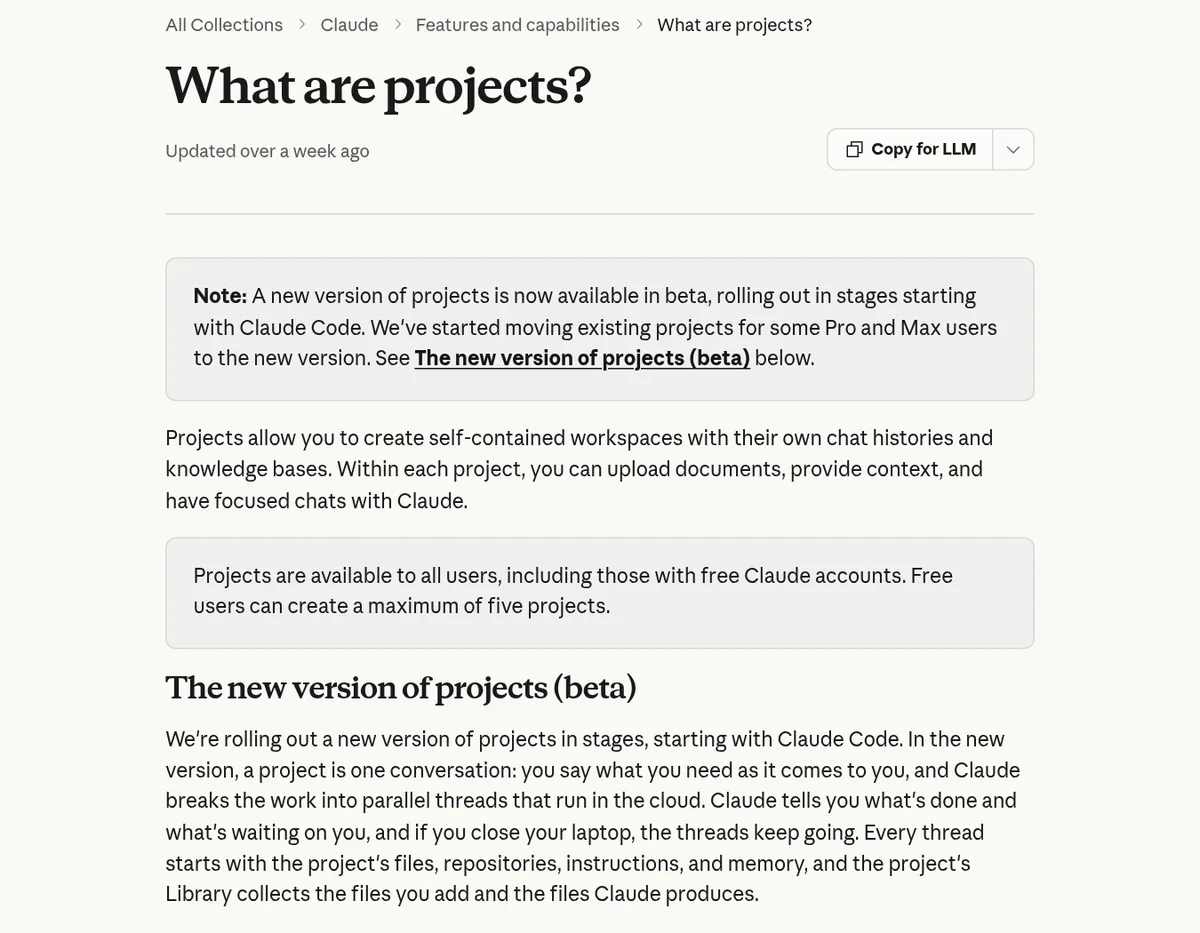
Projects are on every plan. The help center says, "Free users can create a maximum of five projects."
How to create a Claude project
Here are the steps from Anthropic's help article:
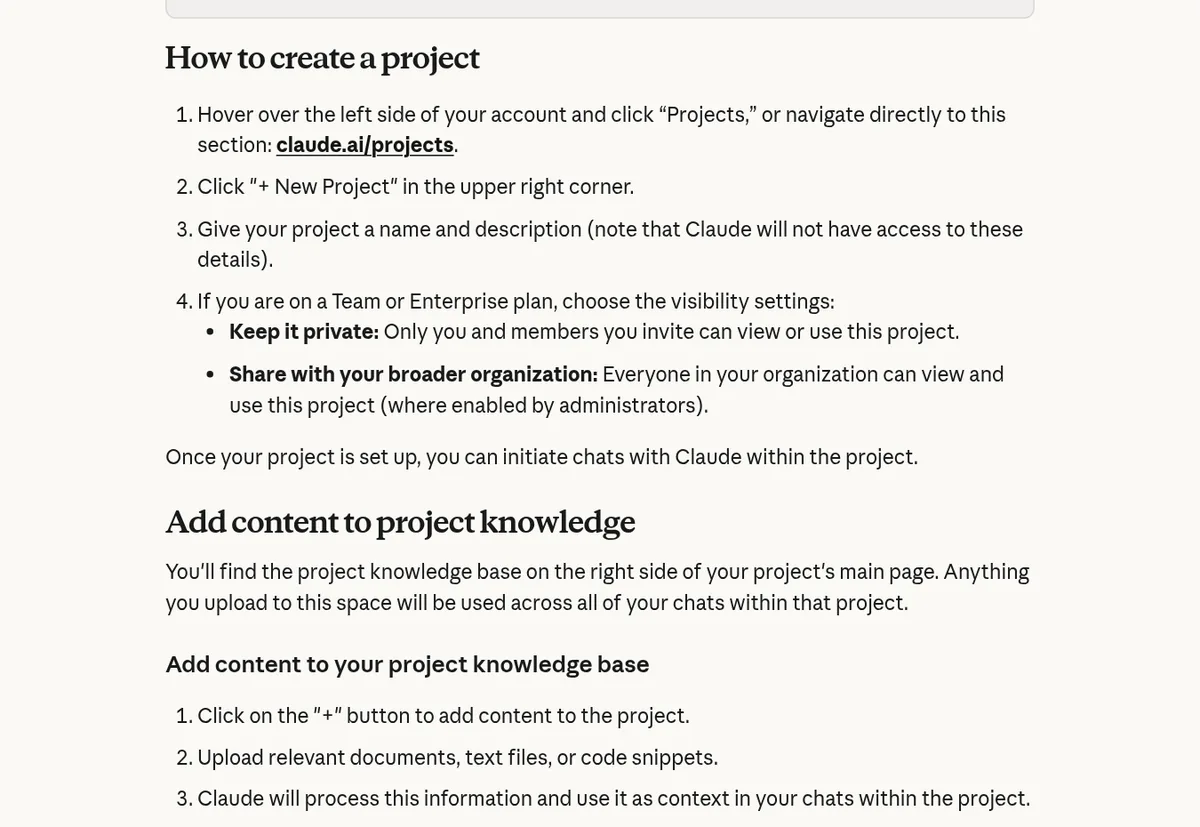
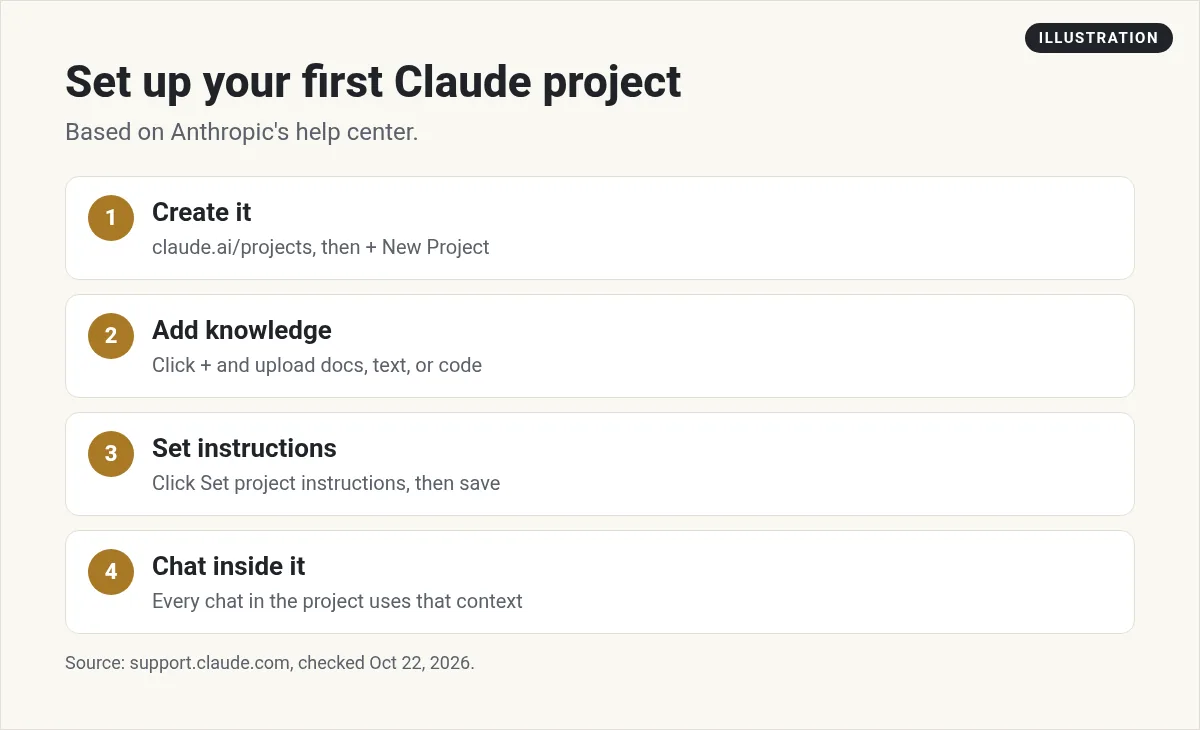
- Click Projects on the left side, or go to claude.ai/projects.
- Click "+ New Project" in the upper right corner.
- Give it a name and description. Note that Claude can't see these details.
- On Team or Enterprise plans, choose if it is private or shared with your organization.
Then start chatting inside the project.
Add knowledge to your project
The project knowledge base sits on the right side of your project page. The help article says anything you upload there "will be used across all of your chats within that project."
- Click the "+" button.
- Upload documents, text files, or code snippets.
- Claude uses that content as context in every chat in the project.
What to upload
Good project knowledge is short, clear, and current. These are my own ideas:
- Your brand voice guide or a few of your best emails.
- A one-page summary of your offer and your customer.
- FAQs you answer often.
- Notes from past client calls.
Remove old drafts. If Claude sees two versions of a fact, it may use the wrong one.
Set project instructions
Instructions tell Claude how to behave in this project. Click "Set project instructions," write your rules, and click "Save instructions." Claude uses them in every chat in the project.
Anthropic gives examples like asking Claude to use a more formal tone or to answer from the view of a certain role or industry.
Here is a simple example I might use for a content project:
You help me write emails and social posts for my coaching business.
Write at a 6th grade reading level.
Use short sentences and a friendly tone.
Never promise results or income.
Ask me one question if anything is unclear.
How memory works in projects
This trips people up. The help article says, "Context is not shared across chats within a project unless the information is added into the project knowledge base."
So if you tell Claude something important in one chat, add it to the knowledge base too. Otherwise the next chat may not know it.
Claude's memory feature adds a layer. The help center says "Each project has its own memory." Claude uses the project's memory plus your memory from chats outside projects, but not memory from other projects. To keep a project fully separate, turn off "Use account memory" on the project's page.
What happens when you add lots of files
On paid plans (Pro, Max, Team, and Enterprise), big projects get a boost. When your project knowledge gets close to Claude's context limit, Claude turns on RAG mode by itself.
RAG means Claude searches your files and pulls only the parts it needs, instead of reading everything at once. The help center says this can "expand your project's capacity by up to 10x." You will see a marker showing that the project is RAG-enabled.
On the Free plan, RAG is not included, so keep project knowledge lean.
Sharing projects on Team and Enterprise
On Team and Enterprise plans, you can share a project with people in your organization. There are two levels:
- Can view: people can see the project and chat in it, but can't edit it.
- Can edit: people can change instructions and knowledge, and manage members.
To share, open the project and click "Share project" next to its name. You can add people by name or email, or paste a list of emails. Owners can turn off sharing for the whole organization.
Star, move, archive, and delete
- Star a project from the three dots menu so it shows in your sidebar.
- Move a chat into a project with the dropdown arrow next to the chat name, then "Add to project."
- Archive a project you are done with. Archived projects keep their members, settings, and knowledge.
- Delete a project from the three dots menu. You can't delete an archived project. Unarchive it first.
Project ideas to start with
The best projects are built around one job you do often. Here are ideas that fit how projects work. These are my own examples:
- Content writer: upload your voice guide and best posts. Ask for emails, captions, and blog outlines in your style.
- Customer helper: upload your FAQs, policies, and product details. Draft replies to customer questions fast.
- Client folder: one project per client, with their brief, notes, and past work. You never mix up clients.
- Course builder: upload your outline and lesson notes. Turn them into scripts, worksheets, and quizzes.
- Study buddy: upload class notes or a long guide. Ask questions and get quizzed on it.
Common project mistakes
- One giant project for everything. Mixed files lead to mixed answers. Make one project per job.
- Old files left in. Delete outdated price lists and drafts so Claude doesn't use them.
- Vague instructions. "Be helpful" does little. Say who the reader is, the tone, and what to avoid.
- Thinking chats remember each other. They don't, unless you add the facts to the knowledge base.
- Private info in shared projects. On Team plans, check who has access before you upload anything sensitive.
The new version of projects (beta)
Anthropic is rolling out a new kind of project, starting with Claude Code. In the new version, the help center says, "a project is one conversation." Claude splits your work into threads that run in the cloud, and they keep going if you close your laptop.
It is in beta for some Pro and Max users. Anthropic says it has started moving some existing projects, and "Nothing is lost or deleted in the move." Chat, Cowork, Team, and Enterprise will follow later. The help center also notes that running several threads at once uses your plan's limits faster.
Which plan do you need?
Projects work on Free, with up to five projects. Paid plans add RAG for big projects and more usage. As checked October 22, 2026, Pro is $20 per month billed monthly, or $17 per month on the annual plan ($200 billed up front). Max starts at $100 per month, billed monthly. See Claude Pro vs Max for the full comparison.
Projects pair well with artifacts, which turn chats into docs and small tools. See my guide to Claude artifacts. If you code, see how to use Claude Code.
My video: My full Claude walkthrough for beginners. Claude has added features since I recorded it, so use this post for the current project details.
Any results mentioned in videos are not typical and are not a promise of income. Your results depend on your work and your market.
My first Claude project
Nothing you check here is sent or saved. Download it if you want to keep it.
Learn to build with AI, step by step
In my free workshop, I show how regular people use tools like Claude to build simple online businesses.
Join my free AI workshopFree to join. No credit card needed.
Frequently asked questions
What are Claude Projects?
They are workspaces in Claude with their own chat history and knowledge base. You add files and instructions once, and Claude uses them in every chat in that project.
Are Claude Projects free?
Yes. Projects are on every plan. Free users can create up to five projects. Paid plans add RAG so projects can hold up to 10x more content.
Do chats in a project share memory?
Not by default. Anthropic says context is not shared across chats in a project unless you add it to the project knowledge base.
How many files can a Claude project hold?
It depends on Claude's context limit. On paid plans, Claude turns on RAG mode near that limit, which can expand capacity by up to 10x.
Can I share a Claude project?
On Team and Enterprise plans, yes. You can give people Can view or Can edit access. Free, Pro, and Max projects are not shared this way.
How do I delete a Claude project?
Open the three dots menu on the project and choose Delete. If the project is archived, unarchive it first.
Sources
Checked October 22, 2026. Plans, prices, and rules can change.
