
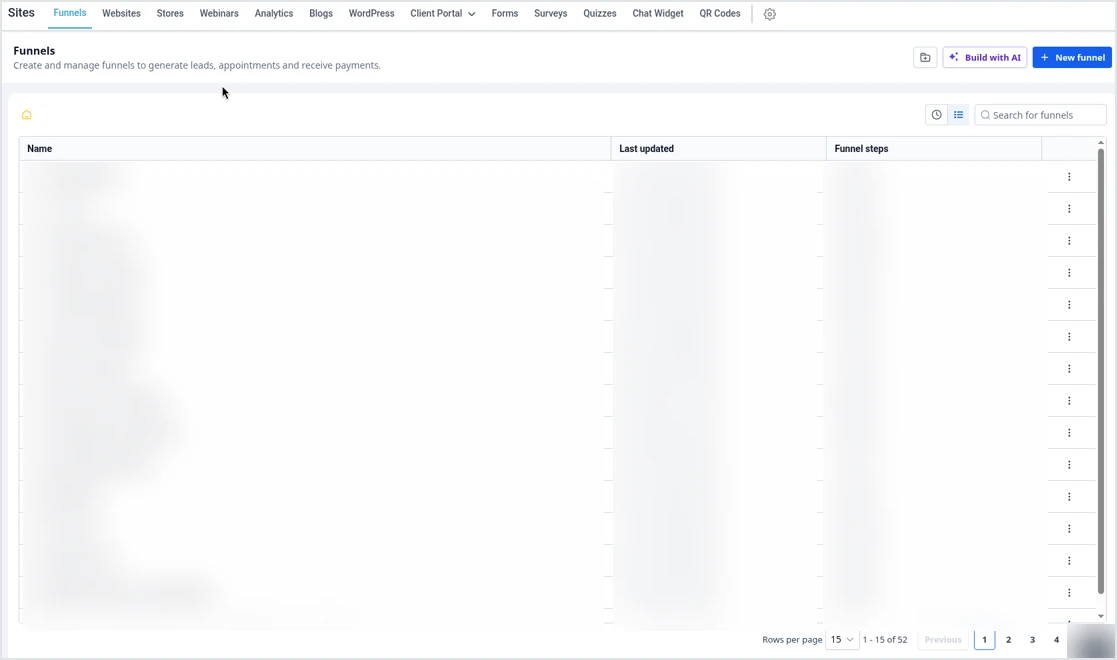
This GoHighLevel funnel builder tutorial shows you how to build a simple funnel from start to finish. Go to Sites > Funnels and click New Funnel. Pick From Blank, Funnel AI or From Templates. Then add your steps, edit each page, add a form and connect your domain. Last, send a test lead through it. The build follows HighLevel's launch guide. The screenshots show the funnel list and the overview for one selected step.

Disclosure: I earn a commission if you buy HighLevel through my links, at no extra cost to you. I am not HighLevel and do not speak for it.
Key takeaways
- To create a funnel, go to Sites > Funnels > New Funnel. You pick From Blank, Funnel AI or From Templates.
- Plan the pages you need. The example below uses one step per page.
- Your form is what collects leads. Always submit a test entry before you share the link.
- Connect a domain under Settings > Domains and link it to the funnel. Split tests need that domain first.
What you need before you build a funnel
HighLevel's launch guide lists three things to have ready. You need access to a HighLevel sub-account. You need a custom domain that is connected or ready to connect. And you need a clear goal for the funnel, such as lead capture, appointments or sales.
Try writing your goal in one line before you build. For this example, the goal is to get people to book a free call.
If HighLevel is new to you, read my GoHighLevel tutorial for beginners first. If you want to know how funnels differ from full sites, see my GoHighLevel website builder guide.
Plan a simple funnel first
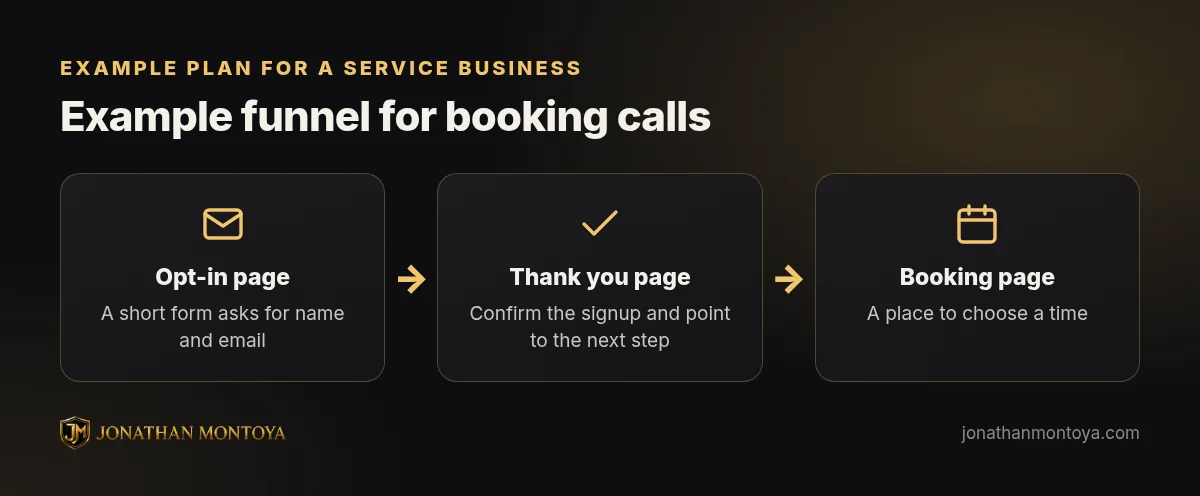
Here is an example for a service business. Give each page one job. Plan for a form entry to lead to a thank you page. Then use a button on that page to send people to the booking page.
| Example step | Its one job | What to put on it |
|---|---|---|
| 1. Opt-in page | Get the visitor's name and email | A clear headline, a short reason to sign up and a form |
| 2. Thank you page | Confirm the signup | A short thank you and a button to the next step |
| 3. Booking page | Get a call on the calendar | Your booking calendar and what the call covers |
Use these three pages if they fit your goal. Test the path you set up before you share the opt-in link.
GoHighLevel funnel builder tutorial: build a funnel step by step
Start with the steps in HighLevel's launch guide. Use the screenshots to find the controls for adding and editing steps.
Step 1: Create the funnel
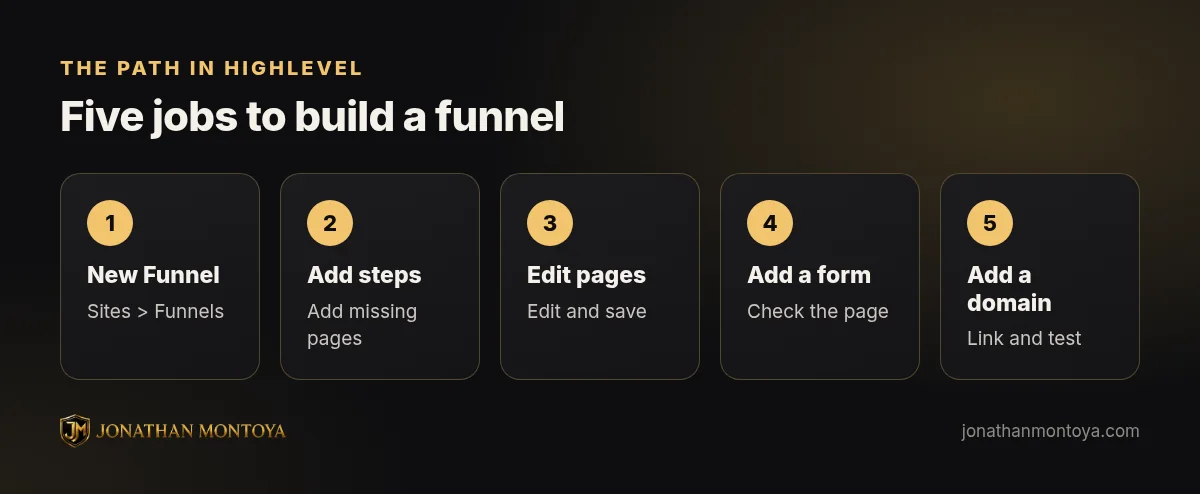
In your sub-account, go to Sites > Funnels. Click New Funnel. HighLevel then gives you three ways to start.
| Start option | What you start with | When I would pick it |
|---|---|---|
| From Blank | Your own design | You already know the layout you want |
| From Templates | A predesigned funnel | You want pages you can edit |
| Funnel AI | AI-assisted creation | You want a first draft to shape and fix |
My take is that a template is the easiest start for most beginners. To use one, click New Funnel > From Template > Continue. Open the Template Library. Search, filter and sort the templates. Click Preview to look at one, then click Continue. Make your changes in the Funnel Editor and click Save.
Step 2: Add your steps
Open your funnel and select Steps. Keep any steps that already fit your plan. Use + Add new step or import for the ones you still need. For this example, use one step per page. See the funnel steps screenshot below for the button and the Edit control.
Step 3: Edit each page
Click a step in the left panel. The page preview shows on the right with an Edit button under it. Click Edit to open the Funnel Editor. Change the words, pictures and buttons to match your offer. Click Save when you are done. Do this for every step.
To change a funnel later, go back to Sites > Funnels. Click the funnel in the list. Make your edits in the Funnel Editor and click Save.
Step 4: Add a form
The form is the part of the funnel that collects leads. Open the Form Builder. You can reach it from the Form Picker in the Funnel Editor, or go to it directly. Click Add Form. Set up the fields and branding in the Form Editor. Click Save. Check that the saved form is on the page. HighLevel's launch guide covers form creation and this check. It leaves the placement and routing steps out.
Ask only for what you need. For the example funnel, a name and email are enough on the first step. If you plan to send text messages to new leads, read my GoHighLevel A2P 10DLC guide before you add a phone field and a text follow up.
Want a funnel to build as you read? My HighLevel link shows a 30-day free trial on HighLevel's own offer page (checked Nov 19, 2026). HighLevel's standard pricing page lists 14 days. The offer on my link is for new HighLevel customers.
Start HighLevelStep 5: Add a domain and test
Follow the domain setup steps below. Open the live page and submit a test entry. For the example funnel, check that the form leads to the thank you page and that its button opens the booking page.
A tour of the funnel steps screen
The Steps tab is selected in this screenshot. The right panel shows the Overview for the selected step.
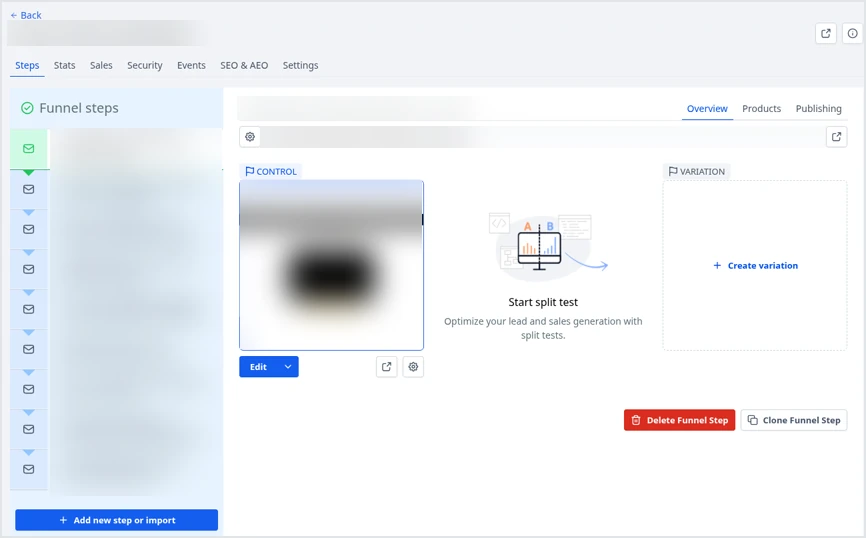
| Part of the screen | What you see there |
|---|---|
| Top tabs | Steps, Stats, Sales, Security, Events, SEO & AEO and Settings |
| Left panel | The Funnel steps list and the + Add new step or import button |
| Step tabs on the right | Overview, Products and Publishing for the step you picked |
| CONTROL | A preview of the step's page with an Edit button under it |
| VARIATION | The Create variation link creates a new version of the page |
| Bottom buttons | Delete Funnel Step and Clone Funnel Step |
HighLevel's split test guide points to the Stats tab for test results.
Connect your domain to the funnel
Follow the path in HighLevel's launch guide. DNS records tell browsers where to find your site.
- Open DomainsGo to Settings > Domains and click Connect a Domain.
- Enter your domainType your domain and click Continue.
- Set up DNS recordsFollow the instructions on screen. Copy only the records shown if you set them up by hand.
- VerifyClick Verify Records.
- Link and finishLink the funnel to the domain. Click Proceed to Finish.
If you see Authorize, click it and follow the prompts. HighLevel can add the records for you with supported providers. For manual setup, copy only the records shown for your connection. The domain guide lists A, CNAME and TXT as possible types.
HighLevel estimates a few minutes to 24 hours for DNS changes to take effect. Check any error on screen right away. If the domain still says Pending after 24 hours, check the records again or contact support. HighLevel sets up SSL, which secures the connection, once the domain is linked and the records are right. See the HighLevel domain guide for help.
Run a split test on a funnel step
A split test sends some visitors to your main page, called the control, and some to a new version, called the variation. HighLevel says split testing in funnels is available across all plans. You must add a domain to the funnel first.
- Pick the stepGo to Sites > Funnels, open the funnel and choose the step you want to test.
- Create the variationClick Create Variation and choose one of the options shown. Make a clear change, like a new headline.
- Set the trafficMove the slider to choose what share of traffic goes to the control and what share goes to the variation.
- Start itClick Start Split Test, then click Apply to confirm.
Share the main URL of the step you are testing so the slider can route visits. A link to another step or a direct link to either version skips that split. Keep the control the same while the test runs. HighLevel uses cookies to remember the assigned version. A fresh browser session lets the test assign a version again. It may show the same page.
Each version gets its own URL. You can change those paths with the gear icon under the control and the variation. To see results, click the Stats tab and then the page you are testing.
Checklist before you publish
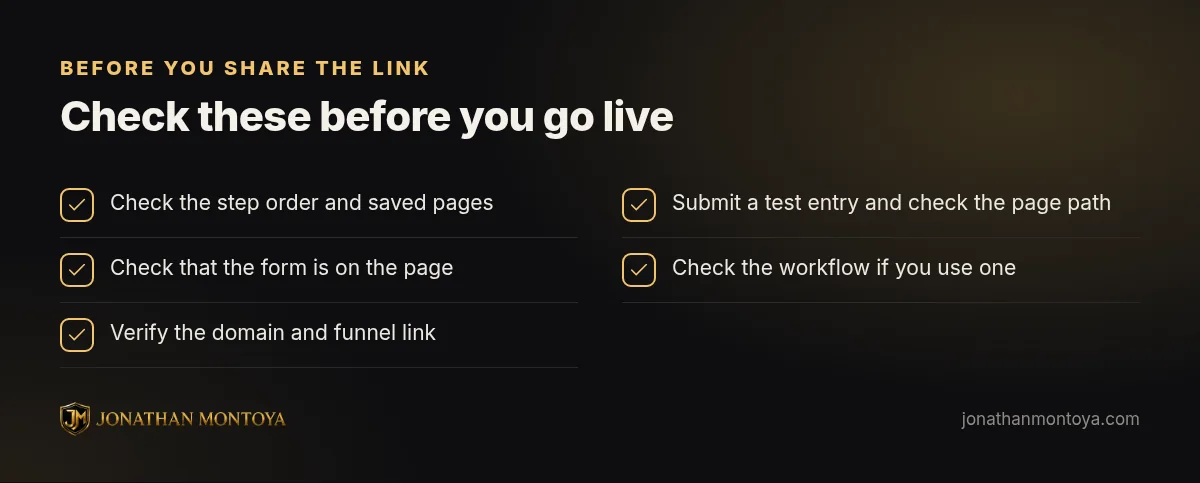
- Check the step order and make sure each page is saved.
- Check that the form is on the page.
- Verify the domain and confirm it is linked to this funnel.
- Submit a test entry and check the page path you set up.
- Check that the workflow ran if you use one.
For help tracking leads as deals, see my GoHighLevel pipelines guide.
Fix common funnel issues
HighLevel's launch guide names two common problems. Its split test guide adds a few more.
| Problem | What to check |
|---|---|
| My funnel is not loading | Verify your custom domain. Check DNS propagation. Confirm the funnel is assigned to the domain. |
| My form is not collecting leads | Make sure a form is on the page. Submit a test entry. Check the workflow or automation, if you use one. |
| All split test traffic goes to the control | Check that your ad points to the main URL for the step under test. Check the domain and the full page path. |
| Split test stats do not match the slider | A direct link to the control or variation may be used on another page or ad. That skips the split. |
| Domain says Pending | Check any on-screen error right away. If it is still Pending after 24 hours, check the DNS values or contact support. |
One more caveat from HighLevel. Google Ads and Facebook Ads rules may not allow the URL redirect a split test uses. HighLevel's workaround is to send ad traffic to the first step and run the test on the second step instead.
HighLevel plans and related guides
HighLevel lists Starter at $97 a month. It lists Unlimited at $297 a month and Founder at $497 a month. Some features have usage charges, which my GoHighLevel usage fees guide explains.
If you are still choosing a tool, see my list of the best sales funnel software. If you are deciding between two big names, read GoHighLevel vs ClickFunnels.
Build your first funnel in HighLevel
Start with one small goal, like a free guide or a booked call. Try the three-page example and send a test entry before you share the link.
When you start HighLevel through my link, you also get my GHL Clone for free. It is a done-for-you affiliate system I spent 11 months building. You can copy it in about 5 minutes, add your own affiliate link and share it. There is no website to build and no emails to write.
Start HighLevelGet the free GHL CloneMy HighLevel link shows a 30-day free trial on HighLevel's own offer page (checked Nov 19, 2026). HighLevel's standard pricing page lists 14 days. Disclosure: I earn a commission if you buy HighLevel through my link, at no extra cost to you. The GHL Clone is my own system, and I earn a commission if you later pay for HighLevel. What anyone earns depends on their own work, and no one can promise a result.
FAQ
How do I create a funnel in GoHighLevel?
Go to Sites > Funnels in your sub-account and click New Funnel. Then choose From Blank, Funnel AI or From Templates. After that, add your steps, edit each page and add a form.
Should I start from blank, a template or Funnel AI?
From Blank lets you design the funnel yourself. A template gives you a predesigned funnel. Funnel AI helps draft a funnel. If you are new, I think a template is the easiest place to start.
Is the funnel builder part of the HighLevel plans?
Yes. HighLevel lists the Website & Funnel Builder as a core feature. That list also includes Funnel AI and Domain Management.
Do I need my own domain for a GoHighLevel funnel?
HighLevel's launch guide lists a connected custom domain, or one ready to connect, as a prerequisite. Split testing also needs a domain added to the funnel first.
Why is my GoHighLevel funnel not loading?
HighLevel's guide gives three checks. Verify your custom domain. Check DNS propagation. Confirm the funnel is assigned to the domain.
Why is my funnel form not collecting leads?
First make sure a form is on the page. Then submit a test entry. If a workflow or automation should run, check that too.
How long does it take for a domain to connect?
HighLevel estimates a few minutes to 24 hours for DNS changes. Check any error shown right away. If the status still says Pending after 24 hours, check the records again or contact HighLevel support.
Can I split test a funnel page in GoHighLevel?
Yes. HighLevel says split testing in funnels is available across all plans. Add a domain to the funnel first. Open the step, click Create Variation and choose one of the options. Set the traffic slider. Click Start Split Test, then Apply. Share the main URL for that step.
Sources, checked Nov 19, 2026
Affiliate disclosure: I earn a commission if you buy HighLevel through my links, at no extra cost to you. Freedom Launch Accelerator and the GHL Clone are my own programs. HighLevel is a trademark of HighLevel, Inc. This site is not run by or affiliated with HighLevel.
