
To set up GoHighLevel pipelines, open your sub-account and go to Opportunities > Pipelines. Create a pipeline, add the stages your deals really go through, and try it with one deal. HighLevel adds Won and Lost for you. In this guide, you'll see how to set up the board, pick stage names and send new deals into the right column with a workflow.

Disclosure: I earn a commission if you buy HighLevel through my links, at no extra cost to you. I am not HighLevel and do not speak for it.
Key takeaways
- A pipeline is the whole path. A stage is one step. An opportunity is one deal.
- Give each stage a clear rule for when a deal goes there.
- Use stage odds for a shared view of your deals, or turn on odds for each deal.
- Add one deal by hand before you use the Create Opportunity workflow action.
What you need before you build a pipeline
Open the sub-account where your team will track deals. You need a role that lets you create or edit pipelines there. If you're new to the layout, start with the GoHighLevel tutorial for beginners. For your first test deal, have a saved contact ready.
Think of the pipeline as the board. Each stage is a column on the board. Each card is an opportunity, or a possible sale. The contact is the person tied to the deal. A roof quote is the deal. The person who asked for it is the contact. See the guide to contacts and opportunities for more examples.
Before you name anything, write down what happened on the last few deals you handled. When did a lead turn into a real deal? What did your team need to see before it could move the deal on? Use those answers to sketch a path from the first request to a clear yes or no.
How to set up GoHighLevel pipelines
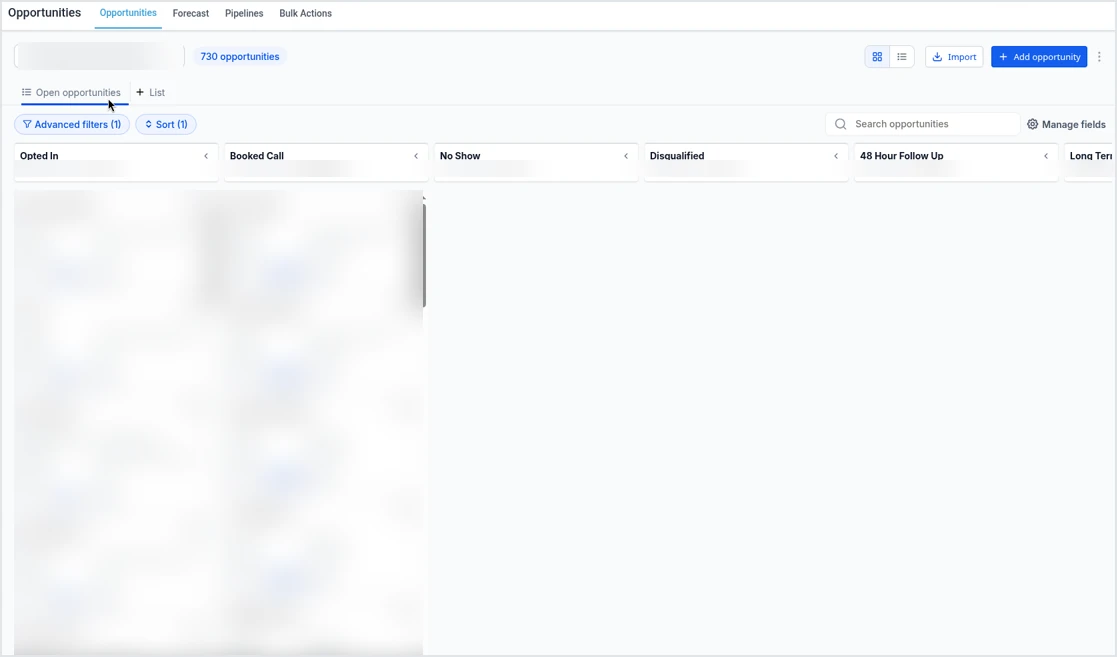
Start with one pipeline for one sales process. HighLevel's setup guide shows the path through the Pipelines tab. It also says you can enable the updated Pipelines layout from Labs in the sub-account.
- Open PipelinesIn your sub-account, click Opportunities in the left sidebar. Click Pipelines in the top menu.
- Create a pipelineClick Create new pipeline at the top right. Enter a Pipeline Name that tells your team what the board is for. Click Save. The name must be unique in that sub-account.
- Add and order your stagesIf you are back on the Pipelines list, open the new pipeline for editing. Go to the Stages tab. Enter a Stage Name. Click Add stage for each extra step. Use the up and down arrows to put stages in order. Each stage needs a unique name within that pipeline. HighLevel adds Won and Lost for you.
- Set up your reportsChoose if the pipeline should appear in funnel and pie charts. Use the funnel and pie chart icons next to each stage to set its report visibility.
You can also work from the pipeline menu on the Opportunities board. HighLevel lists + Create Pipeline in that menu and Edit in the three-dot menu next to a pipeline. What you can change depends on your role and pipeline permissions.
Pick stages that fit your sales
Use names that tell the next person what just happened. Say Quote Sent when the quote goes out. Say Visit Booked once there's a date on the calendar. A label like In Progress leaves the team guessing about what to do next.
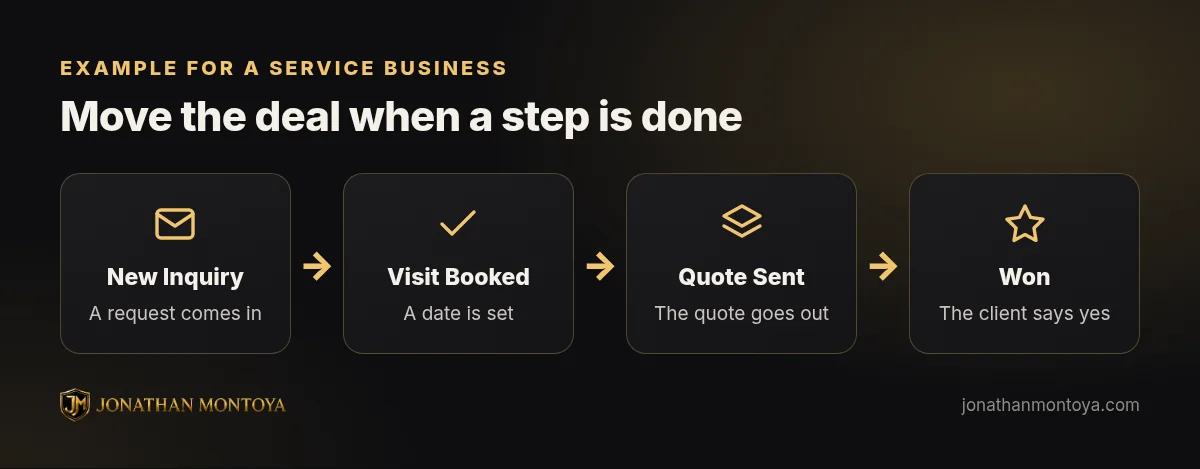
Here are three example stage sets you can adapt. Think about the last step before a customer says yes. If your team needs to act on it or see it in a report, it may be worth a stage of its own.
| Business example | Stages to add | Rule for moving a deal |
|---|---|---|
| Roofer | New Inquiry, Visit Booked, Quote Sent | Move to Quote Sent when the customer has the quote. |
| Dental office | New Inquiry, Consult Booked, Consult Held, Plan Presented | Move to Consult Held once the patient has attended. |
| Agency | New Inquiry, Discovery Call Held, Proposal Sent | Move to Proposal Sent when the prospect has the offer. |
Each example uses the Won and Lost stages that HighLevel adds. Agree on what counts as Won for your team. For a roofer, that might be an accepted quote. For an agency, it might be a signed deal. Write the rule down so two people would move the same card to the same place.
A stage can also show a deal that took a different path. For example, add No Show if someone on the team will check that column and call to rebook. If the person books again, move the card back to the booked stage. Give a stage like Long Term Nurture a clear rule too, so your team knows which deals belong there.
Want a board to build as you read? My HighLevel link shows a 30-day free trial for new customers on HighLevel's own offer page (checked Nov 18, 2026). HighLevel's standard pricing page lists 14 days.
Start HighLevelSet probability, colors and reports
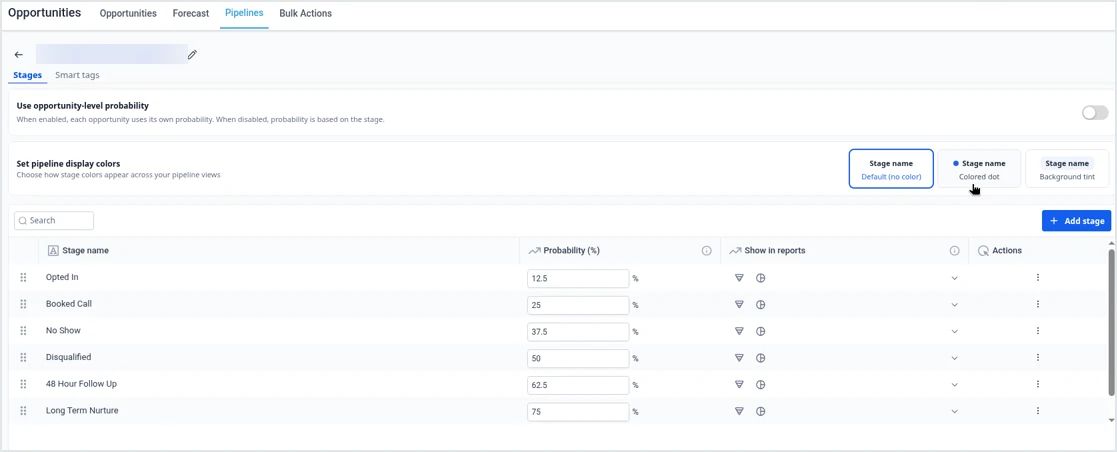
Open the pipeline for editing and go to the Stages tab. The editor puts the odds, colors and report settings near each other. Each choice answers a different question about your board.
Should odds follow the stage or the deal?
Probability is your estimate of the chance that a deal will close. Leave Use opportunity-level probability off to use stage odds. Enter the odds for each stage in its Probability (%) field. Turn the toggle on if you want each deal to have its own odds. For example, two quotes can sit in the same stage while one buyer is ready to say yes and the other is still shopping.
My take is to start with stage odds if your team can agree on what each stage means. Use the deal setting when you have a reason to judge deals one by one. Treat either set of odds as an estimate and review it as you learn how your deals close.
How should stages look?
Pick a color for each stage and then choose how the colors show. Default adds no stage color. Colored dot adds a small cue. Background tint shades the card or row. The settings are shared by users with access to the pipeline.
HighLevel shows stage colors in the board and list views, on cards and in record details. Pick colors the team can explain in a few words. A dot can flag a stage where deals often need a callback. Use a label like Call Back to show the task. The color applies to the whole stage. It has no effect on workflows or report math.
What belongs in the reports?
Use the pipeline settings for funnel and pie chart visibility. Use the stage controls to decide which steps appear in reports. If your board has a place to hold deals for later, ask whether that stage belongs in the charts your team checks for active deals. Colors are only for display.
Add one opportunity by hand
Try a deal by hand to see whether your stage names make sense. A new lead might go in the first stage. If a customer already has a quote, put the deal in the stage that fits what has happened so far.
- Open the formIn the sub-account, go to Opportunities and click + Add Opportunity at the top right. Pick a Primary Contact.
- Say what the deal isEnter an Opportunity Name or keep the contact name. Select the Pipeline and Pipeline Stage. Set the status, such as Open for a deal in play, and enter the Opportunity Value.
- Choose who owns itAssign an Owner. Add Followers or details such as Opportunity Source if they help your team.
- Create and check the cardClick Create and find the new card in the stage you picked. To move the deal later, drag it to a new column or edit the Stage on the card.
If two deals have the same contact, use names that tell them apart. For example, name the cards Garage Roof Quote and Main Roof Quote. For a wider look at records and deals, see the GoHighLevel CRM guide.
Create new opportunities with a workflow
Once the board works by hand, build a workflow for one source of leads. HighLevel's example starts when a contact submits a project inquiry form. The Create Opportunity action adds a deal to the pipeline you pick. See the GoHighLevel automation guide for help with workflows.
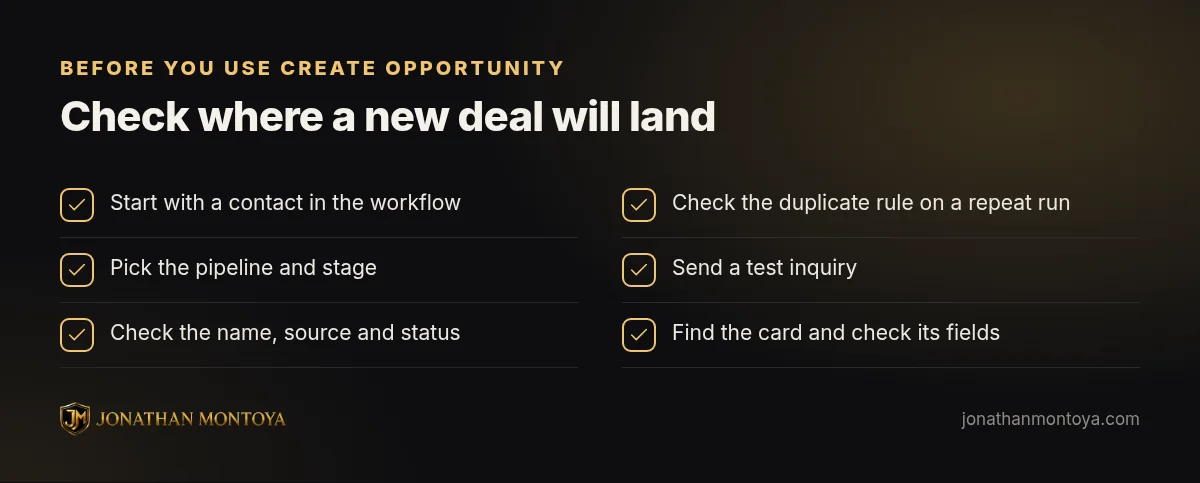
- Set the triggerUse a form submission as the trigger for this example. Make sure the workflow has a contact. HighLevel cannot create a deal from this action without one.
- Add Create OpportunityGive the action a unique name, such as Create Inquiry Deal. Choose the pipeline you just built. Set the Pipeline Stage to New Inquiry if that is your first step. Set the source to Website and the status to Open for this example.
- Set the duplicate ruleKeep duplicates off if a repeat form entry should skip a contact with an existing deal. Turn them on if a repeat request should start its own deal. HighLevel checks the contact ID.
- Try the formSubmit it with a test contact. Find the card and check the stage, source and status. Submit again with the same contact. Check the run history to make sure the contact reached Create Opportunity again. Then check whether a second card appeared.
If you leave the stage blank, the deal goes to the first stage. A blank status means Open. A blank name uses the contact name if it is available. Without a name, HighLevel tries another detail, such as email. A blank source stays empty. Set the stage on purpose if your form should place a deal farther along the board.
A blank Opportunity Value starts at zero. Depending on your settings, the deal uses the contact's owner or stays unassigned.
Common pipeline mistakes and how to fix them
- Two stages tell the team the same thing. Read each pair of stage names out loud. If both call for the same next step, give each a clear rule or use one stage.
- A new card lands in the wrong column. Open the workflow action. Check the selected pipeline and stage. If the stage is blank, check what sits first in that pipeline.
- The same form creates extra cards. Check Duplicate Opportunity. Renaming the cards has no effect on how HighLevel spots repeat contacts.
- A stage needs to go. Open the pipeline and click the trash icon for that stage. Pick a destination for the deals in it and confirm the deletion. Check the new column for those cards.
Walk one sample deal through the board before you hand it to your team. At each stage, ask what needs to happen next and who owns that step. If the answer is hard to give, fix the stage name or rule while the board is still small.
Build your first pipeline in HighLevel
Pick one sales process. Set up the stages and add a sample deal so you can see how the board fits your work.
When you start HighLevel through my link, you also get my GHL Clone for free. It is a done-for-you affiliate system I spent 11 months building. You can copy it in about 5 minutes, add your own affiliate link and share it. There is no website to build and no emails to write.
Start HighLevelGet the free GHL CloneMy HighLevel link shows a 30-day free trial for new customers on HighLevel's own offer page (checked Nov 18, 2026). HighLevel's standard pricing page lists 14 days. Disclosure: I earn a commission if you buy HighLevel through my link, at no extra cost to you. The GHL Clone is my own system, and I earn a commission if you later pay for HighLevel. What anyone earns depends on their own work, and no one can promise a result.
FAQ
What is a GoHighLevel pipeline?
It is a set of stages that shows where each deal sits. You can track a deal from the first inquiry to a sale. You can also use pipelines for other work, such as client onboarding.
Do I need to add Won and Lost stages in HighLevel?
HighLevel adds Won and Lost to each pipeline for you. Add the steps an open deal goes through.
How do I move an opportunity to a new stage?
Drag the card to the new column on the Opportunities board. You can also open the card for editing and pick a new Stage from the menu.
What happens to my deals if I delete a stage?
Choose a stage for those deals when HighLevel asks where to move them. When you confirm the deletion, HighLevel moves the deals to the stage you picked.
Why can I see my pipeline but cannot edit it?
Your role and pipeline permissions control who can create or edit pipelines. Ask an admin to check your access if the edit option is missing.
Can I rename a GoHighLevel pipeline after I create it?
Yes. Open it for editing and change the Pipeline Name. The new name must be unique in that sub-account.
Can one contact have more than one opportunity?
Yes. The Create Opportunity workflow action has a Duplicate Opportunity setting. Turn it on if the same person can start a new deal. Leave it off if a repeat trigger should skip a contact with an existing deal.
Do stage colors change workflows or reports?
Stage colors only change how stages look. HighLevel says colors have no effect on workflow triggers or report math. Use the report options in the stage editor to choose which stages show in reports.
Sources, checked Nov 18, 2026
Affiliate disclosure: I earn a commission if you buy HighLevel through my links, at no extra cost to you. Freedom Launch Accelerator and the GHL Clone are my own programs. HighLevel is a trademark of HighLevel, Inc. This site is not run by or affiliated with HighLevel.
