
GoHighLevel · Help
Can't get into GoHighLevel? Here is where to sign in, how to reset your password, and the fastest way back in when you are locked out.
Most GoHighLevel login problems come down to three things. You are on the wrong login page, your reset email went to spam, or two-factor codes are getting in the way.
I use GoHighLevel to run my own business, so I know how annoying a lockout is. On October 22, 2026, I went through HighLevel's own login help page and its help articles on passwords and two-factor login. Here is what to do, step by step.
Quick answer
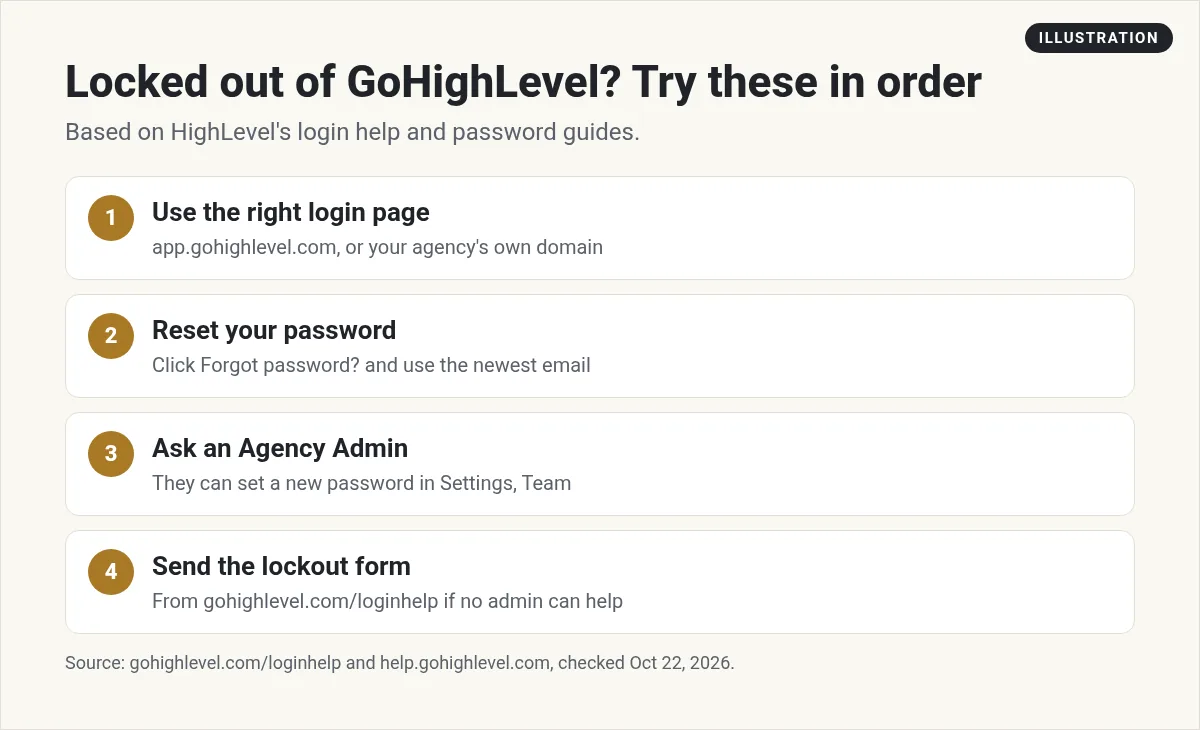
The main GoHighLevel login page is app.gohighlevel.com. If your agency gave you its own branded link, use that link instead, because many agencies run GoHighLevel under their own domain. Forgot your password? Click Forgot password? and use the newest reset email. Still locked out? HighLevel says the fastest fix is to have another Agency Admin set a new password for you. If no one can, use the lockout form on gohighlevel.com/loginhelp. Checked October 22, 2026.
Where do you log in to GoHighLevel?
For most people, the login page is app.gohighlevel.com. It shows a box that says "Sign into your account" with fields for your email and password. There is also a Forgot password? link and a Google sign in button.
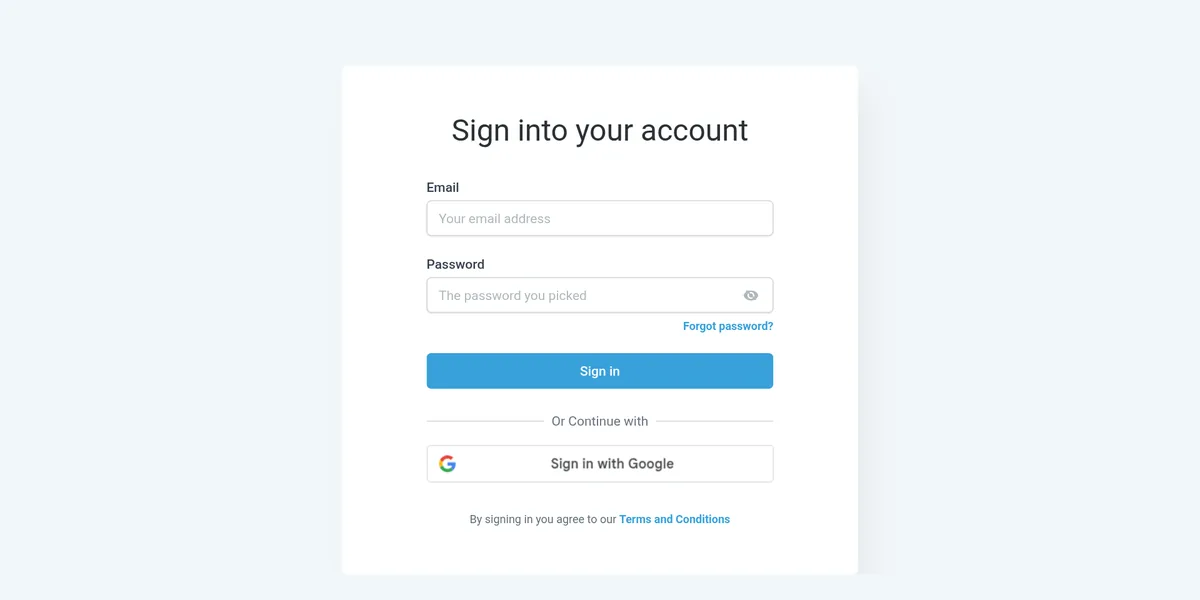
But here is the part that confuses a lot of people. Many agencies run GoHighLevel under their own name and their own web address. HighLevel calls this a whitelabel domain. Its login help page even says to use "app.gohighlevel.com/settings/team (or your whitelabel domain)."
So if an agency set up your account, ask them for your login link. Your email and password may only work on their branded page.
How to reset your GoHighLevel password
HighLevel's password guide gives these steps:
- Go to the login page and click Forgot Password?
- Enter the email address on your HighLevel account and send the request.
- Open the reset email and click the link or button.
- Type a new password, then type it again to confirm it.
- Click Save, then sign in with your new password.
The guide notes that the email's "design, branding, and button wording may differ by agency." So the email might not say HighLevel at all. It may carry your agency's name.
Password rules
Your new password must have at least 12 characters. HighLevel's setup steps also ask for upper and lower case letters, at least one number, and at least one special character, like ! or @. Use a password you do not use anywhere else.
Logging in for the first time
If someone just added you to a GoHighLevel account, you don't have a password yet. HighLevel's password guide says to set it up from the welcome email:
- Open the welcome or account activation email in your inbox.
- Click the account setup link or button.
- Type a new password that meets the rules above.
- Type it again to confirm it.
- Click Change Password, then sign in with your email and new password.
The guide notes that "Email wording and branding may vary" when an agency uses its own email templates. So look for your agency's name too, not just HighLevel.
How to change your password while signed in
Changing your password every so often is a smart habit, and you should do it right away if you think someone else knows it. Here is how, from HighLevel's guide:
- Sign in, go to Settings, and open My Profile.
- Find the Change Password section.
- Enter your current password.
- Enter and confirm your new password, then save.
What if the reset email never shows up?
HighLevel's guide lists these checks. Go through them in order:
- Look in spam, junk, promotions, or filtered folders.
- Make sure you typed the email that is on your HighLevel profile.
- Search your inbox for emails from HighLevel or from your agency.
- Wait a few minutes. Emails can be slow.
- Send one new reset request, and use only the newest email.
- Ask your agency admin to check which login email is on your profile.
One more case. Some companies sign in through single sign on, like a company Google or Microsoft login. HighLevel says your password "may be managed outside HighLevel" in that case. If you get sent to another company's login page, talk to your admin instead of resetting your HighLevel password.
Locked out? Two ways back in
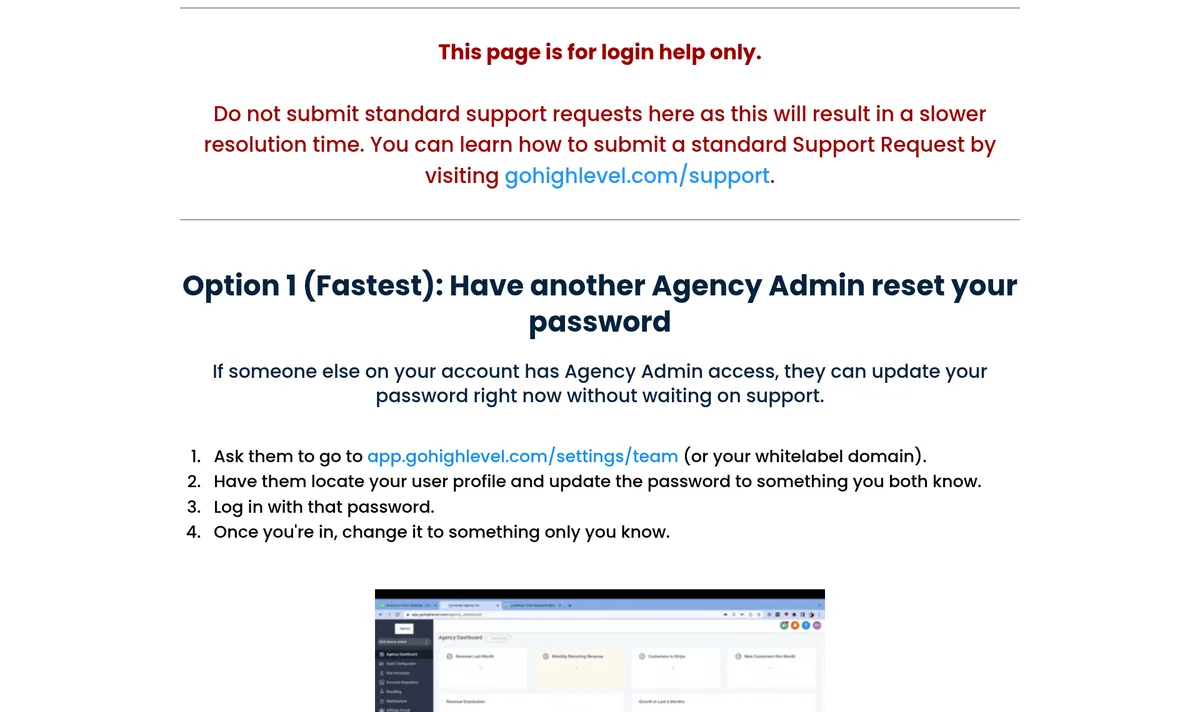
HighLevel has a page just for this at gohighlevel.com/loginhelp. It says, "This page is for login help only." It gives two options.
Option 1, fastest: ask another Agency Admin
If someone else on your account has Agency Admin access, they can set a new password for you right away:
- They go to Settings, then Team, in the app.
- They find your user profile and set a password you both know.
- You log in with it.
- Then you change it to something only you know.
The page sums it up as "No ticket. No wait time."
Option 2: send the lockout form
If no other Agency Admin can help, fill out the Account Lockout Support Form from the same page. A HighLevel agent follows up. The page asks you not to use this form for normal support questions, because that slows things down.
Two-factor codes and backup codes
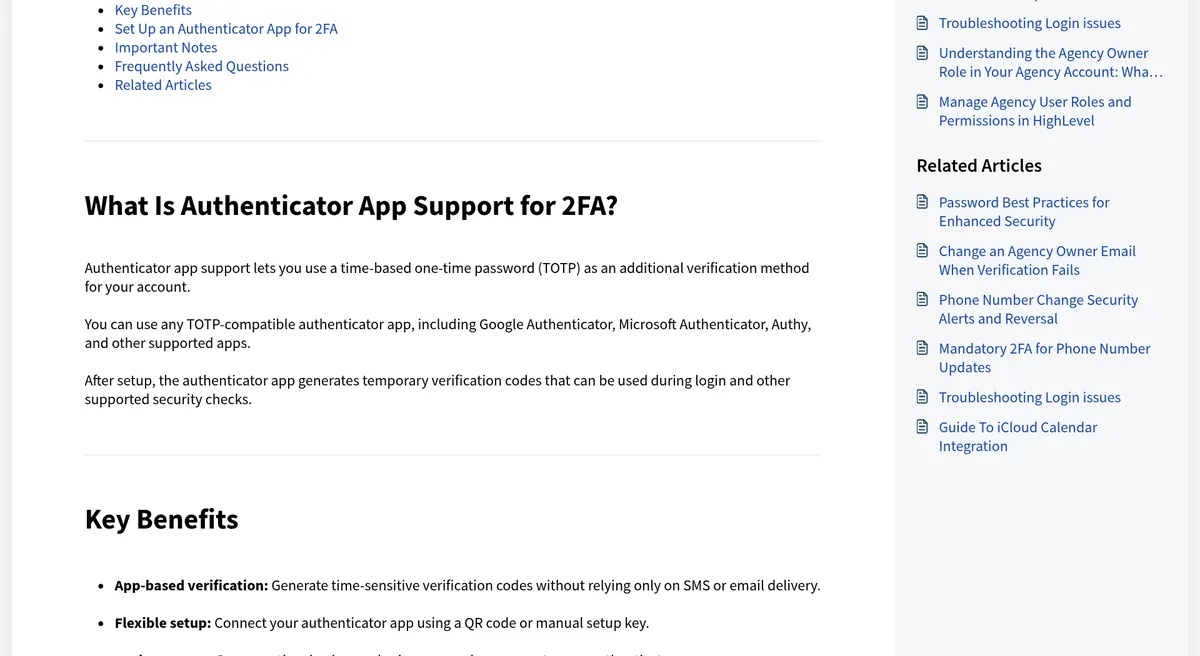
Two-factor login means you need a second code after your password. HighLevel supports authenticator apps like Google Authenticator, Microsoft Authenticator, and Authy. Here is how to set it up, from HighLevel's help article:
- Go to Settings, then My Profile, then Security.
- In the Two-Factor Authentication section, scan the QR code with your app.
- Enter the code your app shows to confirm it.
- Save your backup codes somewhere safe.
Those backup codes matter. The article says, "Ten backup codes are generated at a time. Each backup code can be used only once." If you lose your phone, a backup code gets you in. You can make a new set from the same Security page.
Note: only you can set up an authenticator app for your own account. HighLevel says admins cannot set it up for you through Login As.
Logging in on the mobile app
GoHighLevel's mobile app is called LeadConnector. HighLevel's blog says you log in "using the same credentials as your desktop login." Inside the app you can handle conversations, calendars, contacts, and more.
If a feature in the app is missing or not working, HighLevel's quick start guide says to check that you have the latest version of the app and that you are signed into the correct account. If you belong to an agency with its own branded app, ask them which app to download.
Keep your GoHighLevel login safe
Your GoHighLevel account holds your contacts and client messages, so a lockout is not the worst thing that can happen. A break in is. HighLevel's guide suggests these habits:
- Turn on two-factor login with an authenticator app.
- Keep backup codes away from your password.
- Protect the email account tied to your login.
- Do not approve login requests you did not start.
- Remove team members who no longer need access.
- Avoid signing in on shared or public computers.
If you manage a team
If you are the Agency Admin, you are the person your team will call when they are locked out. HighLevel's guide says admins can manage user details, including the login email and password fields, through user management settings. What you can change depends on your role and permissions.
A few habits help. Keep at least two people with Agency Admin access, so one can always help the other. Make sure each team member has their own login instead of sharing one. And when someone leaves, remove their access the same day.
Don't have a GoHighLevel account yet?
If you searched for the login page but never made an account, you need to sign up first. My guide to the GoHighLevel free trial explains how trials work, and what GoHighLevel is covers what the tool does. You can start a trial through my GoHighLevel link (I earn a commission if you buy through this link). The trial length on the page you land on is the one that applies, so read it before you sign up.
Once you are in, my GoHighLevel tutorial for beginners walks you through the first setup steps.
My GoHighLevel login checklist
Nothing you check here is sent or saved. Download it if you want to keep it.
Get more out of GoHighLevel and AI
In my free workshop, I show how regular people use AI tools to build simple online businesses, step by step.
Join my free AI workshopFree to join. No credit card needed.
Frequently asked questions
What is the GoHighLevel login URL?
For most people it is app.gohighlevel.com. If an agency set up your account, it may use its own branded web address. Ask them for your login link.
How do I reset my GoHighLevel password?
Click Forgot Password? on the login page, enter your account email, open the newest reset email, set a new password, and click Save.
I am locked out of GoHighLevel. What is the fastest fix?
HighLevel says the fastest fix is to have another Agency Admin set a new password for you in Settings, then Team. If no one can, use the lockout form on gohighlevel.com/loginhelp.
What if I lost my two-factor app?
Use one of your backup codes. HighLevel makes ten at a time, and each one works only once. You can make a new set in My Profile, then Security.
Is the GoHighLevel mobile app login the same?
Yes. HighLevel says you log in to the LeadConnector app with the same email and password you use on desktop.
Why does my reset email have another company's name?
Many agencies brand GoHighLevel as their own. HighLevel says the email's design and wording may differ by agency.
Sources
Checked October 22, 2026. Plans, prices, and rules can change.
- HighLevel login page
- HighLevel Login Help (lockout options)
- HighLevel help: Password requirements and account security best practices
- HighLevel help: Authenticator app support for two-factor authentication
- HighLevel blog: free LeadConnector mobile app (March 25, 2025)
- LeadConnector mobile app quick start guide
