
Grok Bot · Chat cards
Your Bot talks in cards. Here is what each one means.
Grok Bot chat cards are the boxes you see in a conversation, like an approval, a question, a file, or a draft. Each one asks you to do something or shows you a result. If you know what each card does, you move much faster.
I read the changelog on November 9, 2026. The October 22 update gave every card a new design, and many small fixes followed.
TL;DR
Approval cards ask for your OK. Question cards let you pick answers. Draft cards let you send or discard. File, link, table, and app cards show results. Read each card before you press a button.
Approval cards
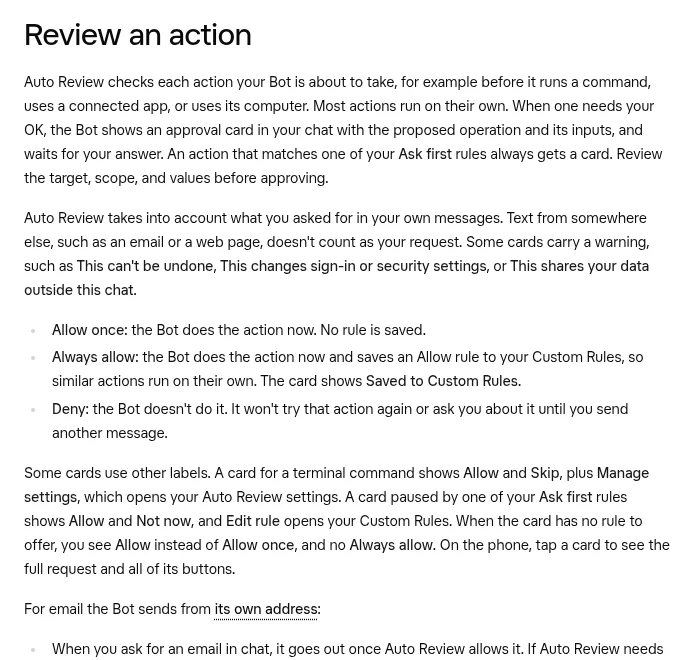
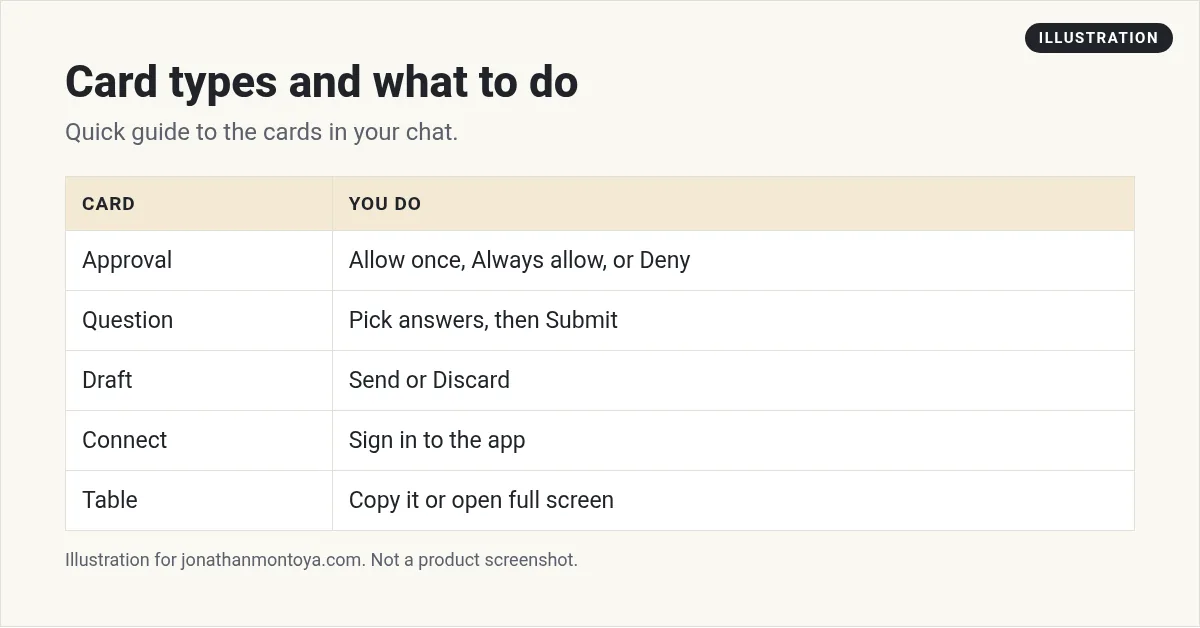
Approval cards come from Auto-review. They describe the action in one sentence, name the app with its logo, and flag changes that cannot be undone or that touch sign in settings. Buttons include Allow once, Always allow, and Deny. If the card is from an Ask first rule, you see Allow and Not now.
Always read the target and the values. Do not approve something you cannot explain.
Question cards
A Bot can ask several questions on one card that steps through them, with a Your own answer choice when none of the options fit. A question where several answers are allowed lets you select more than one and press Submit. Single choice cards show Something else, so you can type your own answer.
Typing a follow up leaves an open question card unanswered instead of answering it. Enter does not send your answer while an input method is still composing text.
From the Matthew Berman channel (not mine): A creator shares many use cases that show different cards at work.
Draft cards
Draft cards hold an email or Slack message for you to read. You choose Send or Discard. Email drafts can show formatted text, attachments as file cards, and a From picker. Slack drafts show a formatted preview and who the message notifies.
App cards
Since October 11, connectors that come with an app, such as Figma, Notion, and Canva, can show it as an interactive card in the chat. When a connector needs you to sign in, you see a Connect card with the connector's name. If sign in takes more than 10 minutes, the card asks Still signing in? instead of saying it failed.
Tables, files, and links
- Tables have a copy button that copies them for Slack or as markdown. Wide tables open full screen with zoom, and number columns line up on the decimal point.
- Files show as cards with their type, name, and size. Captioned images offer Copy and Download on hover.
- Links show a preview when you hover. Source links show as compact citation chips, and company names as ticker pills.
- Diagrams can be downloaded as PNG images.
From the Riley Brown channel (not mine): A creator reviews four big upgrades.
Other cards you will see
- Shopping and order cards show products with photos, price, store, and shipment stages. Buy now starts an order that you approve.
- Connect cards ask you to sign in to an app.
- Pull request chips show the number, title, and status, with a preview on hover.
- Secure Forms collect secrets that the Bot never sees.
Tips for working with cards
- Read the card top to bottom before you press anything.
- If a card is unclear, ask the Bot to explain it in plain words.
- Use Deny when unsure. The Bot will not retry until you send another message.
- Answer cards from routines within 30 minutes, or they expire.
Good habits when you see a card
Take a moment to read each card before you press a button. Cards that ask for approval are there to keep you in charge. If you are unsure, choose Deny. You can always ask the Bot to try again.
Use Allow once for steps you do not expect to repeat. Use Always allow only for steps you trust and use all the time.
Three quick examples
- A draft card shows an email before it goes out. Read it, then press Send or Discard.
- A question card asks you to pick options. Choose your answers, then press Submit.
- A connect card asks you to sign in to an app. Finish the sign in, then go back to the chat.
If a card looks stuck
Scroll down in the chat. A newer card may have replaced it. If nothing changes, send a short message such as: please show that card again.
A business team inside Grok Bot
Cards make the Bot easy to steer. A business team gives it a direction.
AIM Agent is an AI Chief of Staff for business owners. It comes with an AI C-suite (COO, CMO, CFO, CRO and CTO), a Business Bot Builder and 100+ business skills, and it runs on AIM OS, a private vault that holds your notes and memory. AIM Agent is a ready-made AI business team that works inside Grok Bot, so you skip the setup and get to work.
Here is what you get:
- An AI Chief of Staff that helps you plan and run your business
- An AI C-suite: COO, CMO, CFO, CRO and CTO
- A Business Bot for each business or project. Give it a real task and it brings the work back for you to review
- 100+ business skills for content, offers, research and more
- Step by step setup guides and email support
So your Bots work inside a business system, not a pile of chats.

Want an AI team to help run your business? Meet AIM Agent, an AI Chief of Staff for business owners. I am a co-founder of AIM Agent and have a financial interest in the product.
Get a business team inside Grok Bot
AIM Agent gives you an AI Chief of Staff, an AI C-suite, and 100+ business skills, with step by step setup guides and email support.
See AIM AgentFrequently asked questions
What are chat cards?
They are boxes in the chat for approvals, questions, drafts, files, apps, and more.
What does Something else do?
It lets you type your own answer on a single choice card.
Can I copy a table?
Yes. Tables have a copy button for Slack or markdown.
Do approval cards expire?
Cards from routines and background work expire after 30 minutes. Cards from a chat message wait for you.
What is an app card?
An interactive card from a connected app, such as Figma, Notion, or Canva, shown right in the chat.
What if I press the wrong button?
An approval controls the next action. It does not undo past work, so read before you press.
What is AIM Agent?
AIM Agent gives you an AI Chief of Staff, an AI C-suite, and 100+ business skills inside Grok Bot, with step by step setup guides and email support.
Sources
Checked November 9, 2026. Plans, prices, and rules can change.
