
Grok Bot · Notifications
Notifications are how a Bot taps you on the shoulder. Here is where they show up, how to turn them on or off for each Bot, and what to check when they go quiet.
Grok Bot notifications tell you when a Bot finishes a job or is waiting for you. They can show up on your computer or your phone. Each Bot has its own switch, so you can hear from the important ones and mute the rest.
I read the official docs on notifications and the latest changelog on November 2, 2026. Here is how they work, in plain words.
TL;DR
Turn on Notifications for a Bot to get an alert when it finishes or is waiting for you. On the phone, the switch is in the Bot's profile. On desktop, ask the Bot to turn its notifications on or off. While you use the desktop app on a Mac or Windows PC, alerts go to the computer instead of your phone. If a Bot still needs your input about 3 minutes later, your phone is notified too. If alerts are missing, check the Bot's switch and your device's notification permission. Both must allow it.
What Grok Bot notifications do
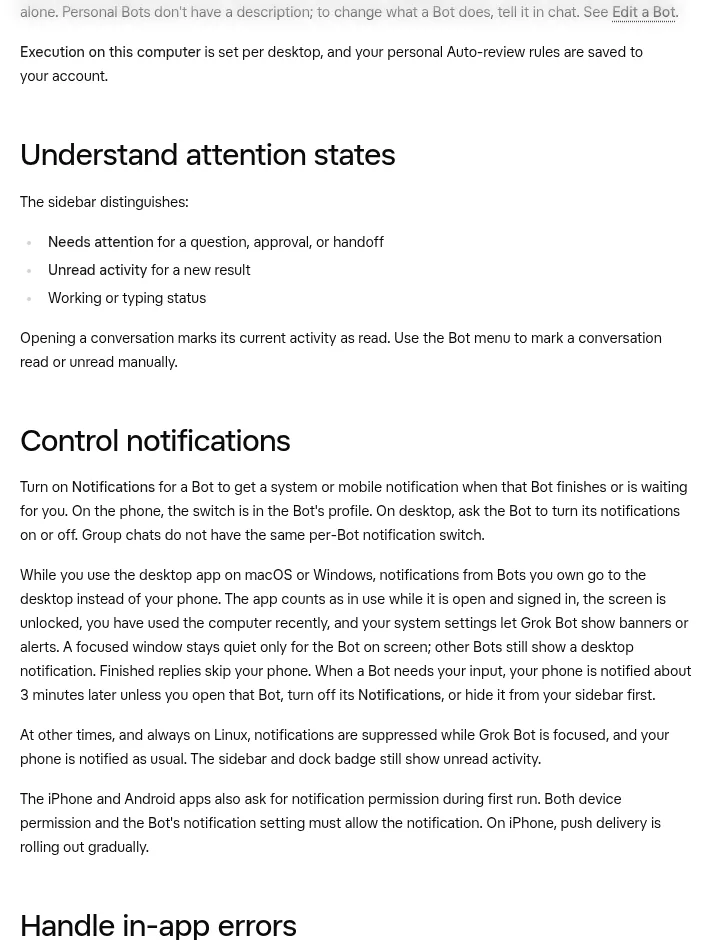
A notification is a short alert from a Bot. You get one when a Bot finishes its work or is waiting for you, for example to answer a question or approve an action. The switch on the phone says it simply: get notified when this Bot finishes or is waiting for you.
The Grok Bot changelog says notifications now arrive as soon as a Bot sends a message, not only when it finishes all of its work. So you hear about a question right away.
Where notifications go
This is the part that confuses people. Grok Bot tries to send each alert to the device you are actually using.
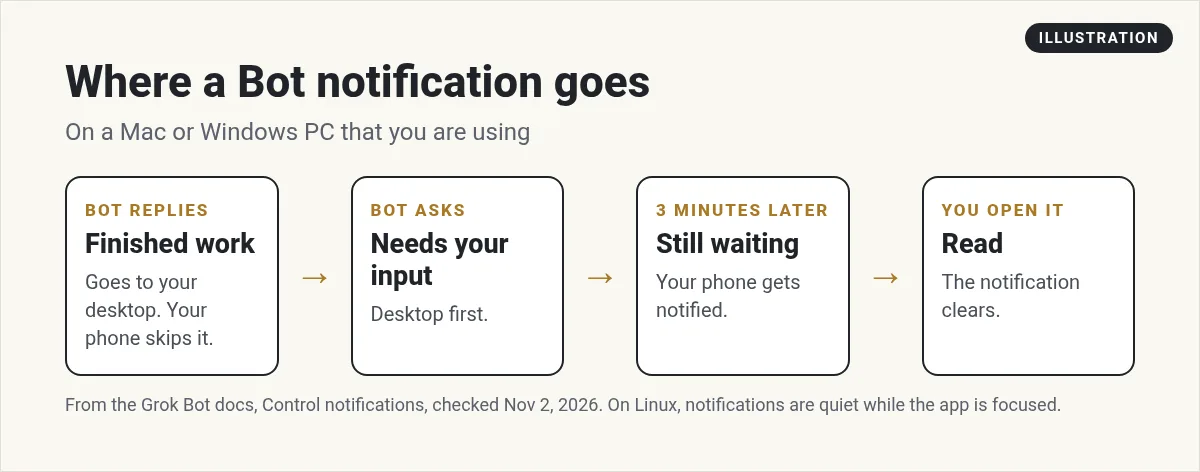
- Using your Mac or Windows PC? Alerts from Bots you own go to the computer, not your phone. The app counts as in use when it is open, you are signed in, the screen is unlocked, you used the computer recently, and your system lets Grok Bot show banners.
- Finished replies skip your phone while you are at the computer.
- A Bot needs your input? If you do not open that Bot, your phone is notified about 3 minutes later.
- Away from the computer? Your phone gets alerts as usual. The changelog says the phone skips a Bot you are viewing on your computer, then resumes once the computer locks, sleeps, or sits idle.
- On Linux, alerts are quiet while Grok Bot is the window in front, and your phone is notified as usual.
The window in front only stays quiet for the Bot on screen. Other Bots still show a desktop alert.
How to turn notifications on or off
Each Bot has its own switch.
- On the phone: tap the Bot's name at the top of its chat and flip the Notifications switch. Off means that Bot does not notify you anywhere, including your phone. The phone app also has a Notifications switch in Settings that covers all your Bots.
- On desktop: ask the Bot. For example: turn your notifications off. Or: turn your notifications on.
Group chats do not have the same per Bot switch. If you want quiet, hiding a Bot from your sidebar also stops its phone alert for a question.
From the Grok channel (not mine): This is the official Grok Bot 201 walkthrough. It covers working with several Bots at once, which is when good notification habits matter most.
Which Bots should notify you
Not every Bot needs to ping you. Here is how I think about it.
- Turn on for routine Bots. A Bot that runs on a schedule may need your approval. The docs say approval cards raised by a routine or other background work expire after 30 minutes. If you miss the alert, the step does not happen. See my Grok Bot routines guide.
- Turn on for your chief of staff. The Bot that runs the others should always reach you. My chief of staff Bot guide explains that setup.
- Turn off for helper Bots whose work you check once a day anyway.
Cards from a chat you started work differently. They wait for your answer and do not expire on a timer. Learn more in my Grok Bot safety guide.
Badges and attention states
Even with alerts off, Grok Bot shows you what needs a look. The sidebar marks each Bot with one of these:
- Needs attention for a question, approval, or handoff.
- Unread activity for a new result.
- A working or typing status.
Opening a chat marks it read. You can also mark a chat read or unread from the Bot menu. The dock badge counts unread chats, not unread messages, and muted Bots do not add to it.
One more thing from the changelog: when a Bot posts to Slack for you, such as from a routine, your phone is not notified for that post. If you need to know, have the Bot message you too.
Notifications not working? Check these
- The Bot's switch. Is Notifications on for that Bot?
- Device permission. The iPhone and Android apps ask for permission on first run. Both the device setting and the Bot setting must allow it. Check your phone's settings for Grok Bot.
- System banners. On a Mac or PC, make sure your system lets Grok Bot show banners or alerts.
- You were at the computer. Alerts may have gone to the desktop on purpose.
- The Bot is hidden. A hidden Bot does not send the phone alert for a question.
- iPhone rollout. The docs say push delivery on iPhone is rolling out gradually.
- Update the app. Desktop alerts that move to your computer need Grok Bot 0.70.2 or later, per the changelog.
Still stuck? My Grok Bot not working guide covers wider fixes.
In app error notices
There is a second kind of notice. Errors show up above the box where you type, under Notifications. You can dismiss one or clear the list. Some include Copy request ID, which support may ask for. Clearing a notice does not undo anything the Bot did. It only removes the notice.
Run a team that only pings you when it matters
Notifications work best when each Bot has a clear job and knows when to ask. That takes setup most people never finish.
AIM Agent is an AI Chief of Staff for business owners. It comes with an AI C-suite (COO, CMO, CFO, CRO and CTO), a Business Bot Builder and 100+ business skills, and it runs on AIM OS, a private vault that holds your notes and memory. AIM Agent is a ready-made AI business team that works inside Grok Bot, so you skip the setup and get to work.
Here is what you get:
- An AI Chief of Staff that helps you plan and run your business
- An AI C-suite: COO, CMO, CFO, CRO and CTO
- A Business Bot for each business or project. Give it a real task and it brings the work back for you to review
- 100+ business skills for content, offers, research and more
- Step by step setup guides and email support
So the right Bot reaches you at the right time, and the rest just get the work done.

Want an AI team to help run your business? Meet AIM Agent, an AI Chief of Staff for business owners. I am a co-founder of AIM Agent and have a financial interest in the product.
Get a team that knows when to ask
AIM Agent gives you an AI Chief of Staff, an AI C-suite, and 100+ business skills, so you hear about what matters and skip the noise.
See AIM AgentFrequently asked questions
How do I turn on Grok Bot notifications?
On the phone, open the Bot's profile and turn on Notifications. On desktop, ask the Bot to turn its notifications on.
Why am I not getting alerts on my phone?
If you are using the desktop app on a Mac or Windows PC, alerts go there instead. Also check the Bot's switch and your phone's permission.
Can I turn off notifications for one Bot?
Yes. Each Bot has its own switch.
Can my phone stay quiet only while I use the desktop app?
The mobile docs say there is no setting just for that. Turn off a Bot's switch, or turn off Notifications in the phone app's Settings for all Bots.
Do group chats have a notification switch?
Not the same per Bot switch, per the docs.
What happens if I miss an approval?
Cards raised by a routine or other background work expire after 30 minutes. Cards from a chat you started wait for you.
Why is my phone quiet when a Bot posts to Slack?
The changelog says posts a Bot makes to Slack for you, such as from a routine, do not notify your phone.
Is there a faster way to get a Bot team for my business?
AIM Agent gives you an AI Chief of Staff, an AI C-suite, and 100+ business skills, so you start with a team built for business work.
Sources
Checked November 2, 2026. Plans, prices, and rules can change.
