
Grok Bot · Fixes
Grok Bot not working the way you expect? Most problems have a simple first fix. Here is what the official troubleshooting pages say to try, in plain words, and the one button you should not press too soon.
Grok Bot not working can feel scary when your Bots run part of your business. The good news is that most problems are small, and the fix is often to wait, check one setting, or send the message again.
I read the official Grok Bot troubleshooting docs and the help center page on the Bot's computer on October 29, 2026. Below are 12 common problems, what each one means, and what to try first. Start at the top of your problem and work down. Do not skip ahead to the big buttons.
TL;DR
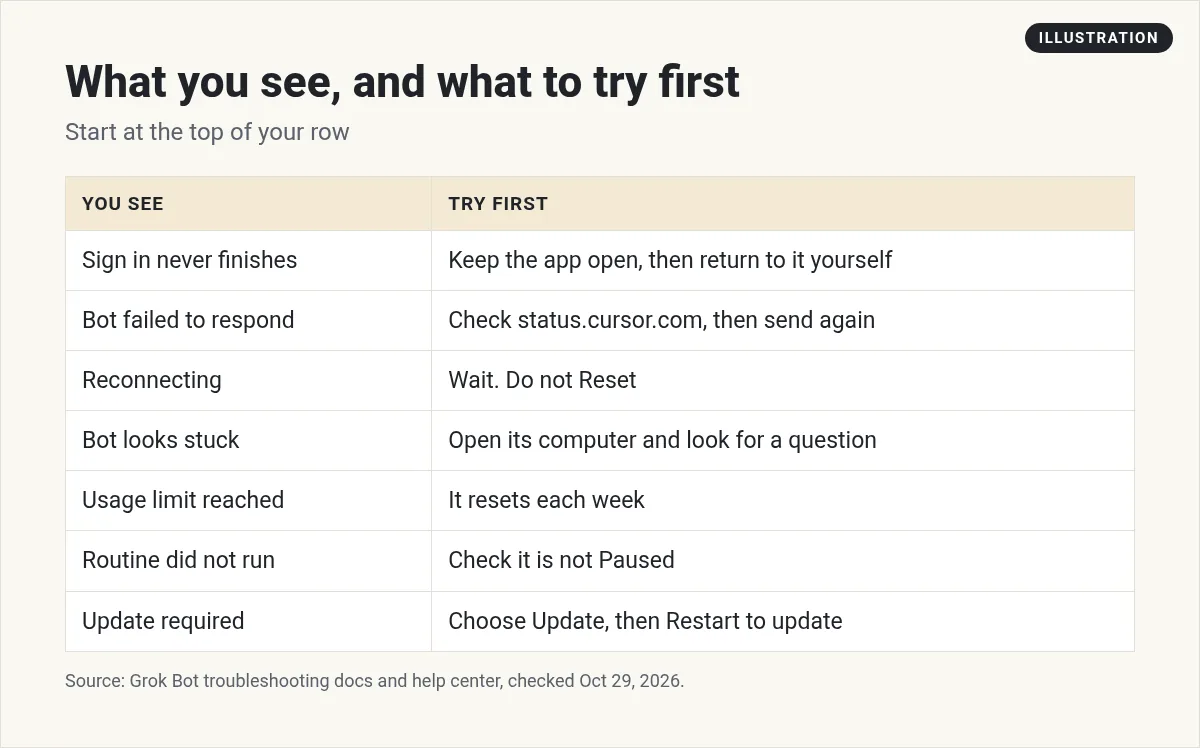
If Grok Bot is not working, first check status.cursor.com for an outage. If the computer says Reconnecting, wait and choose Retry, and do not press Reset. Fully quit and reopen the app, then send your message again. For a stuck Bot, open its computer and look for a question or login it is waiting on. If a routine did not run, check that it is not Paused. If you hit your usage limit, it resets each week. Still stuck? Use Send Feedback or email [email protected] with the error and request ID. AIM Agent gives you a ready business team so you spend less time on setup.
First, check three things
Before you change anything, check these three. They fix a lot of problems on their own.
- Is it down for everyone? The docs say the app does not show service status. Check status.cursor.com and look at the Grok Bot row.
- What does the computer say? Your Bots share one cloud computer. If it says Reconnecting, the Bot cannot finish its turn yet.
- Is your app up to date? An old version can cause strange problems, and very old versions stop working until you update.
New to how Grok Bot works? My Grok Bot explained post covers the basics, like Bots, the computer, and routines.
1. Bot failed to respond
If the status page shows a Grok Bot problem, wait for it to be fixed, then send your message again. The docs are clear here: do not Reset the computer or reinstall the app during an outage. Neither one fixes a service problem.
If the status page looks fine and you see Bot failed to respond or Model provider is overloaded, wait a moment and send the message again. Still nothing? Fully quit Grok Bot and open it again.
If the same message keeps failing, copy the request ID from the error. You will need it if you contact support.
2. The computer says Reconnecting
This is the one that worries people most. Here is the key fact from the docs: your Bots and saved chats are not lost when the computer is out of reach for a while. Chats are stored apart from the computer. Bots, files, and logins are safe while it reconnects.
The help page gives this order:
- Wait, then choose Retry.
Do not Reset during this.
- Fully quit Grok Bot and open it again. On a Mac, choose Quit from the menu bar. Closing the window is not enough.
- Choose Update in Settings, then Computer, if an update is offered.
- Choose Recover if it still cannot reconnect.
- Use Reset only after all of that.
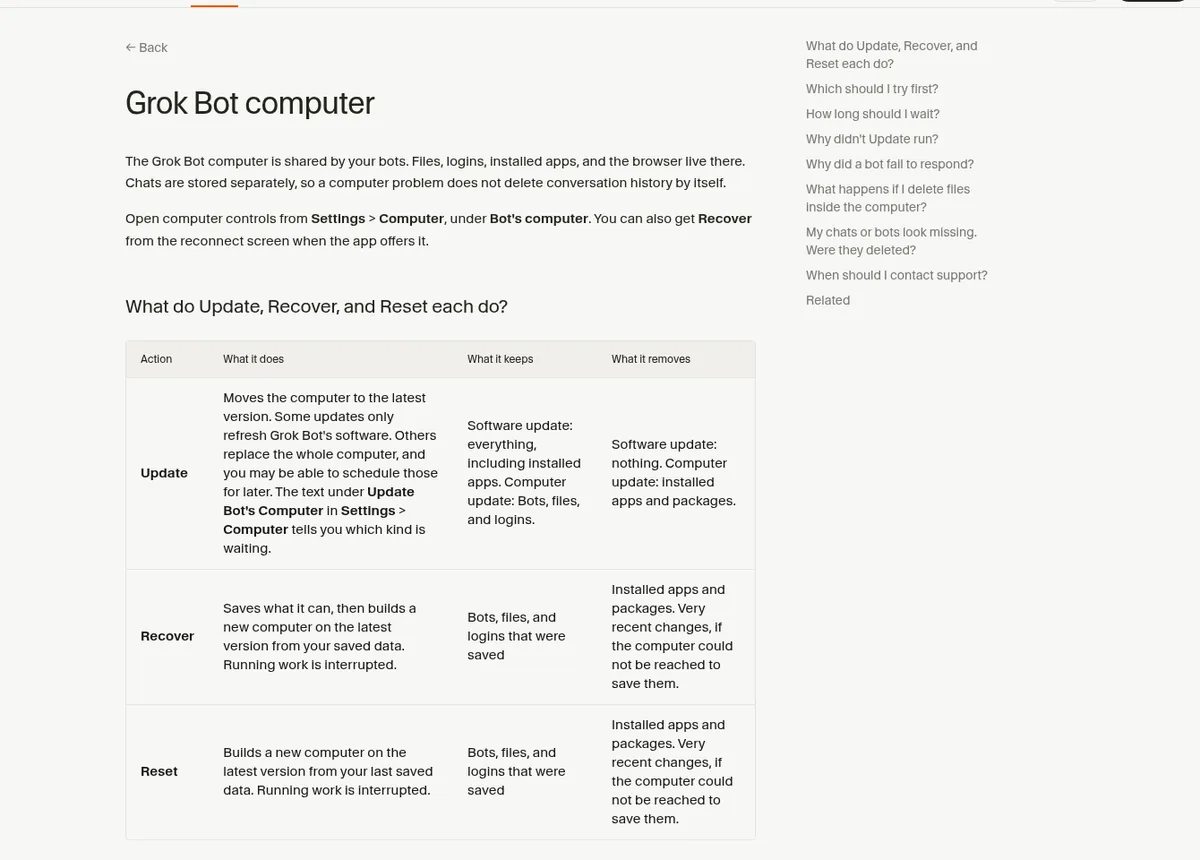
Why wait on Reset? Both Recover and Reset build a new computer from your last saved data. If the computer cannot be reached to save first, very recent changes may be lost. Installed apps and packages are also removed. The help page says Reconnecting and Recover usually take a few minutes.
One more rule: do not start a second Update or Reset while one is running. If Recover or Reset fails, try it once more, then stop and contact support.
3. The computer is still setting up
First setup and big updates can take several minutes. Keep the app open while it shows progress. You may see Setting up your Grok Bot, or on your phone, Starting your computer.
A slow update may say Update still running or Taking longer than usual. The safe choice is Keep waiting. Only choose Recover if the update looks stuck and the app offers Recover computer.
Just getting started? My Grok Bot setup guide walks through the first steps.
4. Sign in never finishes
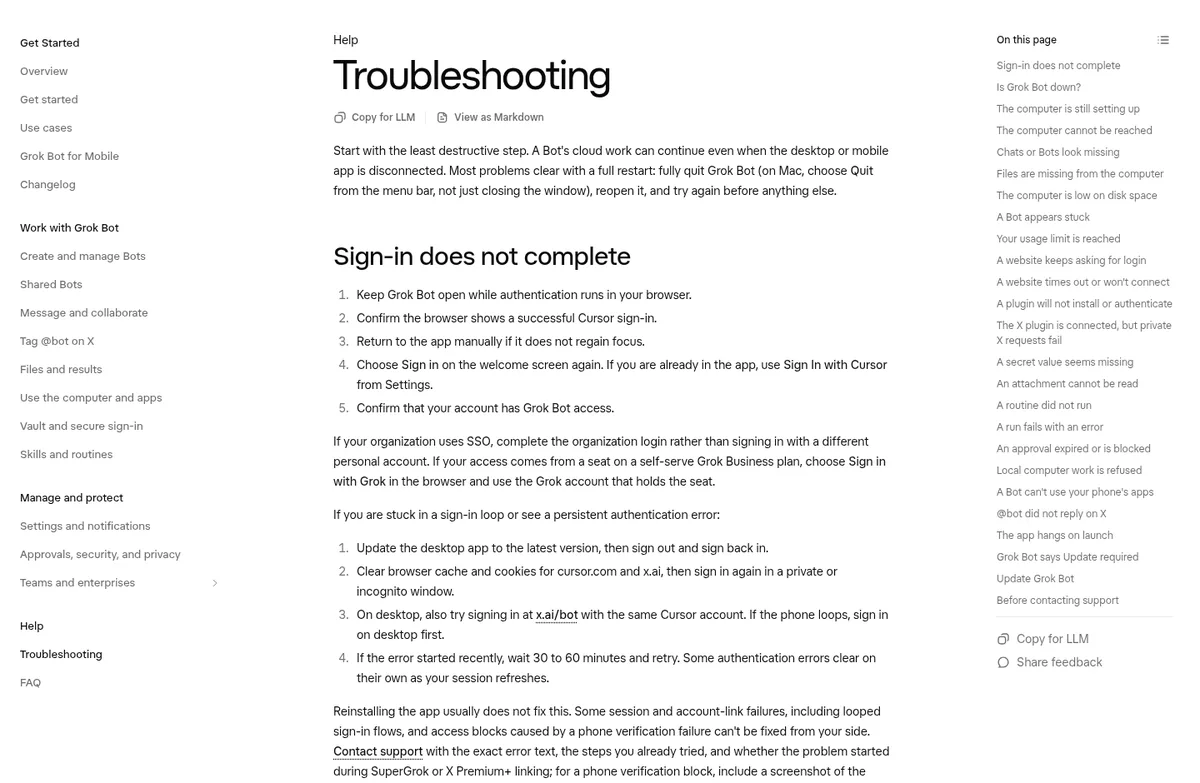
Sign in opens your web browser. Keep Grok Bot open while that runs. When the browser says you are signed in, go back to the app yourself if it does not come back on its own. Then choose Sign in again.
Stuck in a loop? The docs suggest you update the app, sign out, and sign back in. If that fails, clear your browser cache and cookies for cursor.com and x.ai, then try in a private window.
If your company uses single sign on, use your company login, not a personal account.
5. A Bot looks stuck
A Bot that seems frozen is often just waiting on you. The docs list what to check:
- Look at the status in the sidebar and the chat.
- Open the computer and see if the Bot is waiting on a page.
- Look for a question, an approval, a login, a CAPTCHA, or a request for a secret.
- Send a short message if it is going the wrong way.
- Send Stop now if the work should end.
Want to see a Bot work in its browser? My Grok Bot computer use post shows how that looks.
6. You hit your usage limit
If the Bot stops and says you hit your usage limit, it is not broken. The docs say your weekly usage is used up, and it resets each week. To see what used it, open Settings, then Usage and Billing.
A good place to look first: routines that run many times a day, since each run uses some of your usage.
7. A website keeps asking you to log in
Some sites ask for a code or a CAPTCHA every time. When that happens, take over the computer and sign in yourself. Finish the code or CAPTCHA, wait for the page to load, then tell the Bot to keep going from that page.
The docs give one strong rule: do not paste a password or a code into normal chat. Also, fingerprint, Face ID, and passkeys saved on your own laptop or phone do not work on the Bot's computer.
8. A website will not load
The Bot's computer reaches the internet through a shared network. Some sites drop those connections, even when the same site opens fine for you. The docs say Update, Recover, and Reset do not change this, so skip them.
Instead, look in Settings, then Computer. Route traffic through this computer lets the Bot's browser use your desktop's connection while the app is open. Only turn it on if you are fine with sites seeing your own network.
9. A routine did not run
Open the routine and check these:
- It is turned on, not Paused.
- The time and time zone are what you expect.
- The Bot that owns it still exists.
- Any apps it needs are still connected.
- Your usage has not run out.
Be careful with a test run. The docs warn that a test can do real things, like send a message. Use safe input. My Grok Bot routines post shows how to set them up so they keep running.
10. An approval expired
An approval in a chat you are in waits for you. But an approval from work that started without you, like a routine, expires after about 30 minutes. The card then says Expired, and the action does not run.
To catch them in time, turn on notifications for Bots that run routines. You can also choose Always allow for actions you trust. Then ask the Bot to try again. My Grok Bot safety guide explains which actions I let run and which I always check.
11. @bot did not reply on X
Tagging @bot on X has a few rules, like where you live and who tagged it. I cover them in my Grok Bot on X post.
12. Grok Bot says Update required
The docs say Grok Bot needs an update when your version is more than 14 days old and a newer one is out. Choose Update, wait for the download, then choose Restart to update. Your Bots keep running in the cloud the whole time. On a phone, choose Update Grok Bot to get it from the App Store or Google Play.
When to contact support
If you tried the steps above and it still fails, report it. In the desktop app, open the account menu and choose Support, then Send Feedback. Keep Include current conversation ID checked if the problem is in that chat. On your phone, open Settings and tap Send Feedback.
You can also email [email protected] from the email on your Grok Bot account. Include:
- The error title, word for word.
- The request ID, if there is one.
- A screenshot of what the computer says.
- Your app version and whether you use a Mac, Windows, Linux, or a phone.
Start over the right way
If your problem is really that setup never felt right, this short official video shows how getting started should look.
From the Matt Palmer channel (not mine): The Grok Bot team walks through getting started with a first Bot.
Also read my Grok Bot mistakes post. Many problems I see start with one of those.
Fewer setup problems from day one
Many Grok Bot problems come from a rushed setup: Bots with fuzzy jobs, routines that overlap, and approvals nobody watches.
AIM Agent is an AI Chief of Staff for business owners. It comes with an AI C-suite (COO, CMO, CFO, CRO and CTO), a Business Bot Builder and 100+ business skills, and it runs on AIM OS, a private vault that holds your notes and memory. AIM Agent is a ready-made AI business team that works inside Grok Bot, so you skip the setup and get to work.
Here is what you get:
- An AI Chief of Staff that helps you plan and run your business
- An AI C-suite: COO, CMO, CFO, CRO and CTO
- A Business Bot for each business or project. Give it a real task and it brings the work back for you to review
- 100+ business skills for content, offers, research and more
- Step by step setup guides and email support
So instead of building and fixing it all from blank Bots, you start with an AI Chief of Staff and a business team with clear jobs and skills already made.

Want an AI team to help run your business? Meet AIM Agent, an AI Chief of Staff for business owners. I am a co-founder of AIM Agent and have a financial interest in the product.
Get a ready AI team for your business
AIM Agent gives you an AI Chief of Staff, an AI C-suite, and 100+ business skills, so your Bots have real jobs from day one.
See AIM AgentFrequently asked questions
Why is Grok Bot not working?
Often the computer is reconnecting, the service has an outage, the app needs an update, or the Bot is waiting on you. Check status.cursor.com and the computer status first.
Is Grok Bot down right now?
Check status.cursor.com and look at the Grok Bot row. The app itself does not show service status.
What should I do when it says Reconnecting?
Wait and choose Retry. Do not press Reset. Then fully quit and reopen the app.
Will Reset delete my Bots?
Reset rebuilds the computer from your last saved data. Saved Bots, files, and logins come back, but installed apps go, and very recent changes may be lost.
Why did my routine not run?
Check that it is not Paused, the time zone is right, its apps are still connected, and your usage has not run out.
How do I contact Grok Bot support?
Use Support, then Send Feedback in the app, or email [email protected] with the error and request ID.
Is there an easier way to start with Grok Bot?
AIM Agent gives you an AI Chief of Staff, an AI C-suite, and 100+ business skills, so you start with a team built for business work.
Sources
Checked October 29, 2026. Plans, prices, and rules can change.
