
Grok Bot · Computer Use
Grok Bot computer use is what lets a Bot click, type, and browse like a person, even when your laptop is closed. Here is how it works, how to watch and take over, and the safety rules to know.
Grok Bot computer use is the feature that made me take this tool seriously. A Bot does not just write answers. It opens a browser, signs in, clicks through sites, and works with files on its own computer in the cloud.
I read the official computer and approvals guides on October 28, 2026, and watched two of the most honest reviews from the last month. Here is what you need to know.
TL;DR
Grok Bot computer use means your Bots work on a persistent cloud computer with a browser, command line, and files. Work keeps going while your laptop is closed. All your Bots share one computer, so files and sign ins are shared, but each Bot gets its own screen. You can watch the screen and take over for steps like a CAPTCHA or single sign on. Auto Review checks actions and shows an approval card when one needs you. AIM Agent gives you a business team that puts this computer to work.
What computer use means
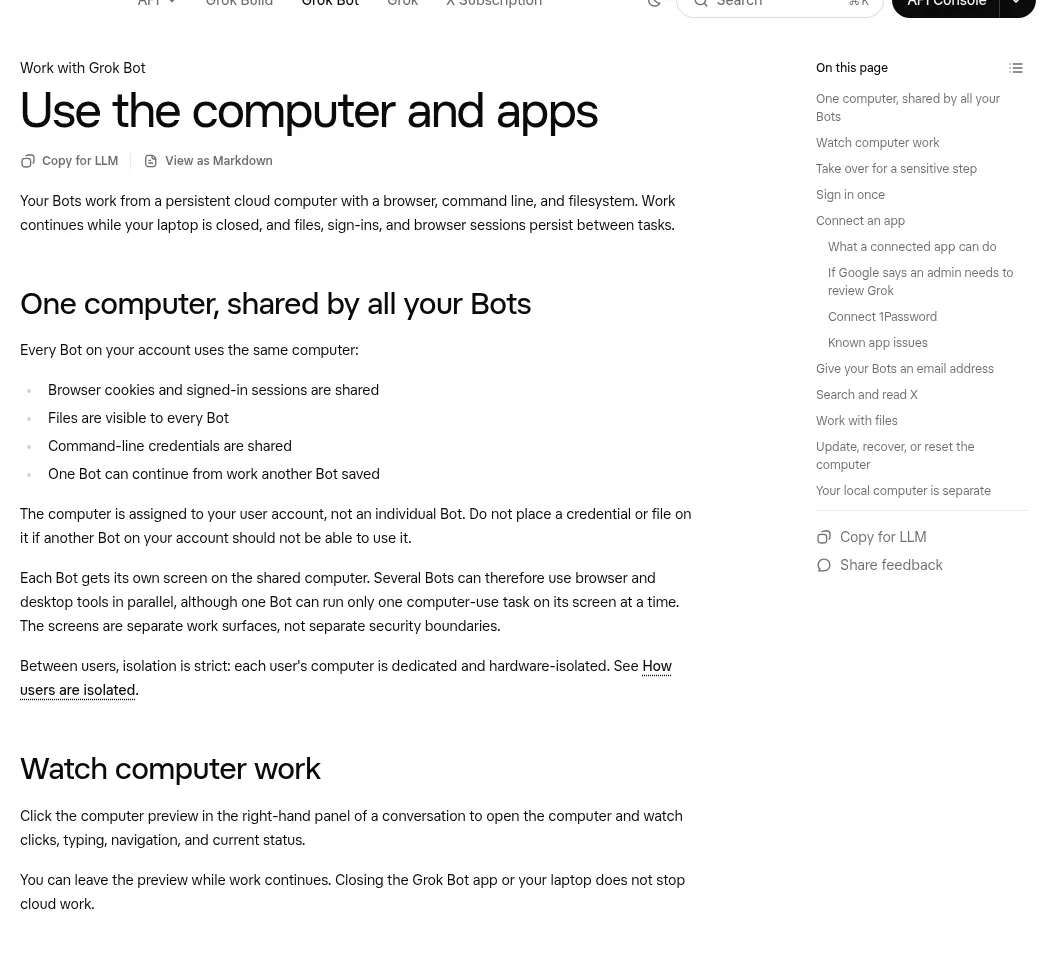
The docs put it plainly: "Your Bots work from a persistent cloud computer with a browser, command line, and filesystem. Work continues while your laptop is closed, and files, sign-ins, and browser sessions persist between tasks."
Serop's honest review says this is what makes it "really, really powerful" compared to most AI agents. The Bot can do things on the web that a chat app can only describe.
One computer, shared by all your Bots
This is the part to understand before you sign in to anything. "Every Bot on your account uses the same computer." That means:
- Browser cookies and signed in sessions are shared.
- Files are visible to every Bot.
- Command line logins are shared.
- One Bot can pick up work another Bot saved.
Each Bot gets its own screen, so several Bots can browse at once. But "one Bot can run only one computer-use task on its screen at a time." And the docs are clear: the screens "are separate work surfaces, not separate security boundaries."
Between different users, it is strict. Each user's computer is "dedicated and hardware-isolated."
How to watch your Bot work
In a chat, click the computer preview in the right side panel. You can watch the clicks, typing, and pages as they happen. You can leave the preview and the work keeps going. Closing the app or your laptop does not stop cloud work.
A tip from Serop: the chat does not show every step the Bot takes behind the scenes. If you want to see what it is doing, ask it to do the task on its computer so you can watch.
When you need to take over
To sign in, a Bot uses a login saved in Vault first, then a password manager like 1Password, then asks you with a Secure Form. It never sees the values from Vault or the form.
Some steps a form cannot do. That is when the Bot hands you the computer:
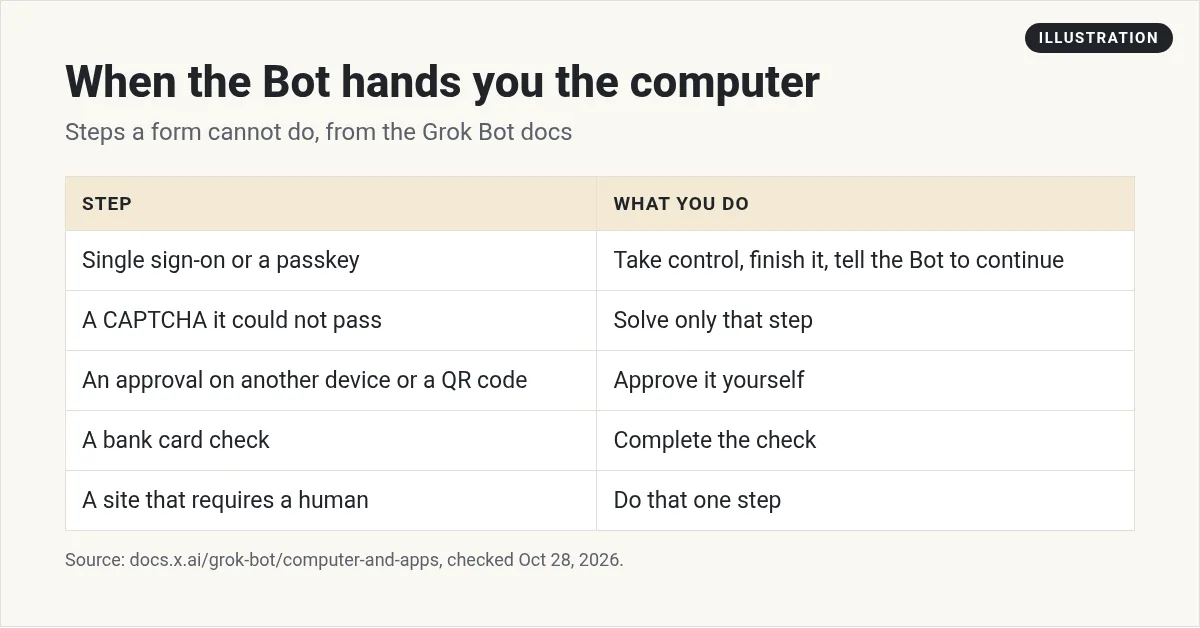
The docs' steps are simple: "Open the computer, take control, complete only the blocked step, and tell the Bot to continue." And one rule I never break: "Never paste passwords or one-time codes into ordinary chat."
Sign in once
Browser sessions stay signed in, so you usually do not need to log in for each task. Signing in for one Bot makes the session available to your other Bots.
Some sites log you out fast or ask to verify again. The docs say to "Ask the Bot to pause and notify you rather than attempting to work around the check." I like that rule. It keeps your accounts safe.
How approvals work
"Auto Review checks each action your Bot is about to take," like running a command, using an app, or using its computer. Most actions run on their own. When one needs you, an approval card shows up in chat with what it wants to do.
| Button | What it does |
|---|---|
| Allow once | Does the action now. No rule is saved. |
| Always allow | Does it now and saves a rule so similar actions run on their own. |
| Deny | Does not do it, and will not ask again until you send another message. |
Two things to know. Cards from work you started in chat wait for you. When a routine or other background work raised the card, "it expires after 30 minutes." And text from an email or a web page does not count as your request. Only your own messages do.
Set the stop point in your request
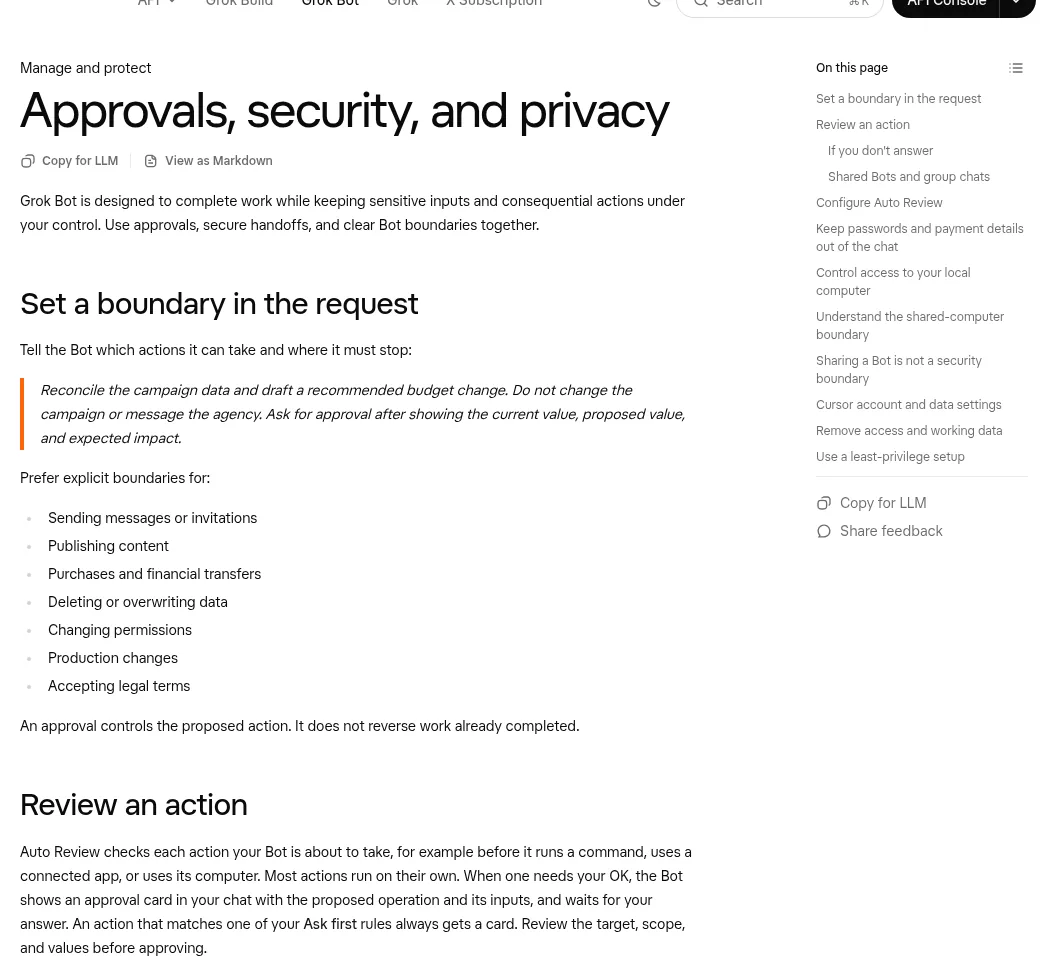
The docs suggest you say where the Bot must stop, right in the task. Their example ends with: "Do not change the campaign or message the agency." They list the actions that deserve a clear stop point:
- Sending messages or invites
- Publishing content
- Purchases and money transfers
- Deleting or overwriting data
- Changing permissions or live systems
- Accepting legal terms
Also note: "An approval controls the proposed action. It does not reverse work already completed."
What people use computer use for
Parker Prompts built a Bot that watches the price of a laptop on a store's site, so he does not have to keep checking. He also built one that makes small browser games. Serop connected a Bot to GitHub, and it read his code and opened a pull request while his laptop was closed.
From the Parker Prompts channel (not mine): Parker Prompts builds nine Bots, including a price monitor that checks a store site on its computer.
Give the cloud computer real business work
A Bot with its own computer can do a lot. The hard part is deciding which business jobs to hand it, writing the steps, and setting the right stop points so it never goes too far.
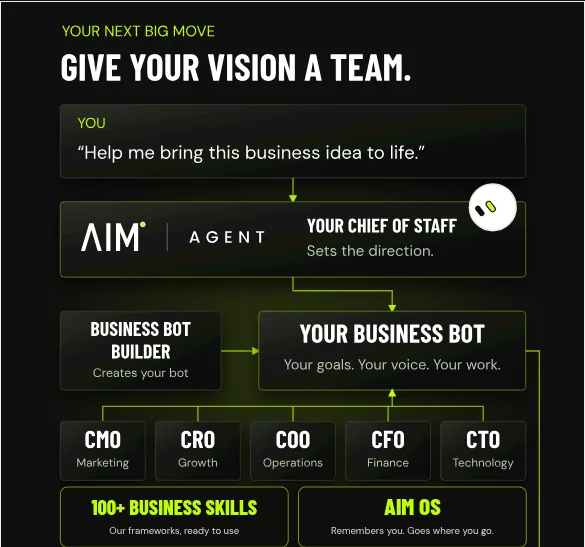
AIM Agent is an AI Chief of Staff for business owners. It comes with an AI C-suite (COO, CMO, CFO, CRO and CTO), a Business Bot Builder and 100+ business skills, and it runs on AIM OS, a private vault that holds your notes and memory. AIM Agent is a ready-made AI business team that works inside Grok Bot, so you skip the setup and get to work.
Here is what you get:
- An AI Chief of Staff that helps you plan and run your business
- An AI C-suite: COO, CMO, CFO, CRO and CTO
- A Business Bot for each business or project. Give it a real task and it brings the work back for you to review
- 100+ business skills for content, offers, research and more
- A step by step setup guide, with email support until your first bot finishes a real task
Your business team gets roles, skills, and review points built in, so the computer does useful work and you stay the one who approves.
Want to go deeper? Read Grok Bot connectors to see when an app beats the browser, and Grok Bot routines to put computer work on a schedule. For a wider look at agents that act on their own, see agentic AI. I show this kind of work live in my free MakerAI workshop.
Put an AI business team to work
AIM Agent gives you an AI Chief of Staff, an AI C-suite, and 100+ business skills. Give it a real task and review what it brings back.
See AIM AgentFrequently asked questions
What is Grok Bot computer use?
Your Bots work on a persistent cloud computer with a browser, command line, and files. Work keeps going while your laptop is closed.
Do all my Bots share one computer?
Yes. Files, sign ins, and browser sessions are shared. Each Bot gets its own screen, but screens are not security boundaries.
Can I watch my Bot work?
Yes. Click the computer preview in the chat's right side panel to watch clicks, typing, and pages.
When do I need to take over?
For single sign on, passkeys, CAPTCHAs, approvals on another device, bank card checks, or sites that require a human.
What happens if I don't answer an approval?
Cards from chat work wait for you. Cards from routines or background work expire after 30 minutes.
Does the Bot see my passwords?
No. Values from Vault and the Secure Form are filled in without the Bot seeing them.
What should I give the computer to do?
Start with research and drafts. AIM Agent gives you an AI Chief of Staff, an AI C-suite, and 100+ business skills to hand off.
Sources
Checked October 28, 2026. Plans, prices, and rules can change.
