
Grok Bot · Mobile App
Grok Bot on your phone is not a smaller version of the desktop app. It is the same Bots, the same cloud computer, and the same routines in your pocket. Here is how to set it up and what it can do.
Grok Bot on your phone is how I keep my AI team moving when I am away from my desk. I can send a Bot a job, approve a step, and read the result before I get back to my laptop.
I read the official Grok Bot mobile docs and help pages on October 28, 2026, and watched the newest videos on the phone features. Here is everything you need, in plain words.
TL;DR
The Grok Bot mobile app runs on iPhone (iOS 18 or later), iPad (iPadOS 18 or later), and Android 9 or later. It connects to the same Bots, conversations, routines, connectors, and cloud computer as desktop, and work keeps going when the app is closed. From your phone you can message or talk to Bots, approve steps, watch or take over the computer, and pause routines. With your OK, a Bot can also use your calendar, contacts, location, and alarms, plus reminders and Apple Home on iPhone. AIM Agent gives you a business team you can run from that same phone.
What the mobile app is
The docs say it best: "The mobile app connects to the same Bots, conversations, routines, connectors, and shared cloud computer as the desktop app. Work continues in the cloud when the app is closed."
So the phone is not where the work happens. The work happens on your Bot's cloud computer. The phone is your window into it. That is why you can close the app and your Bots keep going. If that idea is new, read Grok Bot computer use first.
How to set up Grok Bot on your phone
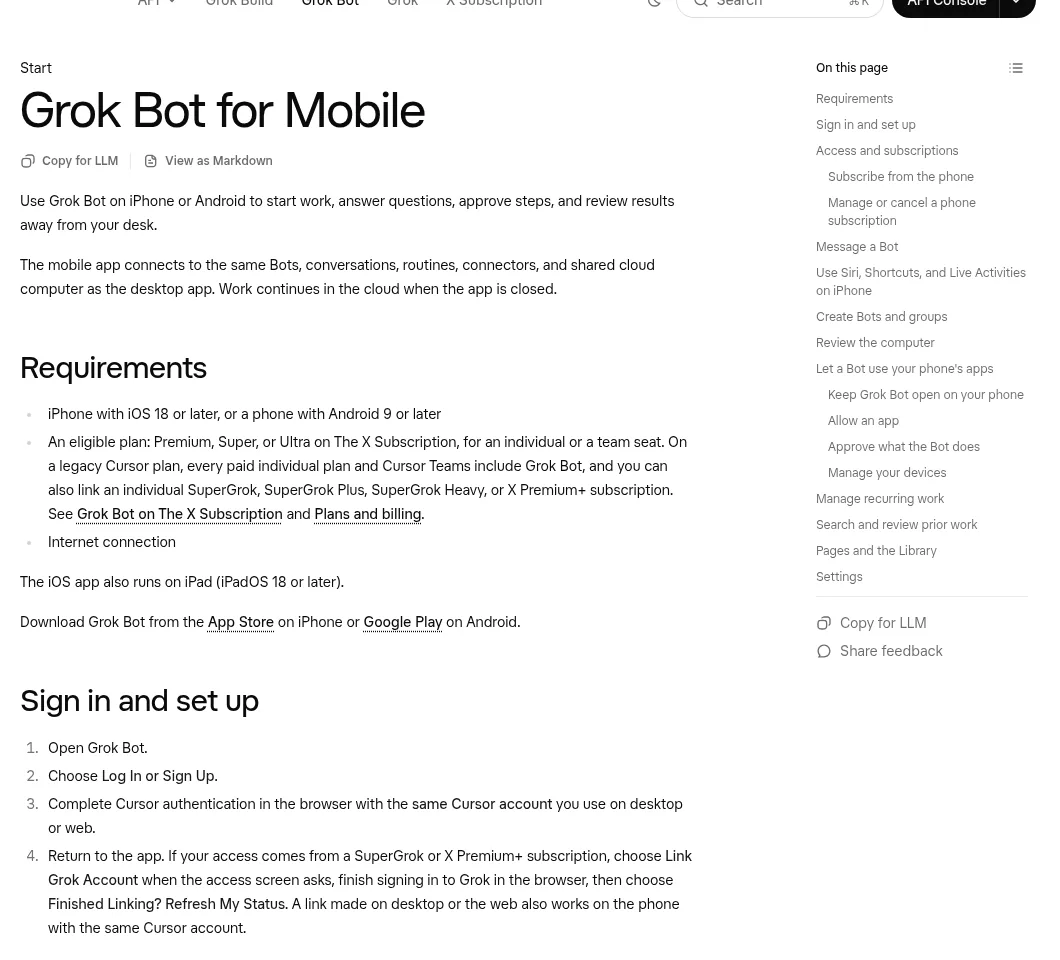
- Check your phone. You need an iPhone with iOS 18 or later, or an Android phone with Android 9 or later. The iOS app also runs on iPad with iPadOS 18 or later.
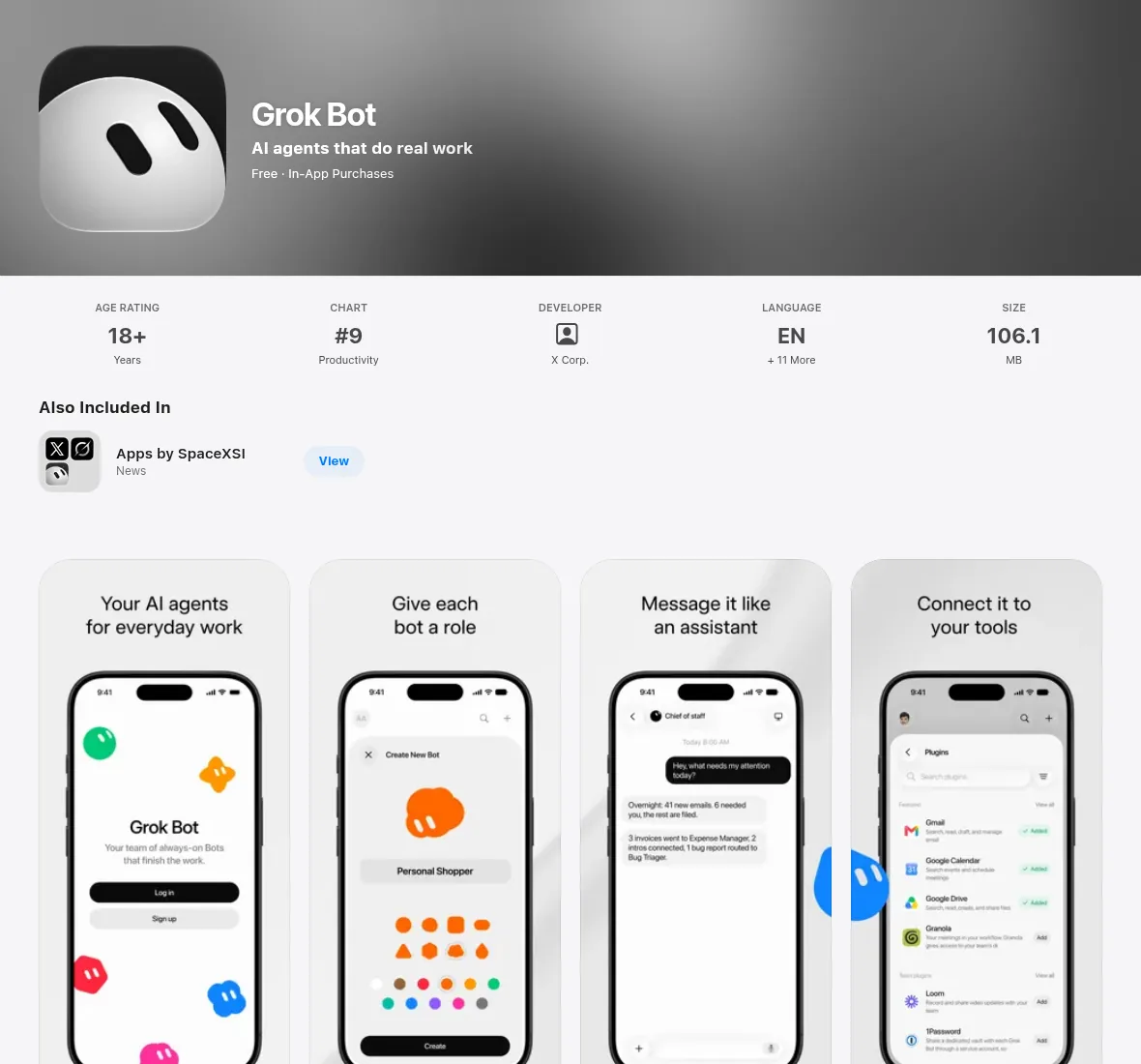
- Install the app. Get Grok Bot from the App Store or Google Play.
- Sign in with the same account. Choose Log In and use the same Cursor account you use on desktop. If you linked a Grok account on desktop, that link works on the phone too.
- Check your Bots. Existing users go straight to their synced Bots. New users get a short tour and pick a first Bot.
- Turn on notifications. That way you hear when a Bot finishes or is waiting for you.
If you have not set up Grok Bot at all yet, my Grok Bot setup guide walks through the desktop side.
How to message and talk to your Bots
From any chat on the phone, you can:
- Type a message, or tap Start dictation to talk it in.
- Tap Start voice chat when the message box is empty to talk with the Bot live.
- Take a photo, or attach an image or file.
- Mention another Bot, or @everyone in a group.
- Reply in a thread or react to a message.
- Play a voice memo a Bot sent you.
When a Bot prepares an email or Slack message, the chat can show a draft you can edit. You choose Send or Discard. I love this one on the phone. I read the draft, fix one line, and send.
On iPhone, you can also share a photo, file, link, or text into a chat from any app with the share sheet. On Android, the share sheet takes text for now.
Siri, Shortcuts and the Action Button
On iPhone, Grok Bot adds four shortcuts you can run from Siri, Spotlight, or the Shortcuts app: List Bots, Send Message, Start Dictation, and Start Voice Chat. The docs' example is to say "Send a message in Grok Bot."
Start Dictation lets you talk a message to a Bot without opening the app, as long as your iPhone is unlocked. A Live Activity on the Lock Screen and in the Dynamic Island shows it, with buttons to cancel or send.
Jack Roberts shows a smart trick in his video on recent updates: set the iPhone Action Button to Start Voice Chat. One press, and you are talking to your Bot. That is great for ideas that hit you on a walk.
Approvals and the computer from your phone
This is the biggest reason I use the phone app. The docs say from your phone you can "message Bots, watch and take over the computer, approve actions, and pause or resume routines."
When a Bot needs your OK to send, buy, or change something, the approval shows up and you answer from wherever you are. You can also open the computer from a chat to:
- Watch what the Bot is doing in the browser.
- Take over for a password, a two factor code, or a CAPTCHA.
- Look at the current screen.
- Hand control back with I'm done.
A few things stay on desktop. The docs list teaching a workflow by demonstration, testing routines, and updating the computer. Recovering the computer is desktop only too.
Let a Bot use your phone's apps
This is the newest part. A Bot can now use some apps on your phone when you ask, like checking your calendar or setting a timer. In his video on the update, Julian Goldie covers what it can touch and how to turn it on safely.
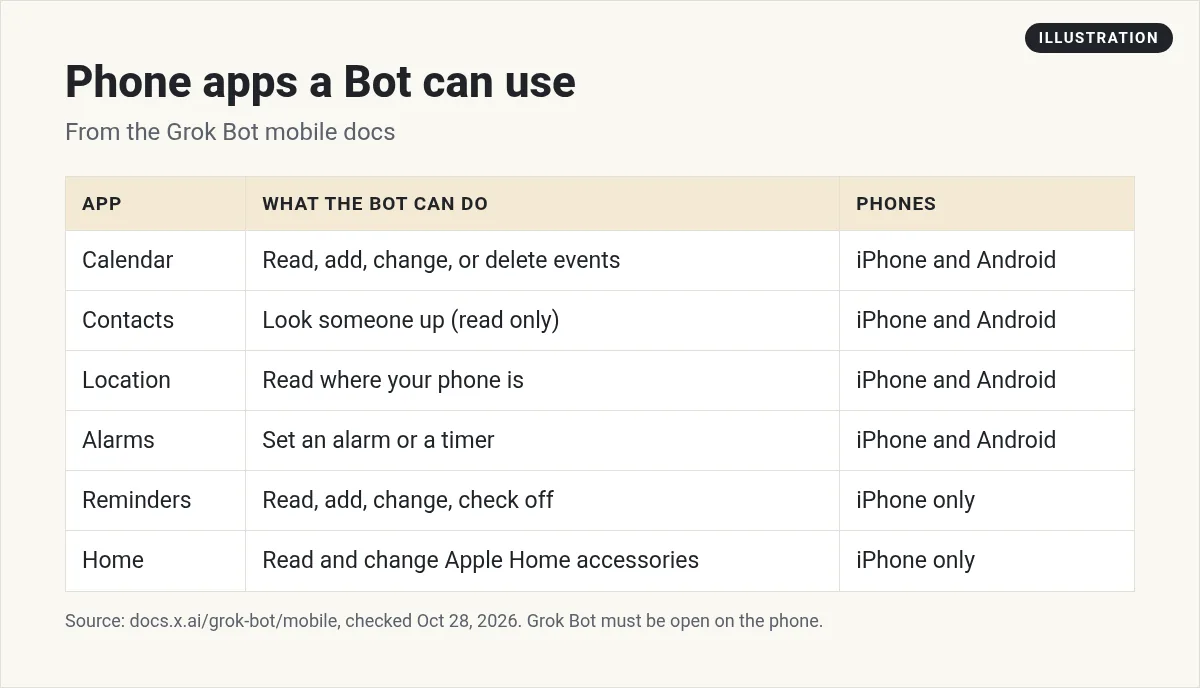
The docs add some important limits:
- Calendar. New events go in your default calendar. The Bot "can't change or delete a repeating event, and it never invites anyone."
- Contacts. Read only. If you shared only some contacts, it sees only those.
- Location. It gets a position, not an address or place name.
- Alarms. An alarm can't be set more than 24 hours ahead, and a timer runs up to 24 hours. The Bot can't change or cancel them.
- Home. On iPhone it can change Apple Home accessories, including locks and garage doors, so think before you allow it.
It also only works in your own chat with a Bot you own in the Grok Bot app. Not in group chats, not in Slack, and not with a shared Bot someone else owns. And the app has to be open on your phone. If it is closed or in the background, the Bot asks you to open it and try again.
How to allow an app
- Open Settings, then Connect apps.
- Choose iPhone, iPad, or Android.
- Find the app under This iPhone, This iPad, or This device.
- Tap Allow. It will say Allowed when the permission is on. If it says Denied, choose Open Settings and turn it on in your phone's settings.
You can also skip this and let the Bot ask the first time it needs an app. A permission card shows up in chat. The docs say the Bot waits up to five minutes for you to tap Allow, and if you allow it later, within an hour, it can pick the request back up. If Auto Review is on, it checks each use too.
From the Julian Goldie SEO channel (not mine): Julian Goldie covers the update that lets Grok Bot use apps on your phone, like your calendar, reminders, and contacts, and how to switch it on safely.
What about phone calls?
You may see videos about Grok Bot making phone calls. In one, Matt Palmer shows a Bot template that places calls through an outside calling service called Bland, using your own API key. That is an add on you connect yourself, not a phone app feature in the docs. If you try it, keep every call behind your approval, since it is a real person on the other end.
My tips for using Grok Bot on the go
- Use the phone to start and approve, not to build. I set up new Bots and skills on desktop, and run them from my phone.
- Turn off noisy Bots. Tap a Bot's name and turn off its Notifications if it pings too much.
- Talk long instructions. Dictation and voice chat are faster than typing a big prompt. My Grok Bot prompts post has ones to try.
- Allow only what you need. Start with Calendar. Add Home only if you really need it.
- Read results as Pages. Ask for a Page when you want a clean report to read on a small screen.
| Do on desktop | Do on the phone |
|---|---|
| Create Bots and skills | Send jobs and quick ideas |
| Teach a task by demonstration | Approve steps |
| Test and edit routines | Pause or resume routines |
| Update or recover the computer | Watch or take over the computer |
A business team in your pocket
The phone app is great for running Bots. It is not where you want to design a whole AI team, write the skills, and set the stop points. That part takes real time at a desk.
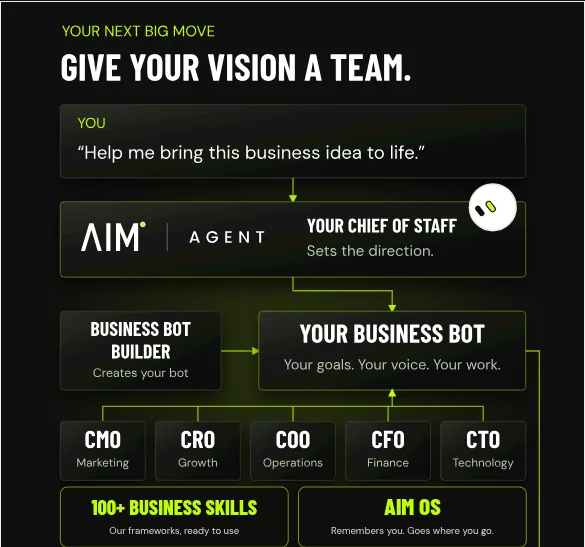
AIM Agent is an AI Chief of Staff for business owners. It comes with an AI C-suite (COO, CMO, CFO, CRO and CTO), a Business Bot Builder and 100+ business skills, and it runs on AIM OS, a private vault that holds your notes and memory. AIM Agent is a ready-made AI business team that works inside Grok Bot, so you skip the setup and get to work.
Here is what you get:
- An AI Chief of Staff that helps you plan and run your business
- An AI C-suite: COO, CMO, CFO, CRO and CTO
- A Business Bot for each business or project. Give it a real task and it brings the work back for you to review
- 100+ business skills for content, offers, research and more
- A step by step setup guide, with email support until your first bot finishes a real task
AIM Agent gives you an AI Chief of Staff, an AI C-suite (COO, CMO, CFO, CRO and CTO), a Business Bot Builder, and 100+ business skills, so the team is ready and you can run it from your phone.
Where to go next
Want a Bot that keeps you on top of everything from your phone? Read Grok Bot chief of staff. For jobs worth running on a schedule, see Grok Bot routines. I also show real AI workflows in my free MakerAI workshop.
Run a business team from your phone
AIM Agent gives you an AI Chief of Staff, an AI C-suite, a Business Bot Builder, and 100+ business skills that work inside Grok Bot.
See AIM AgentFrequently asked questions
Is there a Grok Bot mobile app?
Yes. Grok Bot is on the App Store for iPhone and iPad and on Google Play for Android.
What phones does Grok Bot support?
iPhone with iOS 18 or later, iPad with iPadOS 18 or later, and Android 9 or later.
Do my Bots keep working when I close the app?
Yes. The work runs on your Bot's cloud computer, so it continues when the app is closed.
Can I approve actions from my phone?
Yes. You can approve actions, watch or take over the computer, and pause or resume routines from the phone.
Can Grok Bot use my phone's calendar?
Yes, when you allow it. It can read, add, change, or delete events, but it can't change repeating events and never invites anyone.
Why can't my Bot reach my phone?
Grok Bot has to be open on your phone. If the app is closed or in the background, the Bot asks you to open it and try again.
What can't I do on mobile?
Teaching a workflow by demonstration, testing routines, and updating or recovering the computer stay on desktop.
Is there a ready-made team I can run from my phone?
AIM Agent gives you an AI Chief of Staff, an AI C-suite, a Business Bot Builder, and 100+ business skills that work inside Grok Bot.
Sources
Checked October 28, 2026. Plans, prices, and rules can change.
