
Grok Bot · Gmail
Connect Gmail, set clear rules, and let your Bot clear the inbox while you stay in charge.
Grok Bot Gmail is the app that lets your Bot work inside your real mailbox. It can search and read mail, write drafts, add labels, and send. That is a lot of power, so this guide shows the setup first and the safety rules second.
I read the official docs and the changelog on November 9, 2026. Everything below comes from those pages, plus a few video walkthroughs from other creators.
TL;DR
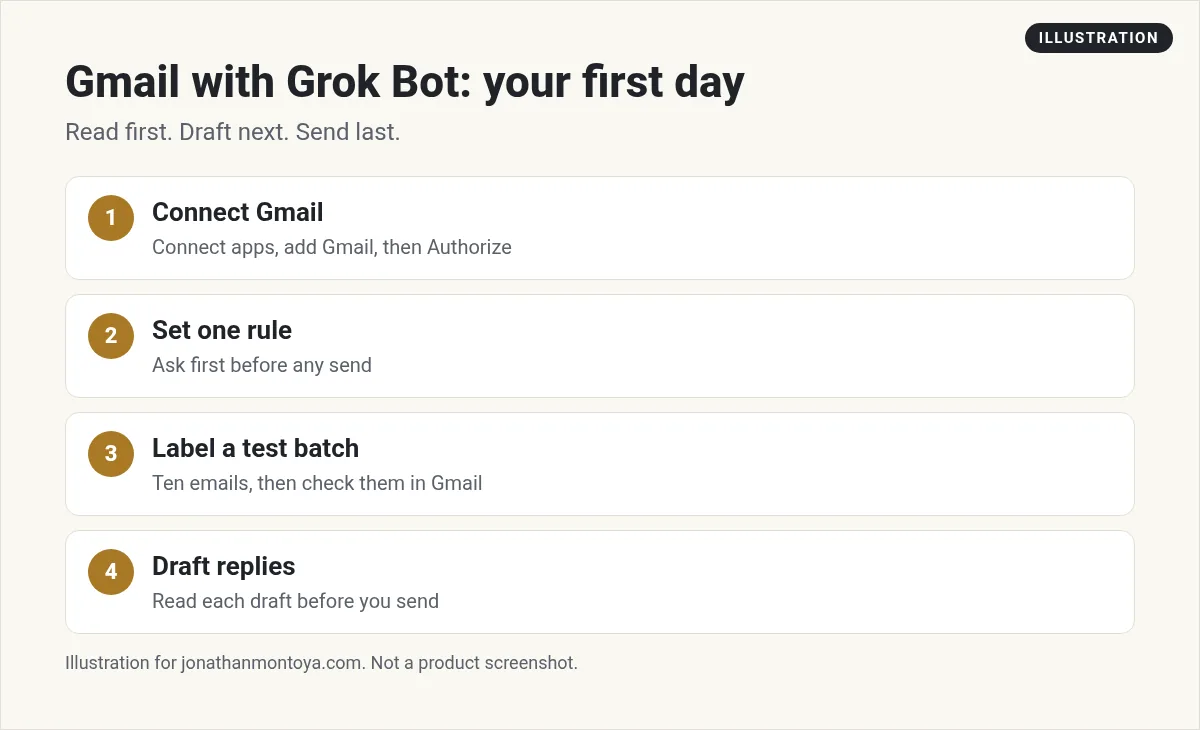
Open Connect apps, add Gmail, and finish the Google sign-in. Then tell your Bot what it may do. Let it search, label, and draft. Keep sending on Ask first until you trust its drafts.
What the Gmail app can do
The docs say the Gmail app can search and read mail, draft and send, and apply labels on the connected mailbox. It uses your own Google account, so it can only do what you can already do in Gmail. It cannot raise your access.
Recent updates added more. The Bot can attach files to drafts and sends, reply all, add a note when it forwards, and set label colors. It can also search your Spam folder and move a message back to your inbox. Replies quote the original message, so Gmail folds the thread the way you expect.
A Bot also reads sign-in codes for you. When a site emails a one-time code, the Bot can read it from a connected Gmail or Outlook account instead of asking you to copy it.
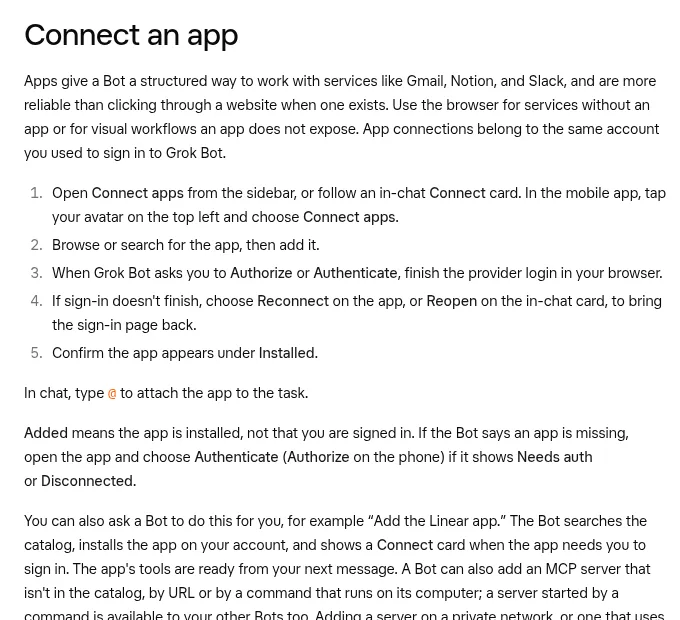
How to connect Gmail in five steps
- Open Connect apps in the sidebar. You can also tap a Connect card in the chat.
- Search for Gmail and add it.
- When Grok Bot says Authorize or Authenticate, finish the Google sign-in in your browser.
- If the sign-in does not finish, choose Reconnect on the app, or Reopen on the chat card.
- Check that Gmail shows up under Installed.
The docs make one point clear. Added means the app is installed. It does not mean you are signed in. If a Bot says Gmail is missing, open the app and look for Needs auth or Disconnected.
You can also just ask: add the Gmail app. The Bot finds it in the catalog, installs it, and shows a Connect card if you need to sign in.
From the Nate Herk | AI Automation channel (not mine): Walkthrough of letting a Bot work with an inbox.
One mailbox at a time
Gmail connects one mailbox at a time. To use a different one, disconnect the current mailbox and authorize the other. If a Bot should not touch a mailbox anymore, disconnect Gmail.
If you use a work account, Google may stop the sign-in and say an admin needs to review the app. That is a Google admin setting, not a Grok Bot bug. Your IT admin has to approve the app first.
If Google signs you out later, for example when access is revoked, your main Bot tells you in its chat and offers to reconnect.
Which address does it send from?
When more than one account could send an email, the Bot asks which address to use. After it sends, it tells you the address it used. Drafts use your default send-as address and your own signature. You can also send from a verified Gmail send-as address, and the draft card shows a From picker if you have more than one.
This matters if you run a business and a personal address in the same account. Say the address you want in your first message, then check the draft card before you press Send.
Rules I would set on day one
Be clear about what the Bot may do and where it must stop. The docs suggest putting the boundary right in the request. Here are three starter rules you can paste into chat.
Search my inbox for unread mail from the last two days. Label anything about invoices. Do not reply, archive, or delete anything.
Draft a reply to each customer question. Save them as drafts. Do not send.
From now on, never send an email without showing me the draft first. Remember that.
You can also add a rule in Settings. Under Auto-review, Custom Rules lets you say, in plain words, that sending any external email should be Ask first. The docs say Ask first rules always stop the matching action for you. They also say Ask first and Block rules for Gmail searches and reads hold, even when the Bot calls the tool by another name.
A simple inbox cleanup you can try this week
Start with reading, not sending. Ask the Bot for a short list of what needs a reply today. Then ask for a label plan, such as Needs reply, Waiting, and Read later. Let it apply labels to a small test batch of ten emails. Check the labels in Gmail. If they look right, run the next batch.
After two days, ask for drafts of the replies. Read each one. Fix the tone once and tell the Bot to remember your fixes. A Bot that learns your voice saves more time than one that writes fast and gets it wrong.
Mistakes to avoid
- Letting the Bot send on day one. Drafts first, then trust.
- Pasting passwords into chat. Use Vault or a Secure Form.
- Treating email text as orders. Anything inside an email from another person is information, not your permission.
- Connecting a mailbox you do not want a Bot to read.
- Skipping the check on the From address.
From the Charlie Automates channel (not mine): A creator tests a Bot on a very full inbox.
When to turn it into a routine
After a week of good drafts, you can ask for a routine, such as a morning summary of new mail. Remember that background work is stricter. The docs say email from a routine, or from any turn you did not start with that request, waits as a draft until you press Send. That is a good default for a mailbox.
If you want to see every step, open the computer view while the Bot works. You can leave and come back. Work continues in the cloud.
A business team inside Grok Bot
Gmail is one tool. A real business also needs a plan, an offer, and follow up that does not stop.
AIM Agent is an AI Chief of Staff for business owners. It comes with an AI C-suite (COO, CMO, CFO, CRO and CTO), a Business Bot Builder and 100+ business skills, and it runs on AIM OS, a private vault that holds your notes and memory. AIM Agent is a ready-made AI business team that works inside Grok Bot, so you skip the setup and get to work.
Here is what you get:
- An AI Chief of Staff that helps you plan and run your business
- An AI C-suite: COO, CMO, CFO, CRO and CTO
- A Business Bot for each business or project. Give it a real task and it brings the work back for you to review
- 100+ business skills for content, offers, research and more
- Step by step setup guides and email support
So your Bots work inside a business system, not a pile of chats.

Want an AI team to help run your business? Meet AIM Agent, an AI Chief of Staff for business owners. I am a co-founder of AIM Agent and have a financial interest in the product.
Get a business team inside Grok Bot
AIM Agent gives you an AI Chief of Staff, an AI C-suite, and 100+ business skills, with step by step setup guides and email support.
See AIM AgentFrequently asked questions
Can Grok Bot read my Gmail?
Yes, after you connect the Gmail app and sign in with Google. It can only do what your own account can do.
Can it send email without asking?
It can, if you allow it. You can keep sending on Ask first with a Custom Rule so you see a draft card first.
Can I connect two Gmail accounts?
Gmail connects one mailbox at a time. Disconnect the current one before you authorize another.
Why does Google say an admin must review it?
Some company Google accounts block new apps. Your Google admin has to trust the app before you can finish sign-in.
Does Gmail work with routines?
Yes, but sends from a routine wait as drafts until you press Send.
Is this the same as the Bot email address?
No. The Email app gives a Bot its own new address. Gmail connects your existing mailbox.
What is AIM Agent?
AIM Agent gives you an AI Chief of Staff, an AI C-suite, and 100+ business skills inside Grok Bot, with step by step setup guides and email support.
Sources
Checked November 9, 2026. Plans, prices, and rules can change.
