
Grok Bot · Calendar
Grok Bot calendar help is like having an assistant who guards your time. Here is what a Bot can do with Google Calendar and your phone, how to set it up, and the rules that keep it from booking the wrong thing.
Grok Bot calendar help is one of the first things I would set up if I were starting today. A Bot can read your week, spot conflicts, find open time, and draft changes for you to approve.
I checked the official help pages and guides on October 29, 2026. Below is what works with Google Calendar, what works with the calendar on your phone, and the simple rules I would give any calendar Bot.
TL;DR
Grok Bot can work with your calendar in two ways. Connect the Google Calendar app and a Bot can read calendars you can see, create and update events, check free time, and respond to invitations. Or, in the phone app, a Bot can read and change events in your phone's calendar, but it cannot change repeating events and it never invites anyone. Give your calendar Bot clear rules, like your focus hours and hard stops, and have it draft changes for you to confirm. AIM Agent gives you a business team that can help plan your week.
Two ways Grok Bot works with your calendar
There is the Google Calendar app, which you connect once from Connect apps. And there is your phone's own calendar, which a Bot can use through the Grok Bot phone app. They do different things, so it helps to know both.
What a Bot can do with Google Calendar
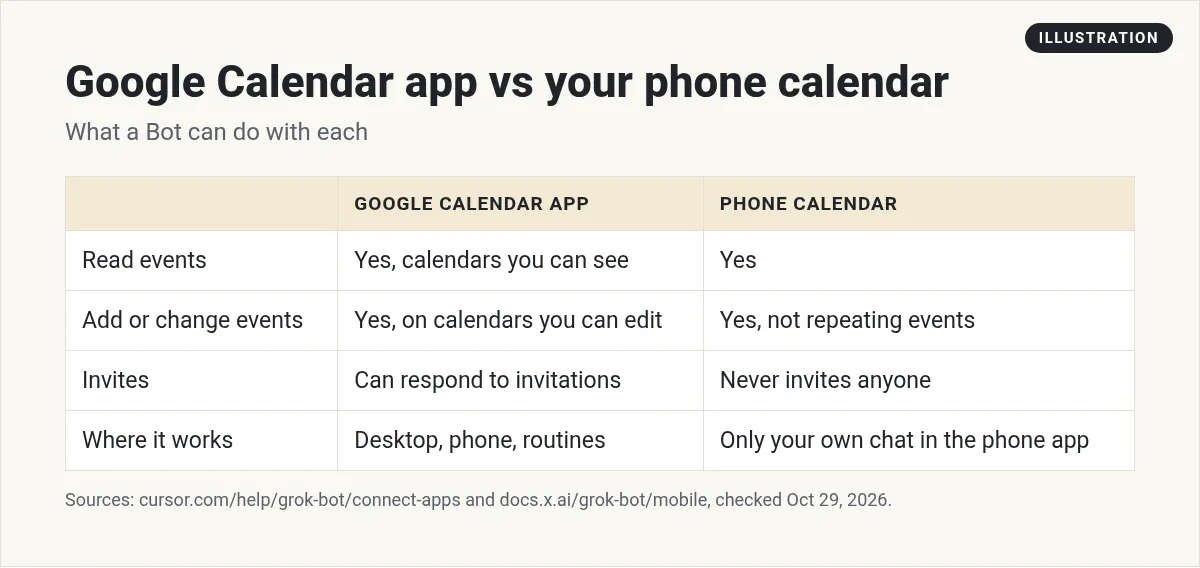
The help page says "The bot can read calendars you can see, create and update events, check free time, and respond to invitations on calendars you can edit."
That covers most of what you need. It can tell you what your day looks like, find a free hour for a call, move a meeting, or accept an invite.
There are two limits worth knowing:
- Google Meet settings. It cannot change Meet settings, like the waiting room or host controls.
- Zoom links. It cannot add a Zoom link to an event, because that uses a Google add on the app cannot reach. Put the Zoom link in the location or notes yourself, or create the event and ask the Bot to fill in the rest.
Like every app, it uses the account you sign in with. It can only do what that account can already do. It cannot raise your access.
How to connect Google Calendar
- Open Connect apps in the sidebar, or tap a Connect card when a Bot asks for it in chat.
- Find Google Calendar and add it.
- Finish the Google sign in in your browser.
- Check that it shows under Installed.
- Ask your Bot something easy, like what is on your calendar tomorrow.
A connected app is shared by every Bot on your account. If you only want one Bot to plan your time, tell the others in their instructions to leave the calendar alone. My Grok Bot connectors guide covers app setup in more detail.
Using your phone's calendar (including iPhone)
The phone app can also let a Bot use some apps on your phone, like the calendar. The docs say this works only in your own chat with a Bot you own in the Grok Bot app. It does not work in group chats, in Slack, or with a shared Bot someone else owns.
On iPhone and Android, the docs say the Bot can read your events, and add, change, or delete them. New events go in your default calendar unless you name another one. Two limits: "The Bot can't change or delete a repeating event, and it never invites anyone."
On iPhone it can also use Reminders, so you can ask it to add a to do with a due date.
To turn it on ahead of time, open Settings, then Connect apps, and choose your phone next to All. Your apps are listed under This iPhone or This device. Choose Allow. If you skip this, the Bot asks the first time with a Grok Bot needs permission card.
One more thing. The Bot can reach your phone only while Grok Bot is open on it. If the app is closed, it will ask you to open it and try again. My Grok Bot mobile app guide has the rest of the phone features.
From the Matt Palmer channel (not mine): Matt Palmer's Oct 27 update covers Pages, Vault, and the new phone features, including Calendar and Reminders.
The calendar assistant idea from the x.ai guide
The best example I found is in the official guide called Grok Bot for Work. The writer set up four Bots, and one of them is a Calendar EA. He says it "manages my calendar, flags conflicts, and sends invites on my behalf."
What I like is how he set its rules. It protects focus time by stacking meetings close together. It keeps rooms near each other. And it does not let him be late for school pickup. Over time it learned those habits.
His instructions also say to draft moves and invites only after he confirms, and to never write to the calendar silently. That is the right default. You can loosen it later once you trust the Bot.
The rules I would give a calendar Bot
A calendar Bot is only as good as its rules. Write these once, in plain words, in your first message to it:
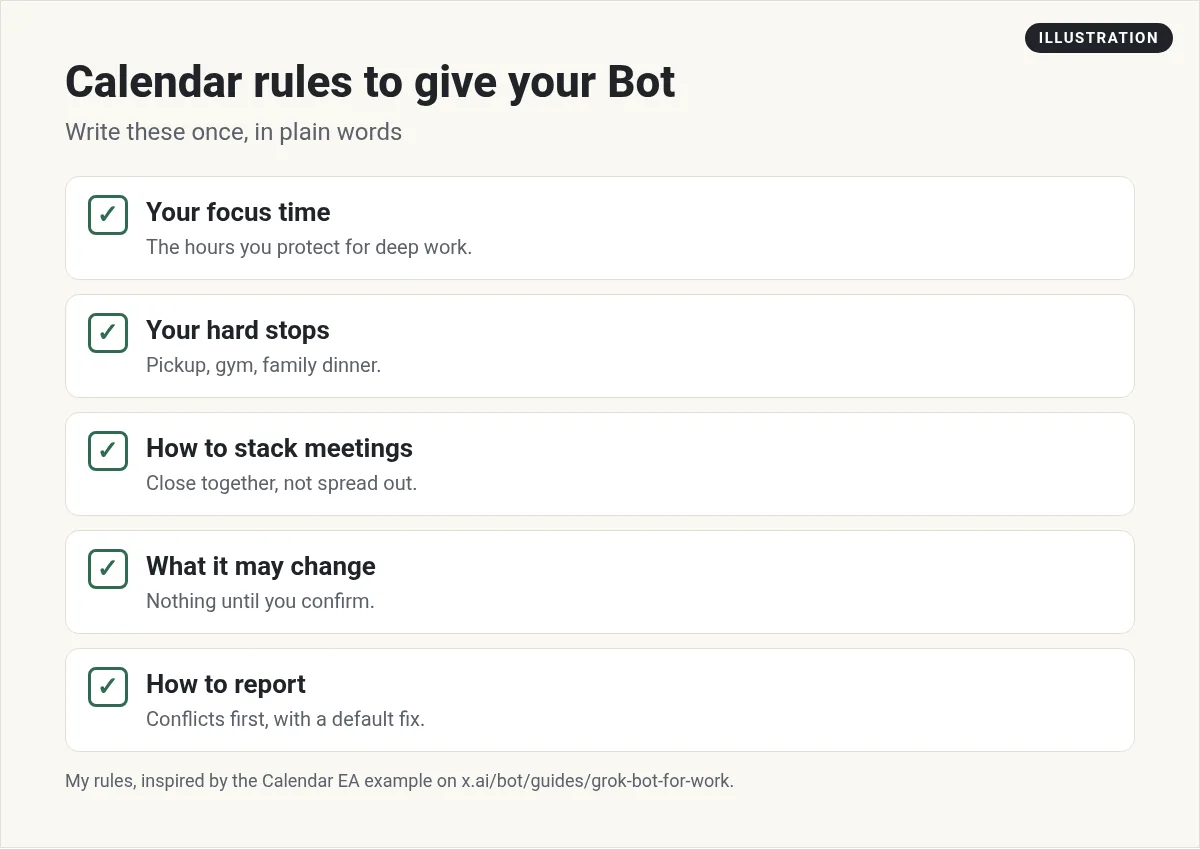
Here is a starter prompt. Change the times to fit your life:
You are my calendar assistant. Protect 9 to 11 AM on weekdays for deep work. I have a hard stop at 3 PM for pickup. Stack meetings close together. Each morning at 7:30, show me today's plan with any conflicts first, and a suggested fix for each. Do not change my calendar until I say yes.
That last line matters most. Let it suggest. You approve. If you want it to run every morning, turn it into a routine. My routines guide shows how.
Calendar jobs worth handing off
- A morning plan. Today's meetings, prep notes, and conflicts.
- Find a time. Ask for three open slots next week for a 30 minute call.
- Meeting prep. Who is coming, what you last talked about, and what to ask.
- Weekly review. How many hours went to meetings vs focus time.
- Invite triage. Which invites clash with your rules, and a reply for each.
Meeting prep gets better when the Bot can also see your email. My Grok Bot email guide covers that side.
From the Roboto Studio channel (not mine): Roboto Studio shows the Bots he uses every day for his calendar, inbox, and tickets, and how they run on their own.
Tips that save you headaches
- Set your time zone. Routines use the time zone in Settings. If your calendar Bot runs at the wrong hour, check that first.
- Name the calendar. If you have work and family calendars, say which one it should write to.
- Keep invites behind approval. Sending an invite is sending a message to someone. Treat it that way.
- Do not rely on memory alone. Ask it to pull a fresh view of your calendar every time, so it does not use old info.
- Give it one job. A calendar Bot that also writes your blog gets confused. One Bot, one job.
Get a team that plans the week with you
A calendar Bot can guard your time. But most business owners need more than that. They need someone to look at the week and say what matters most, then help get it done.
AIM Agent is an AI Chief of Staff for business owners. It comes with an AI C-suite (COO, CMO, CFO, CRO and CTO), a Business Bot Builder and 100+ business skills, and it runs on AIM OS, a private vault that holds your notes and memory. AIM Agent is a ready-made AI business team that works inside Grok Bot, so you skip the setup and get to work.
Here is what you get:
- An AI Chief of Staff that helps you plan and run your business
- An AI C-suite: COO, CMO, CFO, CRO and CTO
- A Business Bot for each business or project. Give it a real task and it brings the work back for you to review
- 100+ business skills for content, offers, research and more
- Step by step setup guides and email support
So instead of building that from a blank Bot, you start with a team and skills made for business work, and you stay the one who says yes.

A calendar Bot is a great first step toward a chief of staff Bot that runs your whole day. For more ideas, see Grok Bot use cases. Want an AI team to help run your business? Meet AIM Agent, an AI Chief of Staff for business owners. I am a co-founder of AIM Agent and have a financial interest in the product.
Plan your week with a ready AI team
AIM Agent gives you an AI Chief of Staff, an AI C-suite, and 100+ business skills, so your week has a plan and a team behind it.
See AIM AgentFrequently asked questions
Does Grok Bot work with Google Calendar?
Yes. Connect the Google Calendar app and a Bot can read calendars you can see, create and update events, check free time, and respond to invitations on calendars you can edit.
Does Grok Bot work with Apple Calendar on iPhone?
In the phone app, a Bot can read and change events in your phone's calendar. It cannot change repeating events and it never invites anyone. Keep Grok Bot open on the phone.
Can Grok Bot add a Zoom link to a meeting?
No. It cannot add a Zoom link through Google's add on. Put the link in the event location or notes yourself.
Can a calendar Bot send invites for me?
With Google Calendar it can respond to invitations, and you can ask it to create events. I keep anything that contacts other people behind my approval.
Why did my calendar Bot run at the wrong time?
Check the time zone in Settings. Routines use that time zone.
Is there a faster way to plan my business week?
AIM Agent gives you an AI Chief of Staff, an AI C-suite, and 100+ business skills, so you start with a team built for business work.
Sources
Checked October 29, 2026. Plans, prices, and rules can change.
