
Grok Bot · Email
Grok Bot email is one of the most useful things you can set up in week one. Your Bot can get its own address, read what comes in, and draft replies you approve. Here is how it works, in plain words.
Grok Bot email gives your Bot its own inbox, so it can sign up for things, collect receipts, and draft replies without touching your personal mail. You can also connect Gmail when you want it to work in your real inbox.
I read the official help pages on October 29, 2026, and watched the newest videos on this. Here is what each option does, how to set it up, and the rules I use so nothing goes out without me.
TL;DR
Grok Bot can work with email in two ways. First, you can claim one agent email address on mail.grokbot.com, and all of your Bots can receive, read, search, and send from it. Second, you can connect Gmail so a Bot can search, read, draft, send, and label mail in your own mailbox. New mail does not wake a Bot on its own. You set up a routine for that, and email from a routine waits as a draft until you press Send. AIM Agent gives you a business team that already knows how to use email for real work.
Two ways a Bot can use email
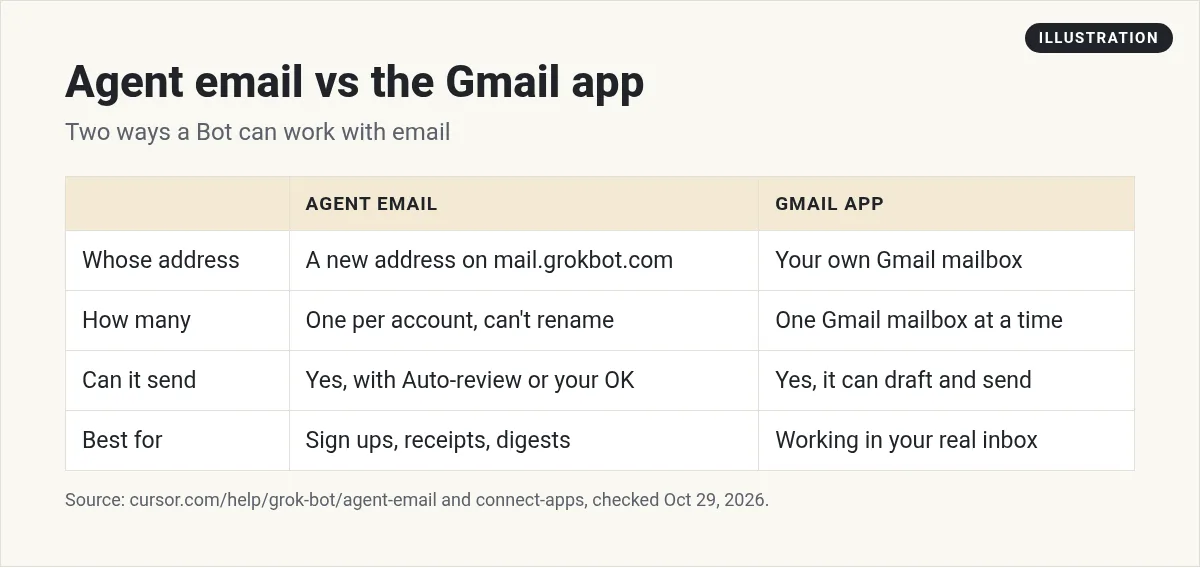
This is the part that confuses people, so let me make it simple. There is agent email, which is a brand new address just for your Bots. And there is the Gmail app, which lets a Bot work inside the mailbox you already have.
They do different jobs. Agent email is great for things you do not want in your personal inbox, like sign ups, receipts, and newsletters. Gmail is for when you want help with the mail you already get from customers and partners.
How to get a Grok Bot email address
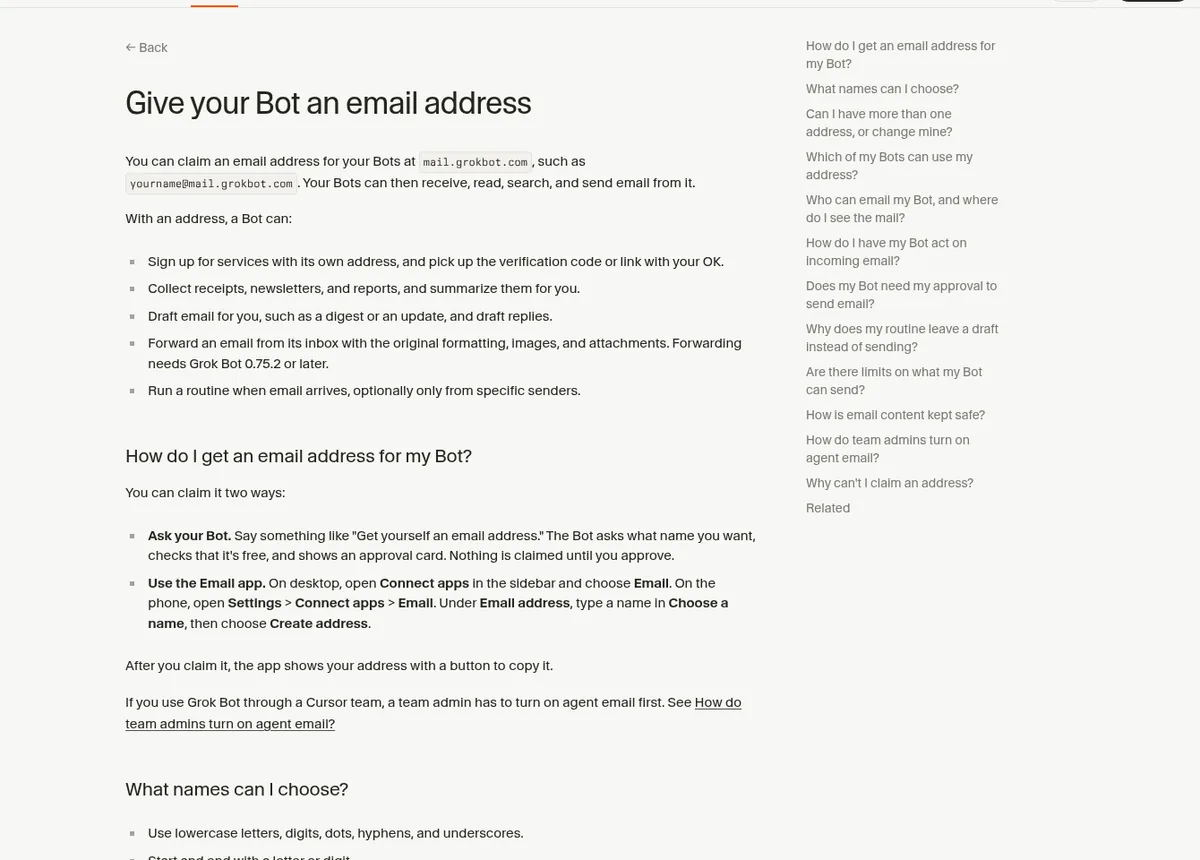
The help page says you can claim an address on mail.grokbot.com, with the name you pick in front. There are two ways to do it:
- Ask your Bot. Say something like "Get yourself an email address." It asks what name you want, checks that it is free, and shows an approval card. Nothing is claimed until you approve.
- Use the Email app. On desktop, open Connect apps in the sidebar and choose Email. On the phone, open Settings, then Connect apps, then Email. Type a name under Choose a name, then choose Create address.
Pick the name with care. You get one address. You cannot rename it or delete it. Names use lowercase letters, digits, dots, hyphens, and underscores, and words like support, admin, help, and grok are reserved.
If you use Grok Bot through a Cursor team, an admin has to turn on Agent Email first, on the Grok Bot page of the Cursor dashboard.
What your Bot can do with its own address
Once it has an address, the help page lists what a Bot can do:
- Sign up for services with its own address, and pick up the code or link with your OK.
- Collect receipts, newsletters, and reports, and summarize them for you.
- Draft email for you, like a digest or an update, and draft replies.
- Forward an email with the original formatting and attachments. This needs version 0.75.2 or later.
- Run a routine when email arrives, even only from certain senders.
The address belongs to you, not one Bot. All of your Bots can use it in your own chats with them and in routines you set up. They cannot use it in Slack threads or in chats where someone else is talking to the Bot.
Where you see the mail
This surprised me at first. There is no inbox view in the apps, and you do not get alerts for new mail. You just ask. For example, "What arrived in your inbox today?" or "Find the receipt from last week."
Anyone can send mail to the address. Mail that fails the spam or virus scan is kept without its body or attachments, and it never starts a routine. Each message can have up to 10 attachments, up to 10 MB each and 25 MB in total.
From the Snapper AI channel (not mine): Snapper AI walks through giving a Grok Bot its own inbox, with real examples of what it can do with mail.
Using Gmail with Grok Bot
The Gmail app is different. The help page says "Gmail can search and read mail, draft and send, and apply labels on the connected mailbox." You connect it from Connect apps, the same way as other apps.
A few things to know before you connect it:
- One mailbox at a time. You cannot keep a personal and a work Gmail connected together. To switch, disconnect one and connect the other.
- Every Bot gets it. A connected app is available to every Bot on that account. If a Bot should not touch that mailbox, disconnect Gmail.
- It only has your access. An app can do only what your account can already do. It cannot raise your access.
- It asks which account. If you have Gmail and agent email, your Bot asks which one to send from when either could work.
Some creators say you should not give a Bot your main email at all. I think that is a fair worry, and the video below makes the case. My take: start with agent email for sign ups and digests. Add Gmail later, with drafts on, once you trust the Bot.
From the Aaron Makelky channel (not mine): Aaron Makelky explains why he gives Grok Bot its own email instead of his main account. A useful counterpoint before you connect Gmail.
How to have your Bot act on new email
New mail does not start a chat or wake a Bot on its own. A Bot acts on mail only through a routine you create. You set one up by asking in plain words. For example, ask it to summarize any email from your billing company and tell you.
A routine can watch mail from anyone, from certain addresses, or from a whole domain, like every address at one company. By default it only runs for senders that pass standard email checks. Routines cannot filter by subject, so use the sender instead.
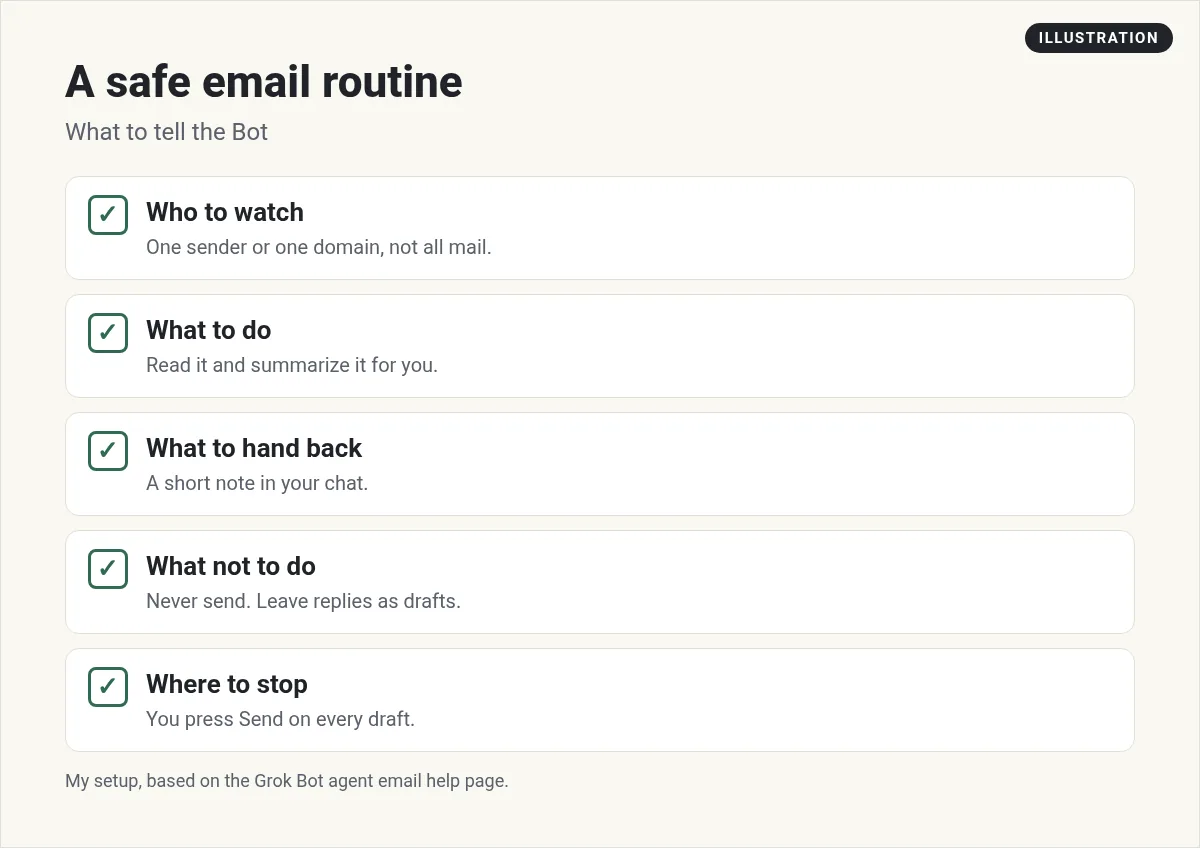
Here is a starter prompt I would use. Change the details to fit your business:
When an email arrives from anyone at my supplier, read it and post a two line summary in this chat. If it needs a reply, write a draft. Do not send anything. If you are not sure what it means, ask me.
New to routines? My guide to Grok Bot routines covers schedules, triggers, and testing.
Does your Bot need your OK to send?
It depends on who asked. When you ask your Bot in chat to send an email, it goes out once Auto-review allows it. If Auto-review needs you, you see an approval card first.
Email from a routine is different. It waits as a draft, and nothing sends until you press Send. The help page is clear: "There's no option for unattended sending." I like that. It means a routine can never email a customer behind your back.
There are also limits that protect your address. Up to 50 recipients per email. First contact emails go to one person per message with an unsubscribe link. If someone bounces, unsubscribes, or marks it as spam, the Bot stops emailing them and tells you who it skipped.
How email stays safe
This matters, because email is where a lot of tricks happen. The help page says your Bot "treats email from other people as information, not instructions." A request inside an email does not make it send anything on its own.
That is a big deal. If a stranger emails your Bot and asks it to forward all your receipts, the Bot treats that as text to read, not an order. Still, my rule is simple: keep sending behind approval. You can learn more in my Grok Bot safety guide.
Five email jobs to hand off first
- A daily digest. A short list of what came in and what needs you.
- Receipt collection. Have vendors send receipts to the Bot's address. Ask for a weekly summary.
- Newsletter summaries. Subscribe with the Bot's address. Get the three ideas that matter.
- Reply drafts. Let it write drafts for common questions. You edit and send.
- Follow up lists. Ask which threads went quiet and need a nudge.
Start with one. Run it by hand a few times. Then turn it into a routine. This is the same order I use for everything, and it is in my Grok Bot tutorial for beginners.
If you cannot claim an address
- Agent email is not enabled for this account. It is not on your account yet.
- Your team admin turned it off. Ask the admin to turn on Agent Email.
- That address is taken. Addresses are never reissued. Pick a new name.
- You can have one agent email address. You already have one. Ask your Bot what it is.
- Too many checks in the last minute. Wait a minute and try again.
Skip the setup and get a team that handles email
Email is where most business owners lose their day. The hard part is not the address. It is deciding which mail matters, what to say back, and when a Bot should stop and wait for you.
AIM Agent is an AI Chief of Staff for business owners. It comes with an AI C-suite (COO, CMO, CFO, CRO and CTO), a Business Bot Builder and 100+ business skills, and it runs on AIM OS, a private vault that holds your notes and memory. AIM Agent is a ready-made AI business team that works inside Grok Bot, so you skip the setup and get to work.
Here is what you get:
- An AI Chief of Staff that helps you plan and run your business
- An AI C-suite: COO, CMO, CFO, CRO and CTO
- A Business Bot for each business or project. Give it a real task and it brings the work back for you to review
- 100+ business skills for content, offers, research and more
- Step by step setup guides and email support
So instead of building that from a blank Bot, you start with a team and skills made for business work, and you stay the one who presses Send.

Want to see more ways to put your Bots to work? Start with Grok Bot use cases or connecting your apps. Want an AI team to help run your business? Meet AIM Agent, an AI Chief of Staff for business owners. I am a co-founder of AIM Agent and have a financial interest in the product.
Get help with your inbox from a ready team
AIM Agent gives you an AI Chief of Staff, an AI C-suite, and 100+ business skills, so email digests and reply drafts are ready to go.
See AIM AgentFrequently asked questions
Can Grok Bot have its own email address?
Yes. You can claim one address on mail.grokbot.com. All of your Bots can receive, read, search, and send from it.
Can I change or delete my Bot's email address?
No. You get one address, and you cannot rename it or delete it, so choose the name carefully.
Can Grok Bot read my Gmail?
Yes, if you connect the Gmail app. It can search and read mail, draft and send, and apply labels on that mailbox.
Can I connect two Gmail accounts?
No. Gmail connects one mailbox at a time. Disconnect one to connect another.
Will my Bot reply to email on its own?
Not from a routine. Email from a routine waits as a draft until you press Send. There is no option for unattended sending.
Is there an inbox view for agent email?
No. There is no inbox view and no alerts. Ask your Bot what arrived.
Is there a faster way to get business email help?
AIM Agent gives you an AI Chief of Staff, an AI C-suite, and 100+ business skills, so you start with a team built for business work.
Sources
Checked October 29, 2026. Plans, prices, and rules can change.
