
Grok Bot · Import Memory
You already trained another assistant on how you work. Here is how to bring that into Grok Bot without retyping every rule.
Grok Bot Import Memory is the Settings path that brings preferences and context from another AI assistant into your primary Bot. You start the import, copy a prompt into the other assistant, paste its answer back, and choose Add to Memory.
I checked the Grok Bot Settings docs and the changelog on November 5, 2026. Import Memory needs Grok Bot 0.75.2 or later. This post is the plain walkthrough and how it fits with normal memory.
TL;DR
Import Memory lives in Grok Bot Settings. Choose Start Import, copy the prompt into your other assistant, paste its answer into the second box, then choose Add to Memory. Grok Bot sends the import to your primary Bot and opens that chat. It needs 0.75.2 or later. It does not replace Connect Apps, Vault, or standing Auto-review rules.
What Import Memory does
The Settings docs say Import Memory to Grok Bot brings your preferences and context over from another AI assistant. You choose Start Import, copy the prompt into a chat with your other assistant, paste its answer into the second box, and choose Add to Memory. Grok Bot sends the import to your primary Bot and opens that chat. The docs point you to What a Bot remembers for the rest of the memory model.
The changelog lists Import Memory with the 0.75.2 or later note. If your app is older, update first. Do not expect Import Memory to show up on a stale build.
Steps I use
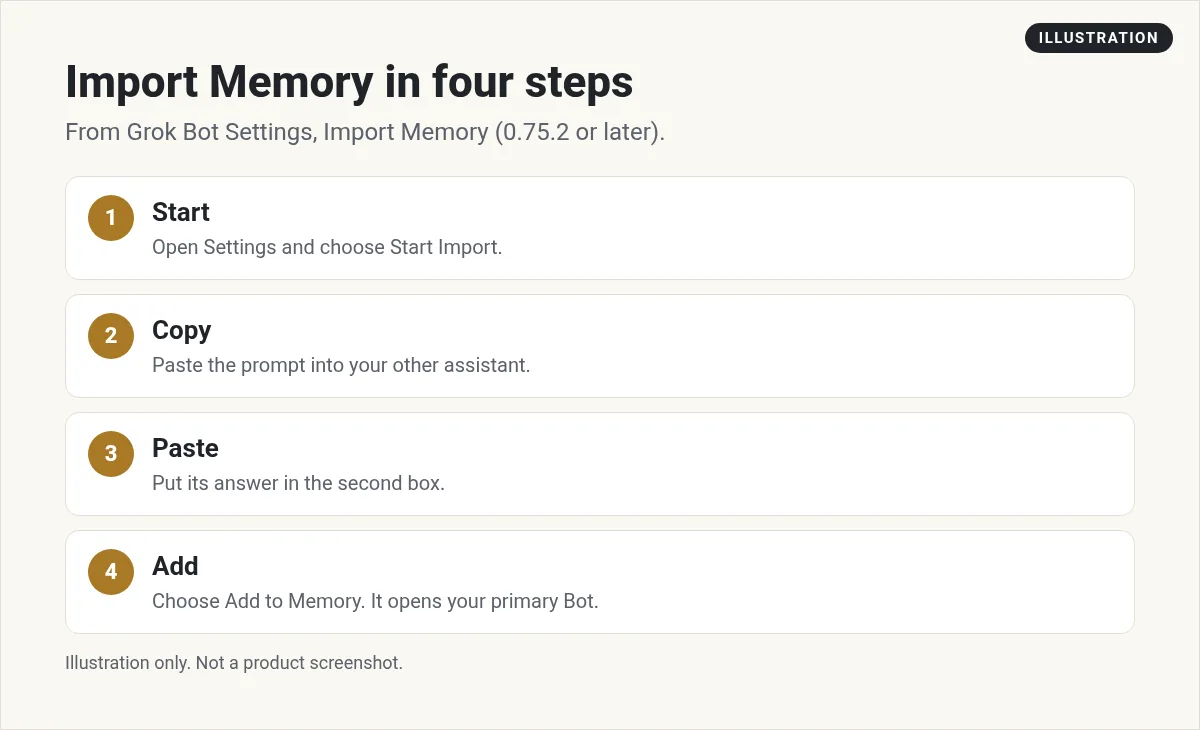
- Update Grok Bot so you are on 0.75.2 or later.
- Open Settings and find Import Memory.
- Choose Start Import and copy the prompt it gives you.
- Paste that prompt into the other assistant that already knows your style.
- Paste its full answer into the second box in Grok Bot.
- Choose Add to Memory. Confirm it opens your primary Bot chat.
- Ask the primary Bot to restate your standing rules in its own words. Fix anything wrong before you rely on it.
From the Grok channel (not mine): Official Grok Bot 101 overview. Useful before you change memory.
What should move versus what should not
Good imports are preferences, writing tone, standing boundaries, and facts about how you work. Bad imports are passwords, API keys, card numbers, and one off secrets. Keep secrets in Vault or a connected password manager such as 1Password. Memory is for durable preferences, not for credentials.
- Move: how you like briefs, which tools you use, which actions always need Ask first, your time zone habits, and product names the Bot should know.
- Do not move: passwords, recovery codes, private customer PII you would not put in a shared note, and temporary project dump that belongs in files.
- Re check: any rule that says the Bot may send email, post, buy, or delete without you. Tighten those after import.
How this differs from day to day memory
Day to day, a Bot learns from work you do together. Import Memory is a bulk handoff from another assistant. After the import, treat the primary Bot like a new teammate who just read your handbook. Give it one real task. Watch whether it follows your Ask first rules. Correct it in chat and ask it to remember the correction.
My Grok Bot memory post covers what a Bot remembers over time. This post is only the import step.
After the import: a one week plan
Day one, only check the rules. Ask the primary Bot to list Ask first actions and the tools it thinks it can use. Fix the list before any routine runs.
Day two, give it a low risk task such as summarizing a public page or drafting an internal note. Do not let it email anyone yet.
Day three, connect or confirm the apps it needs through Connect Apps. Prefer plugins over raw browser clicks when the catalog has the app.
Day four, add one routine with a short window. Keep sends behind Ask first. Watch the first run live.
Day five, review memory again. Delete stale preferences that came from the other assistant and do not match how you work in Grok Bot.
This week is about trust, not speed. A clean import beats a fast mess.
Why the primary Bot matters
Grok Bot routes the import to your primary Bot on purpose. That Bot is the front door for preferences that should travel with you. Specialist Bots still need their own job text. A performance marketing Bot should not inherit every personal writing quirk from a journaling assistant. After import, copy only the rules that fit each specialist.
If you use several Bots on one computer, remember they share browser sessions and files. Memory does not create a security boundary between Bots. The FAQ is clear that the computer is assigned per user, not per Bot. Keep Secrets and Vault hygiene tight either way.
Team notes
Import Memory lands on your primary Bot. Team Bots and shared Bots still need their own job descriptions, Secrets, and Auto-review rules. Do not assume a personal import applies to every Bot on the account. On Teams and Enterprise, admins can still restrict apps and require team Auto-review rules. Check those after you import.
Copy and paste prompts
Restate my standing rules from memory in a short checklist. Flag anything that would let you send, post, buy, or delete without Ask first.
Compare the imported preferences with this job description. List conflicts. Propose a single cleaned rule set for this Bot only.
Standing rule: after any memory import, show me the new rules before you run routines that can message people.
If the import looks wrong
Open the primary Bot and ask what it remembers about your preferences. If it invents tools you do not use, correct it and ask it to forget the bad line. If the other assistant gave a thin answer, run Start Import again with a clearer paste. If the button is missing, confirm the app version. The changelog ties Import Memory to 0.75.2 or later.
Also see my Grok Bot setup and Grok Bot safety posts before you turn on routines that send mail.
When to add the next Bot
Add a new Bot when the first one has a stable job and a stable handoff, not when you feel busy. Clone the rules that worked. Change only the lane. Keep the shared computer in mind. More Bots are not more isolation.
If two lanes need the same login, prefer one connector with clear prompts over two casual browser sessions. If an admin restricts apps, solve that before you invent a fragile workaround.
Document the prompts that worked in a short /workspace note. Future you and your teammates should be able to rerun the lane without reverse engineering a chat scrollback.
Revisit Connect Apps monthly. New plugins appear in the changelog. Retire browser click paths when a plugin can do the same job more reliably.
A business team that keeps the rules
Import Memory gets the handbook in. The work still needs owners.
AIM Agent is an AI Chief of Staff for business owners. It comes with an AI C-suite (COO, CMO, CFO, CRO and CTO), a Business Bot Builder and 100+ business skills, and it runs on AIM OS, a private vault that holds your notes and memory. AIM Agent is a ready-made AI business team that works inside Grok Bot, so you skip the setup and get to work.
Here is what you get:
- An AI Chief of Staff that helps you plan and run your business
- An AI C-suite: COO, CMO, CFO, CRO and CTO
- A Business Bot for each business or project. Give it a real task and it brings the work back for you to review
- 100+ business skills for content, offers, research and more
- Step by step setup guides and email support
So your Bots work inside a business system, not a pile of chats.

Want an AI team to help run your business? Meet AIM Agent, an AI Chief of Staff for business owners. I am a co-founder of AIM Agent and have a financial interest in the product.
Get a business team inside Grok Bot
AIM Agent gives you an AI Chief of Staff, an AI C-suite, and 100+ business skills, with step by step setup guides and email support.
See AIM AgentFrequently asked questions
What is Grok Bot Import Memory?
A Settings flow that brings preferences and context from another AI assistant into your primary Bot.
What version do I need?
The changelog lists Import Memory with Grok Bot 0.75.2 or later.
Does it move passwords?
No. Keep passwords in Vault or 1Password. Import preferences and standing rules only.
Which Bot receives the import?
Your primary Bot. The docs say Grok Bot sends the import there and opens that chat.
Do shared Bots get the import?
Do not assume that. Give Team and shared Bots their own job rules and Secrets.
Should I recheck Ask first rules?
Yes. After import, ask the Bot to restate rules and tighten anything that sends or spends without you.
Is there a faster way to get a business team?
AIM Agent gives you an AI Chief of Staff, an AI C-suite, and 100+ business skills inside Grok Bot.
Sources
Checked November 5, 2026. Plans, prices, and rules can change.
