
Grok Bot · 1Password
Bots need to sign in. You should not paste passwords into chat. Here is how 1Password and the Vault fit together.
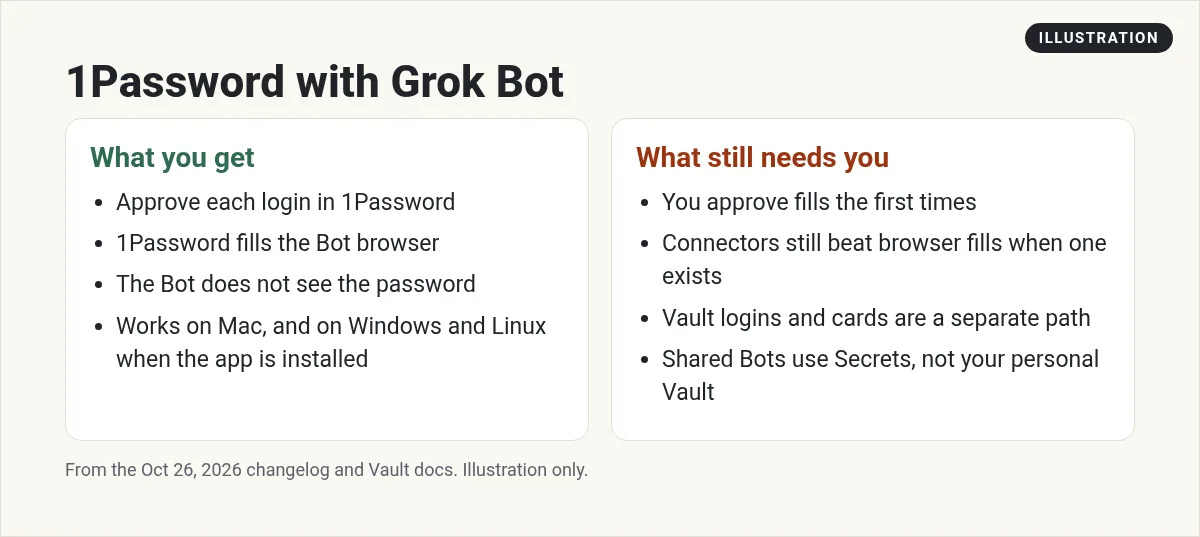
Grok Bot 1Password is the clean way to let a Bot sign into a site without putting your password in the chat. You approve each login in 1Password. 1Password fills the Bot's browser. The Bot does not see the password.
I checked the Grok Bot changelog for October 26, 2026 and the Vault and secure sign-in docs on November 5, 2026. Here is the plain setup and where Vault still fits.
TL;DR
Grok Bot can connect 1Password so you approve each login and 1Password fills the Bot browser without the Bot seeing the password. The Oct 26, 2026 changelog adds this without a shared vault, on 0.68.0 or later. Vault is separate: it holds logins, cards, and contact info for the account, and Bots never see saved passwords or card numbers. Shared Bots use Secrets, not your personal Vault.
Why password fills matter
A Bot with a computer will hit sign in walls. Pasting a password into chat is a bad habit. Handing the Bot your screen to type it works, but it is slow. 1Password is built for this: you approve, it fills, the secret stays in 1Password.
What the changelog added
On October 26, 2026 the changelog says 1Password connects without a shared vault. You approve each login in 1Password, which fills it in the Bot's browser without the Bot seeing it. It requires Grok Bot 0.68.0 or later. Later notes say fills recover from problems like a sleeping extension or an expired approval, and the Bot continues as soon as you approve. On Windows and Linux, the Bot notices an installed 1Password app and can offer to connect it. The computer and apps docs say the new integration is rolling out gradually, works with personal and Family 1Password accounts, and needs 1Password 8.12.42 or later. It only offers logins from your Personal vault, called Private on Family accounts, not from shared vaults, and it does not fill payment cards.
How Vault is different
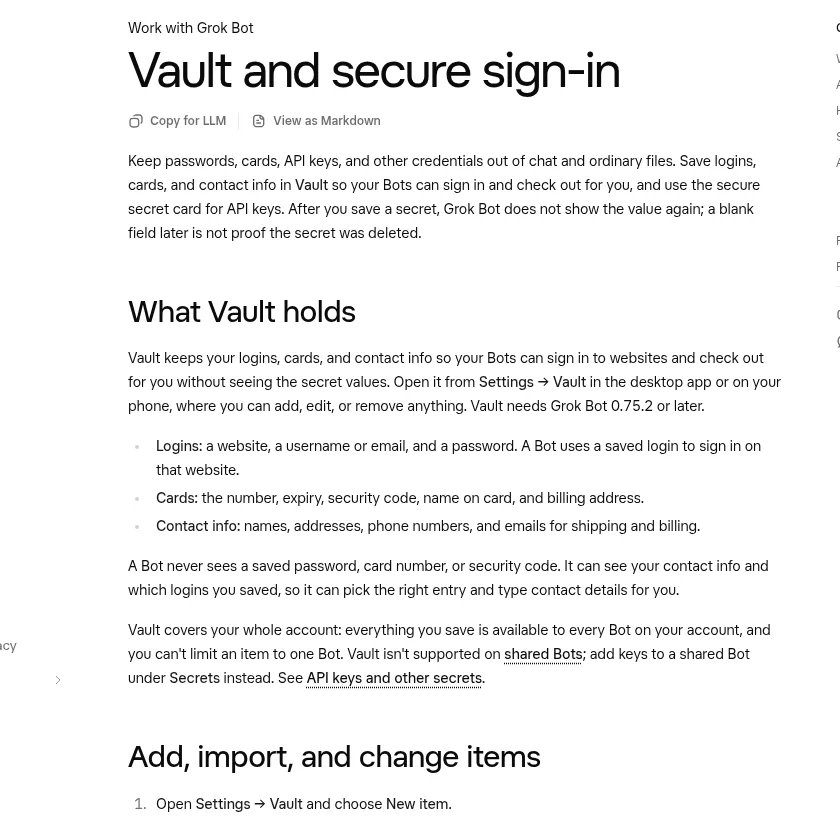
The Vault docs say to keep passwords, cards, API keys, and other credentials out of chat and files. Vault stores logins, cards, and contact info. API keys use the secure secret card. Once a secret is saved, Grok Bot does not show the value again. A blank field later is not proof the secret was deleted. Vault needs Grok Bot 0.75.2 or later.
Vault holds:
- Logins. Website, username or email, and password for automated sign ins.
- Cards. Number, expiry, security code, name, and billing address.
- Contact info. Names, addresses, phones, and emails for shipping and billing.
A Bot can see that a login exists and can see contact info to fill forms, but it never sees a saved password, card number, or security code. Vault is account wide for your Bots. Vault is not supported on shared Bots. Shared Bots use the Secrets section instead.
My Grok Bot vault post covers Vault in full. This post is the 1Password connector path.
When to use which
- Use a connector first. If Gmail, GitHub, or another app has a Connect Apps plugin, connect it. The Bot then uses the plugin instead of browser fills.
- Use 1Password when the site has no connector and you already keep the login in 1Password.
- Use Vault for logins and cards you want Grok Bot to store for checkout and sign in across your personal Bots.
- Use Secrets on shared or Team Bots where teammates need a login the Bot can use without your personal Vault.
Setup steps (my order)
- Update Grok Bot so you are on a build that supports 1Password (0.68.0 or later per the changelog).
- Install the 1Password app on the same computer when you are on Windows or Linux.
- In Grok Bot, open Connect Apps and connect 1Password.
- Ask a Bot to open a site that needs a login you already saved.
- Approve the fill in 1Password. Watch it once. Then decide if Always allow style rules make sense for that site.
- For cards and shipping, add Vault items under Settings, Vault, rather than pasting numbers in chat.
From the Clearmud channel (not mine): A first time Grok Bot setup demo that shows connectors and computer use. Useful before you connect 1Password.
Safety habits
- Never paste passwords, one time codes, or card numbers into chat if a Secure Form or 1Password fill can do it.
- Remember all your personal Bots share one computer and can use account Vault items.
- Do not put personal Vault secrets on a shared Bot workflow. Use Secrets and least privilege.
- If a fill fails, approve again. The changelog says the Bot continues once you approve after a sleeping extension or expired approval.
Also see my Grok Bot safety and Grok Bot connectors posts.
When the Bot still hands you the screen
Some sign ins need a security key, a CAPTCHA that only a human can pass, or a vendor page that blocks automation. The docs and troubleshooting pages say Bots will ask you to take over for those steps. That is normal. Finish the sign in, hand control back, and the session can stay on the shared computer for later work.
When a site has a connector, the Bot should offer that connector instead of a long browser handoff. Prefer Connect Apps whenever the changelog or Connect Apps catalog lists the service.
Copy and paste prompts to try
Open this site and sign in with 1Password. Ask me to approve the fill. Do not ask me to paste the password into chat. If 1Password is not connected, show me the connect card first.
Save this shipping address and card into Vault for checkouts. Confirm what you stored without showing the full card number. Never paste card numbers into chat again.
Standing rule: for any site login, prefer a connector, then 1Password, then Vault, then a Secure Form. Never ask me to type a password into the chat thread.
Team and shared Bot notes
Managers can add logins to a Team Bot's own Vault in Configure under Tools, per the Oct 27, 2026 changelog, so the Bot signs in with team credentials. That is different from your personal Vault and different from 1Password on your laptop. For a Bot shared with teammates, use team Secrets and least privilege. Do not copy personal 1Password items into a shared workflow.
If Auto-review asks about a sign in or fill, read the card. Allow once while you learn. Add Always allow only for sites you trust and can undo.
My Grok Bot enterprise post covers admin controls if your company manages Bots centrally.
A business team with safer defaults
Sign in is solved. Marketing, sales, and ops still need owners.
AIM Agent is an AI Chief of Staff for business owners. It comes with an AI C-suite (COO, CMO, CFO, CRO and CTO), a Business Bot Builder and 100+ business skills, and it runs on AIM OS, a private vault that holds your notes and memory. AIM Agent is a ready-made AI business team that works inside Grok Bot, so you skip the setup and get to work.
Here is what you get:
- An AI Chief of Staff that helps you plan and run your business
- An AI C-suite: COO, CMO, CFO, CRO and CTO
- A Business Bot for each business or project. Give it a real task and it brings the work back for you to review
- 100+ business skills for content, offers, research and more
- Step by step setup guides and email support
So your Bots work inside a business system, not a pile of chats.

Want an AI team to help run your business? Meet AIM Agent, an AI Chief of Staff for business owners. I am a co-founder of AIM Agent and have a financial interest in the product.
Get a business team inside Grok Bot
AIM Agent gives you an AI Chief of Staff, an AI C-suite, and 100+ business skills, with step by step setup guides and email support.
See AIM AgentFrequently asked questions
Does Grok Bot see my 1Password passwords?
No. The changelog says you approve each login and 1Password fills the browser without the Bot seeing it.
Do I need a shared 1Password vault with the Bot?
No. The Oct 26, 2026 update connects without sharing a vault with the Bot. The computer and apps docs also say 1Password only offers logins from your Personal vault (called Private on Family accounts), not from shared 1Password vaults. Move or duplicate a login into that vault if the Bot cannot see it.
Is Vault the same as 1Password?
No. Vault is Grok Bot's own store for logins, cards, and contact info. 1Password is your password manager connector.
Can shared Bots use my Vault?
No. The Vault docs say Vault is not supported on shared Bots. Use Secrets instead.
What version do I need?
1Password connect notes list Grok Bot 0.68.0 or later. The computer and apps docs also say the 1Password app needs to be 8.12.42 or later. Vault needs Grok Bot 0.75.2 or later.
Should I still use connectors?
Yes. Prefer Connect Apps plugins when they exist. Use 1Password for sites without one.
Is there a faster way to get a business team?
AIM Agent gives you an AI Chief of Staff, an AI C-suite, and 100+ business skills inside Grok Bot.
Sources
Checked November 5, 2026. Plans, prices, and rules can change.
