
Grok Bot · Vault
Grok Bot Vault is where your passwords, cards, and address live, so your Bots can sign in and pay for things. The best part: your Bot never sees the secret values. Here is how it works, in plain words.
Grok Bot Vault is a safe place to save your logins, cards, and contact info. Your Bots use them to sign in to websites and check out for you, but they never see your password, card number, or security code.
I read the official Vault docs and the secrets help page on October 30, 2026, and I watched the newest videos on it. Here is what Vault holds, how to add things, and the rules I follow so a Bot never spends money I did not plan to spend.
TL;DR
Grok Bot Vault lives in Settings, then Vault, on desktop and on your phone. It holds three kinds of items: logins, cards, and contact info. A Bot can use them to sign in and check out, but it never sees a saved password, card number, or security code. Everything in Vault works for every Bot on your account. A saved card fills in at checkout without asking you each time, so if you want to approve every payment, do not save the card. For API keys, use the secure secret card instead. AIM Agent gives you a ready business team that works this way from day one.
What Grok Bot Vault holds
Think of Vault as a locked drawer your Bots can use but not open. The docs list three kinds of items:
- Logins. A website, a username or email, and a password. A Bot uses a saved login to sign in on that website.
- Cards. The number, expiry, security code, name on card, and billing address.
- Contact info. Names, addresses, phone numbers, and emails for shipping and billing.
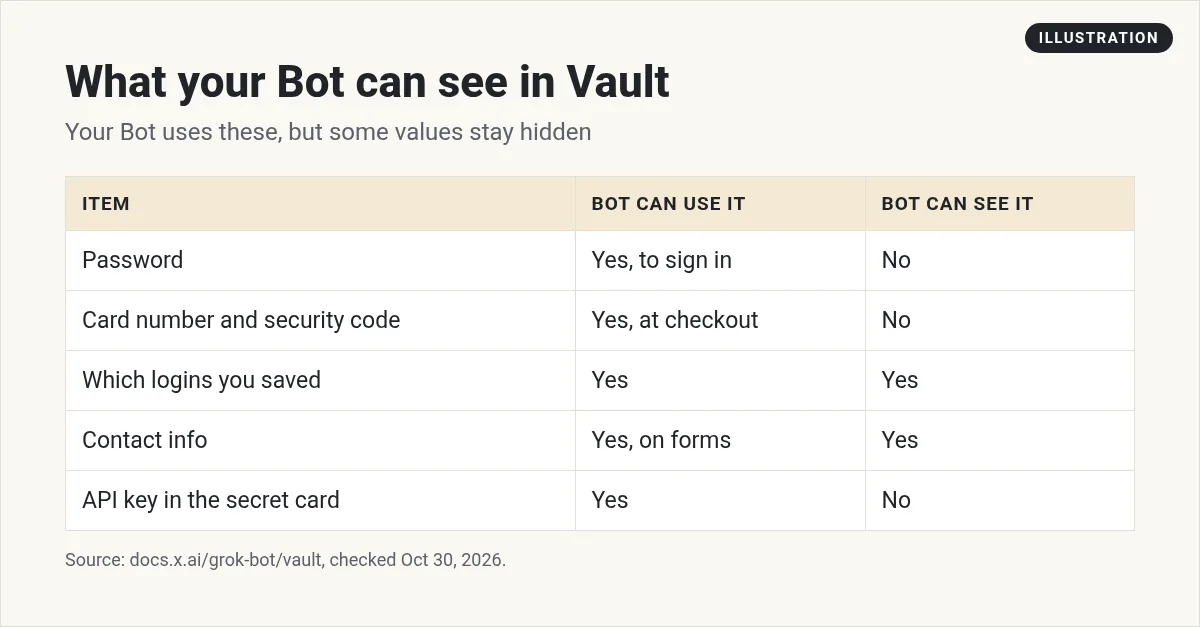
You open it from Settings, then Vault, in the desktop app or on your phone. You need Grok Bot 0.75.2 or later. If you do not see it, update the app first.
What your Bot can see, and what it cannot
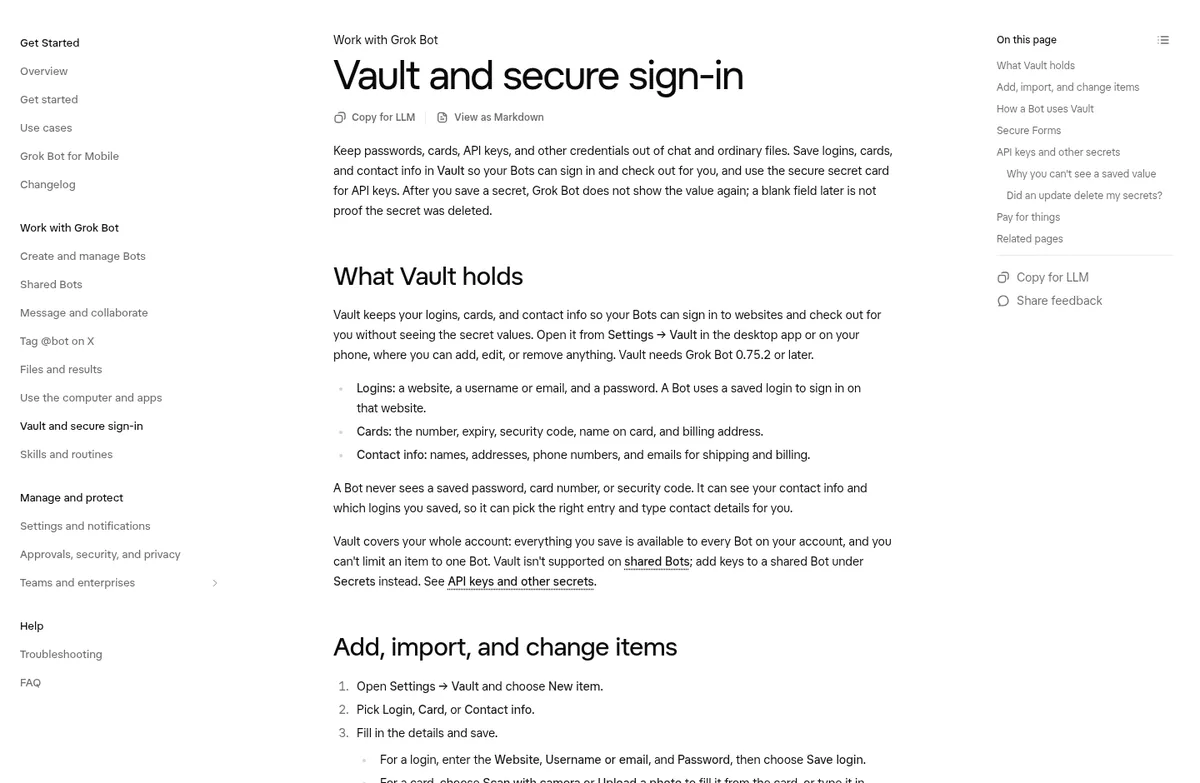
This is the part that matters most. The docs say: "A Bot never sees a saved password, card number, or security code." The values get filled into the page without passing through the Bot.
A Bot can see your contact info. It can also see which logins you saved, so it can pick the right one. That makes sense. It needs to know you have a login for your supplier site before it can use it.
One more thing to know. Vault covers your whole account. Everything you save is there for every Bot you have, and you cannot limit one item to one Bot. So if you have a Bot you trust less, keep that in mind before you save a card.
How to add a login, card, or address
- Open Settings, then Vault, and choose New item.
- Pick Login, Card, or Contact info.
- Fill in the details and save. For a card, you can scan it with your camera, upload a photo, or type it in.
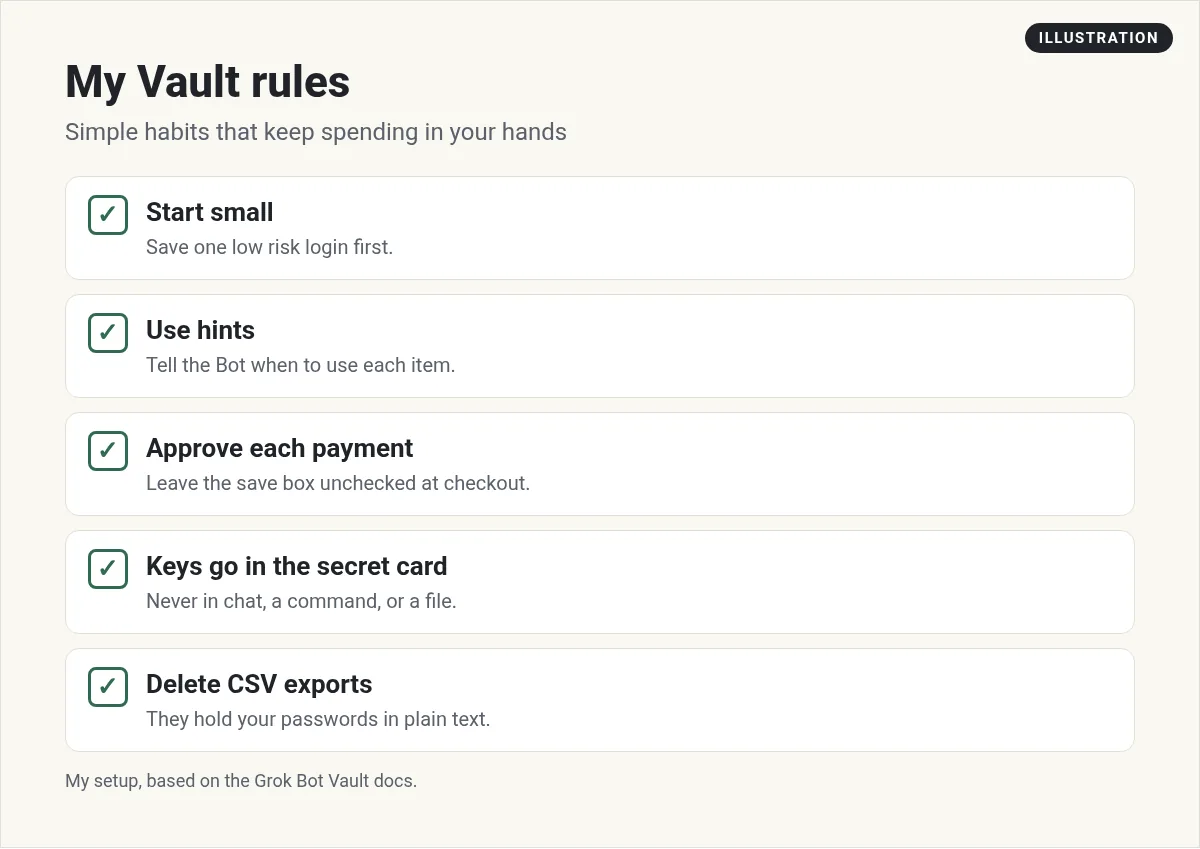
There is also a box called Hints. Use it to tell your Bots when to use an item, like "Use for work purchases." A Bot follows the hint when it has to pick between two cards or two logins. I use hints on every card I save.
You can also save from a chat. When a Bot asks you for a login or a card, it shows a Secure Form. Check the box to save it to the vault, or leave it unchecked to use it just for that chat.
Moving logins from another password manager
If you already use a password manager, you do not have to type everything again. On desktop, you can import a CSV export from 1Password, Chrome or Edge, Safari or Apple Passwords, Firefox, Bitwarden, or LastPass.
- Export your passwords as a CSV file from your manager.
- In Vault, choose New item, then Import from CSV.
- Pick the file. The docs say it is read on your computer and never uploaded, and it must be under 5 MB.
- Review the list, then import.
Here is the step people forget. That export file holds your passwords in plain text. Delete it as soon as the import is done.
My honest advice: do not import everything. Start with the five or six sites your Bots really need. You can always add more later.
From the Grok Bot Desk Signal channel (not mine): Grok Bot Desk Signal walks through the new Vault: what your Bot can and cannot see, everyday uses, and what to leave out for now.
How a Bot signs in for you
When a Bot needs to sign in, it checks in this order:
- A login saved in Vault.
- A connected password manager, like 1Password.
- If neither has it, it asks you with a Secure Form.
When a site emails a one time code, the Bot can read it from a connected Gmail or Outlook account, or from its own inbox. If you have not set that up yet, my guide to Grok Bot email shows how.
Some steps a form cannot do. Think single sign on, a passkey, a CAPTCHA, a QR code, or a bank check. In those cases the Bot hands you the computer. You choose Take over, do just that one step, then choose I'm done and tell the Bot to keep going. The signed in session then stays on the computer for later tasks, and all your Bots share it.
What a Secure Form is
A Secure Form is a small form that shows up in your chat when a page needs something only you should give. It names the site it fills. Your answers go straight into the page, and the Bot never sees them.
When it works, the form says the values were filled into the page and never shown to your Bot. If it says it could not fill the page, the page probably moved. Your values still were not shown. Just send a new form if the Bot asks again.
Paying for things: the rule I follow
Read this part twice. The docs say a saved card "fills in at checkout without asking you each time, and no setting requires your approval for each use."
So here is my rule. If I want to approve every payment myself, I do not save the card. When a Bot asks for a card at checkout, I leave the save box unchecked. Then the card works for that one chat only.
There is a safer way to pay, too. Vault has a list called Payment accounts, with wallets like Link or X Money. With Link connected, a Bot can ask you to approve a one time card for a single purchase. The request shows the store, the items, and the total. You press Pay, or you choose to deny it. Nothing is charged if you decline or let it expire.
From the Riley Brown channel (not mine): Riley Brown gives a Grok Bot its own email address and a virtual card through Link, then lets it buy something. A good look at what a Bot can do with a card, so you can decide how much to allow.
API keys and other secrets
Vault is for logins, cards, and contact info. For an API key, use the secure secret card that shows up when a Bot asks for one. The field is masked. You choose Save securely, and the value is never written into the chat or shown to the Bot.
Saved values are write only. You cannot see them again. Cards show only the last four digits. If you need to change a key, you replace it with a new value.
And please, never paste a password, a one time code, or an API key into normal chat, a command, or a file on the computer. If something gets saved in a file, a computer reset can wipe it. Vault and the secure card are kept apart from that.
Vault and shared Bots
If you share a Bot with your team, Vault does not work on that Bot. You add keys to a shared Bot under Secrets instead, with a name, a short description, and the value. The description is visible to the Bot. The value is not.
Be careful here. Secrets on a shared Bot are used in every teammate's chat with it. Only add keys you are happy for everyone on that Bot to use.
How I would start with Vault this week
- Save one low risk login. A library account or a news site is a good first test.
- Add your contact info. It saves a lot of typing on order forms.
- Use hints. One line per item on when to use it.
- Do not save your main card yet. Use a one time approval or the unchecked box at first.
- Watch one checkout. Open the computer and see how the Bot fills the page.
For more on keeping your Bots safe, read my Grok Bot safety guide and my guide to Grok Bot computer use.
Skip the setup and get a team that knows the rules
Vault keeps your secrets safe. But someone still has to decide which jobs a Bot should do, which sites it should sign in to, and where it should stop and wait for you. That is the part that takes time.
AIM Agent is an AI Chief of Staff for business owners. It comes with an AI C-suite (COO, CMO, CFO, CRO and CTO), a Business Bot Builder and 100+ business skills, and it runs on AIM OS, a private vault that holds your notes and memory. AIM Agent is a ready-made AI business team that works inside Grok Bot, so you skip the setup and get to work.
Here is what you get:
- An AI Chief of Staff that helps you plan and run your business
- An AI C-suite: COO, CMO, CFO, CRO and CTO
- A Business Bot for each business or project. Give it a real task and it brings the work back for you to review
- 100+ business skills for content, offers, research and more
- Step by step setup guides and email support
So instead of building those rules from a blank Bot, you start with a team and skills made for business work, and you stay the one who approves what matters.

Want more ideas for errands your Bot can run once Vault is set up? Read Grok Bot as a personal assistant. Want an AI team to help run your business? Meet AIM Agent, an AI Chief of Staff for business owners. I am a co-founder of AIM Agent and have a financial interest in the product.
Get a business team that knows when to ask you
AIM Agent gives you an AI Chief of Staff, an AI C-suite, and 100+ business skills, so your Bots do real work and check with you at the right moments.
See AIM AgentFrequently asked questions
Where is Grok Bot Vault?
Open Settings, then Vault, in the desktop app or on your phone. You need Grok Bot 0.75.2 or later.
Can my Bot see my passwords in Vault?
No. A Bot never sees a saved password, card number, or security code. It can see your contact info and which logins you saved.
Can I limit a Vault item to one Bot?
No. Everything in Vault is available to every Bot on your account.
Will my Bot ask before it uses my saved card?
Not each time. A saved card fills in at checkout without asking. If you want to approve every payment, do not save the card.
Where do I put an API key?
Use the secure secret card when a Bot asks for one. On a shared Bot, add it under Secrets.
Does Vault work on shared Bots?
No. Vault is not supported on shared Bots. Use Secrets on the shared Bot instead.
Is there a faster way to get a Bot team for my business?
AIM Agent gives you an AI Chief of Staff, an AI C-suite, and 100+ business skills, so you start with a team built for business work.
Sources
Checked October 30, 2026. Plans, prices, and rules can change.
