
Grok Bot · Local computer
Your Bot has a cloud computer. Your own computer is a separate choice.
Grok Bot local computer settings decide if a Bot may run commands on the Mac or Windows PC in front of you. The Bot already has its own cloud computer. Your computer is separate, and the default is that it asks you every time.
I read the Approvals page and the Settings page in the official docs on November 9, 2026. Here is how to choose the right setting.
TL;DR
The cloud computer and your own computer are separate. Under Settings, Computer, Execution on this computer has three choices. Ask every time is the default. Pick Never allow unless a Bot has a real reason to touch your local files.
Two computers, two sets of rules
The docs say the shared Grok Bot computer runs in the cloud. Access to the Mac or Windows computer in front of you is a separate capability. A Bot only runs commands on your local computer when that capability is enabled and you approve it under your local computer policy.
That policy is separate from the approvals that cover work on the cloud computer. The setting does not stop a Bot from using its cloud computer.
The three choices
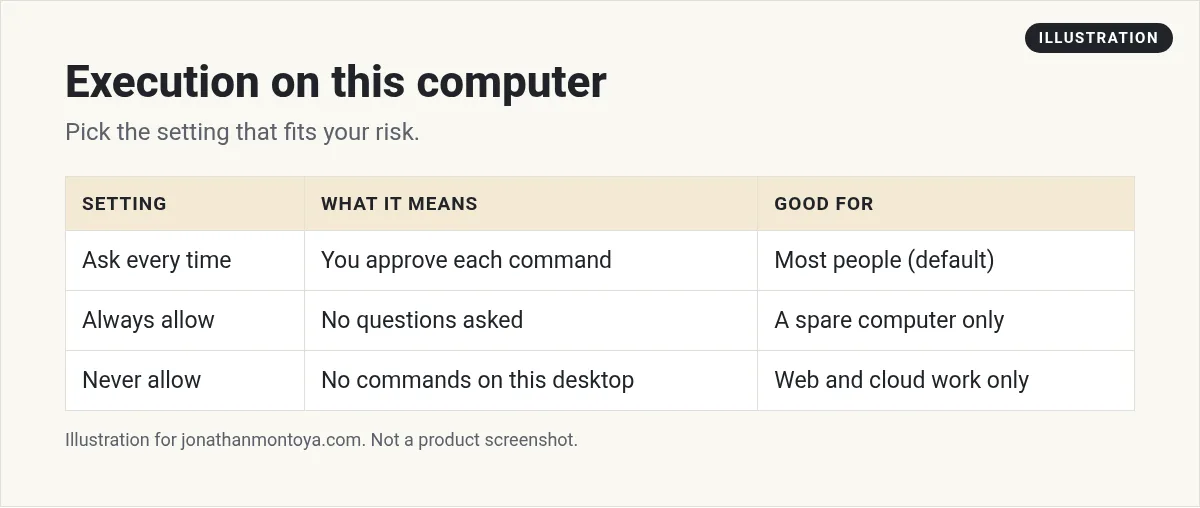
- Ask every time. The default. You approve each command.
- Always allow. Bots run commands on that computer without asking.
- Never allow. Bots do not run commands there.
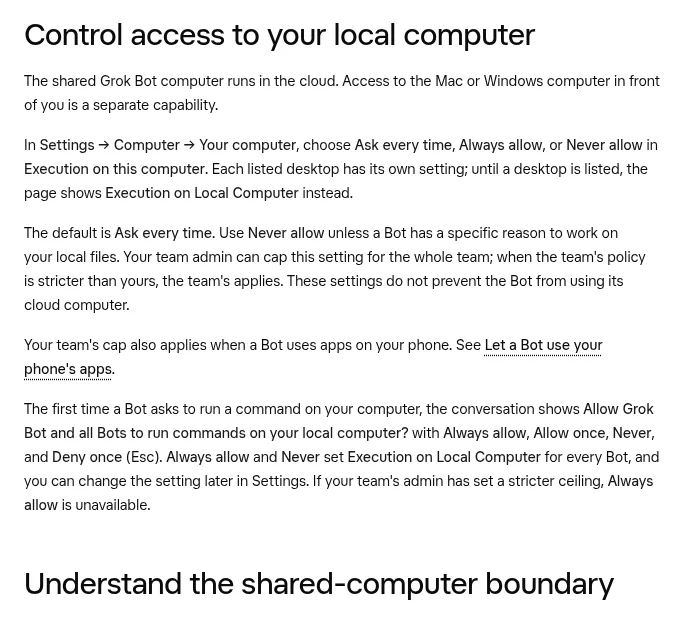
You find it in Settings, then Computer, then Your computer, under Execution on this computer. Each desktop on your account has its own setting. Until a desktop is listed, the page shows Execution on Local Computer instead.
From the Alex Finn channel (not mine): A setup walkthrough from Alex Finn.
Any results mentioned in videos are not typical and are not a promise of income. Your results depend on your work and your market.
The first time a Bot asks
The first time a Bot asks to run a command on your computer, the chat shows a question: Allow Grok Bot and all Bots to run commands on your local computer? The choices are Always allow, Allow once, Never, and Deny once.
Read it slowly. Always allow applies to all your Bots on that desktop. If you are not sure, choose Allow once and watch what the Bot does.
Which setting should you pick?
The docs say to use Never allow unless a Bot has a specific reason to work on your local files. Here is a simple guide.
- Never allow: you only need web research, writing, and cloud work.
- Ask every time: you sometimes want a Bot to edit files in a project folder on your Mac or PC.
- Always allow: only on a computer you use just for Bot work, with nothing private on it.
Team limits and phones
Your team admin can cap this setting for the whole team. When the team policy is stricter than yours, the team policy applies. The same cap also covers a Bot using apps on your phone.
Remember that an approval controls the proposed action. Do not approve a command whose target or effect you cannot identify. Ask the Bot to explain it in plain words first.
From the Brock Mesarich | AI for Non Techies channel (not mine): A long course video that covers many features.
Manage your devices
Settings, then Computer, has a Manage devices list for the computers and phones where you use Grok Bot. You can rename any of them, change another computer's execution setting, or remove another computer while it is offline. Phones cannot be removed.
If your computer sleeps, the changelog says Bots treat it as disconnected within two minutes and say so right away. If the work was meant for a computer that is offline, the Bot tells you instead of running it somewhere else without asking.
Safe habits
- Keep client files and private notes out of folders a Bot can reach.
- Use a project folder for Bot work.
- Check the command on the card before you approve it.
- Back up anything you cannot lose.
Example: when I would say yes
Say you keep a folder of meeting notes on your Mac. You want a Bot to turn each note into a short summary. You could upload the files, or you could allow commands on that computer for one task. With Ask every time on, you see each command on a card and can stop anything odd.
Now say you only want the Bot to research a topic and write a report. No local files are needed. Set Never allow and forget about it. A Bot can still use its cloud computer, browser, and files.
Review it every month
Settings are easy to forget. Once a month, open Settings, then Computer, and look at Manage devices. Remove old computers you no longer use. Check that each listed desktop still has the setting you want. It takes one minute.
A business team inside Grok Bot
Where a Bot runs is a detail. What it runs for your business is what matters.
AIM Agent is an AI Chief of Staff for business owners. It comes with an AI C-suite (COO, CMO, CFO, CRO and CTO), a Business Bot Builder and 100+ business skills, and it runs on AIM OS, a private vault that holds your notes and memory. AIM Agent is a ready-made AI business team that works inside Grok Bot, so you skip the setup and get to work.
Here is what you get:
- An AI Chief of Staff that helps you plan and run your business
- An AI C-suite: COO, CMO, CFO, CRO and CTO
- A Business Bot for each business or project. Give it a real task and it brings the work back for you to review
- 100+ business skills for content, offers, research and more
- Step by step setup guides and email support
So your Bots work inside a business system, not a pile of chats.

Want an AI team to help run your business? Meet AIM Agent, an AI Chief of Staff for business owners. I am a co-founder of AIM Agent and have a financial interest in the product.
Get a business team inside Grok Bot
AIM Agent gives you an AI Chief of Staff, an AI C-suite, and 100+ business skills, with step by step setup guides and email support.
See AIM AgentFrequently asked questions
Does the Bot run on my own computer?
Not by default. It works from a cloud computer. Local commands need your approval.
What is the default setting?
Ask every time.
Does Never allow stop the cloud computer?
No. It only stops commands on your local desktop.
Can my admin override my choice?
Yes. A stricter team policy wins.
Does this cover my phone?
The team cap also applies when a Bot uses apps on your phone.
What if my computer is asleep?
Bots treat it as disconnected within two minutes and tell you.
What is AIM Agent?
AIM Agent gives you an AI Chief of Staff, an AI C-suite, and 100+ business skills inside Grok Bot, with step by step setup guides and email support.
Sources
Checked November 9, 2026. Plans, prices, and rules can change.
