
Grok Bot · Settings
The Grok Bot settings window is small, but a few switches matter a lot. Here is what lives in each pane, and the five I would check on day one.
Grok Bot settings live in one small window with five panes: General, Computer, Vault, Usage and Billing, and Updates. Most of it you set once and forget. A few settings, like your timezone and your approval rules, change how your Bots behave every day.
I read the official settings docs on November 2, 2026 and went through each pane. Here is the plain map.
TL;DR
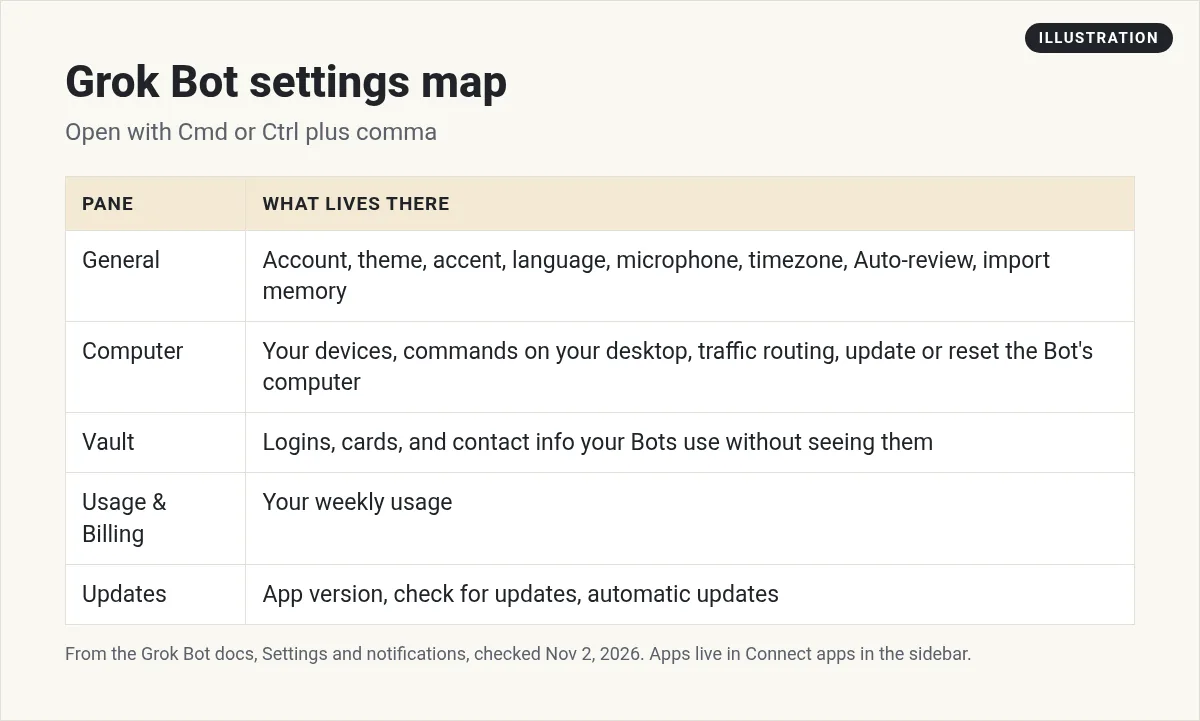
Open Grok Bot settings from the account menu, or press Cmd or Ctrl plus comma. The window has General, Computer, Vault, Usage and Billing, and Updates panes. General holds your account, look, microphone, timezone, Auto-review rules, and memory import. Computer controls your devices and the Bot's cloud computer. Vault holds logins your Bots use. Apps are not in settings. You connect them from Connect apps in the sidebar. Each Bot's name and picture live in its own chat details, not in settings.
How to open Grok Bot settings
Open the account menu and choose Settings, or press Cmd or Ctrl plus the comma key. The docs also list a shortcut for Bot settings: Cmd or Ctrl plus Shift plus comma.
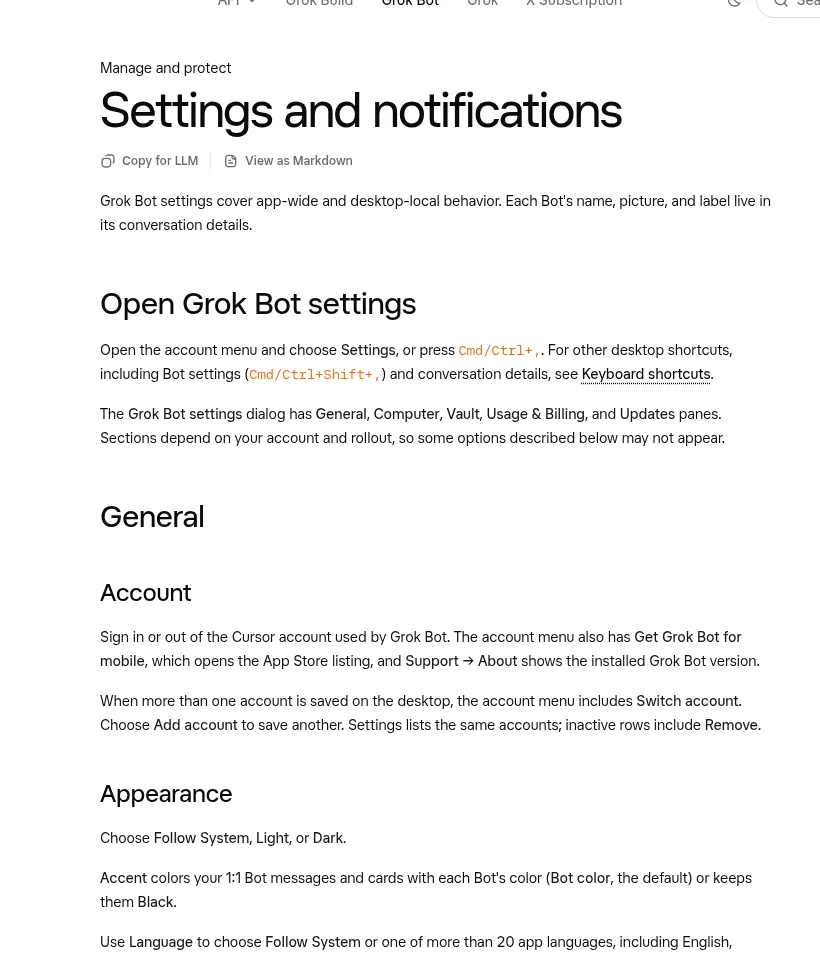
The docs note that some sections depend on your account and rollout, so you may not see every option below.
The settings map
General
This is the busiest pane.
- Account. Sign in or out of the Cursor account that Grok Bot uses. If you save more than one account on a desktop, the account menu shows Switch account.
- Appearance. Follow System, Light, or Dark. Accent colors your Bot chats with each Bot's color, or keeps them black. Language offers more than 20 app languages. Spell check is on by default.
- System. Pick your microphone. There is also a hardware acceleration switch. Turn it off if the window flickers or stays blank, then restart.
- Bot. Your Timezone, which routines use for their schedules, and your Auto-review switch and custom rules.
- Import. Import Memory brings your likes and context over from another AI assistant.
- Auto-review. Your rules for which actions stop for your approval.
One thing you will not find: a model picker. The docs say Grok Bot manages model choice for you. My Grok Bot models guide explains more.
From the Matt Palmer channel (not mine): This is the official What's new in Grok Bot video for October 27, 2026. It walks through recent changes, some of which show up in settings.
Computer
This pane has two parts.
- Your computer. Settings for the desktops signed in to your account. Manage devices lists your computers and phones. Execution on this computer controls if Bots can run commands on that desktop. Asking you for each command is the default.
- Route traffic through this computer. Sends the Bot computer's web traffic through your desktop, so websites see your desktop's address. Only one computer can do this at a time.
- Bot's computer. Update or reset the cloud computer your Bots share. Reset is a last resort. Try update and recover first.
For what a Bot can reach on your own computer, see my Grok Bot computer use guide.
Vault
Vault holds the logins, cards, and contact info your Bots use to sign in and check out, without seeing the secret values. You can add items, edit them, or import logins from another password manager. Full guide: Grok Bot Vault.
Where are connected apps?
Not in settings. Open Connect apps in the sidebar to find apps and skills. Click the connected count next to the title to manage what you have installed. You can also turn single app tools on or off. On Teams and Enterprise plans, an admin may limit which apps you can use. See my Grok Bot connectors guide.
Usage and Billing
This pane shows your weekly usage. The account menu can also show it at a glance. If you do not see either, check your Cursor account page or ask your admin.
Updates
Shows your installed version, with Check for Updates and Restart to Update. Automatic Updates is on by default. A downloaded update installs while you are away: your screen is locked, your computer has sat idle for at least 10 minutes, and Grok Bot is not busy. On Linux, deb and rpm installs update through your package manager and do not show this switch.
Per Bot settings
Each Bot's name, picture, and label live in its chat, not in the settings window. Click the Bot's name at the top of the chat to open its details. Click the name or label to edit it. Click the picture to change it.
Personal Bots do not have a description field. To change what a Bot does, tell it in chat. This is also where you will find the Bot's notification switch on the phone. See my Grok Bot notifications guide.
Five settings to check on day one
- Timezone. Routines run on it. A wrong timezone means a morning report shows up at night.
- Auto-review rules. Decide what needs your OK, like sending email or spending money. Ask first wins when rules conflict. My Grok Bot safety guide has examples.
- Execution on this computer. Leave approval for each command on until you trust your setup.
- Vault. Add the logins your Bots need, so you never paste a password into chat.
- Import Memory. If you used another assistant, bring your context over so your Bots know you from day one.
From the Grok channel (not mine): This is the official Grok Bot for Admins video. Useful if you run Grok Bot for a team, since admins can lock some of these settings.
Settings on a team
If you are on a team plan, some settings may be locked by your admin. Locked Auto-review rules show the note Required by your admin. You can add your own rules on top, but they can only make things stricter. Enterprise admins can also run Team Setup Scripts on every member's computer. Members do not see those in settings. More in my Grok Bot for teams guide.
Skip the setup after settings
Once your settings are done, you still face a blank Bot. Deciding which Bots to build, what each one owns, and how they work together is the real work.
AIM Agent is an AI Chief of Staff for business owners. It comes with an AI C-suite (COO, CMO, CFO, CRO and CTO), a Business Bot Builder and 100+ business skills, and it runs on AIM OS, a private vault that holds your notes and memory. AIM Agent is a ready-made AI business team that works inside Grok Bot, so you skip the setup and get to work.
Here is what you get:
- An AI Chief of Staff that helps you plan and run your business
- An AI C-suite: COO, CMO, CFO, CRO and CTO
- A Business Bot for each business or project. Give it a real task and it brings the work back for you to review
- 100+ business skills for content, offers, research and more
- Step by step setup guides and email support
So you finish settings and go straight to real business work with a team that is ready.

Want an AI team to help run your business? Meet AIM Agent, an AI Chief of Staff for business owners. I am a co-founder of AIM Agent and have a financial interest in the product.
Go from settings to real work
AIM Agent gives you an AI Chief of Staff, an AI C-suite, and 100+ business skills, so you are not stuck at a blank Bot after setup.
See AIM AgentFrequently asked questions
How do I open Grok Bot settings?
Choose Settings from the account menu, or press Cmd or Ctrl plus comma.
Can I pick the AI model in settings?
No. The docs say Grok Bot manages model choice, so there is no model picker.
Where do I connect apps?
Open Connect apps in the sidebar. Apps are not in the settings window.
How do I change a Bot's name or picture?
Click the Bot's name at the top of its chat to open its details, then edit the name or click the picture.
Does Grok Bot update itself?
Yes, by default. Updates install while you are away and the app is not busy. Linux deb and rpm installs use your package manager.
Why are some settings locked?
On a team plan, your admin may require some rules. You can add stricter rules of your own.
Is there a faster way to get a Bot team for my business?
AIM Agent gives you an AI Chief of Staff, an AI C-suite, and 100+ business skills, so you start with a team built for business work.
Sources
Checked November 2, 2026. Plans, prices, and rules can change.
