
Grok Bot · Teams
One Bot helps one person. A shared Bot helps the whole team, and each person's chat stays private. Here is how teams work in Grok Bot, and the settings I would change before anyone starts.
Grok Bot for teams lets every member have their own Bots, and lets you share a Bot with the whole team, like a shared doc. Each person's chat with a shared Bot stays private.
I read the Grok Bot docs for teams and shared Bots, plus the Team Bots announcement, on October 30, 2026. I also watched the official admin workshop. Here is what a small business team needs to know, in plain words.
TL;DR
On a team plan, each member gets their own Bots on their own cloud computer. Anyone can make a Bot and share it with the whole team or with certain people. Collaborators can chat with it, and Managers can also change its instructions, skills, memory, and apps. Each chat is private, even from the owner. Before rollout, an admin should add a few short Team Rules, check which connectors are allowed, and set local execution to Never allow unless Bots need it.
How teams work in Grok Bot
The docs say each person gets standing Bots for everyday work. Each user's work runs on their own cloud computer, and one user cannot reach another user's computer.
Inside one person's account, all their Bots share that one computer. So a login or a file on the computer is open to every Bot that person runs. The docs suggest signing out of accounts a Bot no longer needs.
On the Teams plan, every member has access by default, and there is no switch to turn it off. On Enterprise, an admin turns it on and can limit it to certain groups. Admins on either plan can bring people in with Invite Team.
Shared Bots
A Bot is either personal or shared. To share one, click the Bot's name at the top of the chat and choose Share. You can share it with everyone or only with certain people and groups.
- Collaborator can chat with the Bot.
- Manager can also change its instructions, skills, memory, and apps.
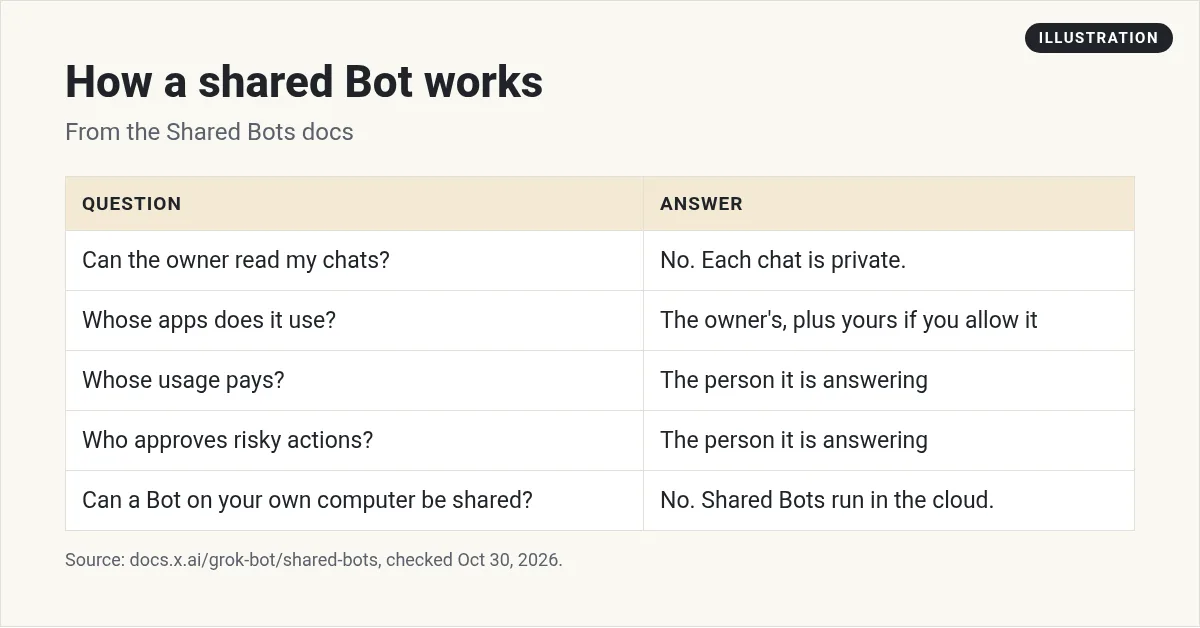
Teammates find it with + in the sidebar, then Browse shared Bots. Shared Bots always run in the cloud, so a Bot that runs on your own computer cannot be shared.
Who can see what
This is the part people ask about most. Each person's chat with a shared Bot is private. The owner and Managers cannot read your chats, and you cannot read theirs.
A shared Bot uses the apps and secrets its owner added, for everyone. In your own chat, it can also use your apps, but it asks first. You can pick Allow once, Always allow, or Skip. A connected account always acts as the person the Bot is answering.
So here is the rule I give anyone making a shared Bot: only add keys and files you are happy for everyone to use. The docs say the same thing.
Who answers approvals
A shared Bot asks the person it is answering before risky actions. In a Slack thread, only the person who asked can answer the card. In a group chat, only the person whose message the Bot is answering can answer. My guide to Grok Bot in Slack covers the Slack side.
What other teams build
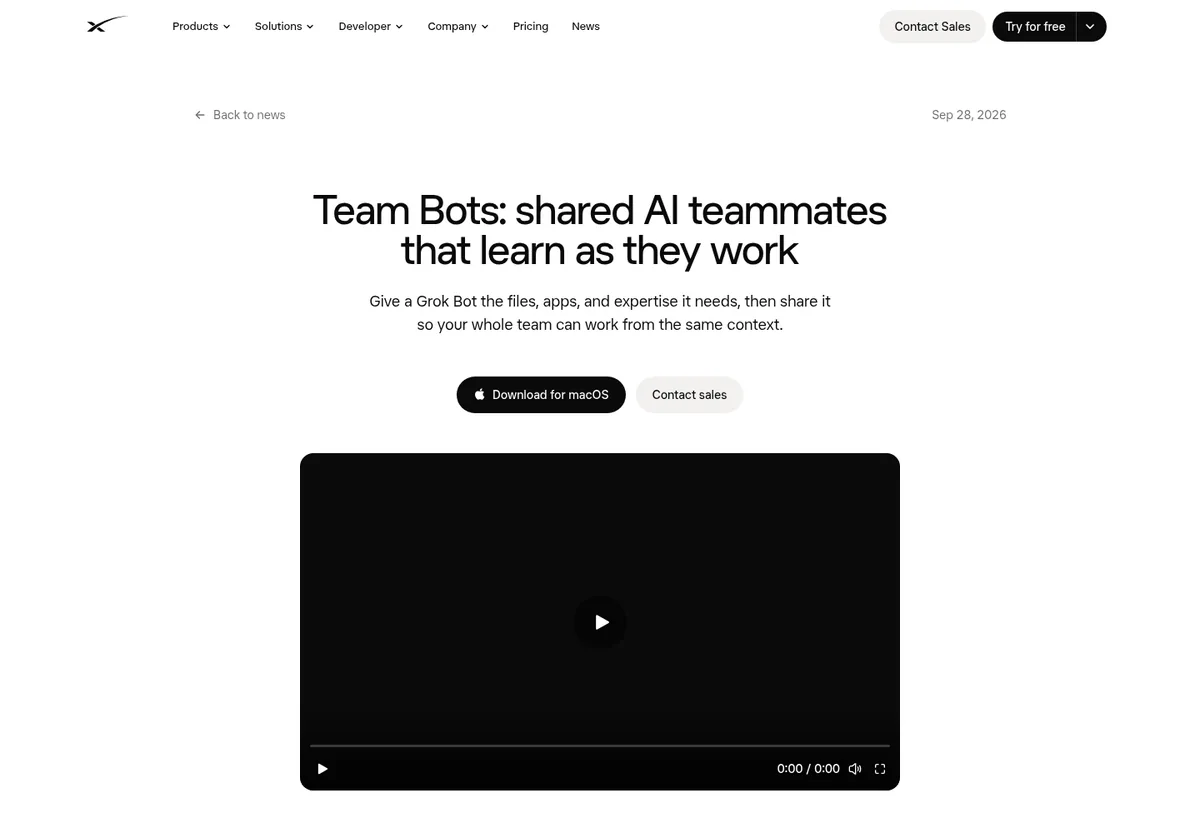
In the September 28, 2026 Team Bots post, the team behind Grok Bot shared Bots they use inside their own company. Examples include a Customer Bot, a Marketing Bot that reviews drafts against brand guidelines, and a Data Bot. Each Bot can carry context, plugins, credentials, and memories for the team.
For a small business, start smaller. One shared Bot that knows your offers, your tone, and your top customer questions can save every person on your team time.
From the Rob Morgan channel (not mine): Rob Morgan sets up Grok Bot for Teams at his company: inviting members, setting company wide permissions, and choosing default plugins. A clear walkthrough for a small business owner.
Admin settings to set first
Most admin settings live on the Grok Bot page of the dashboard, which only admins see. Here are the ones I would set before rollout:
- Team Rules. A few short rules every Bot follows. The docs give an example: never move company data to personal accounts. Keep them short and few.
- Connector policy. Grok Bot follows your team's connector policy on every plan. Allow only the apps your team needs.
- Execution on Local Computer. The docs suggest Never allow unless Bots have a specific reason to work on member machines.
- Agent Email. Off by default. Turn it on only if your team needs Bot email addresses.
- Page sharing. Choose who can see shared pages.
Some controls, like Enforce Auto-review and team Auto-review rules, are Enterprise only. Check the docs for what your plan shows.
From the Grok channel (not mine): In this official workshop, the Grok Bot team walks admins through rolling out Grok Bot with guardrails, security, and visibility. Best for the person setting up the team account.
Shared Bot ideas for a small team
- Offer helper. Knows your offers, your offer pages, and common questions, so anyone on the team can get a fast, correct answer.
- Brand checker. Reviews drafts against your tone and style guide before they go out.
- New hire guide. Answers where things are and how you do things, from your own docs.
- Weekly report. Pulls the same numbers each week into one page the whole team can read.
A simple rollout plan
- Week 1. Admin sets Team Rules, connectors, and local execution. Two people try it.
- Week 2. Make one shared Bot for your most common question. Share it with the team.
- Week 3. Each person picks one weekly task to hand off as a routine.
- Week 4. Review what worked. Remove apps and keys no one uses.
Tell your team three habits: never paste passwords in chat, use Allow once until you trust a task, and start with read only access and drafts. See Grok Bot safety and Grok Bot routines.
Give your team a business team
Shared Bots are great for questions your team asks every day. Building a whole set of business roles from scratch takes much longer.
AIM Agent is an AI Chief of Staff for business owners. It comes with an AI C-suite (COO, CMO, CFO, CRO and CTO), a Business Bot Builder and 100+ business skills, and it runs on AIM OS, a private vault that holds your notes and memory. AIM Agent is a ready-made AI business team that works inside Grok Bot, so you skip the setup and get to work.
Here is what you get:
- An AI Chief of Staff that helps you plan and run your business
- An AI C-suite: COO, CMO, CFO, CRO and CTO
- A Business Bot for each business or project. Give it a real task and it brings the work back for you to review
- 100+ business skills for content, offers, research and more
- Step by step setup guides and email support
So your team starts with business roles already set up, and each person still approves what matters.

For one person's setup first, read Grok Bot setup and Grok Bot group chats. Want an AI team to help run your business? Meet AIM Agent, an AI Chief of Staff for business owners. I am a co-founder of AIM Agent and have a financial interest in the product.
Start with a business team already built
AIM Agent gives you an AI Chief of Staff, an AI C-suite, and 100+ business skills, so your team skips the setup and gets to work.
See AIM AgentFrequently asked questions
Does Grok Bot work for teams?
Yes. Each member gets their own Bots, and anyone can share a Bot with the team.
Can the owner of a shared Bot read my chats?
No. Each person's chat is private. The owner and Managers cannot read it.
What is the difference between a Collaborator and a Manager?
A Collaborator can chat with the Bot. A Manager can also change its instructions, skills, memory, and apps.
Whose accounts does a shared Bot use?
The apps its owner added, plus your own apps in your chat after it asks you.
Who answers approvals on a shared Bot?
The person the Bot is answering.
What should an admin set first?
A few short Team Rules, the connector policy, and local execution set to Never allow unless needed.
Is there a faster way to get a Bot team for my business?
AIM Agent gives you an AI Chief of Staff, an AI C-suite, and 100+ business skills, so you start with a team built for business work.
Sources
Checked October 30, 2026. Plans, prices, and rules can change.
