
Grok Bot · Group Chats
Grok Bot group chats are where a few Bots work on one goal together, with you watching the handoffs. Here is how to start one, how to talk to it, and how to keep it from getting noisy.
Grok Bot group chats let you put several of your Bots in one conversation, so they can split up a job and pass work to each other. It is the closest thing to a team meeting with your Bots.
I checked the Grok Bot docs and help center on October 29, 2026. Here is how group chats work, the rules that are easy to miss, and a kickoff message you can copy.
TL;DR
A Grok Bot group chat puts two to six of your Bots in one conversation. Start it on your computer with New chat, add the Bots in the To field, and tell them the shared goal and who owns each step. Write normally to let the Bots decide who answers, or type @ and a Bot's name to give one Bot the job. Approval requests and email or Slack drafts do not show in the group, voice chat does not work there, and every Bot reply counts toward your usage. AIM Agent gives you a ready team of business Bots to put in a group.
What a Grok Bot group chat is
Grok Bot is an AI helper from xAI that works on its own computer. You can make many Bots, each with its own job. If you are new, start with my Grok Bot explained post.
A group chat is one conversation with several of those Bots in it. The docs say to use a group when several Bots need one shared outcome and visible handoffs.
In plain words: one goal, more than one Bot, and you want to see who is doing what.
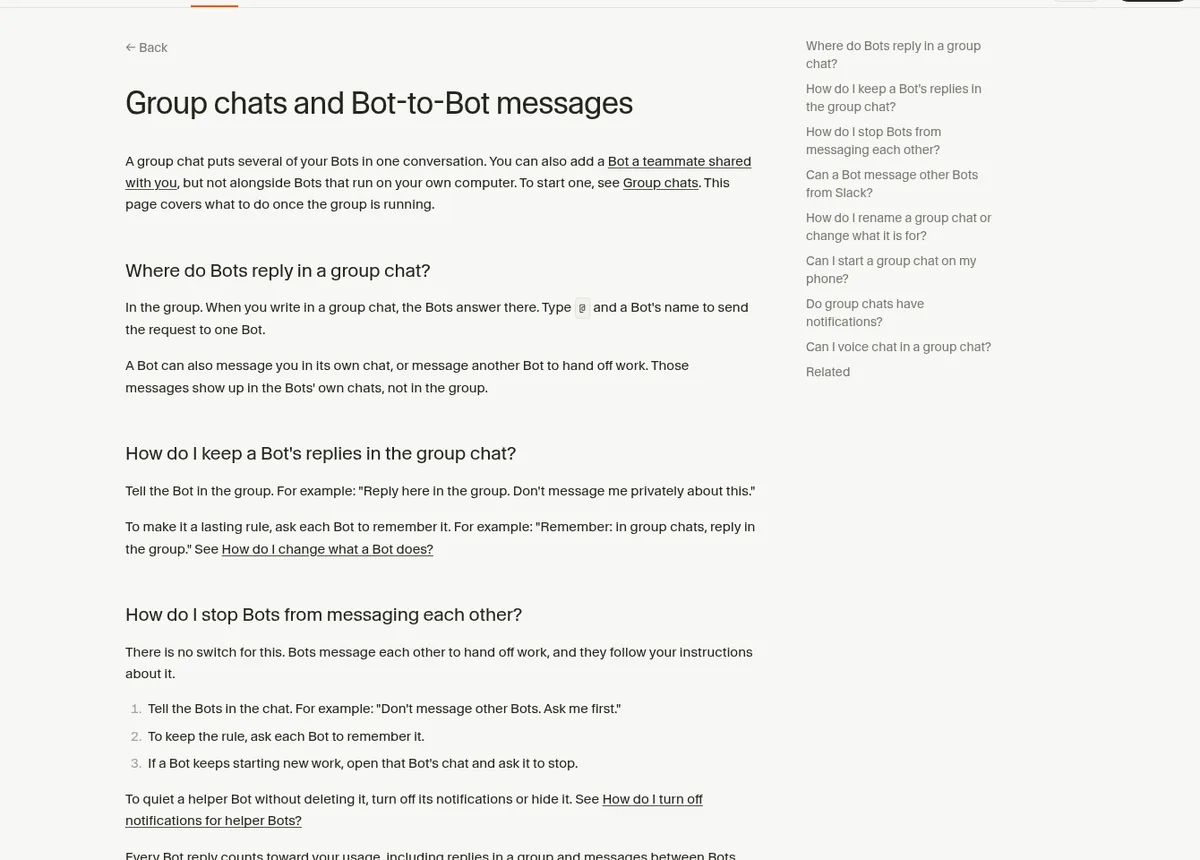
You can also add a Bot a teammate shared with you. But the docs say you cannot mix it with Bots that run on your own computer.
How to start a group chat
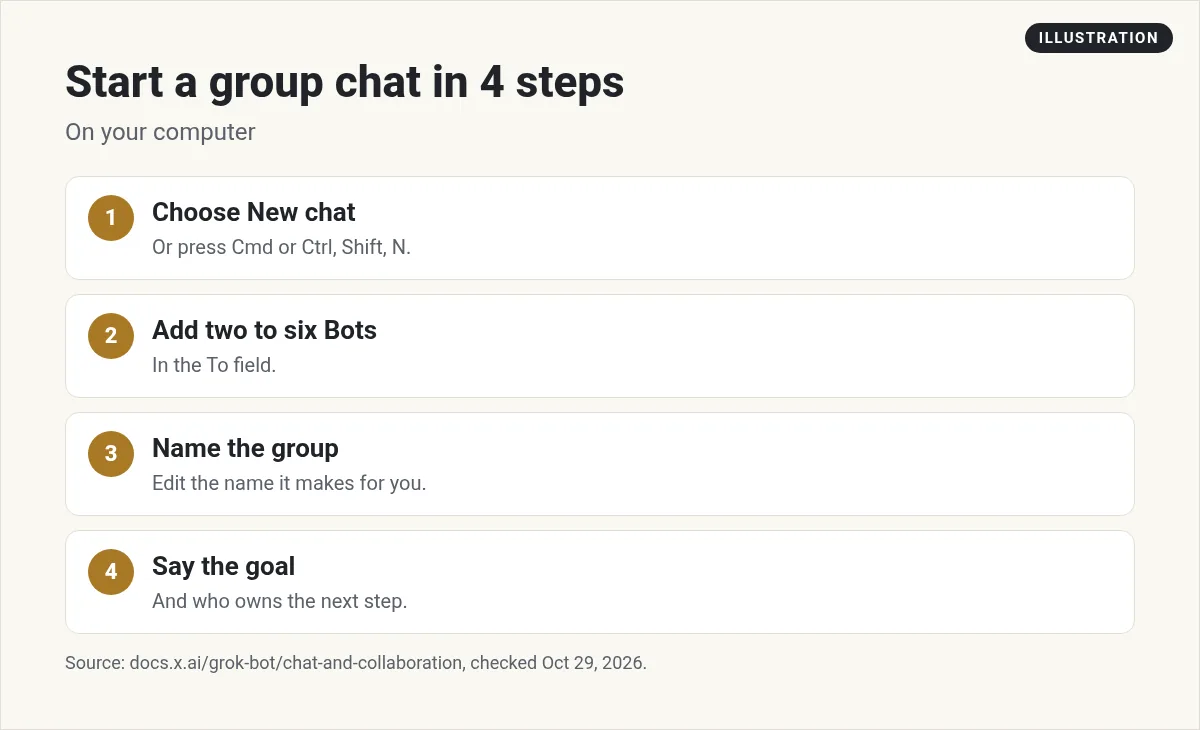
- Choose New chat, press Cmd or Ctrl plus Shift plus N, or open the command palette with Cmd or Ctrl plus K and choose New group chat.
- In the To: field, add two to six Bots.
- Open the group, then edit its name if you want.
- Describe the shared goal and who owns the next step.
On the phone: the help center says you cannot start a group chat on the phone app version 1.19.0 or later. The plus button now opens New Bot instead. Start the group on your computer. Groups you already have still show on your phone, and you can open them, write in them, and rename them there.
How to talk to the group
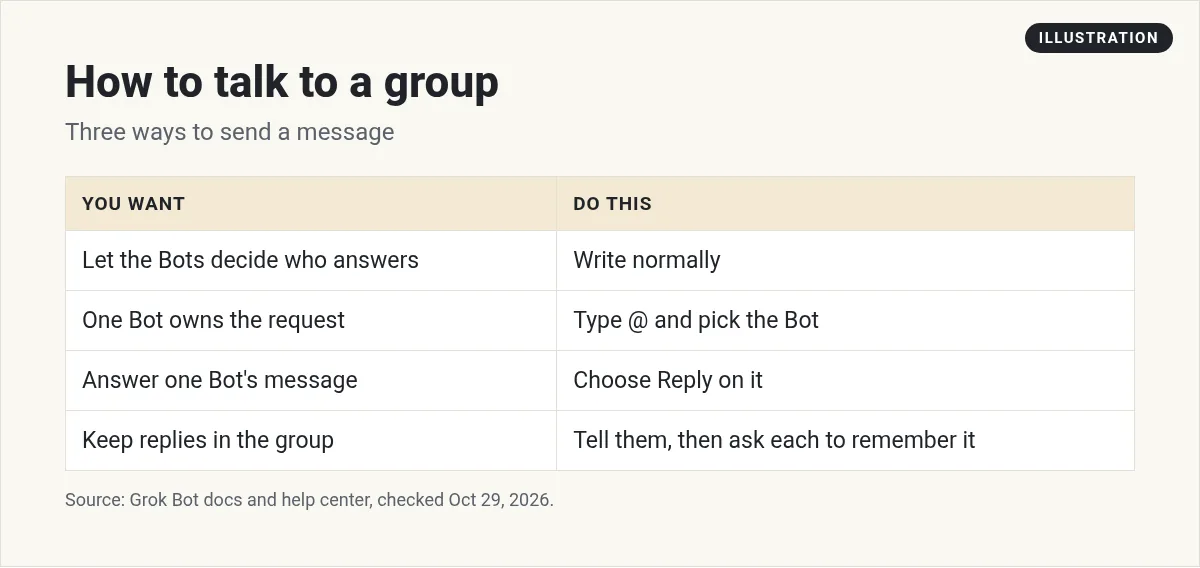
- Write normally to let the Bots decide who should answer.
- Type @ and pick a Bot when one Bot owns the request.
- Choose Reply on a Bot's message to answer that Bot.
- Mention more than one Bot only when the job truly needs each of them.
- Use @everyone sparingly for a group wide update.
You can attach files to your messages. Bots can reply with files, questions, and forms, just like in a one on one chat.
A kickoff message you can copy
The best tip in the docs is to give one owner per step in your first message. Their example is a good one to copy:
@Researcher gather the source material and link every claim. @Writer turn the findings into a launch draft. @Reviewer check the draft against the sources and list only blocking issues. Do not publish anything.
Notice the last line. Tell the group what it must not do. Change the names to match your Bots. For a small business, you might use a researcher, a writer, and a reviewer for a weekly newsletter.
Watch a group chat in action
This creator runs a team of Bots. One checks his inbox every morning, one reads his meeting notes, and a few talk to each other in group chats. He builds a new Bot and puts Bots in a group in this walkthrough.
From the Baskaran Builds channel (not mine): A walkthrough of building Bots, putting them into group chats, and the limits to know.
What does not show in a group
This catches people off guard. The docs say Approval requests, secret and login requests, and email or Slack drafts do not appear in a group.
So if a Bot in the group needs your okay, look in that Bot's own chat. The same goes for drafts. Also:
- Handoff messages between Bots in a group are text only. If a Bot needs to see an image, it should send it straight to the other Bot.
- Voice chat does not work in a group. It works with one Bot at a time. See my Grok Bot voice chat guide.
- Group chats do not have the per Bot notifications switch.
Keep replies in the group
A Bot can answer in the group, message you in its own chat, or message another Bot. Those private messages show up in the Bots' own chats, not in the group. If you want everything in one place, say so.
The help center suggests telling the Bot in the group: Reply here in the group. Do not message me privately about this. To make it stick, ask each Bot to remember it. My Grok Bot memory guide explains how remembering works.
Control Bot to Bot handoffs
Bots in a group can pass work to each other. That is the point. But sometimes you want them to stop and ask you first.
The help center is direct about it: There is no switch for this.
Bots follow your instructions. So tell them in the chat, for example, Do not message other Bots. Ask me first. Then ask each Bot to remember it. If one keeps starting new work, open that Bot's own chat and ask it to stop.
On a team account there is one more option. The changelog for version 0.71.2 says team admins can turn off Messaging between Bots on the dashboard, so members' Bots cannot message or hand work to other Bots.
Watch your usage
Group chats can get chatty. And every message costs something. The help center says Every Bot reply counts toward your usage, including replies in a group and messages between Bots.
- Use the fewest Bots you need. Two or three is plenty for most jobs.
- Use @ to give the job to one Bot instead of the whole group.
- Close out the job with a clear stop message when it is done.
Group chats vs Slack channels
If your team works in Slack, you might want Bots to work together there instead. That works differently. A personal Bot in a Slack channel thread cannot hand work to your other Bots. A shared Bot can. My Grok Bot Slack guide explains the difference.
Good group chat jobs
- Content: researcher, writer, and reviewer on one blog post. See Grok Bot for content creators.
- Marketing launch: research, positioning, and a page. See Grok Bot for marketing.
- Client project: one group per client. See Grok Bot for agencies.
- Weekly planning: a chief of staff Bot plus one or two helpers. See my Grok Bot chief of staff guide.
A ready team for your first group chat
A group chat is only as good as the Bots in it. Each one needs a clear job, good rules, and skills for real work.
AIM Agent is an AI Chief of Staff for business owners. It comes with an AI C-suite (COO, CMO, CFO, CRO and CTO), a Business Bot Builder and 100+ business skills, and it runs on AIM OS, a private vault that holds your notes and memory. AIM Agent is a ready-made AI business team that works inside Grok Bot, so you skip the setup and get to work.
Here is what you get:
- An AI Chief of Staff that helps you plan and run your business
- An AI C-suite: COO, CMO, CFO, CRO and CTO
- A Business Bot for each business or project. Give it a real task and it brings the work back for you to review
- 100+ business skills for content, offers, research and more
- Step by step setup guides and email support
So instead of building each Bot from scratch before your first group chat, you start with an AI Chief of Staff and a business team that already knows its roles.

Want an AI team to help run your business? Meet AIM Agent, an AI Chief of Staff for business owners. I am a co-founder of AIM Agent and have a financial interest in the product.
Get a ready AI team for your business
AIM Agent gives you an AI Chief of Staff, an AI C-suite, and 100+ business skills, so your Bots have real jobs from day one.
See AIM AgentFrequently asked questions
How many Bots can be in a Grok Bot group chat?
Two to six, added in the To field when you start the group.
Can I start a group chat on my phone?
Not on the phone app version 1.19.0 or later. Start it on your computer. Existing groups still work on the phone.
How do I send a message to one Bot in a group?
Type @ and pick the Bot, or choose Reply on that Bot's message.
Why don't I see approvals in the group?
Approval requests, secret and login requests, and email or Slack drafts do not appear in a group. Check that Bot's own chat.
Can I stop Bots from messaging each other?
For your own Bots there is no switch. Tell them in the chat to ask you first, and ask each Bot to remember it. On a team, admins can turn off Messaging between Bots.
Do group chats use more usage?
Every Bot reply counts, including replies in a group and between Bots. Use fewer Bots to keep it lean.
Is there a faster way to get a team of business Bots?
AIM Agent gives you an AI Chief of Staff, an AI C-suite, and 100+ business skills, so you start with a team built for business work.
Sources
Checked October 29, 2026. Plans, prices, and rules can change.
