
Grok Bot · Voice
Grok Bot voice chat turns your Bot into someone you can call. You talk, it talks back, and the work keeps going after you hang up. Here is how to use it well.
Grok Bot voice chat lets you have a live spoken conversation with one of your Bots. It is great when you are driving, walking, or just thinking out loud. You can give a Bot a job by voice, and it can keep working on it after the call ends.
I checked the Grok Bot help center, docs, and changelog on October 29, 2026, and watched three new videos. Here is how voice chat works, how it is different from voice typing, and what to do when it acts up.
TL;DR
To start a Grok Bot voice chat, open the chat with one Bot, leave the message box empty, and choose Start voice chat, the waveform button. Allow the microphone, and the Bot starts talking. During the call you can mute, hang up, show the transcript, and change the voice, speed, and language. Voice chat works with one Bot at a time, not in group chats. After you hang up, a Voice chat card in the chat holds the full transcript, and the Bot may follow up with results. AIM Agent gives you a ready team of business Bots you can talk to.
What Grok Bot voice chat is
Grok Bot is an AI helper from xAI that works on its own computer. New to it? Start with my Grok Bot explained post.
The help center puts it simply: A voice chat is a live spoken conversation with one Bot.
It works in the desktop app and the phone app. xAI says its new voice model, Grok Voice 3.0, also powers Grok Bot's voice mode.
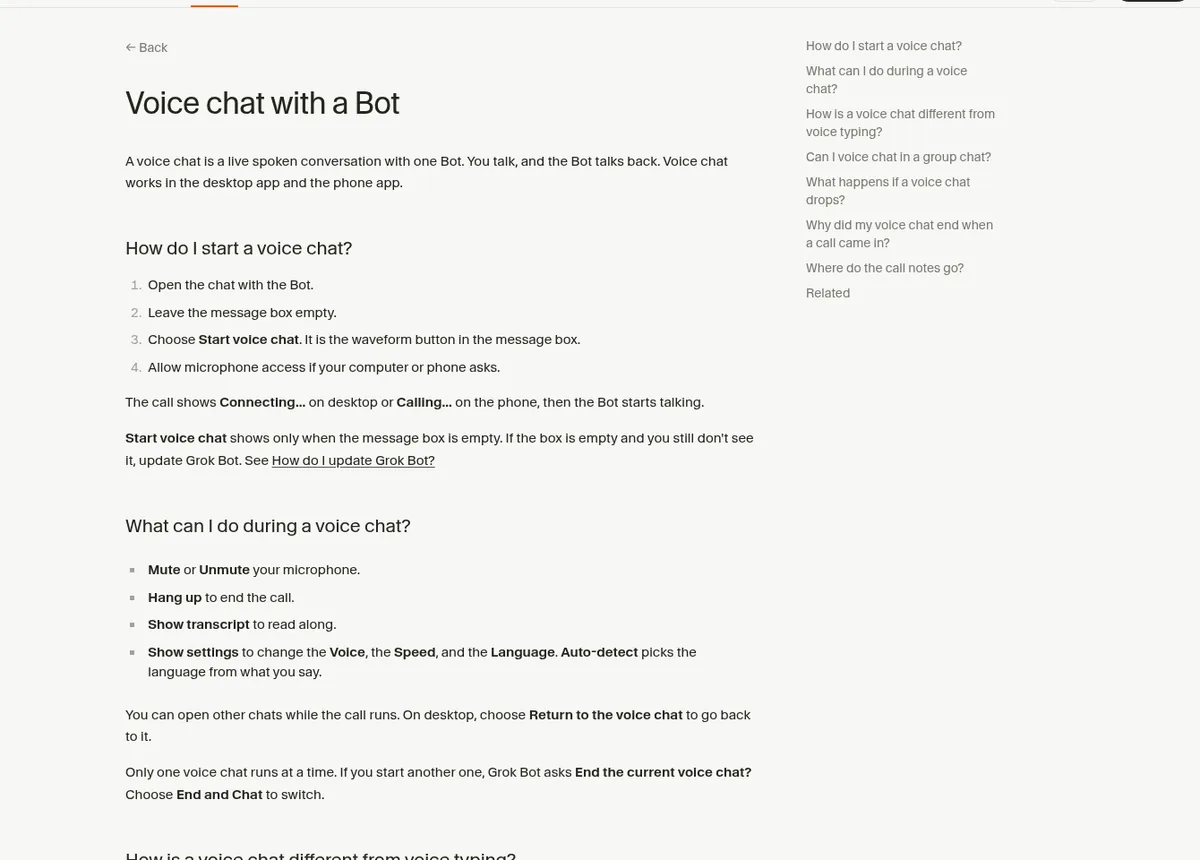
How to start a voice chat
- Open the chat with the Bot.
- Leave the message box empty.
- Choose Start voice chat. It is the waveform button in the message box.
- Allow microphone access if your computer or phone asks.
The call shows Connecting on desktop or Calling on the phone, then the Bot starts talking. The button only shows when the message box is empty. If you still do not see it, update Grok Bot.
On iPhone: the docs say Grok Bot adds shortcuts you can run from Siri, Spotlight, or the Shortcuts app, including Start Voice Chat. So you can start a call without opening the app. My Grok Bot mobile app guide covers the rest of the phone app.
What you can do during a call
- Mute or Unmute your microphone.
- Hang up to end the call.
- Show transcript to read along.
- Show settings to change the voice, the speed, and the language. Auto detect picks the language from what you say.
You can open other chats while the call runs. Only one voice chat runs at a time. If you start another one, Grok Bot asks if you want to end the current call.
The changelog adds a few nice touches. A Bot keeps the voice, speed, and language you set for it. Voice calls can draw on your earlier calls and recent chat with the Bot. And if you hang up while a Bot is still working on your request, it finishes and posts the result in the chat.
Voice chat vs voice typing
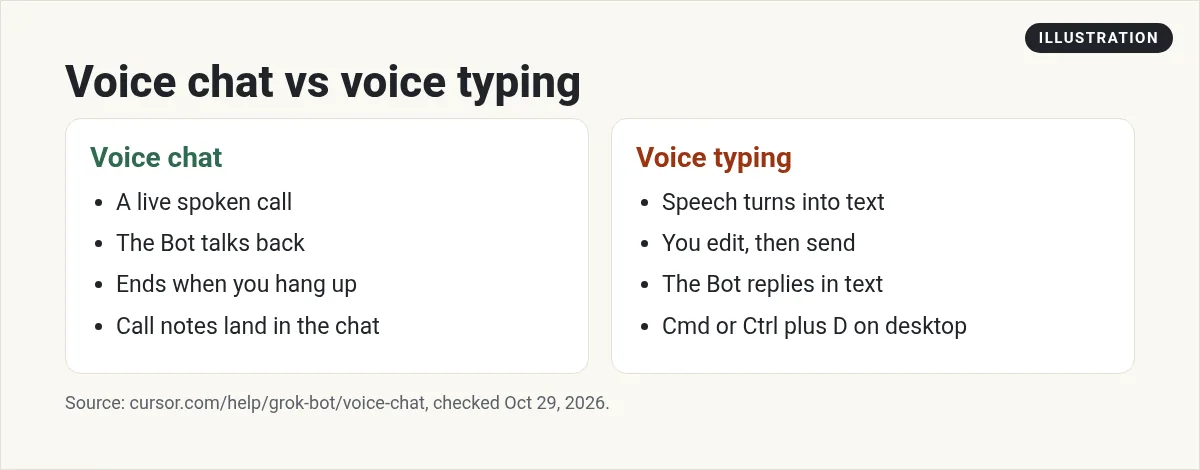
These two are easy to mix up. Voice typing turns your speech into text in the message box. You read it, edit it, and send it. The Bot replies in text. On desktop, choose Start voice input, or press Cmd plus D on a Mac or Ctrl plus D on Windows and Linux.
Voice chat is a live call. The Bot answers out loud and keeps listening until you hang up.
Use voice typing when you want a careful written request. Use voice chat when you want to talk it through.
See voice chat in action
This creator tests voice mode on a real Bot setup and has it run tasks across apps by voice.
From the Brock Mesarich | AI for Non Techies channel (not mine): A full breakdown of Grok Bot voice mode, tested on a real Bot setup with tasks across apps.
This one tries Grok Voice 3.0 inside Grok Bot to see how much real work one phone call can get done.
From the Kacper Rutkiewicz | AI Made Simple channel (not mine): A test of Grok Voice 3.0 inside Grok Bot, checking how much work one call can get done.
And this creator gave each Bot its own voice, which made the whole setup feel more like a team.
From the John Aspinall channel (not mine): A creator gives each Bot its own voice and shows how voice chat makes a Bot team feel like coworkers.
After the call: notes and results
When you hang up, a Voice chat card shows up in that Bot's chat. It shows how long the call lasted, and you can open it to read the full transcript. If the call left work to do, the Bot may follow up in the chat with next steps or results.
This is the real power. You can call a Bot on a walk, say research three options for our team offsite and send me a short list, hang up, and find the list waiting later. My Grok Bot research guide shows how to ask for research you can trust.
Good things to do by voice
- Plan your day. Ask your chief of staff Bot what is on today and what needs you. See my Grok Bot chief of staff guide.
- Brain dump. Talk through an idea and ask the Bot to turn it into a plan.
- Quick updates. Ask what changed in your inbox or calendar. See Grok Bot calendar.
- Hand off a job. Explain the task out loud, then let the Bot work.
Anything that sends or spends still follows your approval settings. A voice request does not skip them. My Grok Bot safety guide explains approvals.
Limits to know
- One Bot at a time. Voice chat does not work in a group chat. Open that Bot's own chat to call it. See my Grok Bot group chats guide.
- Shared Bots. On desktop, you can voice chat with a teammate's shared Bot from your own chat with it.
- Phone calls end it. On the phone app, version 1.18 and later, a voice chat ends when a phone call, FaceTime, or another app takes over the audio. It does not resume on its own.
If voice chat is not working
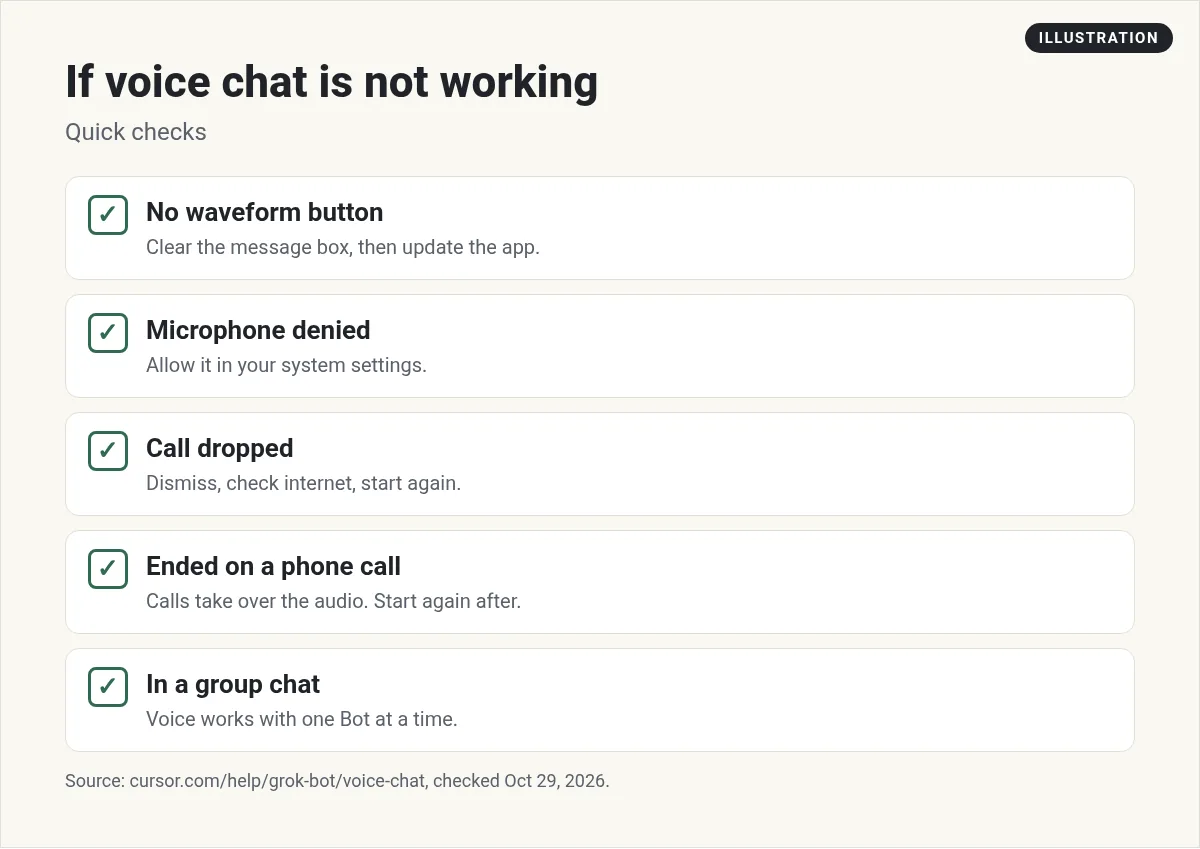
- No Start voice chat button. Clear the message box. If it is still missing, update the app.
- Microphone access denied. Allow Grok Bot to use the microphone in your system settings. To pick a microphone, open Settings and choose one under Microphone.
- Voice chat failed. Grok Bot tries to reconnect first. If it cannot, choose Dismiss, check your internet, and start again.
- The call ended when a call came in. That is expected on the phone. Start voice chat again when you are done.
For other problems, see my Grok Bot mistakes post.
A ready team you can call
Voice chat is best when the Bot on the other end already knows your business and its job. Otherwise you spend the call explaining.
AIM Agent is an AI Chief of Staff for business owners. It comes with an AI C-suite (COO, CMO, CFO, CRO and CTO), a Business Bot Builder and 100+ business skills, and it runs on AIM OS, a private vault that holds your notes and memory. AIM Agent is a ready-made AI business team that works inside Grok Bot, so you skip the setup and get to work.
Here is what you get:
- An AI Chief of Staff that helps you plan and run your business
- An AI C-suite: COO, CMO, CFO, CRO and CTO
- A Business Bot for each business or project. Give it a real task and it brings the work back for you to review
- 100+ business skills for content, offers, research and more
- Step by step setup guides and email support
So instead of starting from blank Bots, you get an AI Chief of Staff and a business team with skills already made, ready for your first call.

Want an AI team to help run your business? Meet AIM Agent, an AI Chief of Staff for business owners. I am a co-founder of AIM Agent and have a financial interest in the product.
Get a ready AI team for your business
AIM Agent gives you an AI Chief of Staff, an AI C-suite, and 100+ business skills, so your Bots have real jobs from day one.
See AIM AgentFrequently asked questions
How do I start a Grok Bot voice chat?
Open a Bot's chat, leave the message box empty, and choose Start voice chat, the waveform button.
Does voice chat work on the phone?
Yes. It works in the desktop app and the phone app. On iPhone you can also start it from Siri or Shortcuts.
Can I voice chat with a group?
No. Voice chat works with one Bot at a time. Open that Bot's own chat.
What is the difference between voice chat and voice typing?
Voice typing turns speech into text you send. Voice chat is a live call where the Bot talks back.
Where do call notes go?
A Voice chat card appears in the Bot's chat with the full transcript. The Bot may follow up with results.
What powers Grok Bot voice?
xAI says Grok Voice 3.0 powers Grok Bot's voice mode.
Is there a faster way to get a business Bot team?
AIM Agent gives you an AI Chief of Staff, an AI C-suite, and 100+ business skills, so you start with a team built for business work.
Sources
Checked October 29, 2026. Plans, prices, and rules can change.
