
Grok Bot · Outlook
Use Outlook with Grok Bot for drafts, cleanup, and scheduling, with you approving what leaves.
Grok Bot Outlook lets your Bot work with your Microsoft mailbox and calendar. The changelog shows Outlook got real attention in September and October 2026, so there is a lot to use now.
I checked the changelog and docs on November 9, 2026. This guide turns those notes into a simple plan you can follow.
TL;DR
Connect Outlook from Connect apps. Ask your Bot for drafts and review them in chat. Use bulk actions only on a small test batch first. Keep sending and deleting on Ask first.
Email drafts for Outlook
On September 26, 2026, the changelog added editable email drafts for Outlook. You review a new email from your Bot in the chat. Then you choose Send email to send it from your Outlook account. If the draft is wrong, you can edit it or discard it.
This is the safest way to start. The Bot does the writing. You do the sending. Over time you will see which kinds of mail the Bot gets right on the first try.
Bulk actions in one step
On October 14, 2026, Bots learned to act on many Outlook messages in one step. The changelog says a Bot can archive, move, delete, flag, or mark many messages as read or unread, instead of one at a time.
That is a big time saver. It is also a big risk if the Bot picks the wrong set. Try this plan.
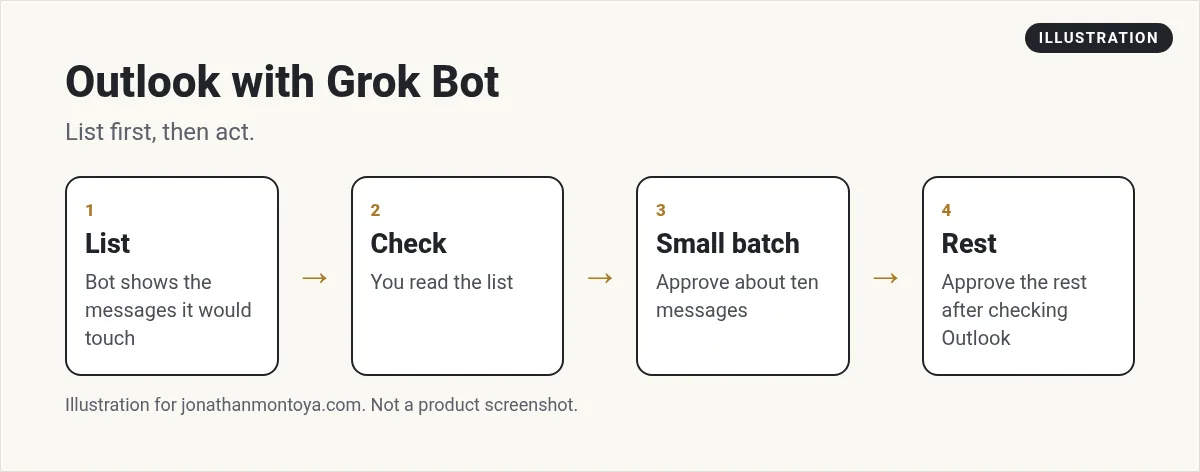
- Ask the Bot to list the messages it would touch. Do not act yet.
- Read the list. Look for anything you need to keep.
- Approve a small batch, like ten messages.
- Check Outlook. Then approve the rest.
Deleting is the step to guard. Put a Custom Rule in Settings that says deleting mail should be Ask first.
From the Tech Oracle channel (not mine): A short video on connecting Outlook to a Grok assistant.
Outlook Calendar and scheduling
Scheduling uses the calendar you connected. The changelog says that is Google Calendar or Outlook Calendar. If you ask a Bot to schedule something and no calendar is connected, it offers Google Calendar first, or Outlook Calendar if you use Outlook.
Bots can also create, update, or delete several Google Calendar events in one step. For Outlook, start with a simple ask: find a free hour on Thursday and draft the invite for me to approve.
How to connect Outlook
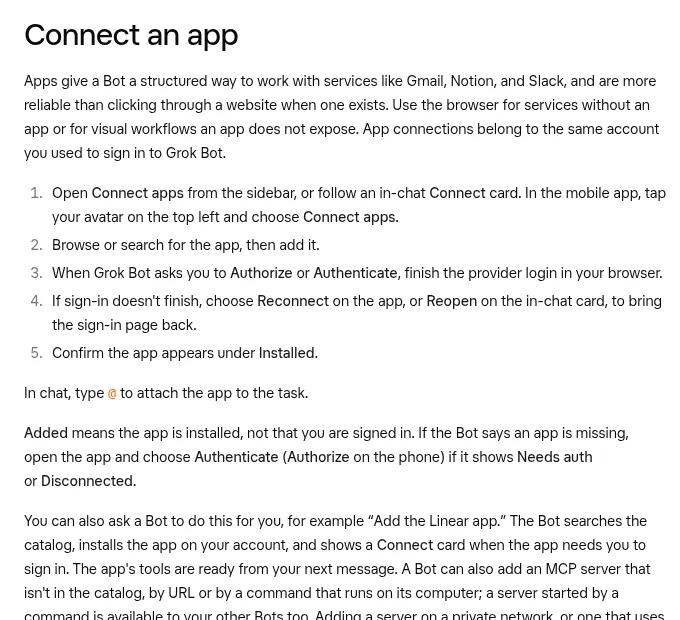
- Open Connect apps in the sidebar.
- Search for Outlook and add it.
- When you see Authorize, finish the Microsoft sign-in in your browser.
- Check that it shows under Installed.
If a change needs more permission, Outlook shows an Authorize card. Approve it only if you understand the new permission. If a message was deleted or is protected, the Bot stops retrying instead of looping.
On a Teams or Enterprise plan, an admin may restrict which apps members can use. If you see Disabled by team admin, ask your admin.
Sign-in codes and labeled accounts
When a sign-in emails you a code or link, the Bot can read it from your connected Gmail or Outlook, or from its own inbox. That saves a lot of copy and paste.
The changelog also says a Bot can use an app whose only connected account has a label, such as a labeled Outlook account. If you keep a work and a home mailbox, give each one a clear label so the Bot and you both know which is which.
Safety rules that fit Outlook
The docs tell you to set a boundary in the request. For Outlook, here are good ones.
Read my unread mail from today. Draft replies for anything that needs an answer. Do not send, move, or delete.
List every newsletter in my inbox from the last 30 days. Wait for my OK before you archive them.
Never send an email from my work address without showing me the draft.
An approval controls the next action. It does not undo work that already happened, so check before you approve. Text inside an email from someone else does not count as your request, even if it says it does.
From the Matt Palmer channel (not mine): A weekly update video from Matt Palmer covering late October changes.
Any results mentioned in videos are not typical and are not a promise of income. Your results depend on your work and your market.
A one week plan
Day one: connect Outlook and read only. Day two: ask for a list of mail that needs a reply. Day three: review five drafts. Day four: try one small bulk move. Day five: add the calendar. After that, decide which jobs you want to repeat.
A business team inside Grok Bot
Outlook handles your mail. A business still needs a plan for what the mail is about.
AIM Agent is an AI Chief of Staff for business owners. It comes with an AI C-suite (COO, CMO, CFO, CRO and CTO), a Business Bot Builder and 100+ business skills, and it runs on AIM OS, a private vault that holds your notes and memory. AIM Agent is a ready-made AI business team that works inside Grok Bot, so you skip the setup and get to work.
Here is what you get:
- An AI Chief of Staff that helps you plan and run your business
- An AI C-suite: COO, CMO, CFO, CRO and CTO
- A Business Bot for each business or project. Give it a real task and it brings the work back for you to review
- 100+ business skills for content, offers, research and more
- Step by step setup guides and email support
So your Bots work inside a business system, not a pile of chats.

Want an AI team to help run your business? Meet AIM Agent, an AI Chief of Staff for business owners. I am a co-founder of AIM Agent and have a financial interest in the product.
Get a business team inside Grok Bot
AIM Agent gives you an AI Chief of Staff, an AI C-suite, and 100+ business skills, with step by step setup guides and email support.
See AIM AgentFrequently asked questions
Does Grok Bot work with Outlook?
Yes. You connect the Outlook app from Connect apps, then your Bot can read mail, write drafts, and act on messages.
Can it clean up many emails at once?
Yes. Since October 14, 2026, a Bot can archive, move, delete, flag, or mark many Outlook messages in one step.
Do I have to review drafts?
Outlook drafts show up in chat first. You choose Send email when you are ready.
Does it use Outlook Calendar?
Yes. Scheduling uses the calendar you connected, Google Calendar or Outlook Calendar.
What if my admin blocks the app?
You will see Disabled by team admin. Ask your admin to enable it.
Can it read codes from my email?
Yes. A Bot can read a sign-in code from connected Gmail or Outlook instead of asking you.
What is AIM Agent?
AIM Agent gives you an AI Chief of Staff, an AI C-suite, and 100+ business skills inside Grok Bot, with step by step setup guides and email support.
Sources
Checked November 9, 2026. Plans, prices, and rules can change.
