
Grok Bot · Microsoft 365
Lots of businesses run on Outlook and Teams, not Google. Here is how Grok Bot works with Microsoft 365, and how to get past the admin approval screen.
Grok Bot Microsoft 365 support covers the tools many offices use every day: Outlook, Outlook Calendar, OneDrive, Microsoft Teams, and SharePoint. If your business does not run on Google, this is the post for you.
I read the Grok Bot help pages, docs, and changelog on November 4, 2026. Below is what works, the most common error and its fix, and my own tips, which I mark as mine.
TL;DR
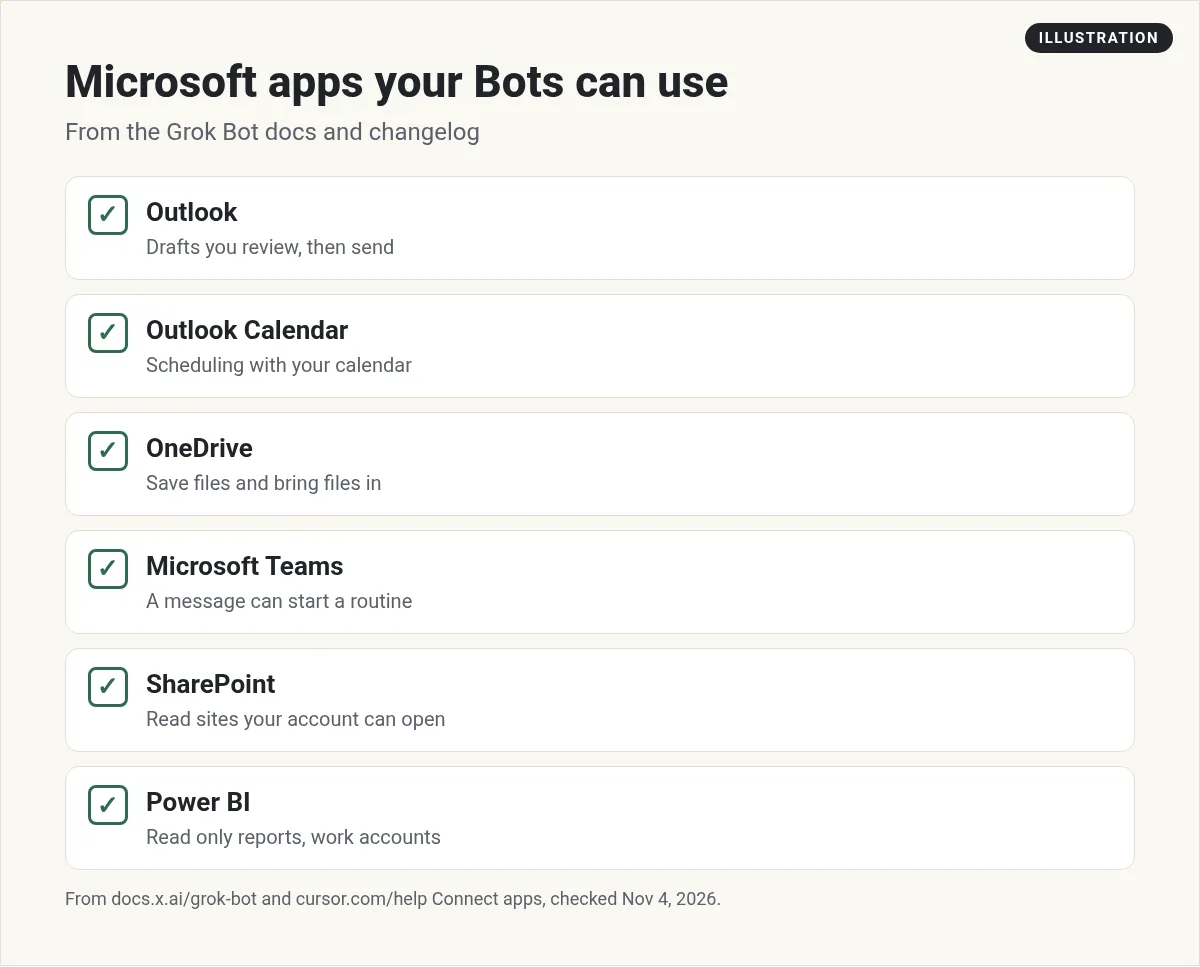
Grok Bot connects to Outlook, Outlook Calendar, OneDrive, and Microsoft Teams, plus SharePoint and Power BI. Bots can draft Outlook email for you to send, schedule with your calendar, move files to and from OneDrive and SharePoint, and start a routine from a Teams message. A work or school account may need your Microsoft 365 admin to approve the app once. Send them the approval link from the sign in page.
What your Bots can do in Microsoft 365
Outlook
The changelog says editable email drafts work with Outlook. You review a Bot's new email in chat, then choose Send email to send it from your Outlook account. Bots can also archive, move, delete, flag, or mark many Outlook messages as read in one step.
When a sign in sends a code by email, the Bot can read it from your connected Outlook instead of asking you.
Outlook Calendar
Scheduling uses the calendar you connected, Google Calendar or Outlook Calendar. If neither is connected, the Bot offers to connect one. If you use Outlook, it offers Outlook Calendar.
OneDrive and SharePoint
The docs say a Bot can move files between its computer and OneDrive or SharePoint without pasting them into chat. It can save a file it made, or bring a file onto its computer to work on it.
One detail matters: OneDrive and SharePoint refuse a name that already exists, unless you tell the Bot to overwrite it. So tell the Bot what to do if a file is already there.
Microsoft Teams
The changelog says your Bot can create routines that start from a Microsoft Teams message. For example, a new message in a support channel could start a Bot that drafts a reply for you.
Power BI
The help page says Power BI needs a work or school Microsoft account. A personal account cannot connect it. The Bot can list workspaces, reports, and datasets, and turn a report page into images. Every Power BI tool only reads.
Three requests to try (my examples)
These are my own examples, written for a Microsoft setup:
Check my Outlook Calendar for next week. Find two free hours for deep work each day and hold them. Do not move any meetings.
Find the latest sales report in my OneDrive Reports folder. Summarize the top five changes in this chat. Do not edit the file.
Read my unread Outlook email from today. Draft short replies for anything from a customer. Leave every draft for me to send.
Notice each one says what not to do. That one line saves a lot of cleanup.
What an app can and cannot do
The help page has one rule that applies to every app. An app uses the account you authorize. It can only do what that account can already do. It cannot raise your access, and it cannot change sharing.
That is good news. A Bot connected to your Outlook cannot see a mailbox you cannot see.
The admin approval screen, and how to fix it
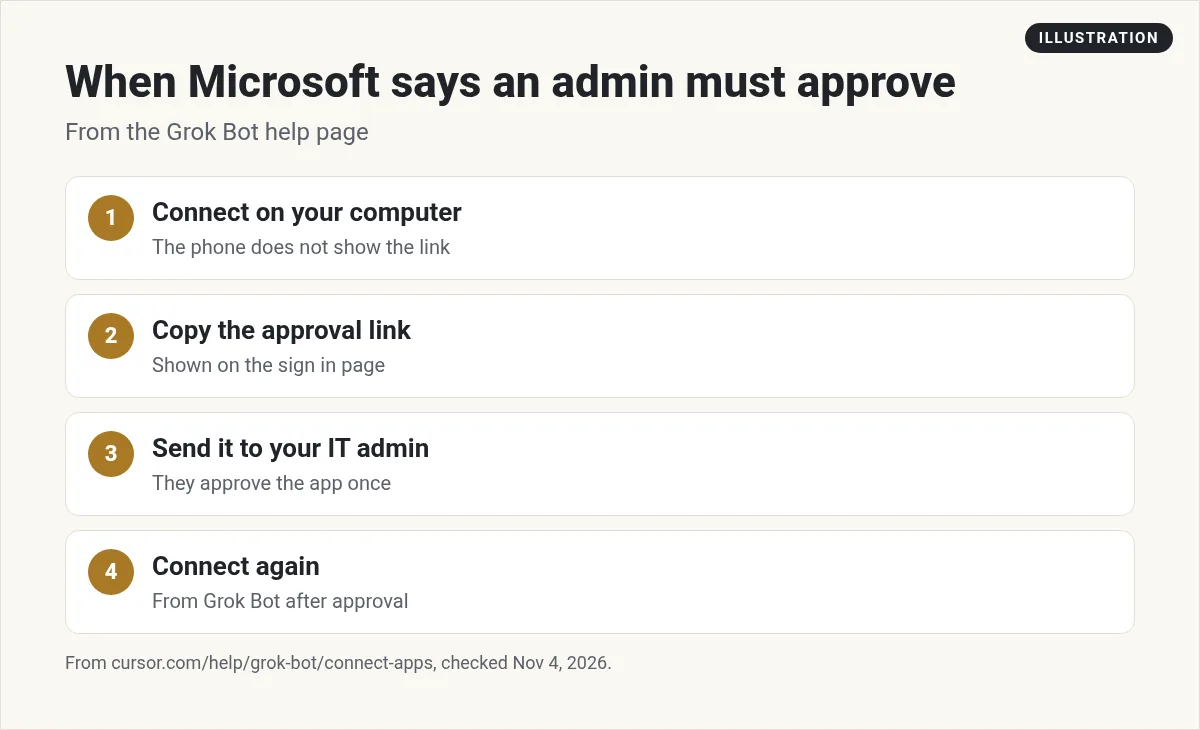
This is the most common Microsoft problem. The help page says a work or school Microsoft 365 account can stop Outlook, Outlook Calendar, OneDrive, or Teams from connecting until your admin approves the app. Retrying does not help.
Here is what to do:
- Try connecting from Grok Bot on your computer. The sign in page shows an Approval link for your IT admin.
- Send that link to your IT admin.
- After they approve it, connect again from Grok Bot.
On the phone app, the card tells you to ask your admin, but it does not show the link. So connect once from your computer to get it.
If the page says the app is blocked by your organization, your admin has to allow it. The page lists the details to send them, like the error code and the time.
A known SharePoint issue
The docs list a known issue. When a team admin connects SharePoint with Application level permissions, Microsoft shows error AADSTS50011. Nothing in your setup causes this. The fix in the docs is to connect with Delegated permissions instead. Most work tenants need a Microsoft admin to approve once. Then each member signs in with their own account and sees only the sites they can already open.
For IT teams
If your company uses a network allowlist for Grok Bot, the docs say Outlook, Outlook Calendar, OneDrive, and Microsoft Teams all need the host graph.microsoft.com allowed. The docs also cover single sign on with Microsoft Entra ID for admins.
Two videos worth watching
Rob Morgan shows how he set up Grok Bot for a team: seats, members, permissions, and the default apps everyone gets.
From the Rob Morgan channel (not mine): Helpful if you are rolling Grok Bot out to a small office. His description links to his own services.
Corbin gives a beginner walkthrough of Grok Bot, including how Bots sign in to your tools.
From the corbin channel (not mine): A good start if you are new. His description includes his own product links.
My own advice
This part is my opinion. Start with Outlook Calendar, not email. Scheduling is low risk and saves time on day one. Add Outlook next, and keep every email as a draft you send yourself for the first few weeks. Once you trust the drafts, you can decide what else to hand over.
If you are on a work account, talk to your IT admin before you start. A five minute chat saves a lot of blocked sign ins.
Your apps are connected. Now what?
Connecting Outlook and Teams is step one. Knowing which jobs to hand your Bots is the hard part.
AIM Agent is an AI Chief of Staff for business owners. It comes with an AI C-suite (COO, CMO, CFO, CRO and CTO), a Business Bot Builder and 100+ business skills, and it runs on AIM OS, a private vault that holds your notes and memory. AIM Agent is a ready-made AI business team that works inside Grok Bot, so you skip the setup and get to work.
Here is what you get:
- An AI Chief of Staff that helps you plan and run your business
- An AI C-suite: COO, CMO, CFO, CRO and CTO
- A Business Bot for each business or project. Give it a real task and it brings the work back for you to review
- 100+ business skills for content, offers, research and more
- Step by step setup guides and email support
So you skip the setup and get to work.

Want an AI team to help run your business? Meet AIM Agent, an AI Chief of Staff for business owners. I am a co-founder of AIM Agent and have a financial interest in the product.
Get a ready made team inside Grok Bot
AIM Agent gives you an AI Chief of Staff, an AI C-suite, and 100+ business skills, so you skip the setup and get to work.
See AIM AgentFrequently asked questions
Does Grok Bot work with Microsoft 365?
Yes. It connects to Outlook, Outlook Calendar, OneDrive, and Microsoft Teams, plus SharePoint and Power BI.
Can Grok Bot send Outlook email?
It drafts email you can review in chat, then you choose Send email to send it from your Outlook account.
Why does Microsoft say an admin needs to approve Grok Bot?
Your work or school account needs your Microsoft 365 admin to approve the app once. Send them the approval link from the sign in page.
Why does my phone not show the approval link?
The phone app does not show it. Connect once from your computer to get the link.
Can a Bot start work from a Teams message?
Yes. The changelog says Bots can create routines that start from a Microsoft Teams message.
Can my Bot see files I cannot see?
No. An app can only do what your account can already do. It cannot raise access or change sharing.
Is there a faster way to get a working team?
AIM Agent gives you an AI Chief of Staff, an AI C-suite, and 100+ business skills inside Grok Bot.
Sources
Checked November 4, 2026. Plans, prices, and rules can change.
