
Grok Bot · Route traffic
Make your Bot browse from your own connection. Here is the catch list.
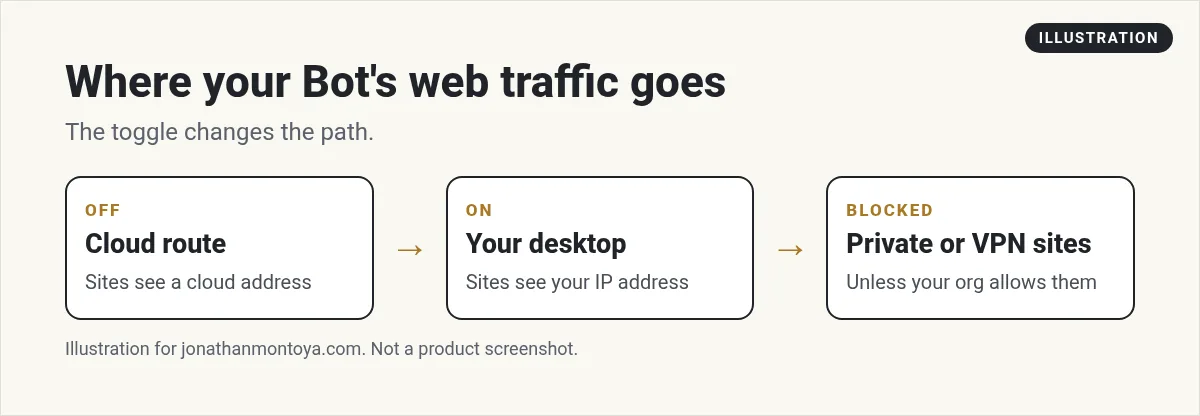
Grok Bot route traffic through this computer is a setting that sends your Bot's web traffic through your own desktop instead of the cloud. Sites then see your desktop's IP address. It is useful for a few jobs and wrong for most.
I read the Settings page of the docs and the changelog on November 9, 2026. The setting began as Route egress on September 11 and has been improved several times since.
TL;DR
Turn on Route traffic through this computer under Settings, Computer. New connections go through your desktop. Sites on private or VPN addresses are blocked. Only one computer routes at a time. Your admin can turn it off.
What it does
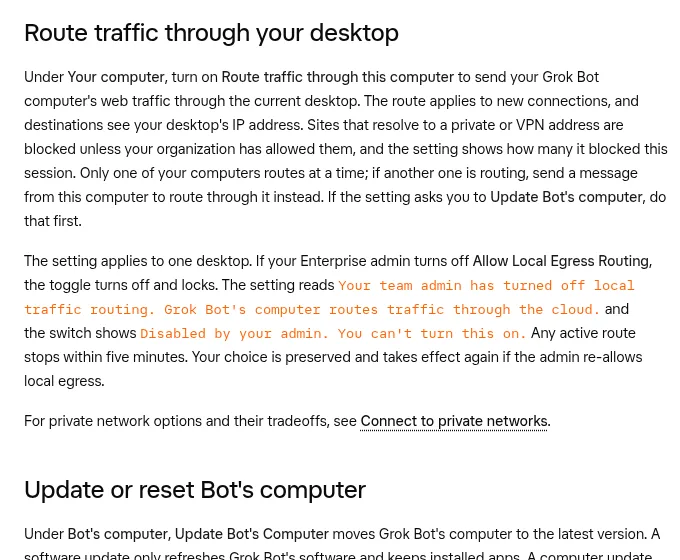
The docs say that under Your computer, you can turn on Route traffic through this computer to send your Grok Bot computer's web traffic through the current desktop. The route applies to new connections, and destinations see your desktop's IP address.
The first version on September 11, 2026 was called Route egress through this desktop. It sent web traffic from your Bot's computer through your own computer instead of the cloud.
Why someone would turn it on
- A site only works from your home or office network.
- You want a Bot to see a page the way you see it.
- A service trusts your usual IP address more than a cloud address.
If none of these fit, leave it off. The default cloud route is simpler.
From the Zinho Automates channel (not mine): A beginner automation video.
Any results mentioned in videos are not typical and are not a promise of income. Your results depend on your work and your market.
The rules to remember
- One route at a time. Only one of your computers routes at once. If another is routing, send a message from this computer to route through it instead.
- Private addresses are blocked. Sites that resolve to a private or VPN address are blocked unless your organization allowed them. The setting shows how many it blocked this session.
- Update first. If the setting asks you to Update Bot's computer, do that first.
- Computer must be on. If your computer sleeps, Settings says Grok Bot's computer is asleep and that routing reconnects when it wakes.
Fixes from the changelog
The recent updates made this setting steadier.
- Plain http pages load with routing on, and the Bot says when your computer goes offline.
- Pages no longer fail right away when only another host on them is refused.
- The connection comes back as soon as the Bot's computer wakes for most accounts.
Admin controls
If an Enterprise admin turns off Allow Local Egress Routing, the toggle turns off and locks. It reads that your team admin has turned off local traffic routing and that the Bot's computer routes traffic through the cloud. Any active route stops within five minutes. Your choice is saved and comes back if the admin allows it again.
For other private network options and their tradeoffs, the docs point to a separate Connect to private networks page.
From the Parker Prompts channel (not mine): A video with nine use cases to try.
Safety thoughts
- Routing sends the Bot's browsing through your own connection. Treat it as you would treat your own browsing.
- Keep Ask first rules on sends, purchases, and deletes.
- Turn it off when you finish the special task.
Example: a site that only works from home
Say a supplier site only lets in visitors from your home network. A Bot in the cloud cannot get in. You open Settings, then Computer, and turn on Route traffic through this computer. Now the Bot's browsing goes through your desktop, and the site sees your home address. Keep your desktop awake, run the task, then turn the setting off.
If the site still fails, check the blocked count in Settings. A site on a private or VPN address is blocked by design.
Route traffic versus Local computer
These two settings sound alike but do different things. Route traffic changes where web requests come from. The local computer setting decides if a Bot can run commands on your desktop. You can use one without the other.
Both live in Settings, then Computer, under Your computer. Each applies to the one desktop you set it on. If you have two computers, set each one on purpose.
Quick checklist
- Do I really need my own IP address for this task?
- Is my desktop awake and online?
- Is another computer already routing?
- Will I turn it off when I finish?
A business team inside Grok Bot
A network setting changes the path. A business team changes the results.
AIM Agent is an AI Chief of Staff for business owners. It comes with an AI C-suite (COO, CMO, CFO, CRO and CTO), a Business Bot Builder and 100+ business skills, and it runs on AIM OS, a private vault that holds your notes and memory. AIM Agent is a ready-made AI business team that works inside Grok Bot, so you skip the setup and get to work.
Here is what you get:
- An AI Chief of Staff that helps you plan and run your business
- An AI C-suite: COO, CMO, CFO, CRO and CTO
- A Business Bot for each business or project. Give it a real task and it brings the work back for you to review
- 100+ business skills for content, offers, research and more
- Step by step setup guides and email support
So your Bots work inside a business system, not a pile of chats.

Want an AI team to help run your business? Meet AIM Agent, an AI Chief of Staff for business owners. I am a co-founder of AIM Agent and have a financial interest in the product.
Get a business team inside Grok Bot
AIM Agent gives you an AI Chief of Staff, an AI C-suite, and 100+ business skills, with step by step setup guides and email support.
See AIM AgentFrequently asked questions
What does Route traffic through this computer do?
It sends your Bot computer's web traffic through your desktop. Sites see your desktop's IP address.
Can two computers route at once?
No. Only one of your computers routes at a time.
Why is a site blocked?
Sites that resolve to a private or VPN address are blocked unless your organization allowed them.
Can my admin turn it off?
Yes. An Enterprise admin can turn off Allow Local Egress Routing.
What if my computer sleeps?
Settings says the Bot's computer is asleep. Routing reconnects when it wakes.
Should I leave it on?
Only if you need it. The default cloud route is simpler.
What is AIM Agent?
AIM Agent gives you an AI Chief of Staff, an AI C-suite, and 100+ business skills inside Grok Bot, with step by step setup guides and email support.
Sources
Checked November 9, 2026. Plans, prices, and rules can change.
