
Grok Bot · Webhooks
A Grok Bot webhook is a private web address that wakes up a routine when another app calls it. Here is how to get one, how to send to it, and how to keep it safe and cheap.
Grok Bot webhooks let another app start one of your Bot's routines. Your form tool, your CRM, or a little script sends one call, and the Bot gets to work, even when your laptop is closed.
I read the official routines help page and docs on October 30, 2026. Below is the whole thing in plain words: where the URL and key live, what to send, what a 200 means, the limits, and the first jobs I would hook up.
TL;DR
Ask your Bot to add a webhook trigger to a routine. Then open the routine on desktop. The Webhook section shows the URL, the key, and a ready header. Your app sends an HTTP POST to the URL with the header Authorization: Bearer and your key. You can add a JSON body, and the Bot gets it along with the routine instruction. A 200 answer means a run started, not that it finished, so check the Bot's chat for the result. Your routines can run up to 300 times an hour in total, and each routine up to 200 times. Failed runs are not retried for you.
What a Grok Bot webhook is
A routine tells one Bot when to run a job. Most people start with a schedule, like every weekday at 9 AM. But a routine can also start when something happens. The help page lists a Slack message, a GitHub, Linear, Sentry, or PagerDuty event, an email, or a webhook call.
A webhook is the most open of those. It is a web address that only your routine owns. Any app that can send a web request can knock on that door. When it does, the Bot runs the routine in the cloud. Your laptop can be closed.
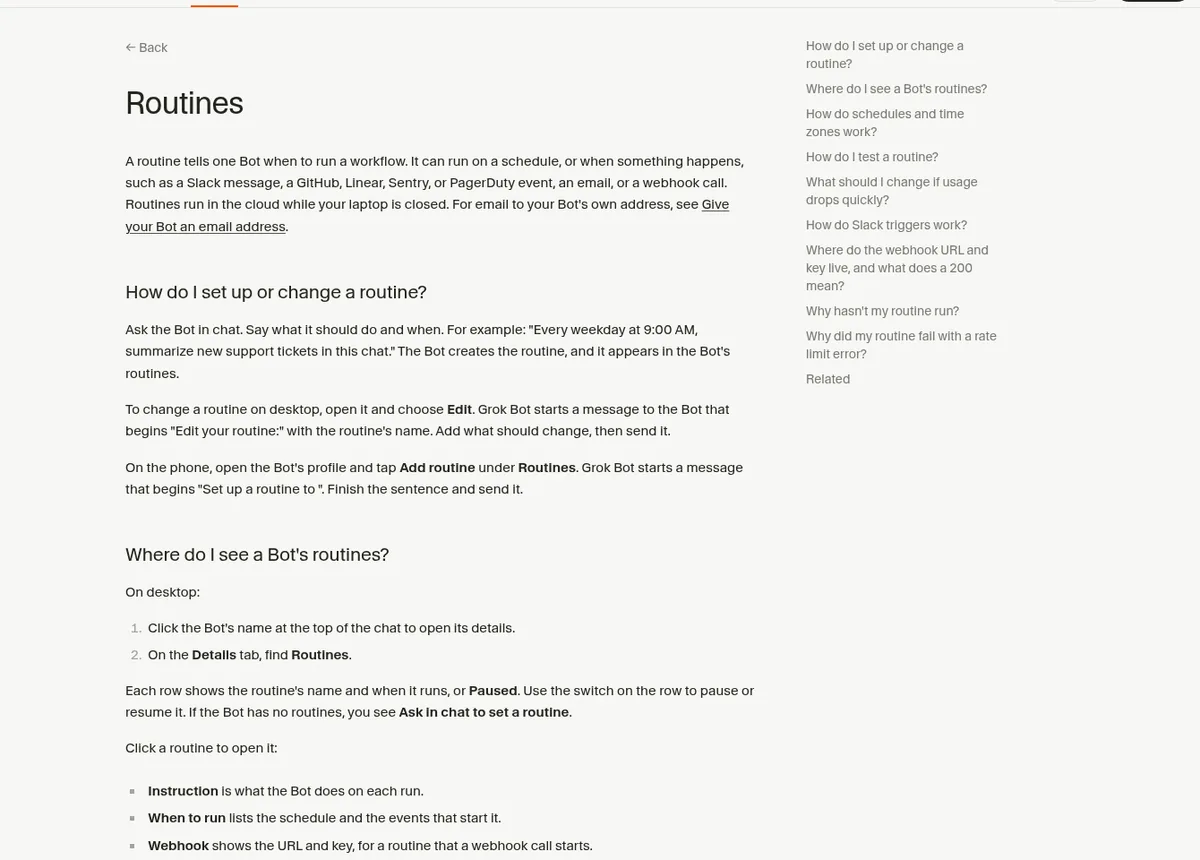
If you are new to routines, read my guide to Grok Bot routines first. This post goes deeper on the webhook part only.
How to add a webhook trigger
You do not fill out a form. You ask in chat, like you would ask a person.
Add a webhook trigger to my New Lead routine. When it is called, read the lead details in the body and draft a welcome email for my review.
The Bot changes the routine. Now open it on desktop: click the Bot's name at the top of the chat, go to the Details tab, and find Routines. Click your routine. You will see a Webhook section with three fields:
- POST to. The URL your app calls.
- key. The secret. Senders put it in a header as Authorization: Bearer, then the key.
- header. That full header, ready to copy.
Click a field to copy it. Treat the key like a password. Anyone who has it can start your routine.
What to send
Your app sends an HTTP POST to the URL with that header. You can also send a JSON body. The Bot receives the body with the routine instruction, so it can use the details.
A simple body for a new lead might hold a name, an email, and what the person asked for. Keep it small and clear. The Bot reads it like a note.
Where can the call come from? Many tools can send a webhook. A form builder, a CRM workflow, a store, or an automation tool all can, as long as they let you set the URL and a header. Check your tool's own help for the exact steps.
From the Baskaran Builds channel (not mine): Baskaran Builds runs a team of Bots and walks through group chats, routines, webhooks, and the limits you will hit. A good real world look before you wire anything up.
What a 200 really means
This trips people up. When you call the URL, you get an answer back. The help page says a 200 means Grok Bot accepted the call and started a run. It does not mean the Bot finished the job.
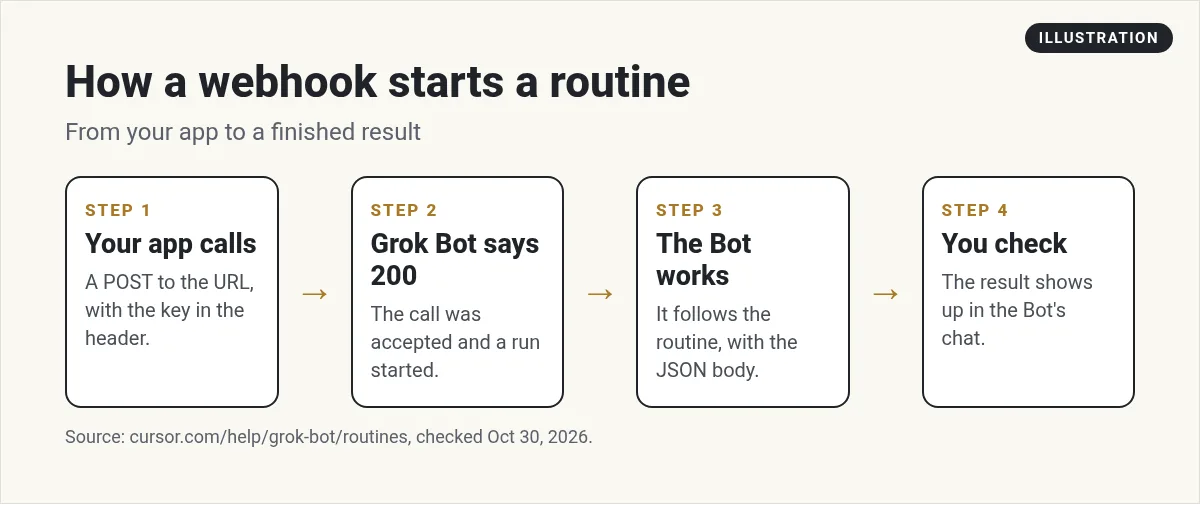
So your app should not wait for the answer to the job. The result shows up in the Bot's chat. If you need the result somewhere else, tell the routine where to put it, like a Slack channel, a sheet, or an email to you.
Any answer other than 200 means a run did not start. The two common reasons are a paused routine and an old key.
How to test before you go live
Open the routine on desktop and choose Test. The button says Running until the run finishes, and the result shows up in the Bot's chat.
Be careful here. A test does real work. It can change files and use your connected apps. So test with a safe input, like a fake lead with your own email address. Then send one real call from your app with the same safe data.
The limits you should know
Routines have hourly limits. From the help page:
- All your routines together can run up to 300 times an hour.
- Each routine can run up to 200 times an hour.
- A run past either limit fails with an error that says the run rate limit was exceeded.
- A failed run is not retried for you. For a webhook, send the call again.
The help page also says some runs can fail with this error because of a limit all Grok Bot routines share, and that the team is working on a fix. So if a run fails once, send it again before you change anything.
There is a cost side too. Each run spends usage. A webhook on a busy app can fire all day. If you only need a summary, a schedule might be the better choice.
If your webhook did not run
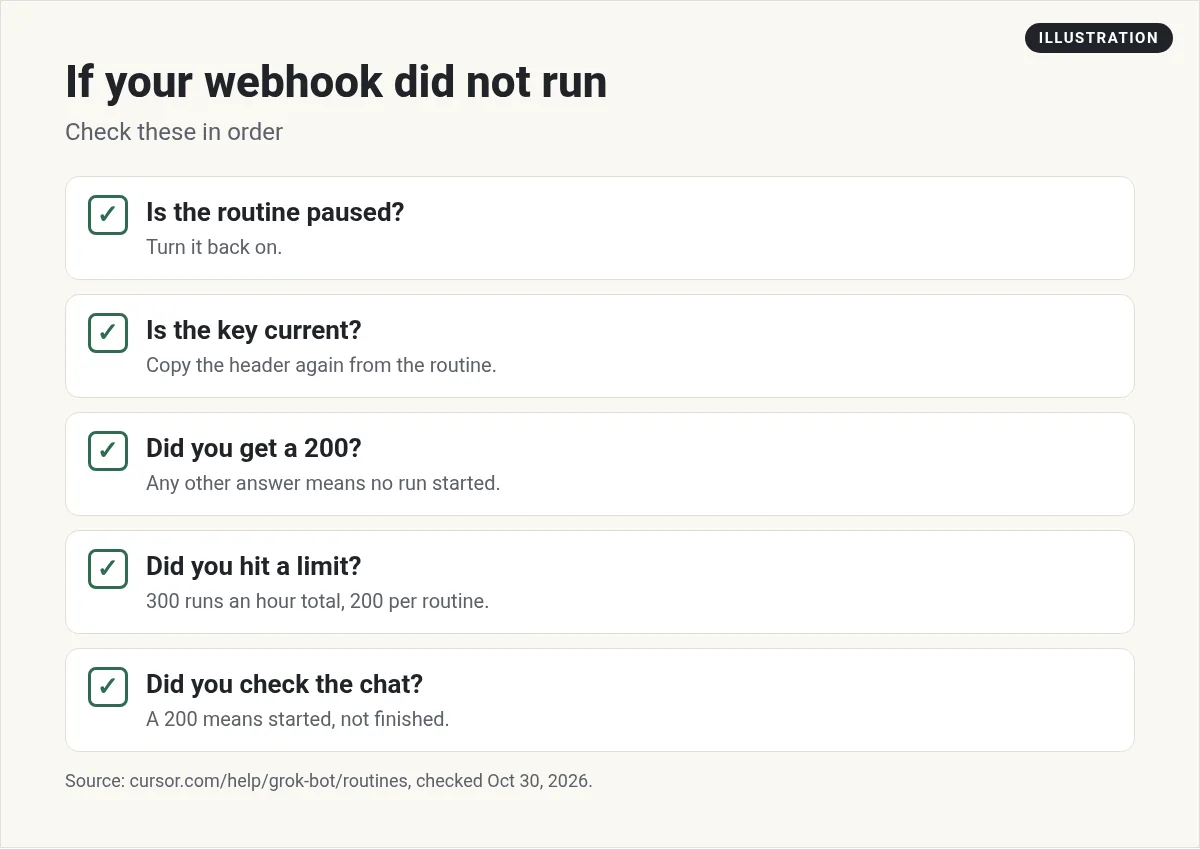
Work down this list. Is the routine paused? On the phone, is Active on? Did the call get a 200? Did it use the current key? If you got a 200, the run started, so look in the Bot's chat. On the phone, Run history shows each recent run as Running, Succeeded, or Failed, and a failed run shows its reason.
Five safe first jobs for a webhook
- New lead note. A form sends the lead. The Bot looks up the company and writes a short note for you.
- Welcome draft. A new customer comes in. The Bot drafts a welcome email for your review. It does not send it.
- Error summary. A monitoring tool calls the URL. The Bot reads the details and posts a plain summary.
- Order check. A store sends an order. The Bot checks it against your stock sheet and flags anything odd.
- Meeting booked. A booking tool sends the details. The Bot builds a one page brief before the call.
Notice the pattern. Each job reads and drafts. None sends money or messages without you. Start there, and loosen it later once you trust the routine. My Grok Bot safety guide covers approvals in more detail.
From the Inkbox (YC S26) channel (not mine): This is a vendor tutorial from Inkbox, so it shows their own tool. It is still a useful look at waking a Bot up automatically when a message arrives.
Webhook, Slack trigger, or email?
You have other ways to start a routine. Here is how I choose:
- Slack trigger when your team already talks in Slack. See Grok Bot Slack.
- Email when the thing that starts the job already arrives by email. See Grok Bot email.
- Webhook when an app has the data and can call a URL. It is the most direct.
Give your webhooks a team that knows what to do
A webhook only says that something happened. Your Bot still needs to know what good work looks like for your business: how to write the note, what to flag, and when to stop and ask you.
AIM Agent is an AI Chief of Staff for business owners. It comes with an AI C-suite (COO, CMO, CFO, CRO and CTO), a Business Bot Builder and 100+ business skills, and it runs on AIM OS, a private vault that holds your notes and memory. AIM Agent is a ready-made AI business team that works inside Grok Bot, so you skip the setup and get to work.
Here is what you get:
- An AI Chief of Staff that helps you plan and run your business
- An AI C-suite: COO, CMO, CFO, CRO and CTO
- A Business Bot for each business or project. Give it a real task and it brings the work back for you to review
- 100+ business skills for content, offers, research and more
- Step by step setup guides and email support
So your routines have someone smart on the other end from the first call, and you still approve what matters.

If you are weighing a classic automation tool instead, read my Grok Bot vs n8n comparison. Want an AI team to help run your business? Meet AIM Agent, an AI Chief of Staff for business owners. I am a co-founder of AIM Agent and have a financial interest in the product.
Put a business team behind every trigger
AIM Agent gives you an AI Chief of Staff, an AI C-suite, and 100+ business skills, so your routines start real work the moment they fire.
See AIM AgentFrequently asked questions
How do I get a Grok Bot webhook URL?
Ask your Bot to add a webhook trigger to a routine. Then open the routine on desktop. The Webhook section shows the URL, the key, and the header.
How do I send the key?
Put it in a header: Authorization: Bearer, then your key. The header field in the routine has it ready to copy.
Can I send data with the call?
Yes. You can send a JSON body. The Bot receives it with the routine instruction.
Does a 200 mean the job is done?
No. It means Grok Bot accepted the call and started a run. Check the Bot's chat for the result.
What are the webhook limits?
Your routines can run up to 300 times an hour in total, and each routine up to 200 times an hour. Failed runs are not retried for you.
Does a webhook run cost usage?
Yes. Each run spends usage, so keep busy triggers narrow.
Is there a faster way to get a Bot team for my business?
AIM Agent gives you an AI Chief of Staff, an AI C-suite, and 100+ business skills, so you start with a team built for business work.
Sources
Checked October 30, 2026. Plans, prices, and rules can change.
