
Grok Bot · WordPress
A Bot can do your WordPress chores: draft posts, fix pages, and tidy old content. The trick is giving it just enough access. Here is how.
Grok Bot can work in WordPress for you. It can log in through its own browser, draft posts, update pages, and clean up old content. You can also connect it with a WordPress application password or a third party plugin. The safest setup gives the Bot its own user with the smallest role that still gets the job done.
I read the WordPress docs on roles and application passwords and the Grok Bot docs on November 2, 2026, and watched two creators connect a Bot to WordPress. Here is what I learned.
TL;DR
There are three ways to connect Grok Bot to WordPress. One, the Bot logs in through its own browser with a login saved in Vault, then works in the dashboard like you do. Two, you create a WordPress application password for the Bot's user, so it can use the site's REST API. Three, you install a third party plugin that lets AI tools talk to WordPress. In every case, give the Bot its own user, start with the Contributor or Author role, and keep publishing behind your approval.
What a Bot can do in WordPress
- Draft new posts from your notes or outline.
- Update old posts: fix broken links, add a new section, refresh dates in the text.
- Upload images and add alt text.
- Edit pages, like your about or contact page.
- Check plugin and theme updates and tell you what is waiting.
The Bot has its own computer and browser, so it can do most of this the same way you would. It just clicks through the dashboard.
From the Historic Events channel (not mine): In this real screen recording, a creator asks a Bot to update a brand new WordPress site. You watch it open its browser, log in, and make the change. It is slow in spots, but you see every step.
Way 1: The Bot logs in through its browser
This is the simplest. No plugins, no code.
- Create a new WordPress user just for the Bot. Do not share your own admin login.
- Save that login in the Grok Bot Vault. The help center says your Bot never sees a saved password. It just uses it to sign in.
- Ask the Bot to log in to your site and do a small test, like drafting a post.
If your site uses two step login, you may need to take over the Bot's browser once and finish the sign in yourself.
Way 2: A WordPress application password
WordPress has a built in feature called application passwords. It came in WordPress 5.6. It lets an app, like a Bot, talk to your site's REST API without your main password.
- You make one on the Edit User page for the Bot's user.
- The same page lets you see and revoke them later.
- WordPress tracks when each one was last used, so you can spot ones you no longer need.
- By default, they work on sites served over HTTPS.
- They are made for apps only. You cannot use one to log in on the normal login page.
Give the application password to your Bot with the secure secret card when it asks. The Grok Bot help center says the field is masked and the value is not written into the chat.
This way is faster than clicking through the dashboard for big jobs, like updating 50 old posts.
Way 3: A third party plugin
Some plugins let AI tools connect to WordPress directly. One example is Novamira. Its makers say it works with any tool that supports MCP, which is a common way for AI tools to connect to apps.
From the Dynamicooo channel (not mine): This is a vendor video from the makers of Novamira, so it promotes their own plugin and its Pro version. It shows two ways to connect it, including inside a Bot with a copy and paste prompt.
Before you install any plugin that gives AI full access to your site, ask yourself if you need that much. Full access means the Bot can do anything an admin can. For most people, Way 1 or Way 2 with a limited role is enough.
Which WordPress role to give your Bot
WordPress uses roles to decide what each user can and cannot do.
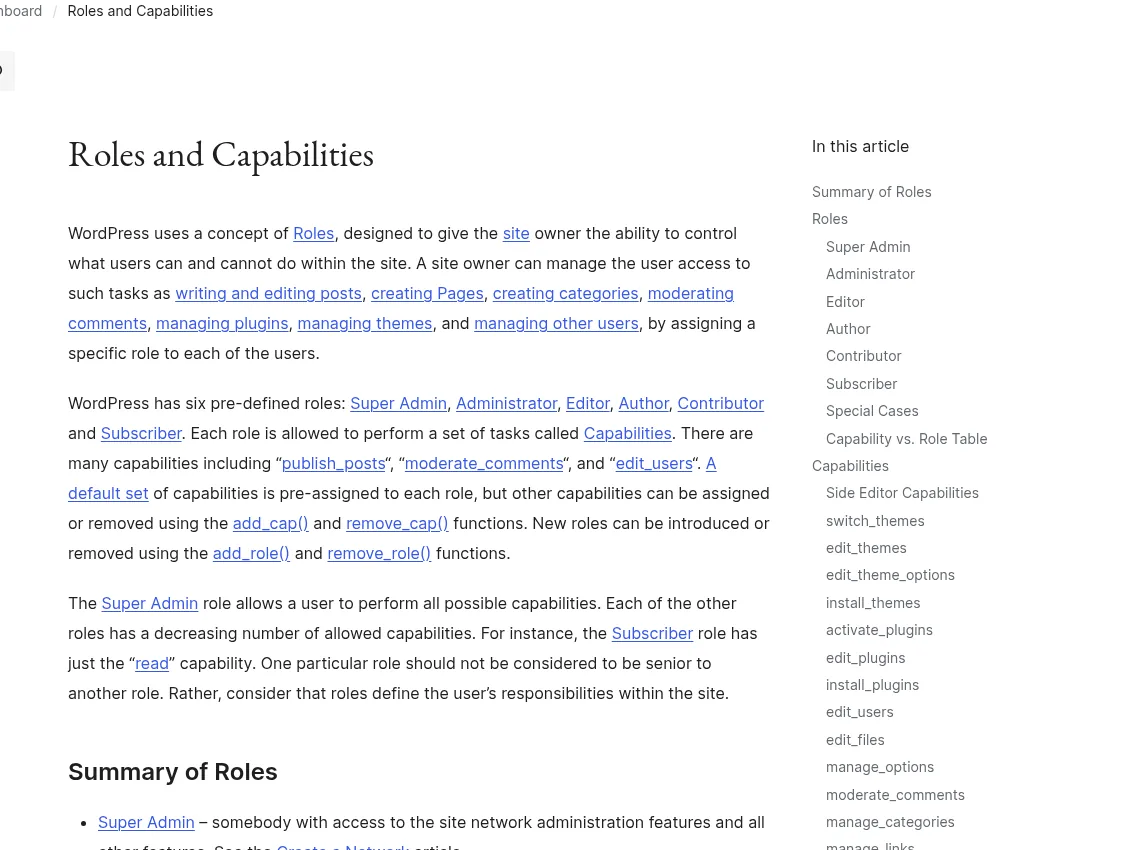
Here is how the main roles fit a Bot:
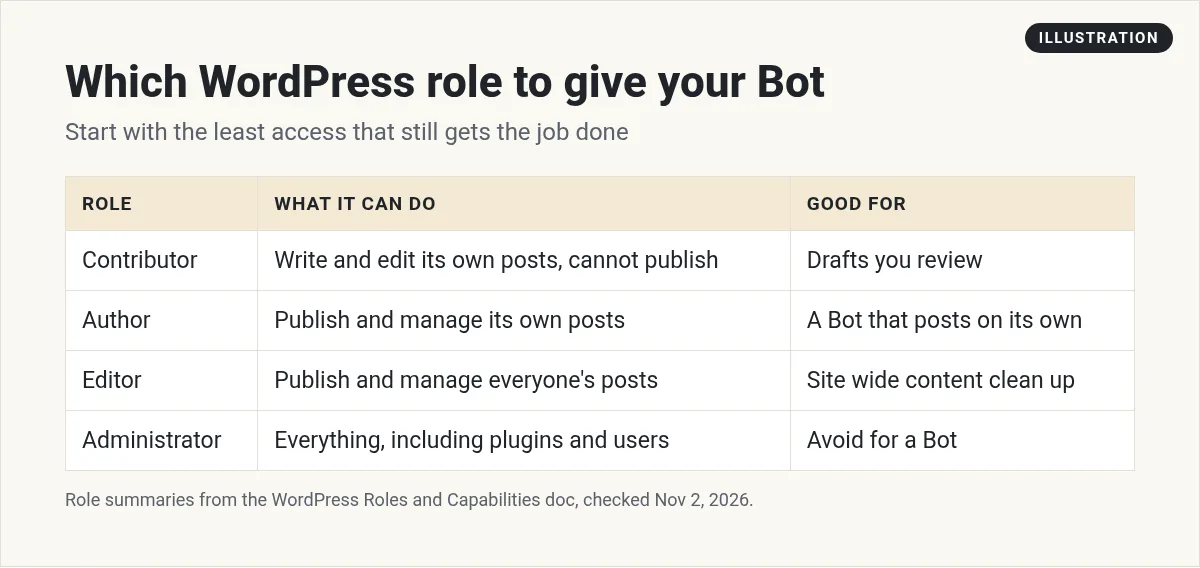
- Contributor can write and edit its own posts but cannot publish. Perfect to start. Every post waits for you.
- Author can publish and manage its own posts.
- Editor can publish and manage everyone's posts. Use this only for site wide content clean up.
- Administrator can do everything, including plugins and users. Avoid this for a Bot.
Keep your site safe
- Back up first. Before any big job, make sure your host or a backup plugin has a fresh backup.
- Start with drafts. Ask the Bot to save as draft. You review and publish.
- Use approvals. Set an Ask first rule for publishing and deleting. My Grok Bot safety guide shows how.
- Test on one post. Before you let it touch 50 posts, check its work on one.
- Revoke when done. Delete the application password or the Bot's user when a project ends.
Common problems and fixes
- The Bot cannot log in. Check the login in Vault matches the site address exactly. If your site has two step login or a captcha, take over the Bot's browser and finish the sign in yourself.
- A security plugin blocks it. Some security plugins block logins from new places. Look in the plugin's log and allow the Bot's user if you trust the setup.
- The post looks wrong. Page builders can store content in their own way. Ask the Bot to edit inside the builder, or to give you the text so you can paste it in.
- The application password fails. Make sure your site uses HTTPS, and that the password belongs to the right user.
When in doubt, ask the Bot to explain what it sees on screen before it clicks anything.
Make it a routine
Once you trust it, schedule the chores. Some ideas:
Every Friday, log in to my WordPress site. List any plugin or theme updates waiting and any posts with broken links. Do not change anything. Send me the list.
Every Monday, draft one new post from the topic list in my notes. Save it as a draft and send me the link.
See my Grok Bot routines guide for scheduling. If you write for search, my Grok Bot for SEO guide pairs well with this one.
Go past chores to a content team
A Bot that updates WordPress saves time. A team that plans what to write, writes it in your voice, and shares it saves a lot more.
AIM Agent is an AI Chief of Staff for business owners. It comes with an AI C-suite (COO, CMO, CFO, CRO and CTO), a Business Bot Builder and 100+ business skills, and it runs on AIM OS, a private vault that holds your notes and memory. AIM Agent is a ready-made AI business team that works inside Grok Bot, so you skip the setup and get to work.
Here is what you get:
- An AI Chief of Staff that helps you plan and run your business
- An AI C-suite: COO, CMO, CFO, CRO and CTO
- A Business Bot for each business or project. Give it a real task and it brings the work back for you to review
- 100+ business skills for content, offers, research and more
- Step by step setup guides and email support
So your site gets steady, helpful content, and you approve it instead of writing it all.

Want an AI team to help run your business? Meet AIM Agent, an AI Chief of Staff for business owners. I am a co-founder of AIM Agent and have a financial interest in the product.
Put a content team behind your site
AIM Agent gives you an AI Chief of Staff, an AI C-suite, and 100+ business skills, so your website work is part of a bigger plan.
See AIM AgentFrequently asked questions
Can Grok Bot post to WordPress?
Yes. It can log in through its browser, use an application password, or use a plugin. Start with drafts.
Which WordPress role should my Bot have?
Start with Contributor, so nothing publishes without you. Move to Author if you want it to publish its own posts.
Is it safe to give a Bot my admin login?
Do not. Make the Bot its own user with a smaller role.
What is a WordPress application password?
A password made for apps, added in WordPress 5.6. You create and revoke it on the Edit User page.
Do I need a plugin?
No. The browser and application password ways need no plugin.
Can a Bot update plugins?
Only an Administrator can. I suggest the Bot lists updates and you install them.
Is there a faster way to get a Bot team for my business?
AIM Agent gives you an AI Chief of Staff, an AI C-suite, and 100+ business skills, so you start with a team built for business work.
Sources
Checked November 2, 2026. Plans, prices, and rules can change.
