HighLevel • Reusable templates
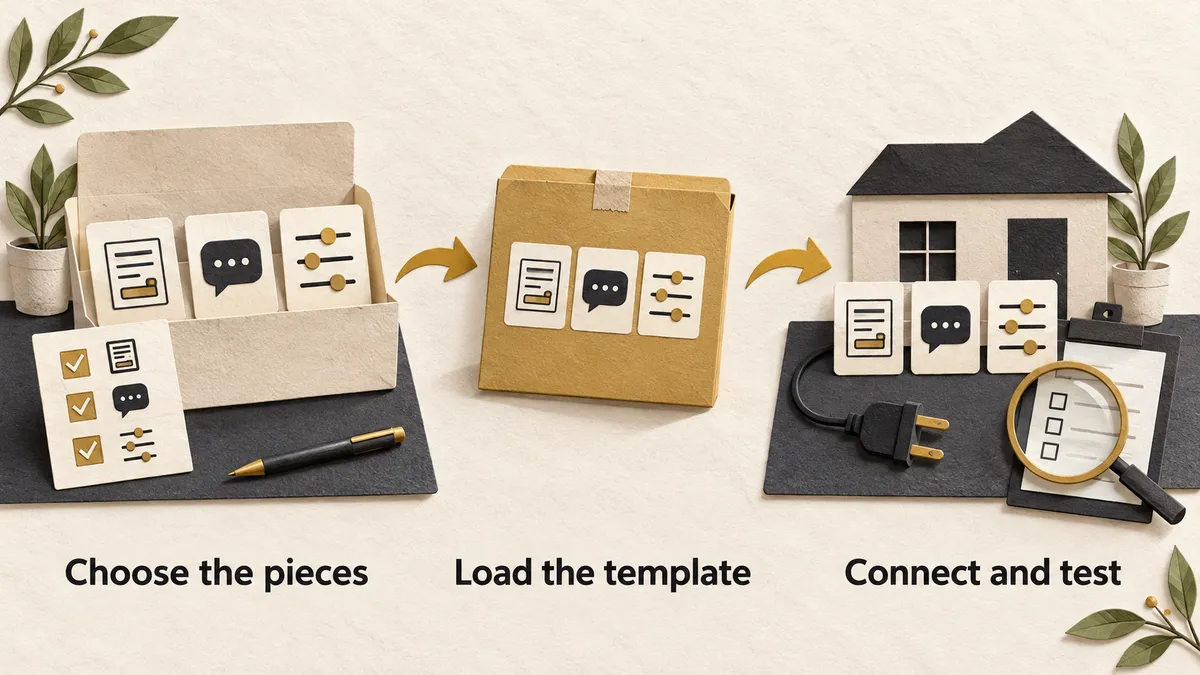
Reuse the useful pieces of a HighLevel setup without guessing what each button does. Learn when to create, import, load, refresh, or push a Snapshot, then use the packing list to check the right pieces, connections, and customer journey in the destination workspace.
You have built a useful setup in HighLevel. Now you want the same starting pieces in a different business workspace. You open the Snapshot area and see options to create, import, load, refresh, and push.
They sound similar. They do different jobs.
This guide helps you choose the right operation, pack only the parts you need, and check where they will go. If you have not built a working example yet, start with the business-level guide to reusing an AI setup. This page begins at the software step: moving selected pieces, called assets in HighLevel, between business workspaces.
What is a GoHighLevel Snapshot?
A Snapshot holds selected parts of a business setup, such as forms, automatic follow-ups (called workflows), website pages and calendars. HighLevel calls these pieces assets. It can also include supported AI settings. It does not move the source business’s contacts, appointment records, conversations, Stripe connection, or third-party connections. You create it from a source sub-account, the business workspace containing those pieces, rather than building inside an empty Snapshot. HighLevel’s Snapshot overview.
For a first practice, choose a small job: a callback-request form and its intended follow-up. Avoid starting with an unfamiliar bundle containing dozens of unrelated assets. A setup you cannot explain is difficult to check after loading.
Which operation do you actually need?
| Your situation | Operation | Your next check |
|---|---|---|
| You built assets in your own source account. | Create | Have you chosen the intended source? |
| Someone gave you a shared Snapshot link. | Import | Do you trust its source and have permission to use it? |
| The Snapshot is in your library and you want its assets in a workspace. | Load | Have you selected the intended destination? |
| You improved the original source setup. | Refresh | Which changed assets belong in the updated package? |
| You want selected updated assets sent to linked accounts. | Push update | Which recipients and changes should receive it? |
Importing places a shared Snapshot in the agency library. Loading applies selected assets to an account. Those are separate steps. See HighLevel’s operation definitions.
Before clicking anything, finish this sentence: “I want to move [these pieces] from [this source] into [this destination].” If any blank is uncertain, pause and identify it. Most first-time confusion becomes easier when the two account names are written side by side.
Make a packing list for one small job
This is an original planning example, not a claim that the named items have been created or tested in an account.
| Piece | Purpose | Check after loading |
|---|---|---|
| Callback-request form | Ask for the minimum details the business needs. | The form shows the new business’s wording and saves the intended fields. |
| Form-submitted follow-up workflow | Act when the intended form is submitted. | The trigger points to the intended form; test records do not enter an unrelated process. |
| Any custom fields used by that form | Store an answer that a standard field does not cover. | Field names and saved values make sense in the destination. |
| Approved confirmation copy | Tell the visitor what happens next. | No old company name, link, or response promise remains. |
| Internal recipient configuration | Get the request to the correct person. | A real test reaches the new recipient, not the source business. |
Include a piece because this small journey needs it. “It was already in the account” is not a reason to copy it. The downloadable packing list leaves space for each dependency: for example, a workflow may depend on a particular form or field.
Create the Snapshot from your source account
According to the September 2026 creation guide, open Agency View and Account Snapshots. Choose the new-Snapshot control, name it, pick the source sub-account, select the assets, and create it. If some asset categories do not finish loading, use the available retry option and check again. Current creation steps and screenshots.
Use a name you can recognise later. “Callback request, practice, 2026-10-11” tells you more than “Final final v2.” The date is your own label, not proof that the setup works.
Record the source account, the included pieces, and any item that failed to load. An incomplete package can look convincing in a library, so match it against the packing list before using it.
If you are using someone else’s template, first read its instructions and identify its intended job. Do not assume that every asset is licensed for resale, that the creator’s integrations are included, or that its claims have been tested for your business.
Load into a practice destination first
Use an empty or disposable practice workspace for your first run when your plan allows it. That is an editorial recommendation for learning the process; it is not a requirement that you buy a new plan.
For an existing destination, HighLevel documents this route: find the sub-account in the agency list, open Manage Client, then Actions and Load Snapshot. Choose the package, select its assets, review conflicts, and complete the confirmation. If the option is missing, have an administrator check Snapshot permissions. Existing-account loading guide.
At the conflict screen, read each affected asset. HighLevel says an override cannot be undone through that load operation. This is why a first practice in an active client account is a poor place to learn the difference between keeping and replacing an item. Conflict and override guidance.
If an item is already in use, record its current purpose and decide whether the incoming version should replace it. Do not turn a small callback feature into an unexpected redesign of the client’s entire account.
Check what is present, connected, and proven
Keep three columns in your worksheet. They answer different questions:
- Present: can you find the item in the new account?
- Connected: does it point to the intended form, recipient, calendar, phone, or other destination?
- Proven: did a test complete the intended journey?
For the callback example, submit the destination form using clearly labelled practice details. Find the saved record. Find the notification. Ask the intended recipient to confirm they received enough information to respond.
A green “present” column does not imply a green “proven” column. This distinction prevents the simple mistake of calling a setup finished because its pieces are visible.
If your Snapshot contains Voice AI, assigned phone numbers are not included. Assign the appropriate destination number and check the new agent’s business information and actions. HighLevel’s Voice AI Snapshot requirements. Use the separate AI call-answering test guide for the call journey.
For all copied content, search for the original business name, town, email, phone number, and booking link. The broader client-change and approval guide covers business-specific approval and handover. Keep those details there rather than assuming a Snapshot handles them.
What happens when you improve the original?
Editing the source does not automatically refresh its Snapshot. HighLevel’s refresh action captures selected changes; a push applies selected updates to eligible linked accounts. Changes to snapshot-linked workflow steps can also affect contacts waiting on removed steps. Refresh, push, and workflow effects.
Keep a simple change note before an update:
- What is changing?
- Why does this recipient need it?
- What existing behaviour could it affect?
- Which test will show the change worked?
- How will the business return to the previous process if necessary?
For example, shortening a form from six questions to three sounds small. It may remove a detail the owner needs before calling a customer. Ask whether the change suits that client before distributing it.
Version labels and a completed test record give you a more useful history than “latest.” Keep the old configuration documented in a suitable way before changing live behaviour.
Common beginner questions
Why can I see a Snapshot but not its assets in my business workspace?
Check whether you have only imported it to your library. Then check whether you loaded the intended assets into the intended destination. Use the operation table above to identify the step you are on.
Does this move my customers into another account?
No. Treat it as configuration reuse, not a customer-data migration. Plan any data move separately using the appropriate supported process.
Should I copy everything?
For a first task, select the smallest set that completes the intended job. Expand when you can explain why each additional asset is needed.
Is the setup ready as soon as loading finishes?
Use present, connected, and proven. You need all three for the promised journey, plus the business’s approval before its customers encounter the change.
Your next action: move one small, explainable setup
Write the source and destination names. Make the packing list. Load into practice. Complete one test from the customer’s first action through to the correct human recipient.
You are learning a repeatable way to move useful work. The value comes from knowing what moved and proving the new business’s version works.
Jonathan’s training
Want the whole beginner path?
My free AI agency program, the Freedom Launch Accelerator, covers choosing a service, practicing the setup, approaching businesses, and supporting a client. It is my own program. Training does not include the platform or its usage charges.
Software used in this approach
Try one small reusable setup
HighLevel provides the Snapshot tools described here. Check that your plan and permissions fit the source and destination accounts you need before starting.
Affiliate link: Jonathan may earn a commission if you sign up through this link.
Review the plan, renewal terms, and usage charges before signing up. Phone, messaging, AI, and other usage can cost extra.
Turn the guide into one useful step
Snapshot Packing List and Destination Test Record
Keep the plan and evidence together. Leave a result blank until you have actually checked it. Downloads and copying stay in your browser; no entries are sent to software or customers.
Worksheet text
Read or select the worksheet text
HIGHLEVEL SNAPSHOT, PACKING LIST AND DESTINATION TEST
Original worksheet; no live deployment is certified by this blank template.

The one job this setup should do:
Source account name / ID (keep ID private):
Destination account name / ID (keep ID private):
Snapshot name and version label:
Date / prepared by:
Operation needed: CREATE / IMPORT / LOAD / REFRESH / PUSH
Permission to reuse the assets:
Practice or live destination:
If live, authorized approver and planned change time:

PACKING LIST, ONE LINE PER REQUIRED PIECE
Asset name | Asset type | Why needed | Related dependencies | Included? | Present in destination? | Correctly connected? | Proven by test? | Evidence

SOURCE CHECK
[ ] Intended source selected.
[ ] Only assets needed for the stated job selected.
[ ] Dependencies recorded.
[ ] Private client data, secrets and client-specific content reviewed.
[ ] Failed or skipped assets recorded and resolved as needed.

DESTINATION CHECK
[ ] Intended destination selected.
[ ] Current configuration documented as appropriate.
[ ] Conflict list read, item by item.
[ ] Each keep / override choice recorded.
[ ] Required connections and phone assignments reviewed separately.
[ ] Old business names, towns, links, emails and phone numbers checked.

ONE COMPLETE JOURNEY
Customer's first action:
Expected saved information:
Expected notification / booking / handoff:
Correct final recipient:
Actual result:
Evidence location (private):
PASS / FAIL / NOT RUN:
Remaining issue and owner:

UPDATE RECORD
What changed / why:
Source version and date:
Snapshot refreshed? YES / NO / NOT APPLICABLE:
Recipients approved for update:
Potential effects on existing behaviour / contacts:
Test before and after:
Return-to-previous-process instructions:

Present is not the same as connected. Connected is not the same as proven.
Spreadsheet log (CSV)
Read or select the CSV text
asset_name,asset_type,purpose,dependencies,included,present,connected,proven,evidence,issue_owner
,,,,,,,,,
Sources and further reading
Software steps and limits come from the dated official sources below. Examples and worksheets are original editorial aids. They are not evidence of a completed setup or customer result.
- HighLevel: Snapshots overviewOfficial HighLevel documentation · Checked 2026-10-11
- HighLevel: create a SnapshotOfficial HighLevel documentation · Checked 2026-10-11
- HighLevel: load into an existing sub-accountOfficial HighLevel documentation · Checked 2026-10-11
- HighLevel: Voice AI configuration support for SnapshotsOfficial HighLevel documentation · Checked 2026-10-11
- HighLevel: refresh or update SnapshotsOfficial HighLevel documentation · Checked 2026-10-11
Frequently asked questions
What is a Snapshot in GoHighLevel?
A Snapshot is a saved copy of a sub-account setup, such as funnels, workflows, and calendars, that you can load into another account.
Does a Snapshot copy contacts?
No. Snapshots copy the setup and assets, not the contacts or conversation history.
How do I update a Snapshot later?
Edit the source account, then refresh the Snapshot and push the update to the accounts that use it.