You have an idea for a small tool. Maybe it answers a question people keep asking, or gives someone the right checklist. You do not want to become a programmer before trying it.
Should you ask AI to write the code, or use a no-code builder where you arrange the page and its rules?
We will give both approaches the same tiny job: show the supplies for a fictional art class. Then we will change one rule and check the answers. No accounts, payments, or customer information are needed for this practice project.
The build plans are original teaching examples, informed by current official documentation. They are not a timed contest or a report of projects built inside Bubble or Lovable accounts.
1. What do “vibe coding” and “no-code” mean?
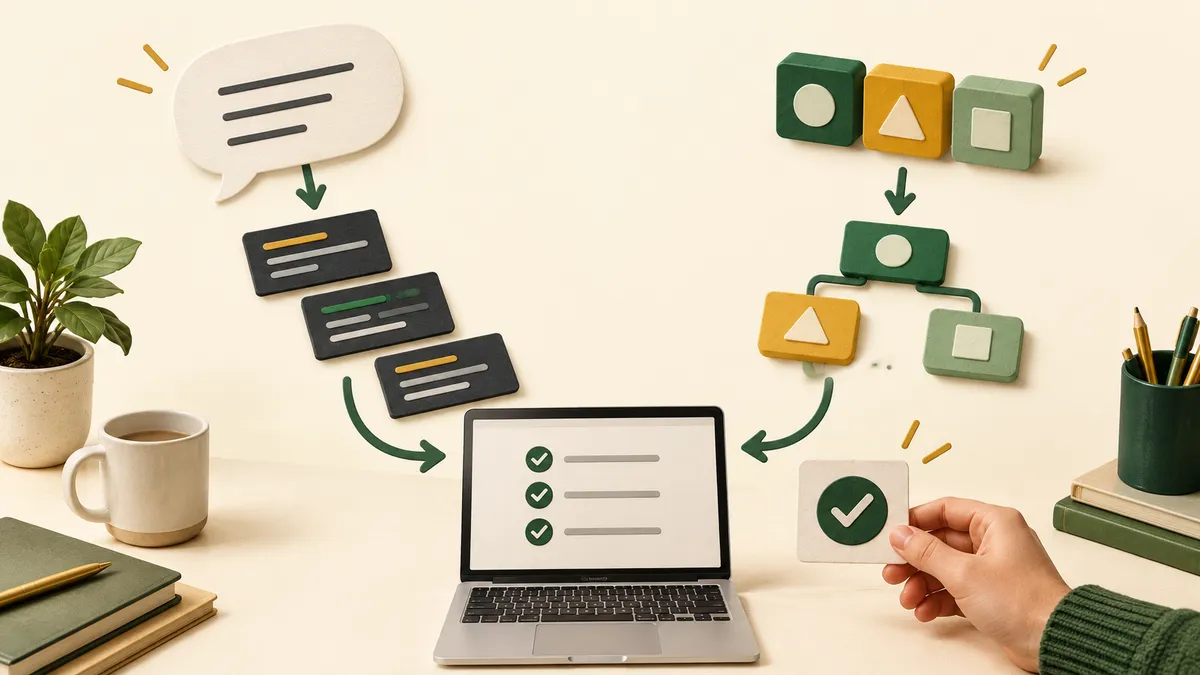
People use vibe coding loosely. In this guide, it means describing a project to an AI coding tool, reviewing what it creates, and asking for changes. You might begin with ordinary sentences instead of typing the code yourself.
You may also hear the phrase used for accepting AI code without examining it. That is not the approach taught here. A page that looks finished can still give the wrong answer.
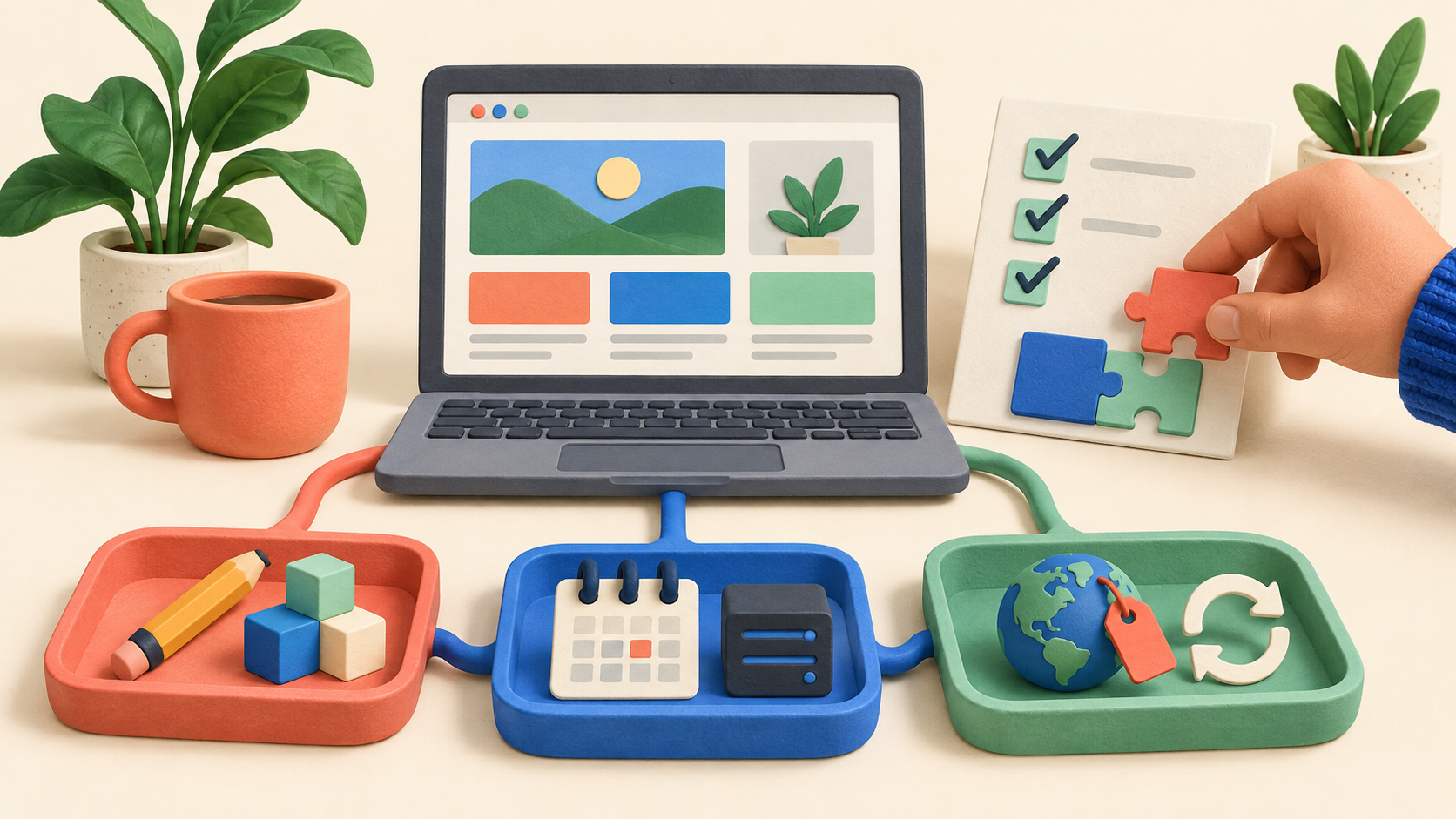
No-code usually means you build through a visual editor: choose the parts of the page, set their options, and define what happens when someone uses them. There is still code underneath, and you still need to understand the rules.
For a documented example, Lovable describes natural-language building backed by editable code. Bubble documents events, actions, and conditions that you arrange in its workflow editor. Those are two ways of expressing what the tool should do.
The labels overlap. Bubble’s getting-started guide combines an AI prompt with visual editing. Lovable also provides a preview toolbar for selecting parts of a page and editing text. You are choosing an actual tool and working style, rather than two completely separate worlds.
2. Give both approaches the same small job
Our fictional business is Example Art Studio. Before a class, someone asks, “What should I bring?” The studio wants a page that shows its approved list.
The visitor chooses two things: Painting or Clay, then Indoors or Outdoors. The page shows the matching list. That is the whole first project.
| Class | Setting | Show these items |
|---|---|---|
| Painting | Indoors | Apron; Brushes; Paint tray |
| Painting | Outdoors | Apron; Brushes; Paint tray; Check weather and arrange shade |
| Clay | Indoors | Apron; Clay mat |
| Clay | Outdoors | Apron; Clay mat; Check weather and arrange shade |
These are invented teaching lists, not real studio instructions or a complete safety checklist. The page does not check the weather; it displays the reminder. It does not know whether a class is available, reserve a seat, or send a message.
Notice what we settled before picking software: the question, the choices, and every approved answer. A builder can help turn those instructions into a page. It cannot decide the studio’s real requirements for us.
3. Try the same result both plans aim to create
Choose Painting and Indoors, leave the hand-towel box unchecked, and press Show the prep list. Compare the result with the first row above.
One small practice project
Try the class prep list
Choose a class and a setting. Then make one small rule change. This original browser demo shows the result either build plan should produce.
Choose both options to try the example.
Practice output only. This page does not book a class, check availability, save choices, or send information.
Use the written rules above as your answer sheet while you try the example.
Now choose Clay and Outdoors, then show the list again. You should see Apron, Clay mat, and the weather-and-shade reminder. The brushes and paint tray should be gone.
The finished helper does not need to ask AI what supplies to suggest. It uses the fixed rules we wrote. Using AI to help build a tool is different from putting AI into every answer the finished tool gives.
That distinction keeps a first project understandable. You can compare the result with a short written list instead of wondering whether a new AI suggestion is appropriate.
4. Two build plans for this exact helper
Describe the change
Ask AI to build
- Write the exact rules.
- Review the draft it creates.
- Check every answer.
- Ask for one small change.
You still decide what is correct.
Arrange the rules
Build visually
- Add the choices and result area.
- Set when each item appears.
- Check every answer.
- Edit one small rule.
You still decide what is correct.
Some tools let you mix both ways of working.
Plan A: describe the job to an AI coding tool
Start with a precise request, not “make me a studio app.” Here is a build brief you can adapt:
Build a one-page practice supply checklist for fictional Example Art Studio. Let the visitor choose Painting or Clay and Indoors or Outdoors. Painting shows Apron, Brushes, and Paint tray. Clay shows Apron and Clay mat. Outdoors adds “Check weather and arrange shade.” Add an unchecked practice checkbox that adds Hand towel only for Clay. Require both choices before showing a list. Hide the old result when a choice changes, until the visitor shows the new list. Use visible labels and a layout that works on a phone. Do not add accounts, storage, bookings, payments, outside connections, or invented supplies.
Ask the builder to explain its plan before making changes. Then compare the result with the four approved cases. If it creates a booking form or extra supplies, those are departures from the brief, even if the page looks impressive.
Lovable documents a Plan mode for reviewing a proposed change before code is written. Use that review step to catch a misunderstood rule before changing the page.
Plan B: arrange the page and its rules visually
Start with two choice fields, a button, and an area for the result. Then describe each display rule in plain words: “Show Brushes when the class is Painting.” “Show the weather reminder when the setting is Outdoors.”
In a visual builder, you would translate those sentences into the editor’s controls. The exact clicks depend on the product and its current interface. The same list of expected answers remains your reference.
Check that old items disappear when the choices change. Showing the right new item is only half the job if the wrong old item remains beside it.
Bubble’s documented workflow tools illustrate this way of arranging events and conditions. This is a proposed build plan; use the product’s current instructions for the exact clicks. An AI-assisted visual builder may also help create the first draft.
5. Make one change: and check what should stay the same
The fictional studio now wants Hand towel added to every Clay list. Painting lists should stay exactly as they were.
In the practice example, turn on the hand-towel checkbox and show the list again. That switch represents one rule change. It is not a real studio setting.
For a prompt-led build, your change request could be: “Add Hand towel only when Clay is selected. Keep the Painting lists and Outdoors reminder unchanged. Explain where this rule now lives.”
For a visual build, find the rule that controls the Clay list and add the item there. Avoid adding it to a shared list that Painting also uses.
Use the same checks for either approach:
- With the change off, all four combinations match the table.
- With the change on, both Clay combinations include Hand towel.
- With the change on, both Painting combinations remain unchanged.
- Switching from Clay to Painting removes Clay mat and Hand towel.
- The Outdoors reminder appears only for Outdoors.
- A missing choice produces a helpful instruction, not a misleading list.
Also try the controls with a keyboard and look at the result on a phone. Those checks answer different questions from “Does the list contain the right words?”
Both example providers document testing tools: Lovable describes browser checks against a project preview, while Bubble’s development debugger can inspect rules and step through actions. Their existence is not proof your project passes. Keep an expected answer and record what you actually observe.
6. Choose the approach you can keep working with
Use these questions to make a first choice. They are a decision aid, not a score that declares one category the winner.
- How do I prefer to explain a change? If a written request feels natural, try a prompt-led route. If you prefer finding the rule and changing it in an editor, explore visual building. A tool may offer both.
- Can I find the rule later? Ask where the Clay list comes from. If the answer is confusing, get help before adding more features.
- Who can help me when something breaks? Identify someone who understands the actual tool or code. Do not assume every web designer can maintain every builder.
- What happens if I leave this provider? Check what you can export and what someone would need to run it elsewhere. A copy of the data is not necessarily a working copy of the app.
That last question is tool-specific. Lovable documents editable code and Git syncing. Bubble’s documentation separates data export from the application: it says Bubble apps run on its platform and cannot be exported as code to run elsewhere. That difference does not apply to every visual builder or every AI coding tool.
Exportable code still needs someone who can operate and maintain it. Neither an export button nor a visual editor removes that work. Ask what a future helper would need: access, files, written rules, and the list of checks.
Before paying, confirm the current plan covers the features you need. This article does not compare prices or measure completion times. For hosting, domain, and ongoing budget questions, use the separate AI-built website cost guide.
7. Leave instructions another person can follow
A useful handoff for our tiny helper can fit in a short note: who owns it, where to edit the lists, which answers are approved, and what to recheck after a change.
For example: “The class supply lists come from the studio owner. The towel rule applies only to Clay. Before sharing an update, check Painting and Clay, each Indoors and Outdoors, with the change off and on.” Add the real location of the project and the name of the person maintaining it.
If you cannot explain that small handoff yet, keep practicing with the small version. Adding logins, saved customer details, or payments creates more responsibilities. Bubble warns that hiding page elements does not protect private data; Lovable says its scans do not replace appropriate security review. Get suitable help before a real project handles sensitive information.
Ready for a different practice job? The AI quote-calculator walkthrough focuses on building and checking one estimate tool. Use it after deciding how you want to build, rather than expanding this checklist into an entire business app.
8. Write down your choice and the next change
The worksheet below includes the studio brief and a blank plan for your own idea. Write one job, its approved answers, the next likely change, and who will help you check it. Leave test results blank until you actually try your version.
Keep the plan, not the buzzword
Save your build-choice worksheet
Write down the job, the next change, and how you will know it works. Includes the complete studio example and a blank plan for your own project.
Read the worksheet here
MY FIRST SMALL PROJECT, BUILD-CHOICE WORKSHEET
Companion to “Vibe Coding vs. No-Code: Which Fits Your First Small Project?”
Original editable learning aid, October 12, 2026

This is a planning and checking sheet, not a vendor score or a completed account test.
Example Art Studio is fictional. No customer information is needed. Do not add names,
passwords, payment details or private business data to this practice sheet.

A. THE COMPLETE PRACTICE BRIEF
Job: show the approved supply list for one fictional art class.
Choose: Painting or Clay; Indoors or Outdoors.
Painting: Apron; Brushes; Paint tray.
Clay: Apron; Clay mat.
Outdoors adds: Check weather and arrange shade.
One change: optional checkbox adds Hand towel ONLY to Clay. Default unchecked.
Require both choices before showing a list.
When a choice changes, hide the previous result until the new list is shown.
No accounts, storage, outside connections, booking, payment or invented supplies.
The weather line is a reminder; the helper does not check actual weather.
The lists are teaching examples, not real studio instructions or a safety checklist.

B. SAME CHECKS FOR EITHER BUILD PLAN
Expected answers are supplied. Observed results stay blank until YOUR own checks.

Change OFF:
Painting + Indoors -> Apron; Brushes; Paint tray
Observed: ______________________________________________________________
Painting + Outdoors -> Apron; Brushes; Paint tray; Check weather and arrange shade
Observed: ______________________________________________________________
Clay + Indoors -> Apron; Clay mat
Observed: ______________________________________________________________
Clay + Outdoors -> Apron; Clay mat; Check weather and arrange shade
Observed: ______________________________________________________________

Change ON:
Painting + Indoors -> Apron; Brushes; Paint tray
Observed: ______________________________________________________________
Painting + Outdoors -> Apron; Brushes; Paint tray; Check weather and arrange shade
Observed: ______________________________________________________________
Clay + Indoors -> Apron; Clay mat; Hand towel
Observed: ______________________________________________________________
Clay + Outdoors -> Apron; Clay mat; Hand towel; Check weather and arrange shade
Observed: ______________________________________________________________

After showing a Clay list, switch to Painting. Does the old list disappear until
updated? Does the new list omit Clay mat and Hand towel?
Observed: ______________________________________________________________
Leave one choice empty. Expect a helpful instruction and no misleading checklist.
Observed: ______________________________________________________________
Try a keyboard and a narrow phone screen. Can you use the controls/read the list?
Observed: ______________________________________________________________
What failed? What changed? Date rechecked: _______________________________

C. MY OWN PROJECT (KEEP IT SMALL)
One person I want to help: ______________________________________________
The one question/job: ___________________________________________________
Choices they need: ______________________________________________________
Exact approved answers/rules: ___________________________________________
Who approved the real rules? ____________________________________________
Features deliberately left out: _________________________________________
One change I expect later: ______________________________________________
What must stay the same after that change? ______________________________
My expected-versus-observed checks: _____________________________________

D. HOW WILL I BUILD AND MAINTAIN IT?
Approach/tool I want to try: _____________________________________________
Why this way suits the job and how I prefer to work: _____________________
Where the rules live and how I will find/edit them: ______________________
What I can review myself: _______________________________________________
Who can help when I am stuck: ___________________________________________
What can be exported: data, design, working code, or something else?
Official source and date checked: _______________________________________
What would running it somewhere else require? ___________________________
Who owns the account and keeps the project instructions? ________________
Questions still unresolved: _____________________________________________

E. THE HANDOFF NOTE
Project location: ______________________________________________________
Rule owner / approval date: _____________________________________________
Where to make the next change: __________________________________________
Checks to repeat after changing it: _____________________________________
Person responsible for help and maintenance: ____________________________

Choose using what you can explain, change and check. This sheet contains no
provider benchmark, measured build time, price comparison or promised result.
You can use this example and worksheet without buying it. Your first finish line is small: one useful answer, one change you understand, and a repeatable way to check the result.
Sources and what was checked
Platform facts below come from primary documentation checked October 12, 2026. The studio brief, demo, build plans and worksheet are original learning examples. No vendor account, live customer delivery, migration, purchase or earnings test is claimed.
- Lovable: WelcomeChecked 2026-10-12 · Natural-language requests produce editable app code. Documented workflow includes review and iteration; Git sync is available.
- Lovable: Edit from the previewChecked 2026-10-12 · Current preview toolbar allows selecting elements for requests and editing text inline. The documentation says this replaces the older Visual edits experience.
- Lovable: Plan a changeChecked 2026-10-12 · A structured plan can be reviewed and edited before code implementation.
- Lovable: Test your app in a browserChecked 2026-10-12 · Browser testing can click controls, fill forms, capture screenshots and check screen sizes. Testing runs selectively and targets the project preview.
- Lovable: Security overviewChecked 2026-10-12 · Built-in scans support but do not replace appropriate security review.
- Bubble: New? Start HereChecked 2026-10-12 · Bubble describes using an AI prompt, refining a blueprint, generating an app, then continuing in its visual editor.
- Bubble: WorkflowsChecked 2026-10-12 · Events trigger action sequences and conditions decide when actions run. The workflow editor and debugger expose rules and values.
- Bubble: The debuggerChecked 2026-10-12 · Development debugger can step through actions and inspect elements and conditions. Documentation identifies the debugger as desktop-oriented.
- Bubble: Application and data ownershipChecked 2026-10-12 · Bubble documents data export separately from app portability. Its app code cannot be exported to run off the Bubble platform; moving requires rebuilding application logic.
- Bubble: Transitioning to BubbleChecked 2026-10-12 · Visual building still produces a web app using underlying code and database technology.
- Bubble: Page securityChecked 2026-10-12 · Hiding a screen element is not protection for private data; appropriate privacy rules are needed.
- MakerAI public product pageChecked 2026-10-12 · Jonathan Montoya is identified as a co-founder. Public offer includes structured build prompts used in separate AI coding tools.
Frequently asked questions
What is vibe coding in simple terms?
Vibe coding means describing what you want in plain language and letting an AI tool write the code, then testing and refining it.
Is vibe coding better than no-code for beginners?
It depends on the project. No-code is often easier for simple sites and forms, while vibe coding gives more flexibility for custom tools.
Can I sell an app I built with vibe coding?
Yes, as long as you own the code and follow the terms of the tools you used. Test it well and handle user data responsibly.