
AI Tools · ChatGPT
Projects keep your chats, files, and instructions in one place, so you stop pasting the same background into every new chat. Here is how to set one up and use it well.
If you use ChatGPT for the same kind of work each week, you have probably pasted the same notes into a chat over and over. Projects fix that. You add your files and instructions once, and every chat in the project can use them.
I read OpenAI's help article on Projects and the ChatGPT pricing page on October 27, 2026. Here is how Projects work, step by step, with the limits for each plan.
Quick answer
ChatGPT Projects keep related chats, files, and instructions together, so ChatGPT can use the same context across chats. To make one, select New project in the sidebar, name it, then add files and project instructions. OpenAI's help article says project sharing is available on Free, Go, Plus, Pro, Business, Enterprise, and Edu. Free users can share with up to 5 files and 5 collaborators, Plus and Go users get 25 files and 10 collaborators, and Pro users get 40 files and 100 collaborators.
What ChatGPT Projects are
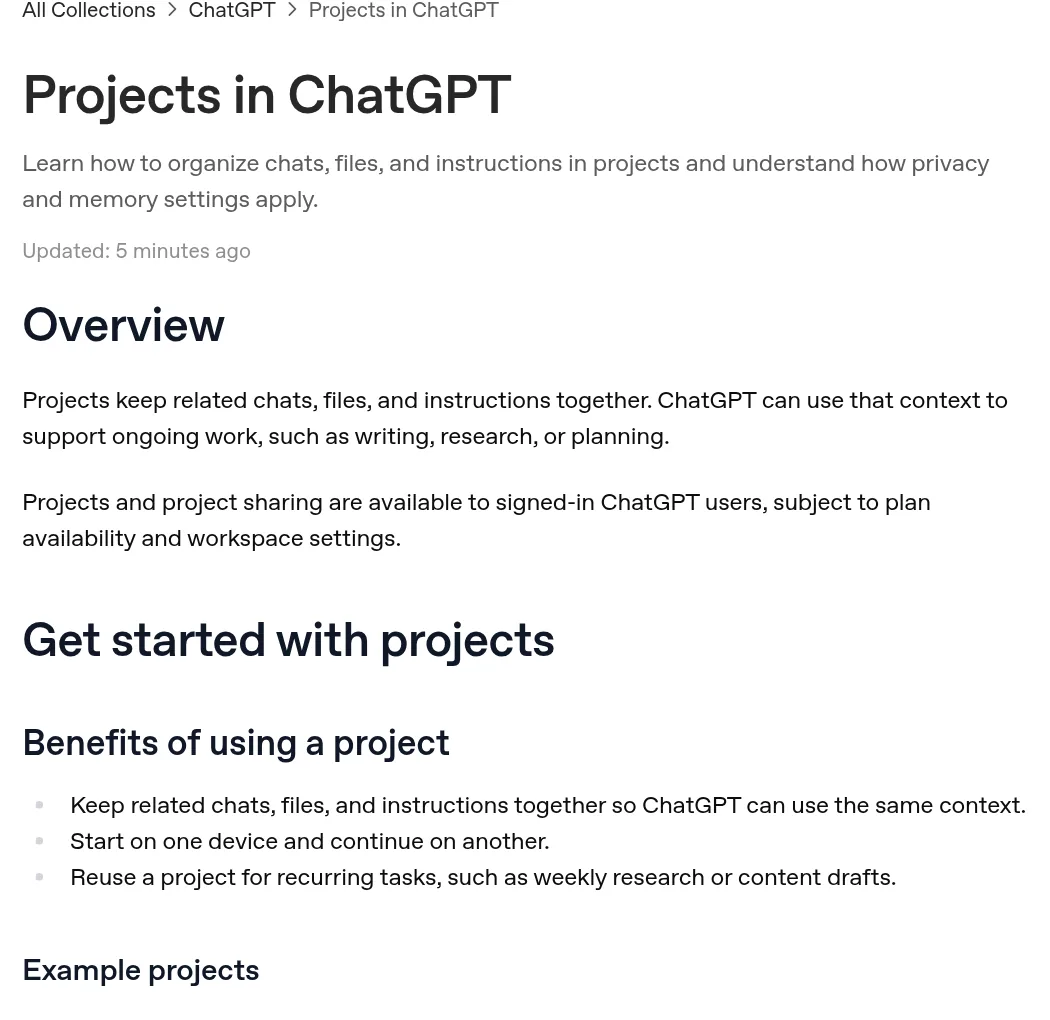
OpenAI's help article puts it simply: "Projects keep related chats, files, and instructions together." ChatGPT can then use that context for ongoing work, like writing, research, or planning.
The article lists three benefits:
- Keep chats, files, and instructions in one place so ChatGPT uses the same context.
- "Start on one device and continue on another."
- Reuse a project for repeat tasks, like weekly research or content drafts.
It also gives example projects. For work, you can collect project details and have ChatGPT draft briefs or plans. For personal use, you can track vendors, budgets, and timelines for an event.
How to create a project
The help article lists two steps:
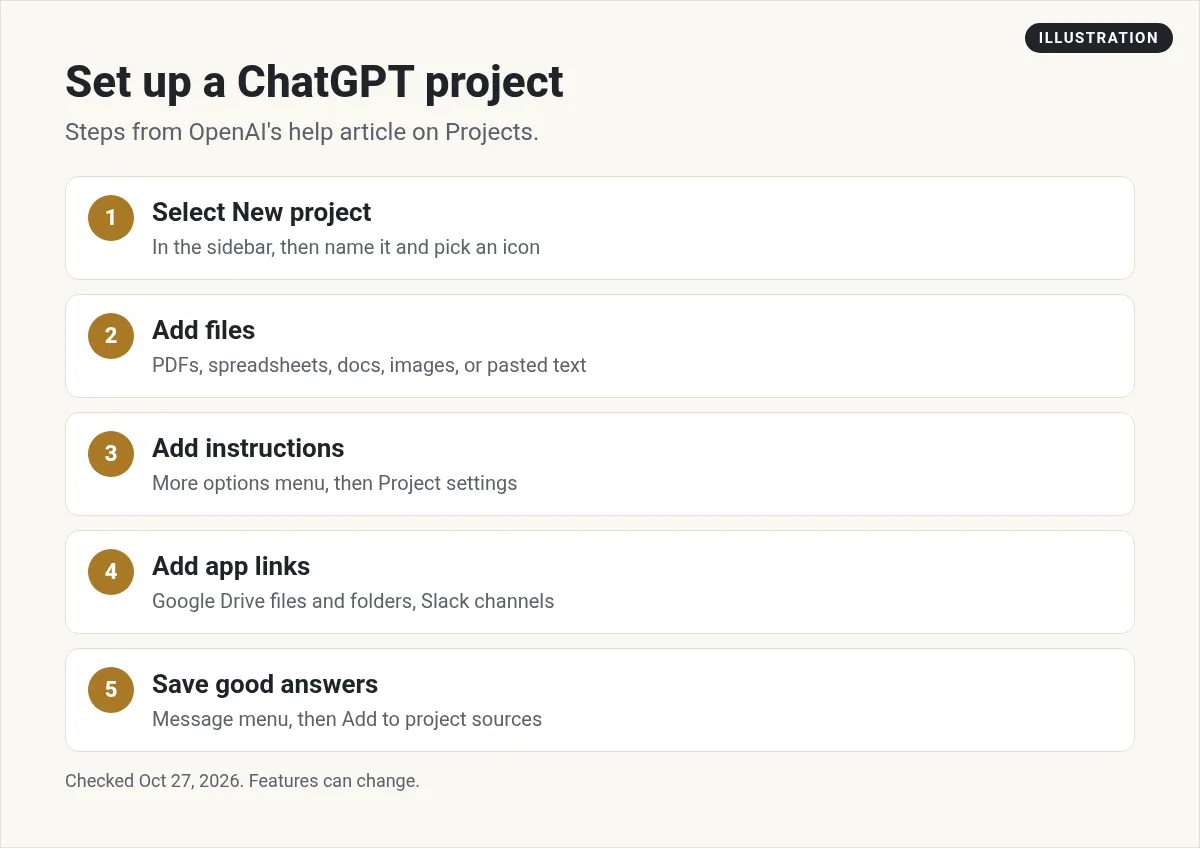
- Select New project in the sidebar.
- Enter a project name, then pick an icon and color.
That is it. Now you add context, which is where the real value is.
Add files, instructions, and links
Files
You can upload PDFs, spreadsheets, docs, and images, or paste text. The help article says "The number of files you can upload depends on your plan." You can preview, download, or delete a file from the project sources list.
Instructions
Open the more options menu, then Project settings. This is where you tell ChatGPT how to act in this project. OpenAI's example is "Act like my marketing mentor. Be concise. Use bullet points. Ask clarifying questions."
Project instructions only work inside that project, and they override your global custom instructions. So you can have a formal tone in one project and a casual tone in another.
Links from apps
You can add links from Google Drive (files and folders) and Slack (channels) as project sources. The help article notes that Google Drive does not sync in advance when added inside a project, but you can still search and use the files.
Saved answers
If ChatGPT writes something you want to reuse, like a summary or a draft, open the message menu and select Add to project sources. Now later chats can use it.
Move old chats into a project
You can drag a chat onto a project, or open the chat menu and select Move to project. The moved chat picks up the project's instructions and files.
One catch: "Chats created with a GPT can't be moved into a project." If you do not see the option, start a new chat inside the project.
Tools you can use inside a project
A project chat works like a normal chat. The help article lists tools you can still use:
- Canvas to draft documents, code, or layouts.
- Images to explore visual ideas.
- Voice for hands-free chats.
- Web search for current information and sources.
Paid plans may add tools like agent mode and deep research. You can also use connected apps in project chats. Pick one from the tools menu, or name the app in your message. Before an app searches outside the project, ChatGPT may ask you to confirm.
One thing does not carry over. The help article says "Study mode and scheduled study hours do not apply to project conversations."
How to share a project
Select Share to invite people. You can give them one of two levels:
- Edit access: they can update instructions, add or remove files, and invite others.
- Chat access: they can see and use the chats, files, and instructions, but not invite others.
You can also share with "Anyone with a link." Then any logged-in ChatGPT user with the link can join. You can switch back to Only those invited at any time.
Limits by plan
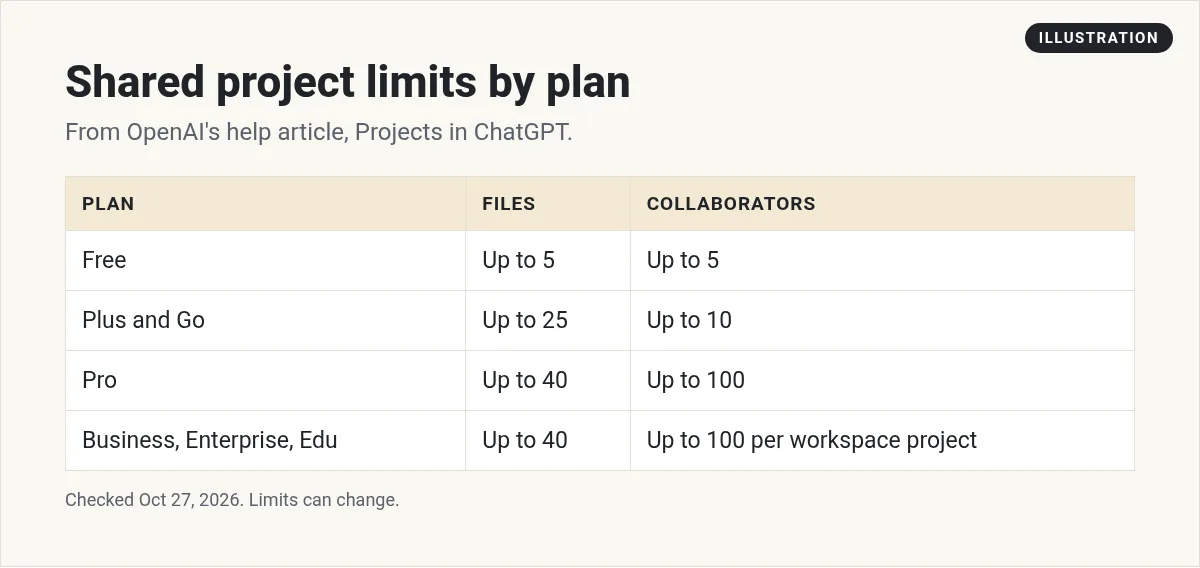
The help article lists these limits for shared projects:
- Free: up to 5 files and 5 collaborators
- Plus and Go: up to 25 files and 10 collaborators
- Pro: up to 40 files and 100 collaborators
- Business, Enterprise, and Edu: up to 40 files and 100 collaborators per workspace project
Which plans have Projects?
The pages do not fully agree. The help article says project sharing is available on "ChatGPT Free, Go, Plus, Pro, Business, Enterprise, and Edu." But the pricing page lists "Projects, scheduled tasks, and custom GPTs" as a Plus item, and "Expanded projects, tasks, and custom GPTs" under Pro. My read: Projects work on every plan, with bigger limits on paid plans. Check your own account to be sure.
Working together
Once people join, they can start new chats or branch an existing one. Branching lets someone try a new idea without changing the original chat. Both show up in the project, and the profile icon shows who started each chat.
If someone leaves, they can make a copy of their chats first. Want to share just one chat instead? Select Share inside that chat. The person sees only that chat, not your other chats, files, or instructions.
Your data in shared projects
For personal accounts, the help article says shared project data may be used to improve models only when the owner and every contributor have Improve the model for everyone turned on. It also says OpenAI does not use content from Business, Enterprise, or Edu workspaces to train its models by default.
Project memory
Each project uses one of two memory settings:
- Default memory: works the way memory works in the rest of your account.
- Project-only memory: chats can see other chats in the same project, but nothing outside it. Your saved memories are not used.
Shared projects are always set to project-only memory. Other members cannot see your memories from outside the project. You can change the setting in Project settings, under Memory. The help article says "Changes may take a few hours to take effect."
Project ideas for a small business
Here are a few setups I would try:
- Content project: add your brand voice notes and a few past posts. Set instructions for tone. Draft each week's posts there.
- Client project: one project per client, with the brief and notes. Turn on project-only memory so clients never mix.
- Offer project: add your sales page, FAQs, and reviews. Use it to write emails and answer common questions.
Here are a few simple tips. Keep each project to one job. Keep instructions short. Name files so you can find them. Clean out old files now and then. And test the project with one chat before you share it.
Deleting a project is permanent. The help article says it removes the project's chats, instructions, and files stored only in the project, and "This action cannot be undone."
Want to compare plans? See my ChatGPT pricing guide. Using Claude too? My guide to Claude Projects shows how its version works. For more business ideas, read ChatGPT for small business.
Set up your first ChatGPT project
Nothing you check here is sent or saved. Download it if you want to keep it.
Meet AIM Agent
AIM Agent is an AI Chief of Staff for business owners. You give it a real task, and it brings the work back for you to review. You stay the one who approves.
Meet AIM AgentI am a co-founder of AIM Agent and have a financial interest in the product.
Frequently asked questions
What are ChatGPT Projects?
Projects keep related chats, files, and instructions together, so ChatGPT can use the same context across chats for ongoing work like writing, research, or planning.
Are ChatGPT Projects free?
OpenAI's help article says project sharing is available on Free, Go, Plus, Pro, Business, Enterprise, and Edu. Free users can share with up to 5 files and 5 collaborators.
How many files can I add to a ChatGPT project?
For shared projects, the help article lists 5 files on Free, 25 on Plus and Go, and 40 on Pro, Business, Enterprise, and Edu.
Can I share a ChatGPT project?
Yes. Select Share, then invite people with chat or edit access, or share with anyone with a link. Plus and Go users can have up to 10 collaborators.
Do project instructions replace my custom instructions?
Inside that project, yes. OpenAI says project instructions apply only within the project and override your global custom instructions.
Can I move an old chat into a project?
Yes. Drag the chat onto the project or select Move to project from the chat menu. Chats created with a GPT cannot be moved.
Sources
Checked October 27, 2026. Plans, prices, and rules can change.
