
Build with AI · Claude Code
Claude Code has dozens of commands. You need about a dozen to start. Here they are, grouped by when you use them, plus the keyboard shortcuts that save the most time.
Type a slash in Claude Code and a long menu pops up. It is easy to feel lost. The good news: most people use the same small set of commands every day.
I went through Anthropic's commands reference and keyboard shortcut docs on October 21, 2026. Below are the commands worth learning first, grouped by when you need them, plus the shortcuts and terminal commands that save the most time.
Quick answer
Claude Code commands start with a slash. Type / to see the menu. The ones to learn first are /init to make a CLAUDE.md file, /plan to plan before changes, /clear to start fresh, /compact to shrink a long chat, /context to see what fills memory, /model to switch models, /usage to see cost and limits, /rewind to undo, /resume to reopen a chat, /permissions to set approvals, /doctor to check your setup, and /help. The key shortcuts are Esc to stop Claude, Esc twice to rewind, and Shift+Tab to switch modes. Checked October 21, 2026.
How Claude Code commands work
A command is a word that starts with a slash, like /clear. You type it at the start of your message, and Claude Code does that action.
- See the list. Type / to open the menu. Keep typing to filter it.
- Add details. Words after the command become its input. For example, /plan fix the login bug.
- Only at the start. The docs say a command is only recognized at the start of your message.
Some items in the menu are built in. Others are skills, which are saved prompts that Claude runs. Both show up the same way when you type /.
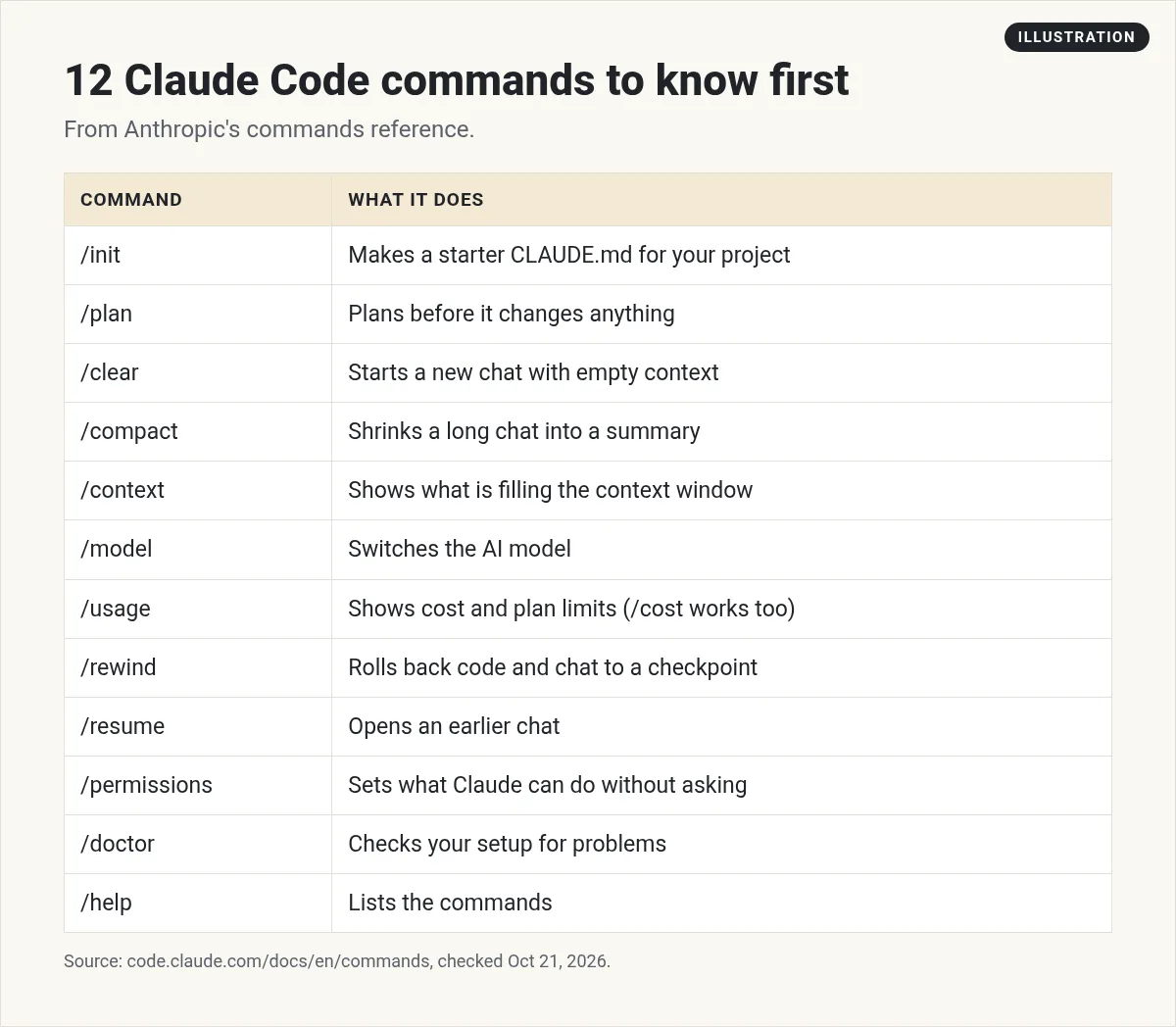
The 12 commands to learn first
If you learn nothing else, learn these. Each one comes from Anthropic's commands reference.
Commands for your first session
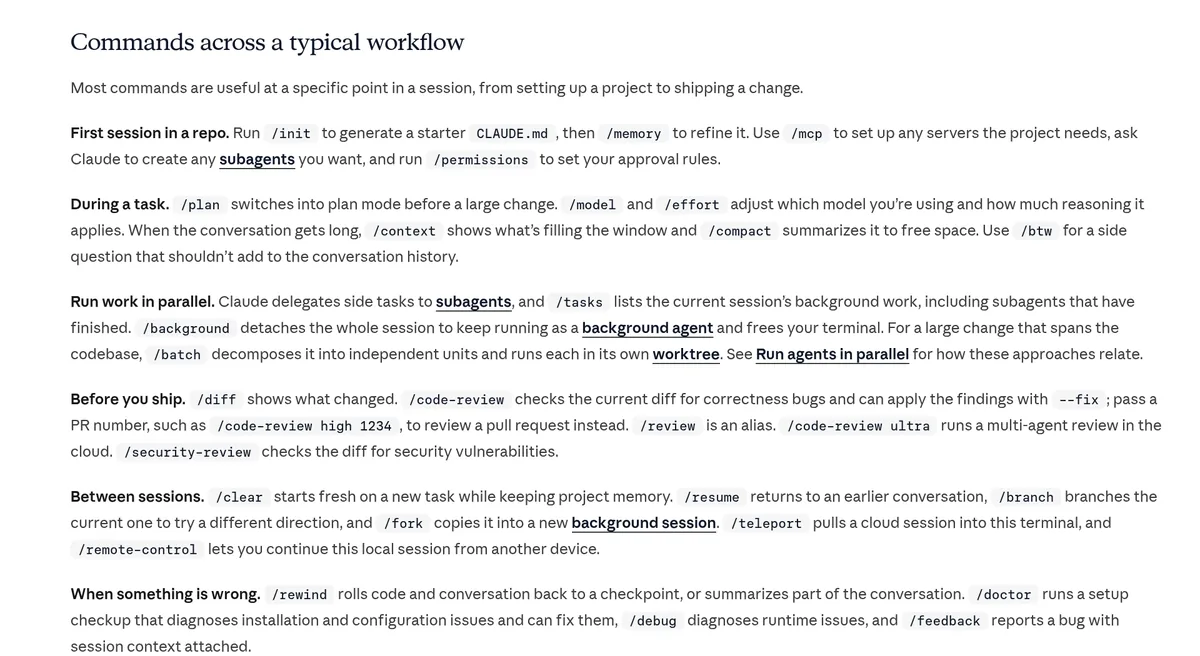
- /init: makes a starter CLAUDE.md file for your project. Claude reads that file at the start of every chat.
- /memory: opens your CLAUDE.md files so you can edit them.
- /permissions: sets which actions Claude can take without asking you.
- /login and /logout: sign in or out of your Anthropic account.
The docs suggest this order for a new project. Run /init, then /memory to refine the file, then /permissions to set your rules.
Commands while you work
- /plan: switches to plan mode. Claude plans the work before it changes any files. Add a task after it to start right away.
- /model: switches the AI model. With no name, it opens a picker.
- /effort: sets how much thinking Claude puts into each answer.
- /context: shows what is filling Claude's memory as a colored grid.
- /compact: sums up the chat so far to free space. You can add what to focus on.
- /btw: asks a side question without adding it to the chat.
Commands before you save your work
- /diff: shows what changed.
- /code-review: checks your changes for bugs. /review does the same thing.
- /security-review: checks the changes on your branch for security problems.
Commands between sessions
- /clear: starts a new chat with empty context. Use it between unrelated tasks.
- /resume: opens an earlier chat by name or from a list.
- /export: saves the chat as plain text.
- /exit: closes Claude Code. /quit works too.
Commands when something goes wrong
- /rewind: rolls the code and the chat back to an earlier point. The docs list /checkpoint and /undo as other names for it.
- /doctor: runs a setup checkup and suggests fixes.
- /usage: shows session cost, plan limits, and activity. /cost and /stats work too.
- /help: shows help and the commands you can use.
Keyboard shortcuts that save the most time
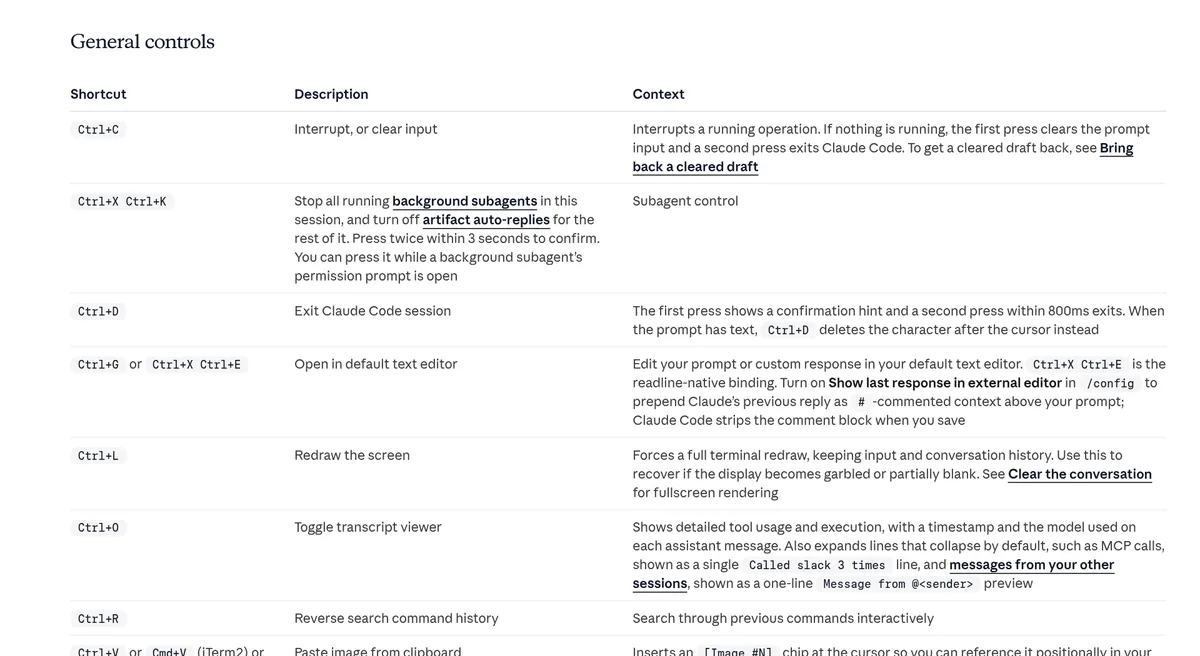
These are not slash commands, but you will use them even more. All come from Anthropic's interactive mode docs.
| Shortcut | What it does |
|---|---|
| Esc | Stops Claude mid-step. Work so far is kept. |
| Esc, then Esc | Clears what you typed, or opens the rewind menu if the box is empty |
| Shift+Tab | Cycles modes: Manual, accept edits, plan, and more |
| Ctrl+C | Stops a running action. Press again on an empty box to exit. |
| Ctrl+D | Exits Claude Code (press twice) |
| Ctrl+R | Searches your past prompts |
| ! at the start | Runs a terminal command, like ! git status |
| @ | Picks a file to point Claude at |
On Windows, the docs note Alt+M can stand in for Shift+Tab in some setups.
Permission modes in plain words
Shift+Tab is worth a closer look. It switches how much Claude can do without asking you.
- Manual: Claude asks before it edits files or runs most commands. This is the safest place to start.
- Accept edits: Claude edits files without asking each time.
- Plan: Claude reads and plans but does not change anything.
The docs say two more modes, bypass and auto, can show up when they are available. When you are new, stay in Manual mode and switch to Plan for bigger jobs. Move to accept edits only once you trust how Claude works on your project.
Terminal commands to know
These run in your normal terminal, before Claude Code opens.
- claude: starts a session in the current folder.
- claude "explain this project": starts a session with a first prompt.
- claude -c: continues your most recent chat in this folder.
- claude -r plus a name: resumes a chat by name or ID.
- claude -p plus a prompt: asks one question, prints the answer, and exits. Good for scripts.
- claude update: updates to the latest version.
- claude doctor: checks your install without starting a session.
A real session, command by command
Here is how the commands fit together in one normal session. Say you want to add a contact form to a small website. This is an example, not a rule.
- Open your terminal in the project folder and type claude.
- It is a new project, so run /init. Claude writes a starter CLAUDE.md.
- Type /plan add a contact form to the home page. Claude reads the files and writes a plan. Nothing changes yet.
- Read the plan. If it looks right, approve it, and Claude starts building.
- Claude heads the wrong way? Press Esc, then tell it what you meant.
- Do not like a change? Run /rewind and pick the point before it.
- When it works, run /diff to see what changed, then ask Claude to commit it.
- Run /usage to see what the session used.
- Run /clear before your next task.
That is nine steps and only a handful of commands. Most days look like this.
Make your own commands
You can add your own slash commands. In Claude Code, these are skills. You save a SKILL.md file with steps, and then you run it by typing a slash and its name. I walk through it in my Claude Code skills guide.
A good first custom command is one for a job you repeat every week. For example, a checklist Claude runs before you save your work.
Common command mistakes
- Typing a command mid-sentence. It only works at the start of your message.
- Never running /clear. One huge chat for every task makes Claude worse.
- Using /clear when you meant /compact. /clear wipes the chat. /compact keeps a summary.
- Forgetting Esc. If Claude heads the wrong way, stop it now, not later.
- Relying only on /rewind. It is handy, but keep using Git to save your work.
New to Claude Code? Start with my beginner guide to Claude Code. Wondering what it costs? See Claude Code pricing.
My Claude Code command practice
Nothing you check here is sent or saved. Download it if you want to keep it.
Meet AIM Agent
AIM Agent is an AI Chief of Staff for business owners. You give it a real task, and it brings the work back for you to review. You stay the one who approves.
Meet AIM AgentI am a co-founder of AIM Agent and have a financial interest in the product.
Frequently asked questions
How do I see all Claude Code commands?
Type / in Claude Code to open the command menu. Keep typing to filter it. /help also shows the commands you can use.
What does /clear do in Claude Code?
It starts a new chat with empty context. Use it between unrelated tasks. Your CLAUDE.md file still loads in the new chat.
What is the difference between /clear and /compact?
/clear starts over with an empty chat. /compact keeps going but replaces the chat so far with a summary to free space.
How do I undo a change in Claude Code?
Run /rewind or press Esc twice on an empty prompt. You can roll back the code, the chat, or both to an earlier point.
How do I check my Claude Code usage?
Run /usage. It shows session cost, plan limits, and activity. /cost and /stats work too.
Can I make my own Claude Code commands?
Yes. Custom commands are skills. Save a SKILL.md file with your steps, then run it by typing a slash and its name.
Sources
Checked October 21, 2026. Plans, prices, and rules can change.
