
Build with AI · Claude Code
Hooks make Claude Code do the same thing every time, like format a file after each edit or block changes to secret files. Here is how they work and three you can set up today.
You can ask Claude Code to format your code after every edit. It will usually do it. But usually is the problem.
Hooks fix that. A hook is a small command that runs at a set point, every single time, whether Claude remembers or not. I read Anthropic's hooks guide and reference on October 20, 2026. Here is what you need to know, plus three starter hooks.
Quick answer
Claude Code hooks are your own shell commands that run at set points, like before a tool runs, after a file edit, or when Claude needs your input. You add them to a settings file such as ~/.claude/settings.json or .claude/settings.json in your project. A hook that exits with code 2 can block an action, like an edit to your .env file. Type /hooks in Claude Code to see which hooks are set up.
What are Claude Code hooks?
Anthropic's guide says it simply: "Hooks are user-defined shell commands." Claude Code runs them at certain points while it works.
The big benefit is in the next line of the docs. Hooks give you "deterministic control." That is a fancy way of saying the action always happens. It does not depend on Claude choosing to do it.
Here is how hooks compare to the other ways you guide Claude Code:
- CLAUDE.md holds facts and rules. Claude reads them, but it can still forget.
- Skills hold steps Claude can follow when a task calls for them. My Claude Code skills guide shows how to make one.
- Hooks are code that runs on its own at a set moment. No forgetting.
New to the tool? Read my guide on how to use Claude Code first.
When hooks run: the main events
Each hook is tied to an event. The event is the moment it runs. Claude Code has a lot of events. These are the ones most people start with, from the reference page I checked on October 20, 2026:
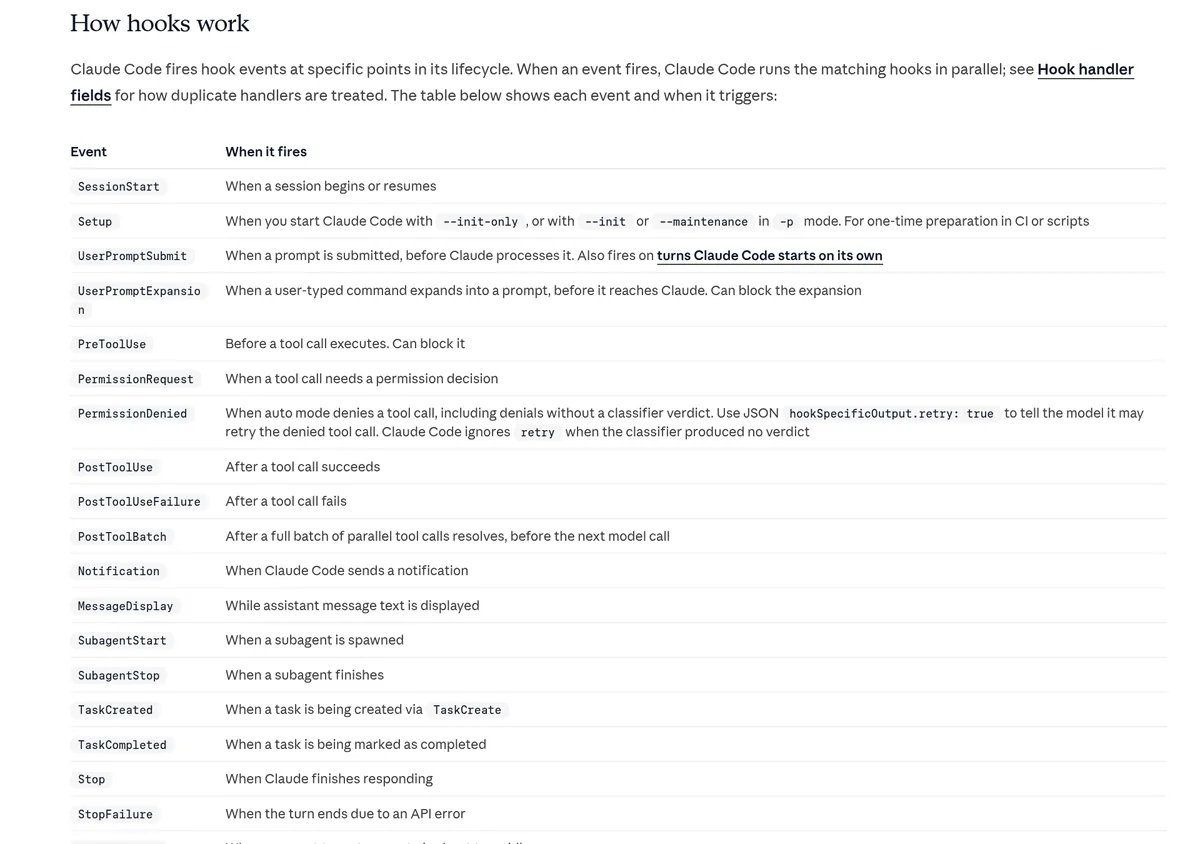
- SessionStart: when a session begins or resumes.
- UserPromptSubmit: when you send a prompt, before Claude works on it.
- PreToolUse: before a tool runs. This one can block the tool.
- PostToolUse: after a tool call works.
- Notification: when Claude Code sends a notification.
- Stop: when Claude finishes its reply.
Most hooks also have a matcher. The matcher narrows when the hook runs. For example, a matcher of Edit|Write means the hook only runs for file edits.
Where hooks go
You add hooks to a settings file. Which file you pick decides where the hook works.
- ~/.claude/settings.json: your own hooks, in all your projects.
- .claude/settings.json: hooks for one project. You can commit this file so your team shares them.
- .claude/settings.local.json: hooks for one project that stay on your computer only.
Hooks can also come from plugins, or from a skill or subagent. To see everything that is set up, type /hooks in Claude Code. The docs say this opens "a read-only browser for your configured hooks." It shows where each one comes from.
3 starter hooks to copy
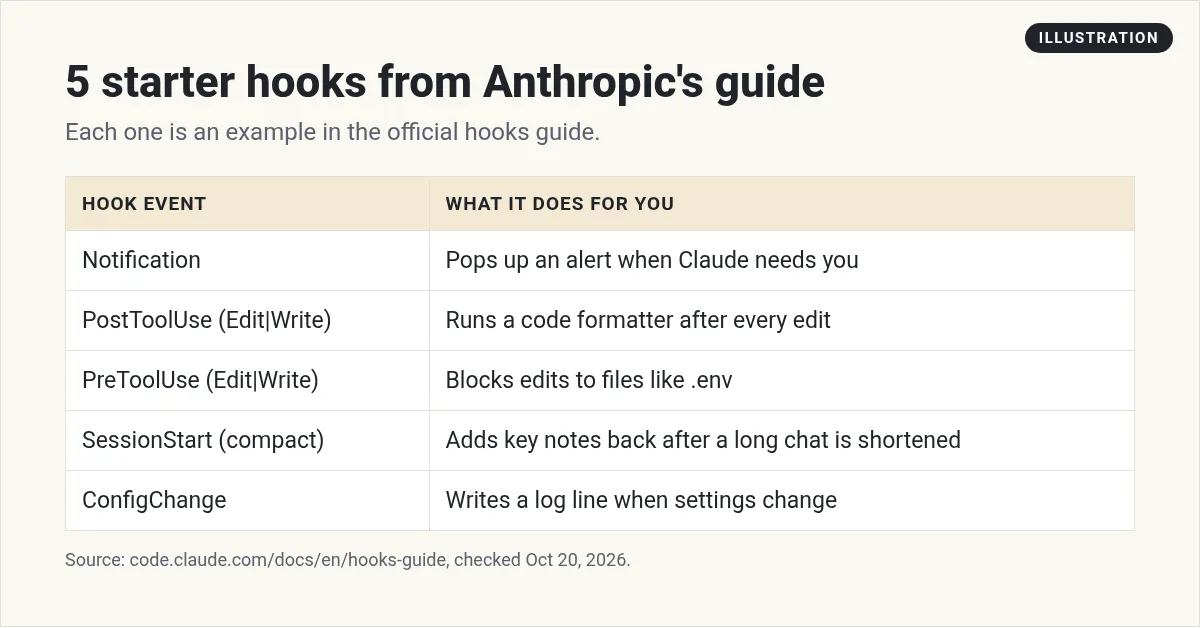
Here are three useful hooks to copy first. The card below is my own summary of five example hooks from Anthropic's hooks guide: the three in this section, plus the SessionStart and ConfigChange ideas in the next section. The steps under it come from Anthropic's hooks guide.
1. Get a ping when Claude needs you
This one sends a desktop notice when Claude is waiting on you. Then you can do other work and not stare at the terminal. Add this to ~/.claude/settings.json. It uses the Notification event. Anthropic's guide gives a ready block for a Mac, shown in the screenshot below. It uses the built in osascript command to show the notice. The guide also has versions for Linux and Windows.
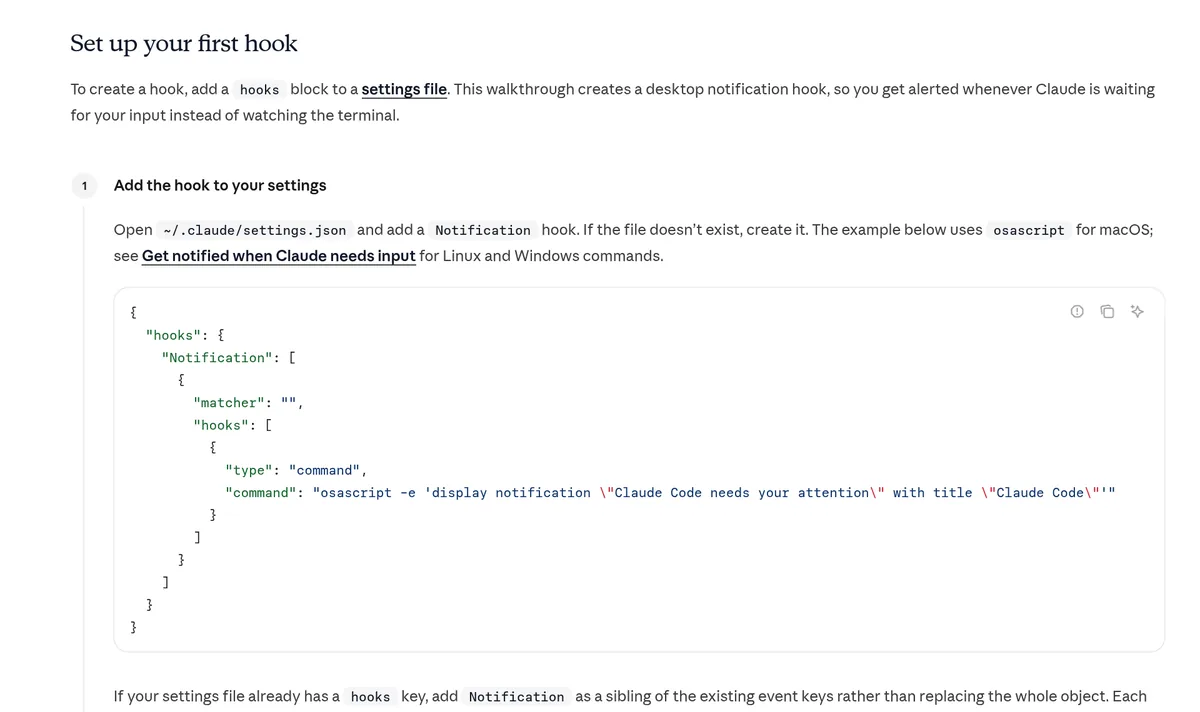
After you save it, type /hooks. Your new hook should show up under Notification.
2. Format every file Claude edits
This hook runs Prettier after each file edit, so your code style stays the same. It uses the PostToolUse event with an Edit|Write matcher. Put it in .claude/settings.json in your project.
{
  "hooks": {
    "PostToolUse": [
      {
        "matcher": "Edit|Write",
        "hooks": [
          {
            "type": "command",
            "command": "jq -r '.tool_input.file_path' | xargs npx prettier --write"
          }
        ]
      }
    ]
  }
}
You need jq and Prettier set up for this to work.
3. Block edits to secret files
This is the one I like most. The guide shows a small script that blocks Claude from changing files like .env, package-lock.json, or anything in .git. It runs on PreToolUse, before the edit happens.
The script checks the file path. If the path matches a protected file, it prints a reason and exits with code 2. Claude Code then stops the edit and tells Claude why. The full script is in Anthropic's guide, linked in the sources below.
More hook ideas from the guide
Once the first three work, Anthropic's guide has more ready-made examples. Here are three I think are worth a look.
- Bring back key notes after compaction. When Claude's memory fills up, Claude Code sums up the chat to make room. Details can get lost. A SessionStart hook with a compact matcher can add your key notes back each time.
- Log config changes. The ConfigChange event fires when a settings or skills file changes during a session. A hook can write each change to a log file.
- Skip prompts you always approve. A PermissionRequest hook can say yes for you on tool calls you always allow. Use this one with care, since it removes a check.
Each one is a small block you add to a settings file, like the ones above.
Exit codes in plain words
A hook talks back to Claude Code with its exit code. You only need to know two.
- Exit 0: all good. The docs say this means the hook "has no decision to report." Claude Code goes on as normal.
- Exit 2: block it. On PreToolUse, this stops the tool call. Whatever the hook writes to stderr becomes the reason Claude sees.
Not every event can be blocked. For example, on PostToolUse the tool already ran, so exit 2 just shows the message to Claude.
Types of hooks
Most hooks are shell commands. But the reference lists more types. A hook can be a shell command, an HTTP endpoint, an MCP tool call, an LLM prompt, or a subagent.
The prompt and agent types let a Claude model judge the situation. The guide says to use them "For decisions that require judgment rather than deterministic rules." Start with plain commands. They are easier to test.
Hooks and safety
Hooks are powerful, so treat them with care. The reference says: "Command hooks execute shell commands with your full user permissions." That means a hook can change or delete any file your account can reach.
My rules:
- Read every hook before you add it. Do not paste one you do not understand.
- Be careful with projects from strangers. A repo can ship hooks in its .claude/settings.json.
- Claude Code asks you to trust a folder before it runs hooks there in a normal session. Do not click yes without a look.
- Know that with the -p flag or the SDK, the docs say Claude Code skips that trust dialog.
To turn all hooks off for a while, set "disableAllHooks": true in your settings file. Your hooks stay saved, they just stop running.
Tips for your first hook
- Start with the notification hook. It is safe and you see it work right away.
- Test each hook on a small project first.
- Keep hooks short and fast. They run often.
- Use /hooks to check that your hook shows up.
- If a hook seems broken, check the matcher first. A wrong matcher is a common reason a hook never runs.
Claude Code needs a paid Claude plan. See my Claude Code pricing guide, or read my full Claude Code review.
Before I add a hook
Nothing you check here is sent or saved. Download it if you want to keep it.
Want to see AI tools like this in action?
In my free workshop, I show simple ways to use AI tools to build and save time, even if you are not a developer.
Join my free AI workshopFree to join. No credit card needed.
Frequently asked questions
What are hooks in Claude Code?
Hooks are your own shell commands that Claude Code runs at set points, like before a tool runs or after a file edit. They run every time, so you do not rely on Claude to remember.
Where do I put Claude Code hooks?
In a settings file. Use ~/.claude/settings.json for all your projects, .claude/settings.json to share with a project team, or .claude/settings.local.json for one project on your computer only.
How does a hook block an action?
A hook on an event like PreToolUse can exit with code 2. Claude Code then blocks the action and shows Claude the message the hook wrote to stderr.
How do I see my hooks?
Type /hooks in Claude Code. It opens a read-only list of your hooks and shows where each one comes from.
Are Claude Code hooks safe?
They run with your full user permissions, so they are only as safe as the commands in them. Read every hook before you add it, and be careful with hooks in repos from strangers.
How do I turn hooks off?
Set disableAllHooks to true in your settings file. Your hooks stay saved but stop running until you set it back.
Sources
Checked October 20, 2026. Plans, prices, and rules can change.
