
Build with AI · Guide
Cursor's AI forgets your project every time. Rules fix that. Here is how they work, which type to use, and how to write ones the Agent actually follows.
If you build with Cursor, you have probably told the AI the same thing ten times. Use this style. Do not touch that folder. Keep files short.
Cursor rules let you say it once. On October 23, 2026, I went through Cursor's official docs on rules. Here is how they work, the four types, and how to write rules that help instead of confuse.
Quick answer
Cursor rules are saved instructions that Cursor adds to the start of the AI's context, so the Agent follows your project's standards every time. Cursor supports four types: Project Rules stored as .mdc files in .cursor/rules, User Rules for all your projects, Team Rules on Team and Enterprise plans, and AGENTS.md, a plain markdown file. Cursor's docs suggest keeping each rule under 500 lines.
What are Cursor rules?
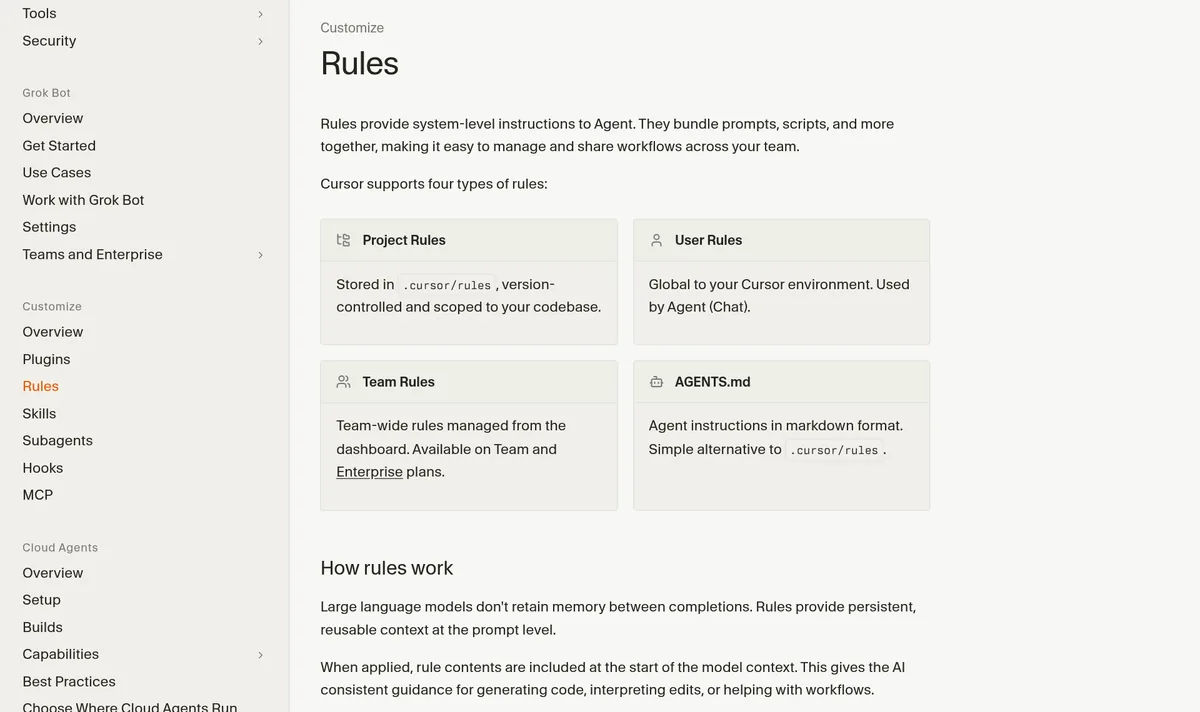
Cursor's docs put it simply: large language models do not keep memory between completions. Every time you ask the AI something, it starts fresh.
Rules fix that. A rule is a set of instructions that Cursor adds to the start of the AI's context. So the Agent sees your rules before it writes a single line.
That means you can teach it things like:
- Which tools and libraries your project uses
- How you name files and folders
- Which folders it should never edit
- How long a file should be before it gets split up
One thing to know: rules do not change Cursor Tab, the autocomplete feature. The docs say rules do not impact Cursor Tab or other AI features. They are for the Agent.
The four types of Cursor rules
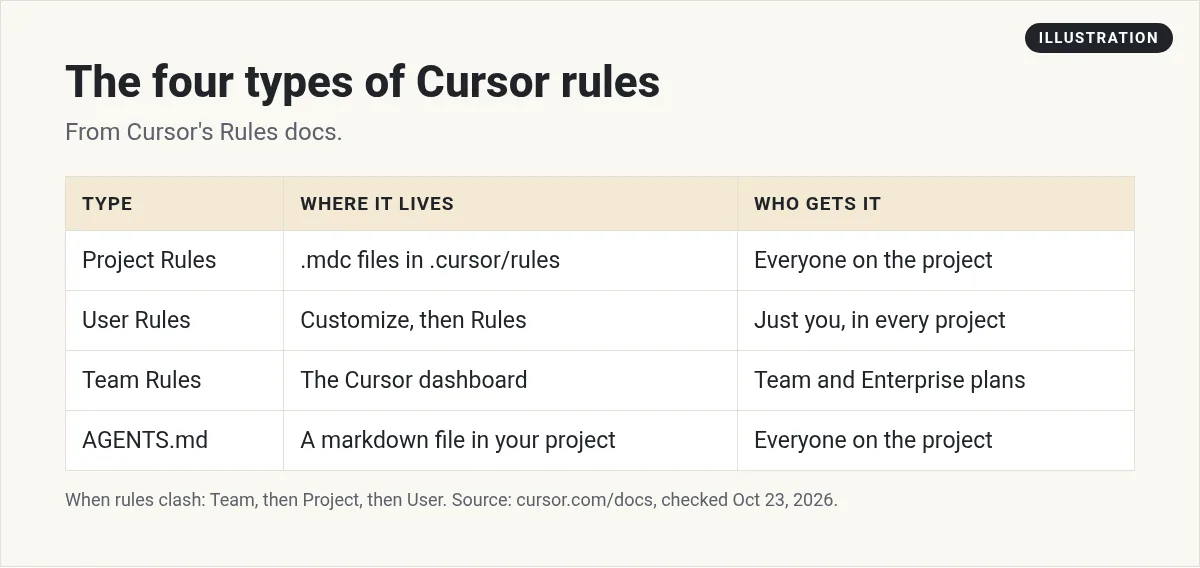
The docs list four kinds of rules:
- Project Rules. Stored in the .cursor/rules folder of your project. They are saved with your code, so your whole team gets them.
- User Rules. Your personal settings that apply to every project. You set them in Customize, then Rules.
- Team Rules. Managed from the Cursor dashboard. These are only on Team and Enterprise plans.
- AGENTS.md. A plain markdown file in your project. It is the simple option.
When rules clash, the docs say the order is Team Rules first, then Project Rules, then User Rules. All the rules that apply get merged together.
How Project Rules work
Project Rules are the main type. Each rule is its own file in .cursor/rules. You can name the file anything, but it must end in .mdc.
This trips people up. The docs say a plain .md file in .cursor/rules is ignored. It has no frontmatter, so Cursor does not know when to use it. If you want plain markdown, use AGENTS.md instead.
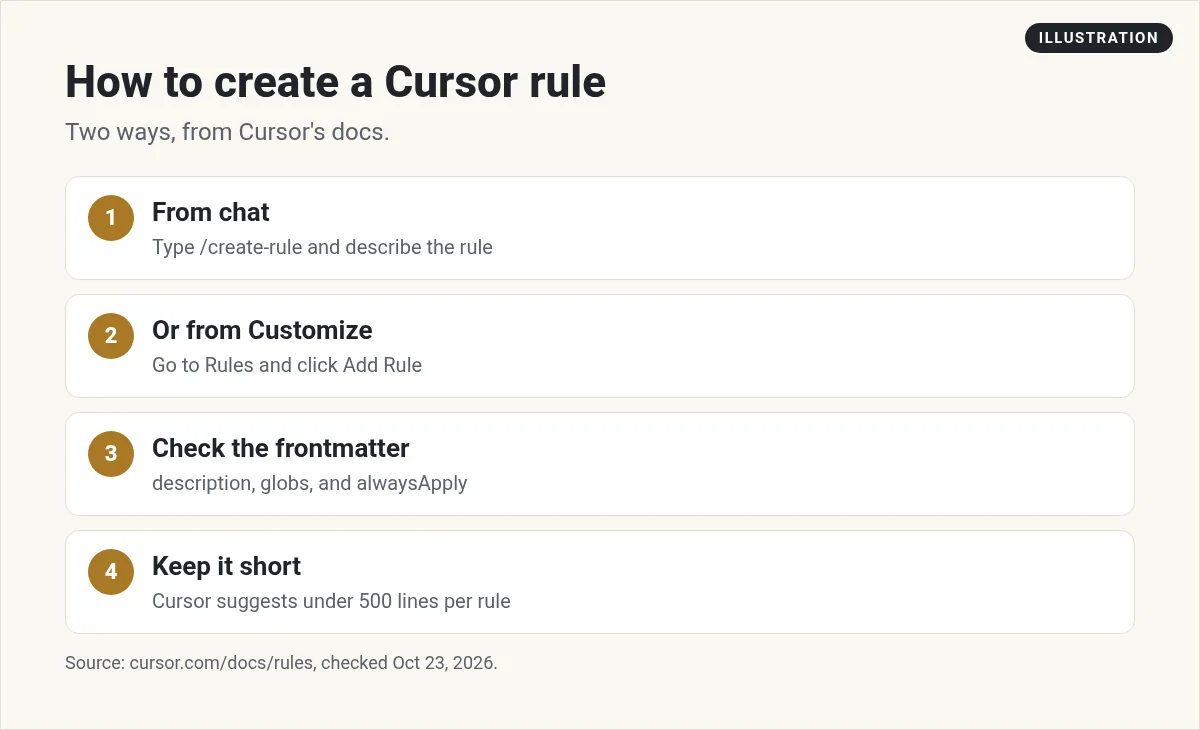
The frontmatter is a short block at the top of the file. It has three fields: description, globs, and alwaysApply. Together they decide when the rule kicks in.
Cursor gives you four ways to apply a rule:
- Always Apply: used in every chat.
- Apply Intelligently: the Agent reads your description and decides if the rule fits.
- Apply to Specific Files: used when a file matches a pattern, like every .tsx file.
- Apply Manually: only used when you @ mention the rule in chat.
Cursor rules examples
Here is a rule that always applies. It is close to the example in Cursor's docs:
---
alwaysApply: true
---
Never modify generated files in the dist or build folders.
When you are unsure, read the relevant source files first.
Here is a rule that only applies to certain files. The globs line tells Cursor which files:
---
globs: src/components/**/*.tsx
alwaysApply: false
---
Use named exports, not default exports.
Keep components under 200 lines.
And here is one the Agent picks up on its own when it is relevant. The description does the work:
---
description: Rules for our backend services
alwaysApply: false
---
Put each service in its own file under src/services.
Check inputs before passing data along.
Keep the content short and clear. Write it like a note to a new teammate.
How to create a rule
The docs give two ways:
- From chat. Type /create-rule in the Agent and describe what you want. The Agent writes the file with the right frontmatter and saves it to .cursor/rules.
- From Customize. Open Customize in the sidebar, go to Rules, and click Add Rule. You can also see all your rules there.
A rule can point to a file, like a template, with an @ mention. The docs say the Agent reads that file with its tools when it needs it. The file is not pasted into the prompt. So if something must always be in front of the AI, put it in the rule itself.
AGENTS.md: the simple option
AGENTS.md is one plain markdown file. You put it in the root of your project. There is no frontmatter and no setup.
It works well for small projects. Just write a few headings, like Code Style and Architecture, with short bullet points under each.
Cursor also supports AGENTS.md files in subfolders. A file in your backend folder can hold backend rules. The docs say the more specific file wins when instructions conflict.
Best practices from Cursor's docs
Cursor's docs say good rules are focused, actionable, and scoped. Here is what that looks like:
- Keep rules under 500 lines. Split big rules into smaller ones.
- Give real examples. Or point to a file that shows the right way.
- Skip vague advice. Write rules like clear internal docs.
- Do not copy whole style guides. The docs say to use a linter instead.
- Do not list every command. The Agent already knows tools like npm and git.
- Save rules in git. Then your whole team benefits.
My favorite line from the docs is this one: start simple, and add rules only when you notice the Agent making the same mistake again and again. That is the best way I know to build rules that work.
From the Leonardo Grigorio | Build & Ship with AI channel (not mine): A mid 2025 comparison of Cursor and Claude Code. It covers Cursor in general, not rules.
Team Rules for companies
If you work on a team, Team Rules are worth a look. The docs say Team and Enterprise plans can create rules for the whole company from the Cursor dashboard.
Here is how they work, based on the docs:
- They are plain text. Team Rules do not use the .cursor/rules folder like Project Rules do.
- They can target files. Add a glob pattern, like every Python file, and the rule only applies when those files are in context. With no pattern, it applies to every chat.
- Admins can enforce them. An enforced rule is required and cannot be turned off in Customize. A rule that is not enforced can be turned off by each person.
- They can start as drafts. Uncheck the option to enable the rule right away, and it waits until you turn it on.
The docs add a fair warning. Some teams use enforced rules for compliance, but AI guidance should not be your only security control.
Keep your rules up to date
Rules are not a one time job. The docs suggest you update a rule when you see the Agent make a mistake. You can even tag @cursor on a GitHub issue or pull request to have the Agent update the rule for you.
A good habit is to read your rules once a month. Delete the ones that no longer match how you work.
Why is my rule not working?
The docs give a quick checklist:
- Check the rule type first.
- For Apply Intelligently, make sure you wrote a description.
- For Apply to Specific Files, make sure the pattern matches your files.
- Make sure the file ends in .mdc, not .md.
- Remember that User Rules do not apply to Inline Edit. They are only used by the Agent in chat.
Where to go next
Rules are a simple way to get better results from Cursor. Write a few, test them, and fix them when the Agent slips.
New to Cursor? Start with my Cursor review and my guide to Cursor pricing. If you also use Claude Code, my Claude Code best practices post covers its version of the same idea. And if you want to see how regular people build real apps with AI, I walk through it in my free AI workshop.
Want to build real apps with AI?
In my free workshop, I show how regular people use AI tools to build simple apps and online businesses, even with no coding background.
Join my free AI workshopFree to join. No credit card needed.
Frequently asked questions
What are Cursor rules?
Cursor rules are saved instructions that Cursor adds to the start of the AI's context, so the Agent follows your project's standards without you repeating them.
Where do Cursor rules go?
Project Rules go in the .cursor/rules folder as .mdc files. User Rules are set in Customize, then Rules. AGENTS.md goes in your project root or a subfolder.
Does Cursor read .md files in .cursor/rules?
No. Cursor's docs say a plain .md file in .cursor/rules is ignored because it has no frontmatter. Use .mdc, or use AGENTS.md for plain markdown.
How long should a Cursor rule be?
Cursor's docs suggest keeping rules under 500 lines and splitting big rules into smaller ones.
Do Cursor rules affect Cursor Tab?
No. The docs say rules do not impact Cursor Tab or other AI features.
What is the order when rules conflict?
Team Rules come first, then Project Rules, then User Rules. All applicable rules are merged.
Can I turn off a Team Rule in Cursor?
Only if your admin did not enforce it. The docs say enforced Team Rules are required and cannot be disabled in Customize, while other Team Rules can be turned off.
Sources
Checked October 23, 2026. Plans, prices, and rules can change.
