
For GoHighLevel domain setup, open your sub-account and go to Settings > Domains & URL Redirects. Click + Connect a domain, pick your product and enter your web address. Click Continue, then Authorize if it appears. Or choose Add record manually. Then link the verified address to your site or funnel.

Disclosure: I earn a commission if you buy HighLevel through my links, at no extra cost to you. I am not HighLevel and do not speak for it.
Key takeaways
- Use an unused subdomain if your site or mail needs to stay where it is.
- Domain Connect adds DNS records when your provider supports it.
- For manual setup, copy the records HighLevel shows for your address.
- Once your domain is linked, check the page that opens and test HTTPS.
Pick the root domain or a subdomain
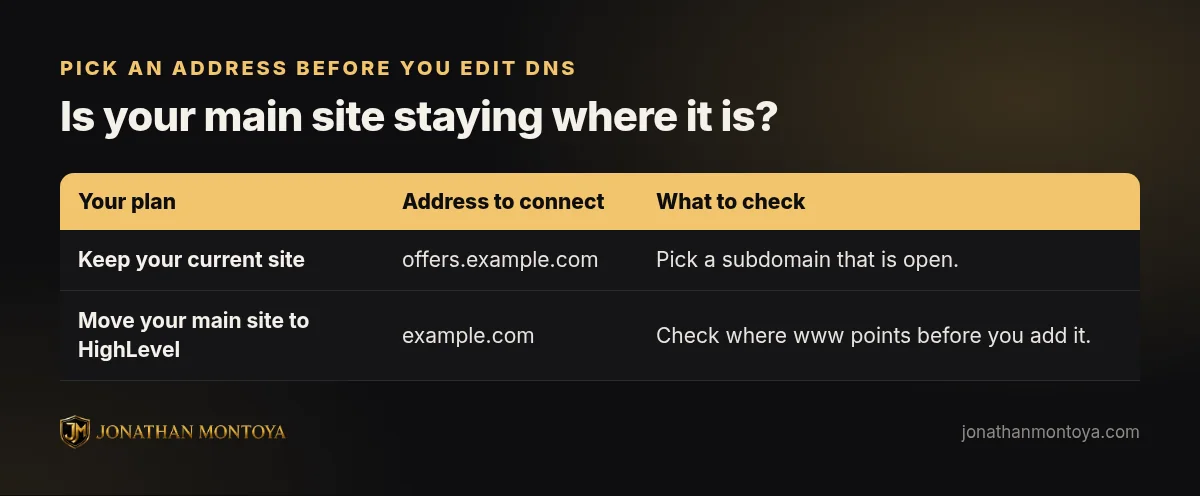
Your root domain is the main address, like example.com. A subdomain adds a word in front, like offers.example.com. The www part in www.example.com works the same way. It has its own DNS record.
Before you change DNS, check whether your site, mail or any other service needs to stay at its current address. If it does, leave that address in place. Use a free subdomain like offers.example.com for your new funnel. If HighLevel will host your main site, you can connect the root. Check what www points to before you change that address, too.
GoHighLevel domain setup step by step
Start in the sub-account that holds the site or funnel you want to link. Use an address you own or have access to. If you are new to sub-accounts, start with the GoHighLevel tutorial for beginners.
HighLevel's general connection guide lists the path as Sites > Settings > Domains. The root and subdomain guide shows Settings > Domains & URL Redirects in the sub-account. Look for the Domains heading and the connect button shown below.
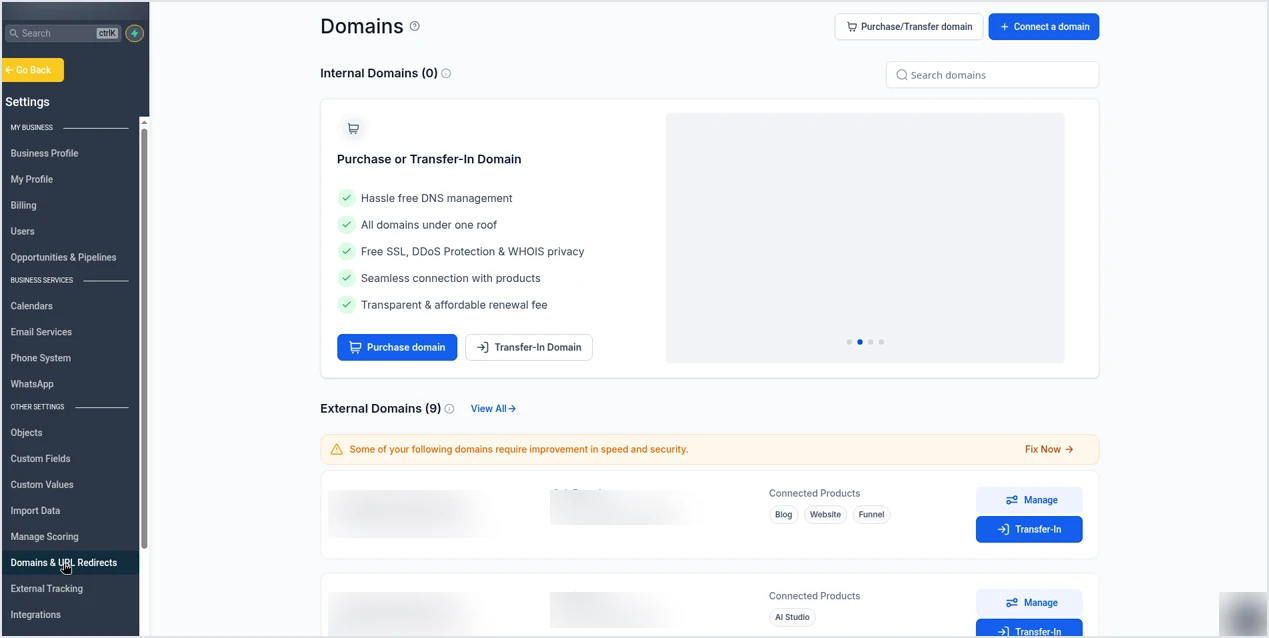
www serves a site or service you need. Turn it on if both addresses are free to use and you want both to reach HighLevel. HighLevel can send visitors from www to the root with a 301 redirect. If you start with www, HighLevel can offer to add the root too. Remove a conflicting record only if you plan to move that host to HighLevel. Domain Connect cannot remove it for you.- Open DomainsIn the right sub-account, go to Settings > Domains & URL Redirects. Click + Connect a domain.
- Pick your productFor a site or funnel, find Funnel/Website/Store/Blog/Webinar and click Connect. Enter your address in the Domain URL field.
- Set up DNSClick Continue, then Authorize if it appears. Or choose Add record manually and copy the records into your DNS settings.
- Verify and link your pageReturn to HighLevel and let it verify DNS. Pick the funnel or website and the step or page that should open first. Click Link Domain.
- Check the live addressOnce SSL is ready, open the address with HTTPS and check that it loads the page you picked.
Connect with Domain Connect
Click Continue and look for Authorize. If it appears, follow the steps below. Choose Add record manually if the button is missing or you prefer to enter the records. HighLevel's connection guide names GoDaddy, Google Domains and Cloudflare for automatic setup. It lists Namecheap and Bluehost for manual setup. The Domain Connect guide mentions IONOS in a note, so go by the button you see.
- Look for AuthorizeEnter your address, then click Continue. If HighLevel sees a supported provider, it shows an Authorize button.
- Approve the changeClick Authorize. Sign in to your provider when asked and approve the DNS changes. Domain Connect adds the records for you.
- Return to HighLevelClose the provider tab after you approve the change. Back in HighLevel, let it check the records. With Google Domains, closing that tab is part of the process.
Add DNS records by hand
DNS is what points a web address to a site. An A record points to an IP address. A CNAME record points to another host name. For a site or funnel, pick the row that matches the address you entered.
| Address | Type | Host or Name | Value or Target |
|---|---|---|---|
Root, example.com | A | @ | Copy the IP address shown in HighLevel |
Subdomain, offers.example.com | CNAME | offers | Copy the target shown in HighLevel |
| Subdomain, when HighLevel offers an A record | A | offers | Copy the IP address shown in HighLevel |
- Get your recordsClick Add record manually. Keep the HighLevel screen open so you can copy the record type, host and value.
- Open your active DNS settingsCheck which provider runs your DNS now. Your nameservers tell you where to make the change. This may be a different place from where you bought the domain.
- Add the recordPick the type HighLevel shows. Put the host in the Host or Name field. Put the value in the Value or Target field. Save the record.
- Verify the changeGo back to HighLevel and retry the check if needed. If the record is new, it may take a few minutes to show up. HighLevel says DNS changes can take up to 24 hours to spread.
If your provider asks for just the first part of the name, enter offers for offers.example.com or www for www.example.com. Use one supported A or CNAME record for the same host. If Cloudflare runs your DNS, set that record to DNS only before you verify it.
Link and check your live pages
After HighLevel verifies the record, pick the funnel or website on the link screen. Then choose the funnel step or site page that should open at the main address. Click Link Domain. HighLevel starts to set up SSL, which lets visitors load your site with HTTPS.
To change what visitors see later, open the Domains page and click Manage by the address. If you see Action Required under Connected Products, open it to set the default page and the default 404 page. A 404 page is what people see when they open a link to a page that is missing.
You can also open the three-dot menu for the domain or product, choose Edit, set the pages and click Save. HighLevel says the reminder appears only in the sub-account where you first connected the domain.
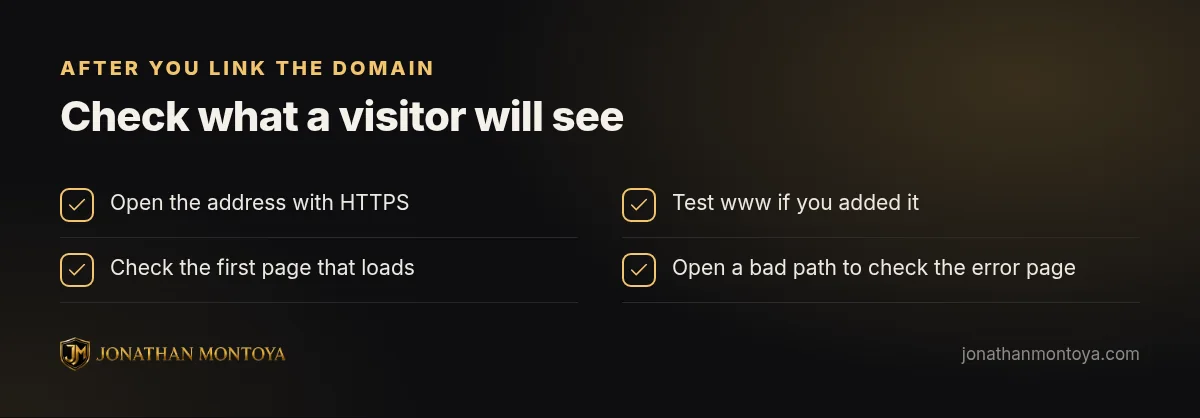
- Open the address with HTTPS.
- Check the first page that loads.
- Test www if you added it.
- Open a bad path to check the error page.
If you still need to build the page you plan to link, see the GoHighLevel website builder guide.
Want to build your first site in HighLevel? Start with one page you want to share.
Start HighLevelFix common domain setup errors
Start with the exact address you entered. A record for example.com will not answer a DNS check for offers.example.com. Look at the error, then compare the record at your provider with the one HighLevel asks for.
| What you see | What to check |
|---|---|
| HighLevel cannot find the A or CNAME record | Check the nameservers to find where DNS is managed. Match the type, host and value to the exact record HighLevel shows. Remove a conflicting A or CNAME record only for the host you plan to move. |
| The DNS record is right, but the domain is pending | Use a public DNS lookup to see if the new record is visible. If the change is recent, give it up to 24 hours to spread. Then retry the check in HighLevel. |
| Cloudflare shows the record, but verification fails | Set Proxy status to DNS only for the HighLevel A or CNAME record. Save, then retry after DNS updates. |
| The browser shows an SSL or privacy error | Match the exact record HighLevel shows. Check for an old AAAA record on that host that points elsewhere. Once DNS is verified and the domain is linked, SSL may take a few more minutes. |
| The site shows a 404 on some visits | Check the root and www on their own. In Manage, check the default page and default 404 page. If both addresses should land in one place, check the 301 redirect. |
For a public DNS check, choose a lookup that matches your record type. Enter the full address you are trying to connect and compare the result with what HighLevel shows. If the domain is still pending after 24 hours, HighLevel advises checking the values again or reaching out to support.
Set up a domain for email or other tools
Pick the setup that matches what the address will do. A website address sends people to a page. A dedicated sending domain authenticates the domain LC Email uses to send mail. Use the records HighLevel shows for each product. Add those records at your DNS provider and return to HighLevel to verify them where prompted.
| What you want to connect | Where to go |
|---|---|
| Website, funnel, store, blog or webinar | In the sub-account, open Settings > Domains & URL Redirects. Use the Sites product choice. |
| LC Email sending domain | Open Settings > Email Services > Dedicated Domain and IP > Add Domain. Add the records shown there at your DNS provider. Return to HighLevel to verify them. HighLevel suggests a subdomain if you have mail set up already. |
| Client Portal for courses or communities | In the sub-account, go to Sites > Client Portal > Settings. |
| WordPress hosted through HighLevel | In the sub-account, go to Sites > WordPress. Open the site and use the DNS records in its domain settings. |
| White-label desktop app | In Agency View, open Settings > Company Settings and find White Label. HighLevel suggests a subdomain such as app.example.com. |
| Branded links for forms, surveys or calendars | Use the API domain in agency Company Settings or the Branded Domain in the sub-account Business Profile. Use a subdomain. |
For the desktop app, see the GoHighLevel white-label guide.
Buy a domain in HighLevel
If you need a new address, eligible sub-accounts can buy a domain in HighLevel. An agency first turns on Domain Purchase under Agency View > Settings > Company. Review and accept the purchase terms, then confirm the change. The agency can then set access for each sub-account under Agency Settings > Domain Purchase.
- Search for a nameOpen Settings > Domains & URL Redirects. Click Purchase/Transfer Domain, search for the name you want and click Buy if it is available.
- Check the term and costPick from the terms shown under Pricing Option. The price depends on the name and extension, such as .com. The checkout total updates with the term you pick. If the renewal price differs from the first price, the first term is limited to one year.
- Pay and link itCheck the spelling, term and total before you agree to the terms and click Pay. After you buy it, go to Settings > Domains > Purchased Domains. You can manage its DNS there or link it to a supported product.
Domain sales are final. HighLevel says you cannot cancel a purchase or get a refund. WHOIS privacy comes with domains bought in HighLevel to keep your personal registration details out of public lookups.
Set up your own site or funnel in HighLevel
Pick the page you want to share first. Then choose the web address you want people to use.
When you start HighLevel through my link, you also get my GHL Clone for free. It is a done-for-you affiliate system. You can copy it in about 5 minutes, add your own affiliate link and share it. There is no website to build and no emails to write.
Start HighLevelGet the free GHL CloneMy HighLevel link shows a 30-day free trial for new HighLevel customers on HighLevel's own offer page (checked Nov 19, 2026). HighLevel's standard pricing page lists 14 days. Disclosure: I earn a commission if you buy HighLevel through my link, at no extra cost to you. The GHL Clone is my own system, and I earn a commission if you later pay for HighLevel. What anyone earns depends on their own work, and no one can promise a result.
FAQ
Can I connect a domain I already own to GoHighLevel?
Yes. Open + Connect a domain and enter the address you want to use. If your site or mail needs to stay on the root, use an unused subdomain like offers.example.com for your HighLevel funnel.
Can I connect my GoDaddy domain to HighLevel?
Yes. Click Continue and look for Authorize. Sign in and approve the DNS change, then close the GoDaddy tab and return to HighLevel. You can also add the records by hand.
How do I connect a Namecheap domain to GoHighLevel?
Choose Add record manually in HighLevel. If Namecheap runs your DNS, go to Domain List > Manage > Advanced DNS. Under Host Records, add the record HighLevel gives you and save. Then return to HighLevel to verify it.
Should I connect both the root domain and www?
Leave Also add www domain off if www serves a site or service you need. Turn it on if both addresses are free to use and you want both to reach HighLevel. HighLevel can send visitors from www to the root with a 301 redirect. If you start with www, HighLevel can offer to add the root too.
How long does HighLevel domain setup take to show up?
HighLevel says DNS changes can take a few minutes to 24 hours to spread. Once HighLevel verifies the records and the domain is linked, SSL can take a few more minutes.
Do I need to buy an SSL certificate?
HighLevel sets up SSL for a Sites domain once it connects. If you see a privacy error, check for DNS records that clash and make sure the HighLevel record is set to DNS only if you use Cloudflare.
Can two HighLevel funnels use the same domain?
Yes. More than one funnel or website can share the domain. Check which page opens at the main address. Set the paths so each funnel or page opens at the link you plan to share.
Can I use my domain to send email too?
Yes. For LC Email, use the dedicated sending domain setup in Email Services. HighLevel suggests using a subdomain to avoid clashes with your current mail service. Add the records HighLevel gives you at your DNS provider. Then return to HighLevel to verify them.
Sources, checked Nov 19, 2026
Affiliate disclosure: I earn a commission if you buy HighLevel through my links, at no extra cost to you. Freedom Launch Accelerator and the GHL Clone are my own programs. HighLevel is a trademark of HighLevel, Inc. This site is not run by or affiliated with HighLevel.
