
Yes, GoHighLevel has email marketing. To send a campaign, open Marketing > Emails > Campaigns. Pick a template or start blank. Build your email, send a test, then choose who gets the live send and when. This GoHighLevel email marketing tutorial walks you through each step. It also shows how to set up your sending domain and what to check before you hit Send.
Disclosure: I earn a commission if you buy HighLevel through my links, at no extra cost to you. I am not HighLevel and do not speak for it.
Key takeaways
- Use a regular campaign for a one-time email, such as a newsletter or an event update.
- Review the sender domain before you send. If you add a dedicated LC Email domain, verify its DNS records during setup.
- Send a test and check your list. If you schedule the send, check the location time zone.
- LC Email usage costs $0.675 per 1,000 emails across all plans.
How to send a GoHighLevel email marketing campaign
Start in the sub-account that holds the contacts you want to reach. If you are new to the menus, see the GoHighLevel tutorial for beginners. LC Email can send on a shared setup. If you want to add a dedicated domain, follow the sending domain steps below.
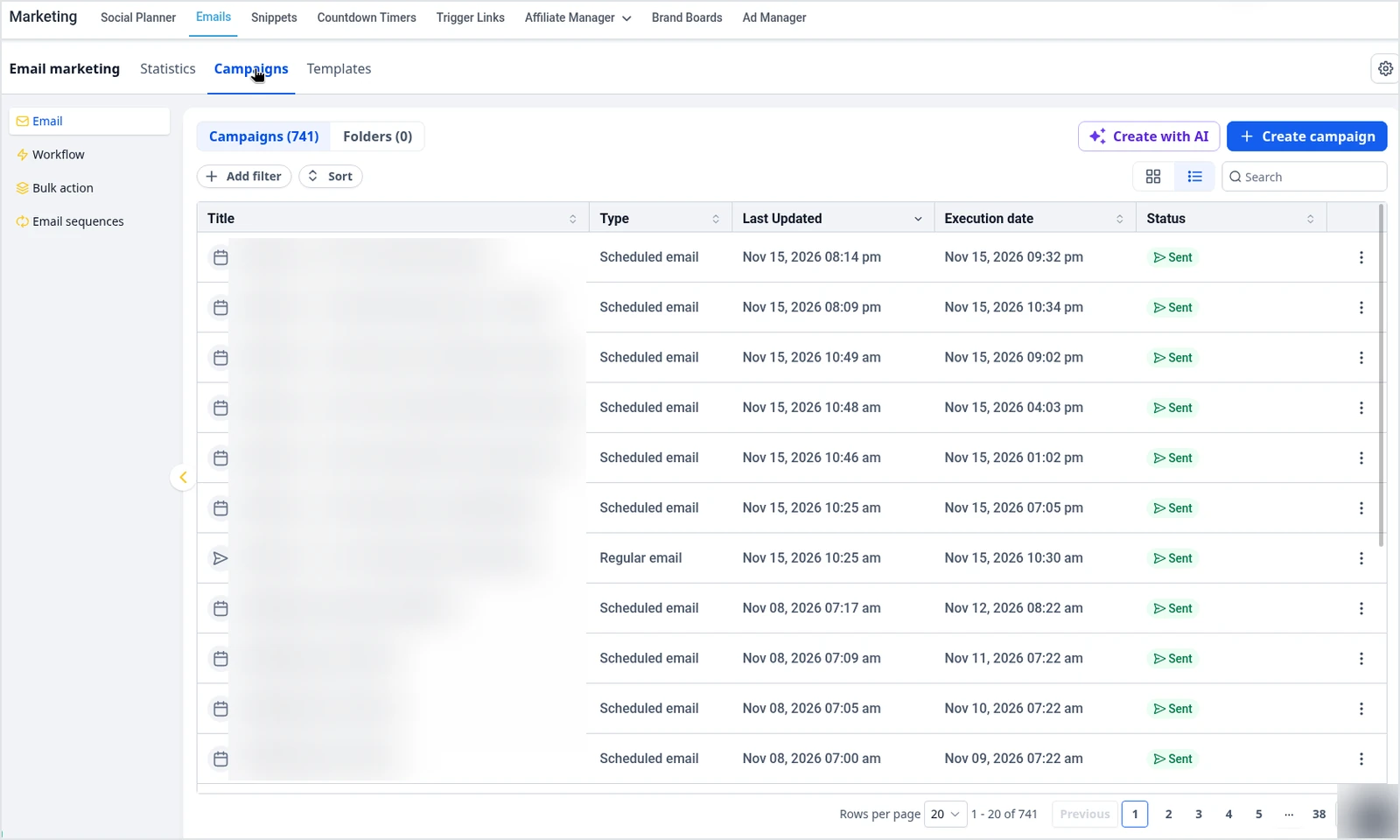
A regular campaign is a one-time send to a group you pick. Say you want to email a Friday class update to people who signed up for class news. Build one campaign and choose that group. If each new signup should get a welcome note as soon as they join, use a workflow. The GoHighLevel automation guide covers workflows.
- Open CampaignsIn your sub-account, go to Marketing > Emails > Campaigns. The screenshot shows + Create campaign. Use it to start blank or pick a design. For a saved design, the launch guide calls this path Campaigns > New > Select Template. You can also go to Templates and choose Create Campaign from the three-dot menu next to the design.
- Build the messageUse the Email Builder to add your text, images and links. Edit any starter text.
- Preview and send a testIn the campaign editor, use Preview to check the layout on desktop and mobile. Use Test Email to send a copy to your test recipients. Open the test and click the main links.
- Choose when to sendClick Send or Schedule to open the send setup. Choose Send Now to send right away. To send later, choose Schedule and set a date and time. Check the location time zone shown under Schedule at.
- Set the sender, subject and audienceEnter the Sender Name and Sender Email. Review the sender domain or check its setup. Enter the Subject Line and choose the Recipients. Set link tracking, UTM tracking or tags if needed.
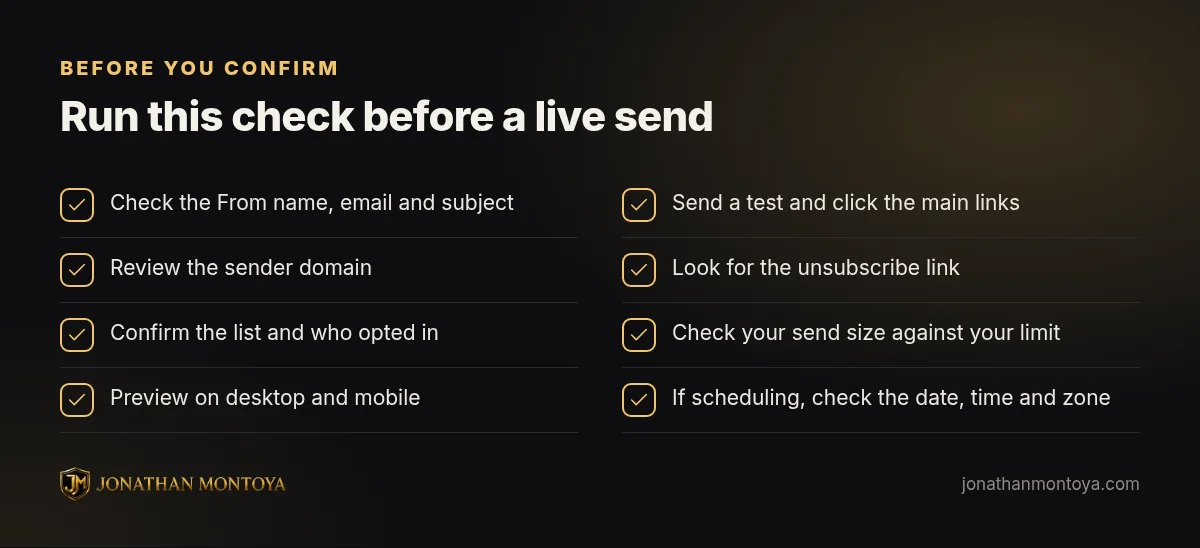
- Run the pre-send checkRead the From name, email and subject. Check the sender domain. If you just added a dedicated LC Email domain, confirm that you verified its DNS records. Make sure the people on the list opted in. Check the layout, click the links in your test and look for the unsubscribe link. Check your send size against your limit. If you are scheduling, check the date, time and location time zone.
- Confirm your sendIf you chose Send Now, click Send. If you chose Schedule, click Schedule. On the saved-template path shown in the launch guide, click Review and Send after you set the send options. Then go back to Campaigns to see the status.
What to look for in your test
Open the test on a phone as well as on a larger screen. Read the subject and check that the From name makes sense to the reader. Tap the main button and check the page it opens. For the class update, look for the class date in both the email and the page it links to. The test and preview do not let you unsubscribe. Check that the footer shows the link.
On the live send screen, pick a segment or Smart List that fits the message. For the class update, choose the group that asked for class news.
If HighLevel flags a send limit, trim the group or split the send into smaller batches.
How to use GoHighLevel email marketing templates
A template holds the parts you want to use again. Those could be a logo, a short intro, a button and a footer. A campaign adds the message for this send, the people who should get it and the date or time you pick. Saving a template leaves it ready to use in a future send.
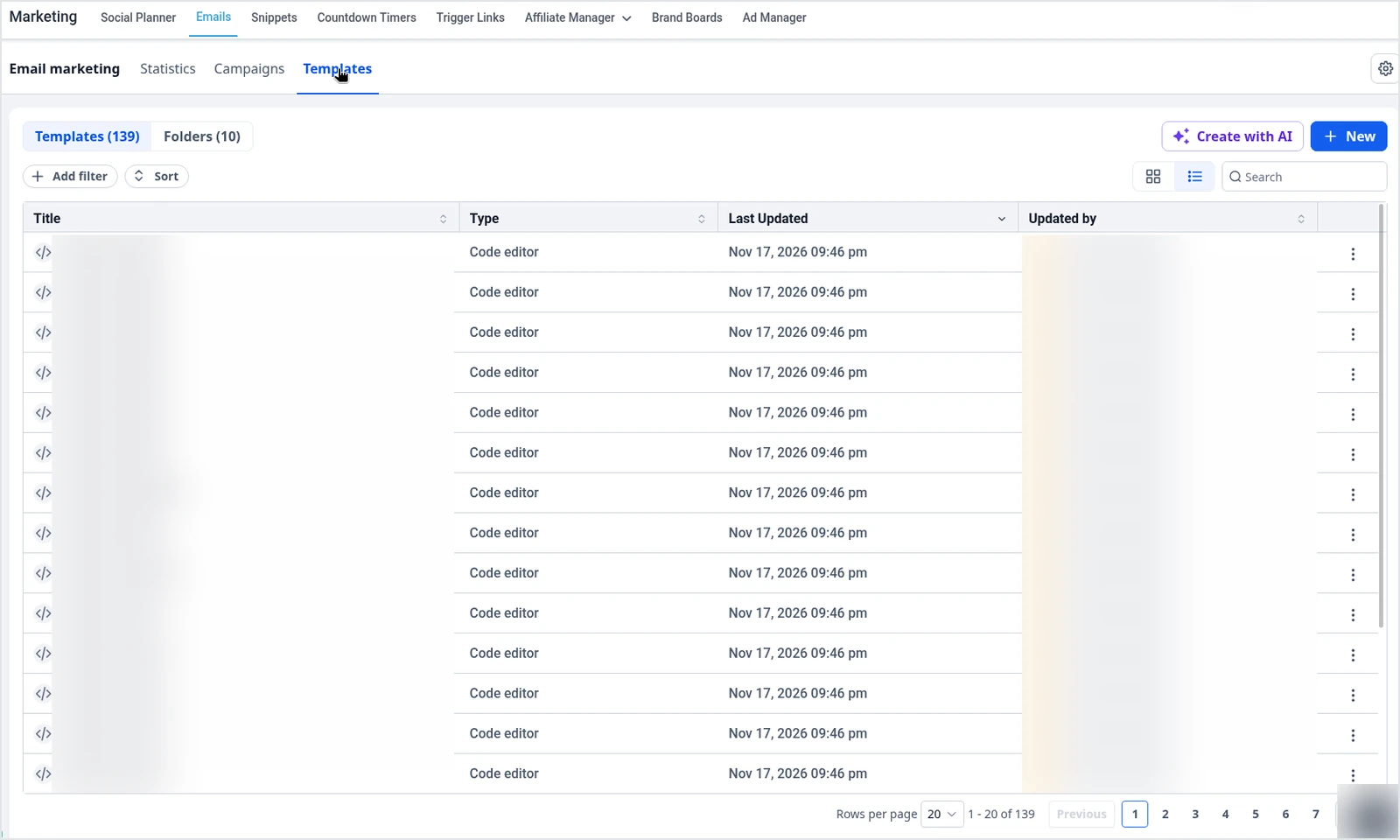
- Find a designGo to Marketing > Emails > Templates. Click + New, then Email Marketing Templates. Browse or search the library. Preview a design, then click Choose template to open it. You can also start from scratch.
- Make it your ownOpen the template in the Email Builder. In the Design Editor, click text to edit it, select an image to replace it, or click a button to change its label and link. Use Add Elements to drag new blocks into the layout.
- Save and testClick Save Template when the manual save option is available. Open the three-dot menu and choose Test Email. Add the sender details and test recipients, then click Send Test Email.
- Use it in a campaignFrom Templates, open the three-dot menu next to the saved design and select Create Campaign. The launch guide also shows Campaigns > New > Select Template.
Keep the parts you will use every time in the base design. Add details such as the class date to the campaign. If you need two layouts, check the template menu for a duplicate option. Make a copy first if that option is available and you want to keep the old design.
Make a template with Ask AI
In Ask AI, describe the email design you want. For example, ask for a class update with a heading, space for a short note and one button. Email AI may ask you to pick a saved Brand Board or say whether to add a timer. Review the preview and ask for changes, or click Open in Email Builder to edit the draft there.
The Ask AI tool builds Design Editor templates. HTML Editor templates are outside its current scope. Once the design is ready, use it to build a campaign and run the same test as you would for a draft you wrote by hand. See the AI email marketing guide for more on drafting with AI.
Want to build along with the guide? Open HighLevel and try a draft with one saved design.
Start HighLevelWhat each email campaign status means
Go back to Marketing > Emails > Campaigns after you confirm a send. Check the Status column to see where the campaign stands. For a scheduled send, look at the Execution date too.
| Status | What it means |
|---|---|
| Draft | You have created the campaign. It has yet to be sent or scheduled. |
| Scheduled | The email is set to go out at a future date and time. |
| Paused | The scheduled campaign is on hold. You can resume it. |
| Canceled | You can't resume this scheduled send. |
| Sent | HighLevel finished the send process. Some emails may still fail to reach people. |
| Failed | An error or a setup issue blocked the send. |
| Archived | The campaign was removed from the active view and kept in the account. |
All is a filter that shows campaigns across statuses. If you need to change a scheduled send, HighLevel says to do so more than one hour before the send time. Look for the controls on that campaign. The actions you see can vary with the type of send.
Workflow emails and bulk jobs have their own labels. Published means a workflow can run when its rules are met. Complete means a bulk job has finished processing. The launch guide shows Sending while the send is in progress, then Sent. Open Email Statistics for delivery, bounce and failure details.
Set up LC Email and warm up your domain
LC Email is the email service built into HighLevel. It sends and receives mail for sub-accounts without a separate email provider. With LC Email, you can set up a dedicated sending domain for your brand. Before you send to a large list, build up the volume on a new domain in small steps.
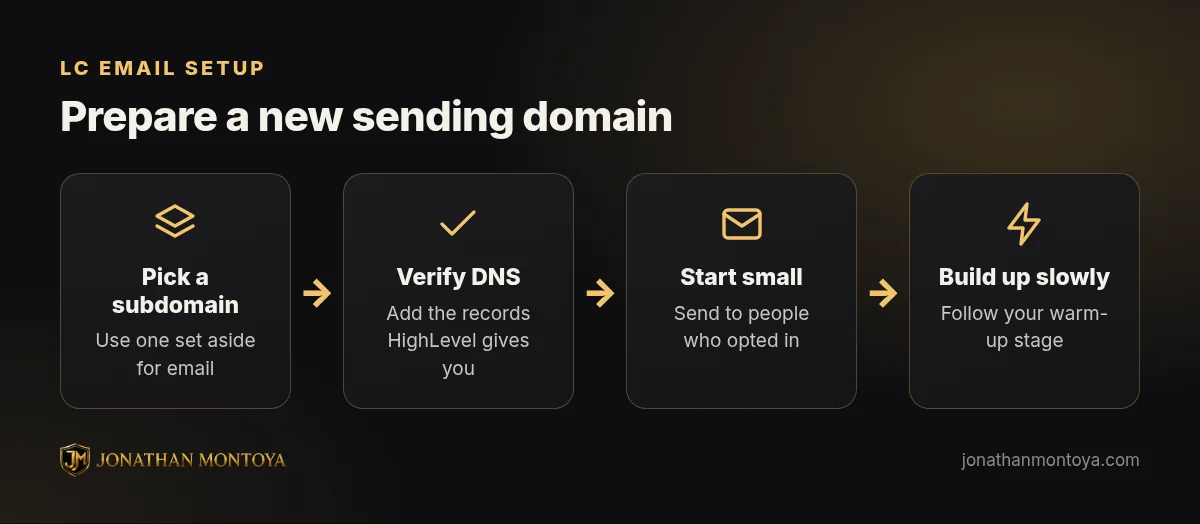
- Choose a subdomainSet aside an unused subdomain for email, such as mail.example.com. HighLevel recommends a separate sending domain for each sub-account.
- Add and verify itOpen Settings > Email Services > Dedicated Domain and IP. Click Add Domain and enter the subdomain. Let HighLevel add the DNS records if that option is available. Otherwise, add the records it gives you at your DNS host. Then verify them in HighLevel.
- Assign it to marketing campaignsFor a dedicated domain you want to use for campaigns, select it for marketing. HighLevel lets you pick other domains for workflows, one-to-one mail and payment or invoice emails.
- Match your From emailUse a From address on the same main domain. If you send through mail.example.com, the From email can use example.com or mail.example.com. Check that SPF, DKIM and DMARC are set up for your mail.
Start with a small group
Warm-up means sending more mail in small steps as your domain builds a track record. The warm-up guide gives hourly and daily send volumes for each stage. LC Email also enforces account limits. Those limits depend on your setup and how far along you are in ramp-up. Start with people who signed up and are likely to engage. Keep the message short and skip public link shorteners. Keep the pace steady and avoid sudden jumps in volume.
Ask people to confirm their signup by email. Add a way to opt out with the Email Builder's Footer element. LC Email users can pick the default unsubscribe link. Check your list for bad addresses. After a hard bounce, remove the invalid contact from your send list. If people stop engaging across several sends, ease back or take them off the list. For more on contact records, see the GoHighLevel CRM guide.
How much does LC Email cost?
HighLevel lists LC Email usage at $0.675 per 1,000 emails across all plans. At that rate, 10,000 outgoing emails cost $6.75 in email usage alone. That example leaves out your plan and any separate charges. Outgoing mail counts To, CC and BCC recipients. HighLevel also charges for incoming and forwarded mail. Email validation costs $2.50 per 1,000 checks.
HighLevel charges the Agency Wallet first. With rebilling on, the agency passes the charge to the sub-account. HighLevel's billing guide lists email rebilling at cost on the $297 and $497 monthly plans. The $497 monthly plan also lets the agency add a markup. See the GoHighLevel usage fees guide for wallet details or the GoHighLevel pricing guide for plan costs.
Build your first campaign in HighLevel
Start with one message for one group. Send a test to yourself and check the draft before you pick a live send date.
When you start HighLevel through my link, you also get my GHL Clone for free. It is a done-for-you affiliate system. You can copy it in about 5 minutes, add your own affiliate link and share it. There is no website to build and no emails to write.
Start HighLevelGet the free GHL CloneMy HighLevel link shows a 30-day free trial on HighLevel's own offer page (checked Nov 19, 2026). HighLevel's standard pricing page lists 14 days. Disclosure: I earn a commission if you buy HighLevel through my link, at no extra cost to you. The GHL Clone is my own system, and I earn a commission if you later pay for HighLevel. What anyone earns depends on their own work, and no one can promise a result.
FAQ
Does GoHighLevel have email marketing?
Yes. Use Marketing > Emails > Campaigns to build a newsletter, promotion or update and send it to a group of contacts. You can send it now or set a date and time.
Is GoHighLevel used for email marketing?
Yes. Workflows can send emails when a contact meets a rule or a trigger fires. Use a regular campaign for a one-time send, such as a newsletter going out on Friday.
Where are the GoHighLevel email marketing templates?
Go to Marketing > Emails > Templates. Click New, then Email Marketing Templates to browse the library. Preview a design and click Choose template to open it in the builder.
Will a test email send the campaign to my list?
A test goes to the test recipients you enter. For the live campaign, open Send or Schedule. Follow the steps for Send Now or Schedule. The saved-template path in the launch guide uses Review and Send.
Can I change the send time after I schedule a campaign?
Yes. HighLevel says to reschedule more than one hour before the set send time. Check the location time zone when you pick the new time.
What if my scheduled send exceeds my LC Email limit?
Reduce the number of recipients or split the send into smaller batches. HighLevel says limits vary with your setup and ramp-up stage.
Does Sent mean everyone got my email?
Sent means HighLevel finished the sending process. Check Email Statistics for delivery, bounce and failure details.
How much does GoHighLevel charge for email marketing?
LC Email usage costs $0.675 per 1,000 emails across all plans. Email validation is a separate charge of $2.50 per 1,000 checks.
Sources, checked Nov 19, 2026
- HighLevel guide to launching an email campaign
- HighLevel guide to sending or scheduling a campaign
- HighLevel email campaign statuses
- HighLevel guide to editing an email template
- HighLevel guide to creating templates with Ask AI
- HighLevel LC Email overview, costs and limits
- HighLevel dedicated sending domain setup
- HighLevel email sending and warm-up guide
- HighLevel pricing and billing guide
- HighLevel standard pricing page
- HighLevel offer page for my link
Affiliate disclosure: I earn a commission if you buy HighLevel through my links, at no extra cost to you. Freedom Launch Accelerator and the GHL Clone are my own programs. HighLevel is a trademark of HighLevel, Inc. This site is not run by or affiliated with HighLevel.
