
Grok Bot · Account
Deleting your Grok Bot account is permanent. Here are the exact steps, what goes away, what stays, and the smaller choices that may be all you need.
Grok Bot delete account steps are simple, but the result is permanent. Grok Bot uses your Cursor account, so deleting it removes your Bots, chats, computers, and connected apps. Before you do it, check if a smaller step, like hiding or deleting one Bot, solves your problem.
I read the official help page and docs on November 2, 2026. Here is everything in one place.
TL;DR
On the phone, tap your avatar to open Settings, tap your account, tap Delete Account, then type Delete in the browser page that opens. On desktop or the web, cancel any active subscription first, then go to cursor.com/dashboard, open Settings, find Delete Account under More, and confirm. You cannot delete Grok Bot alone, because it signs in with your Cursor account. All data is removed within 30 days. Files on your own computer stay. App Store, Google Play, SuperGrok, and X Premium+ subscriptions must be canceled separately.
Before you delete: pick the smallest step
Many people want to delete their account when they really want to clean up one Bot or start a chat over. Here are your choices, from smallest to biggest.
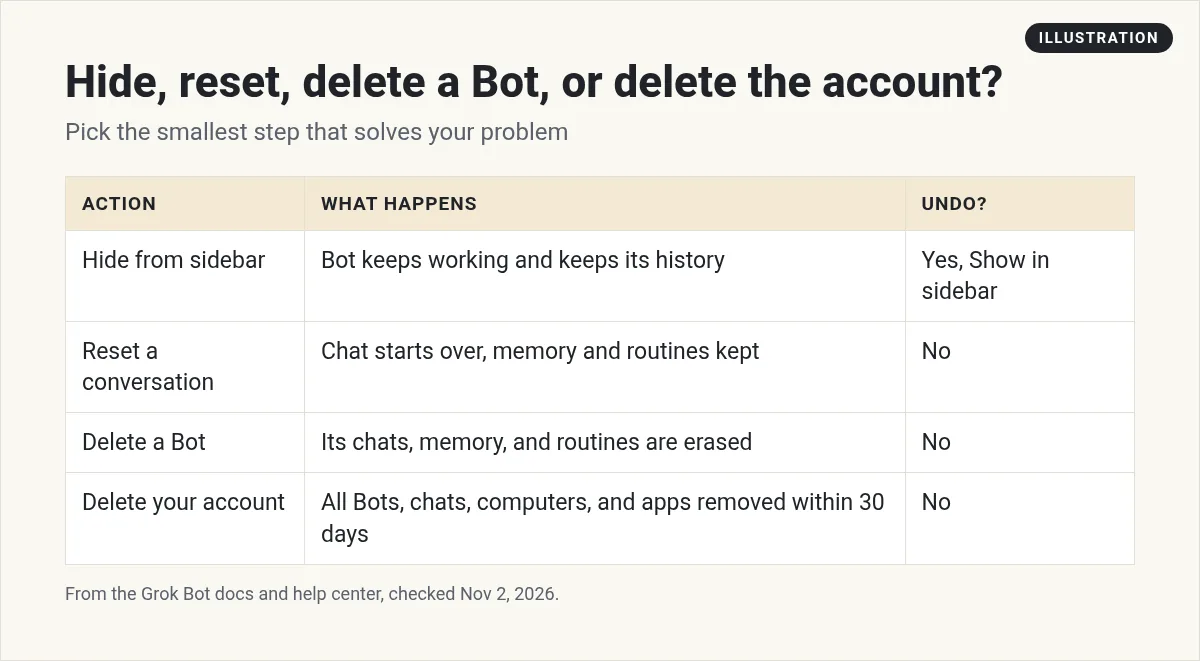
- Hide from sidebar. The Bot leaves your main list. The docs say hidden Bots stay active, keep their history, and keep running their routines. To bring one back, open Hidden Bots at the bottom of the sidebar and choose Show in sidebar.
- Reset a conversation. This is offered when a message gets blocked. The chat history starts over, and the Bot's memory, files, routines, and settings are kept.
- Delete a Bot. Right click it in the sidebar and choose Delete. This erases its profile, chats, memory, routines, and attachments, including the shared facts it saved for your other Bots. It cannot be undone.
- Delete your account. Everything goes. Steps are below.
One catch with deleting a Bot: files and sign ins on the shared computer are not tied to one Bot. They can stay behind. Clean those up yourself.
How to delete your Grok Bot account on the phone
These steps work in the iPhone and Android apps.
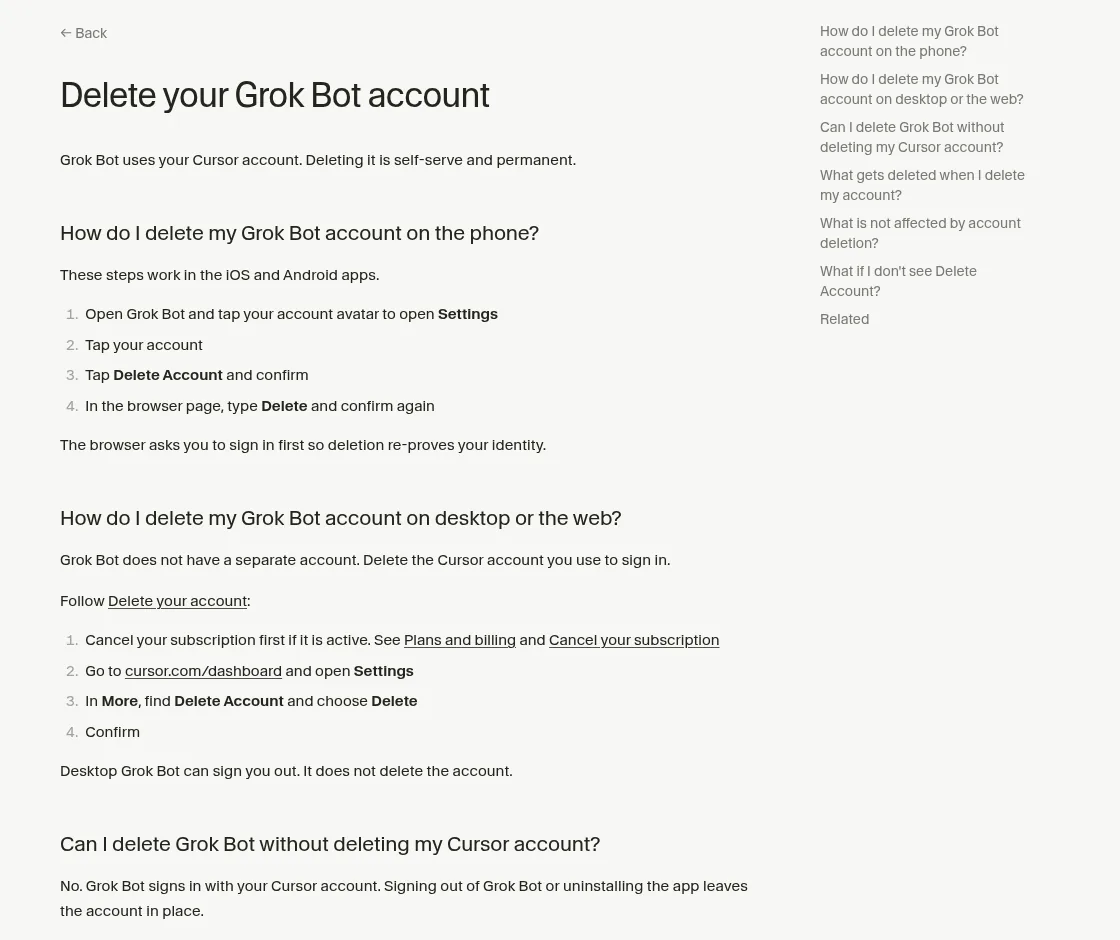
- Open Grok Bot and tap your account avatar to open Settings.
- Tap your account.
- Tap Delete Account and confirm.
- In the browser page that opens, type Delete and confirm again.
The browser asks you to sign in first. That proves it is really you.
How to delete it on desktop or the web
Grok Bot does not have its own separate account. You delete the Cursor account you use to sign in.
- Cancel your subscription first if it is active.
- Go to cursor.com/dashboard and open Settings.
- Under More, find Delete Account and choose Delete.
- Confirm.
The desktop app can sign you out. Signing out does not delete the account.
From the Grok channel (not mine): This is the official Grok Bot 101 video. Worth a watch before you delete, since many people leave before they see how Bots are meant to be set up.
What gets deleted
Per the help page, deleting your account removes:
- Your Cursor account and Grok Bot access.
- Your Bots, chats, computers, and connected apps.
- Cursor chat history and settings.
- All your Bots' memory.
All data is removed within 30 days.
What is not affected
- Files on your own computer stay on your machine.
- App Store or Google Play subscriptions. Cancel those in Apple's or Google's settings.
- SuperGrok. If you linked it, it is a separate Grok subscription. Cancel it on Grok if you no longer want it.
- X Premium+. Also separate. Cancel it on X.
Uninstalling the app does not delete anything either. The account stays in place.
Clean up access before you go
The docs give a short checklist for removing access when a project or login should no longer be used. It is smart to run it before you delete your account too:
- Pause or delete related routines.
- Sign out of websites on the shared computer.
- Uninstall connectors and revoke their access in the other service, like Google or Slack.
- Remove private project files from the computer.
- Hide or delete Bots you no longer want.
- Then use the account settings to delete the account.
Step 3 matters. Revoking access in the other service makes sure the connection is gone on both sides. My Grok Bot connectors guide shows where connections live. Saved logins live in the Grok Bot Vault.
Save what you want to keep
Your Bots' computers are deleted with your account. So before you go, take a few minutes to save anything you may want later:
- Files the Bot made. Reports, sheets, images, and documents on the Bot's computer. Ask the Bot to list them and send you the ones you want.
- Your prompts and routines. Copy the instructions for any routine you liked. You can paste them into another tool later.
- Your notes on each Bot. Ask each Bot to write a short summary of its job and what it learned about your business. That is useful if you ever come back.
Files that live on your own Mac or PC are safe. The help page says they stay on your machine.
Do not see Delete Account?
On cursor.com, Delete Account shows for personal accounts. If you are on a Cursor Teams or Enterprise seat, ask your team admin or contact support. On the phone, it is in Settings under your account.
Thinking of leaving because something broke?
A lot of problems have a quick fix. Missing Bots are often just hidden. Chats that look gone may show on another device. The help center says not to use Recover or Reset to look for missing chats. Try my Grok Bot not working guide first. If you are worried about what a Bot can touch, my Grok Bot safety guide shows how to lock it down instead.
Leaving because setup was too much?
Most people quit Grok Bot for one reason. They open a blank Bot and do not know what to build. Setting up a full team of Bots takes time.
AIM Agent is an AI Chief of Staff for business owners. It comes with an AI C-suite (COO, CMO, CFO, CRO and CTO), a Business Bot Builder and 100+ business skills, and it runs on AIM OS, a private vault that holds your notes and memory. AIM Agent is a ready-made AI business team that works inside Grok Bot, so you skip the setup and get to work.
Here is what you get:
- An AI Chief of Staff that helps you plan and run your business
- An AI C-suite: COO, CMO, CFO, CRO and CTO
- A Business Bot for each business or project. Give it a real task and it brings the work back for you to review
- 100+ business skills for content, offers, research and more
- Step by step setup guides and email support
So you get a business team that is ready to work on day one, instead of a blank screen.

Want an AI team to help run your business? Meet AIM Agent, an AI Chief of Staff for business owners. I am a co-founder of AIM Agent and have a financial interest in the product.
Try a team that is already set up
AIM Agent gives you an AI Chief of Staff, an AI C-suite, and 100+ business skills, so you skip the blank screen and get to work.
See AIM AgentFrequently asked questions
How do I delete my Grok Bot account?
On the phone, go to Settings, your account, Delete Account, then type Delete. On the web, cancel your subscription, then use Delete Account in your cursor.com dashboard settings.
Can I delete Grok Bot but keep my Cursor account?
No. Grok Bot signs in with your Cursor account. You can sign out or uninstall, but the account stays.
Does uninstalling the app delete my data?
No. Uninstalling leaves the account in place.
How long until my data is gone?
The help page says all data is removed within 30 days.
Does deleting my account cancel SuperGrok or X Premium+?
No. Those are separate. Cancel them on Grok or X.
Can I delete just one Bot?
Yes. Right click it in the sidebar and choose Delete. It cannot be undone. Hide it instead if you may want it later.
Is there a faster way to get a Bot team for my business?
AIM Agent gives you an AI Chief of Staff, an AI C-suite, and 100+ business skills, so you start with a team built for business work.
Sources
Checked November 2, 2026. Plans, prices, and rules can change.
