
Grok Bot · Google Workspace
Stuck on a Google review screen? Here is what it means and who must act.
Grok Bot Google Workspace admin errors usually show up when you try to connect Gmail, Calendar, Drive, Docs, Sheets, or Slides with a company Google account. Google stops the sign in and says an admin needs to review Grok.
I read the troubleshooting section in the official docs on November 9, 2026. The fix is short, but it has to be done by the right person.
TL;DR
This is a Google Workspace setting, not a broken Bot. Your IT admin must set the app named Grok to Trusted in the Google Admin console. A new browser or reconnect will not fix it.
What the message means
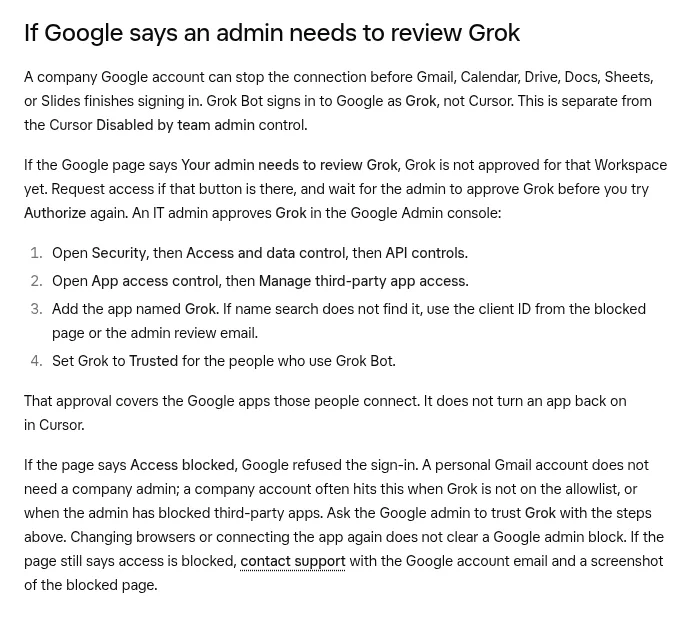
The docs explain that a company Google account can stop the connection before Gmail, Calendar, Drive, Docs, Sheets, or Slides finishes signing in. Grok Bot signs in to Google as Grok. If the Google page says Your admin needs to review Grok, Grok is not approved for that Workspace yet.
This is separate from the Disabled by team admin label inside Grok Bot. That label is set by your Grok Bot team admin. The Google message is set by your Google admin.
What you can do first
- If you see a Request access button, press it.
- Wait for your admin to approve Grok.
- Then try Authorize again.
If you use a personal Gmail account, you do not need a company admin. The page may say Access blocked for another reason, so try again with the right account.
From the Grok channel (not mine): An official Grok Bot 201 video.
The four steps for your IT admin
Send these steps to your Google admin. They come from the docs.
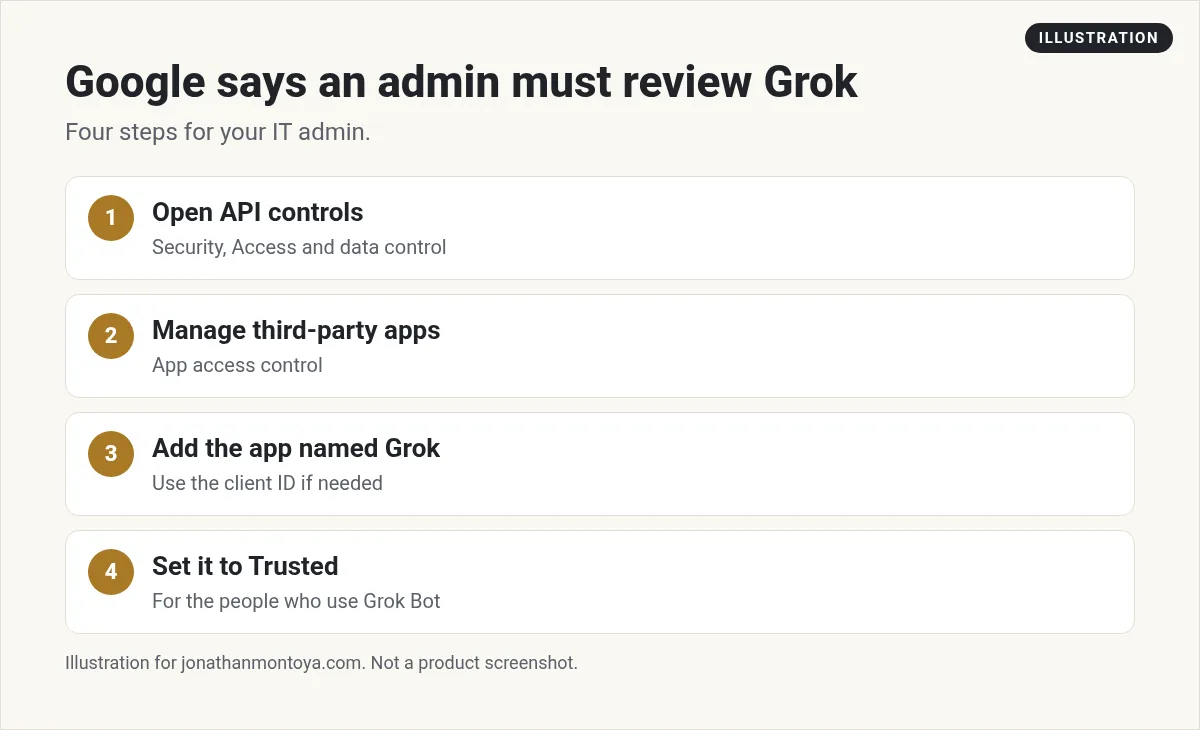
- Open Security, then Access and data control, then API controls.
- Open App access control, then Manage third-party app access.
- Add the app named Grok. If name search does not find it, use the client ID from the blocked page or the admin review email.
- Set Grok to Trusted for the people who use Grok Bot.
That approval covers the Google apps those people connect. It does not turn an app back on inside Grok Bot.
What Access blocked means
If the page says Access blocked, Google refused the sign in. A company account often hits this when Grok is not on the allowlist, or when the admin has blocked third party apps. Ask the Google admin to trust Grok with the steps above.
The docs are clear on one point. Changing browsers or connecting the app again does not clear a Google admin block. If the page still says blocked after the admin approves, contact support with the Google account email and a screenshot of the blocked page.
Other things that look like this
- Disabled by team admin. A Grok Bot team admin turned the app off. Ask them to enable it.
- Needs auth or Disconnected. The app is added but not signed in. Choose Authenticate.
- A Google account without Gmail. The changelog says the account stays connected, and the Bot asks for an account that has Gmail.
- Google throttling. When Google slows requests, Google apps stay connected and the Bot says to try again later.
From the Grok channel (not mine): An official video for admins who roll out Grok Bot.
A note you can send your admin
Here is a short message you can adapt. It asks for one clear action.
Hi, I want to use Grok Bot with my work Google account. Google shows the message that an admin needs to review Grok. Can you add the app named Grok under App access control and set it to Trusted for me? I can send the client ID from the blocked page if the name search fails.
Keep the request narrow. Ask only for the people who need it.
Why Google asks for this
Google Workspace is built for companies. Admins want to know which outside apps can read company mail and files. So many companies block new apps until someone reviews them. That is a good habit, and it is not aimed at Grok Bot in particular.
The docs say an app connection uses the account you authorize. It can do only what that account can already do in the service. It cannot raise your access, and it cannot change sharing. That is a useful point to share with a careful admin.
A simple plan while you wait
- Send your admin the note above and the four steps.
- Ask which Google apps you need. Gmail, Calendar, Drive, Docs, Sheets, and Slides all use the same approval.
- While you wait, use the Bot for work that needs no Google account, like research and writing.
- After approval, press Authorize again. Then confirm the app shows under Installed.
If you run your own small business, you may be your own admin. In that case, sign in to the Google Admin console and follow the same four steps for your own account.
A business team inside Grok Bot
Connecting tools is step one. Knowing what to do with them is step two.
AIM Agent is an AI Chief of Staff for business owners. It comes with an AI C-suite (COO, CMO, CFO, CRO and CTO), a Business Bot Builder and 100+ business skills, and it runs on AIM OS, a private vault that holds your notes and memory. AIM Agent is a ready-made AI business team that works inside Grok Bot, so you skip the setup and get to work.
Here is what you get:
- An AI Chief of Staff that helps you plan and run your business
- An AI C-suite: COO, CMO, CFO, CRO and CTO
- A Business Bot for each business or project. Give it a real task and it brings the work back for you to review
- 100+ business skills for content, offers, research and more
- Step by step setup guides and email support
So your Bots work inside a business system, not a pile of chats.

Want an AI team to help run your business? Meet AIM Agent, an AI Chief of Staff for business owners. I am a co-founder of AIM Agent and have a financial interest in the product.
Get a business team inside Grok Bot
AIM Agent gives you an AI Chief of Staff, an AI C-suite, and 100+ business skills, with step by step setup guides and email support.
See AIM AgentFrequently asked questions
Why does Google say an admin needs to review Grok?
Your company Workspace has not approved the app named Grok yet.
Will a different browser fix it?
No. The docs say changing browsers or reconnecting does not clear a Google admin block.
Who fixes it?
Your Google admin. They set Grok to Trusted in the Google Admin console.
Do I need an admin for a personal Gmail?
No. A personal Gmail account does not need a company admin.
Is this the same as Disabled by team admin?
No. That label comes from your Grok Bot team admin, not from Google.
Where do I get help if it still fails?
Contact support with the Google account email and a screenshot of the blocked page.
What is AIM Agent?
AIM Agent gives you an AI Chief of Staff, an AI C-suite, and 100+ business skills inside Grok Bot, with step by step setup guides and email support.
Sources
Checked November 9, 2026. Plans, prices, and rules can change.
