
Grok Bot · Images and videos
Your Bot can make pictures and short video clips right in the chat. Here is how to ask, the sizes and limits, how to use your own photos, and the cases where it will not help.
Grok Bot images and videos are made right in your chat. You describe what you want, or share a photo, and your Bot creates a picture or a short clip. You can find everything again later in the Bot's Library.
I read the official help page on creating images and videos on October 30, 2026, and watched the newest tutorials. This guide covers how to ask, the shapes and lengths, how to use your own pictures, and the honest limits.
TL;DR
Ask your Bot for an image or a video in plain words. Images can be 1:1, 4:3, 3:4, 16:9, or 9:16. Videos run 1 to 15 seconds, 6 by default, at 480p unless you ask for 720p. A clip can start from a description, from one of your images as the first frame, from two images for the start and end, or from up to 14 reference images. Everything shows up in the chat and in the Library tab. It is not made for charts, slides, app demos, or exact text, and it will find a real photo instead of making up real people, places, or products.
What Grok Bot can make
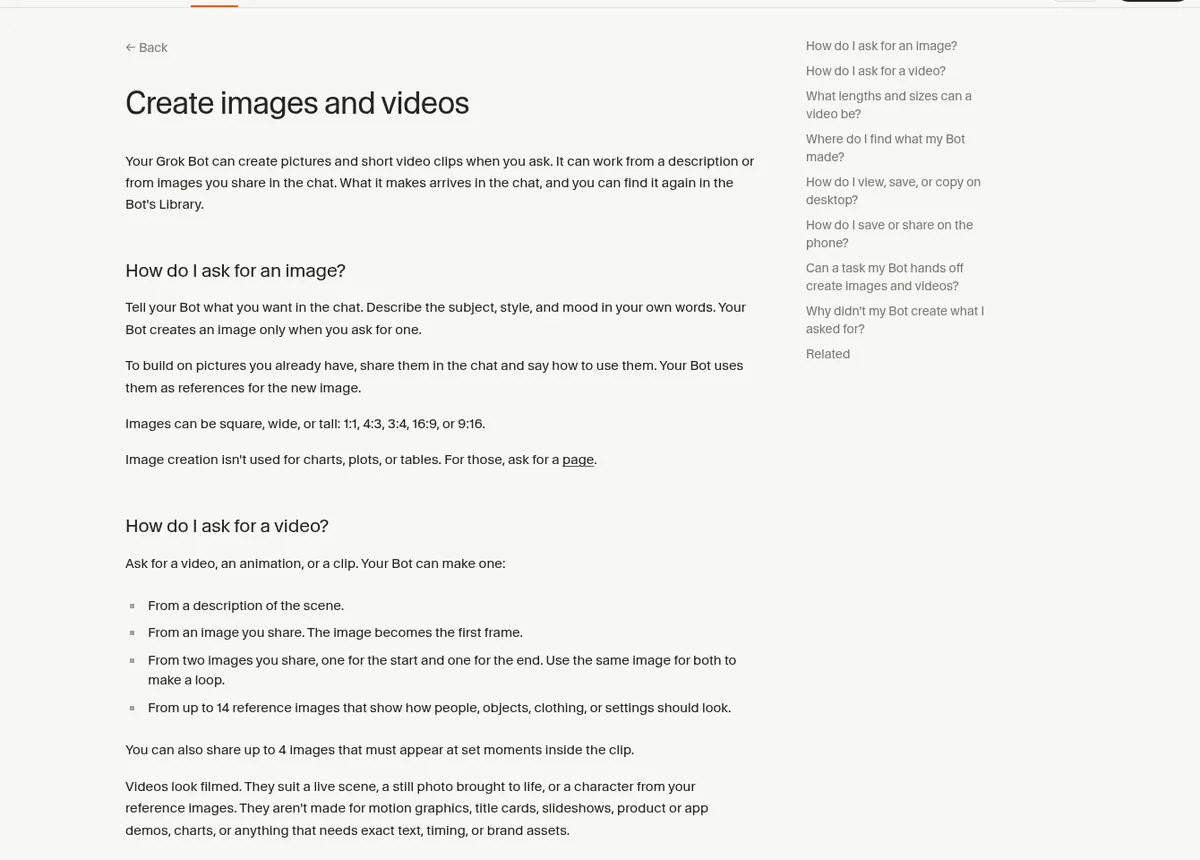
The help page puts it simply: your Bot can create pictures and short video clips when you ask. It can work from a description or from images you share in the chat. It only makes an image when you ask for one, so it will not fill your chats with art you did not want.
This is handy for small jobs that used to need a design tool. Think a header image for a blog post, a background for a social post, or a short clip that brings a still photo to life.
How to ask for an image
Tell your Bot what you want. Describe the subject, the style, and the mood in your own words. Then say the shape. Here is one I use:
Make a wide 16:9 image of a calm home office at sunrise, soft light, a laptop and a coffee mug on a wooden desk, no text.
The shapes you can pick are square 1:1, 4:3, 3:4, wide 16:9, and tall 9:16. Use 16:9 for blog headers and YouTube, and 9:16 for Reels, Shorts, and Stories.
You can also build on pictures you already have. Share them in the chat and say how to use them. The Bot uses them as references for the new image.
One thing it will not do: charts, plots, or tables. For those, ask for a page instead. My guide to Grok Bot pages shows how.
How to ask for a video
Ask for a video, an animation, or a clip. The help page lists the ways your Bot can make one:
- From a description of the scene.
- From one image. It becomes the first frame.
- From two images, one for the start and one for the end. Use the same image for both to make a loop.
- From up to 14 reference images that show how people, objects, clothes, or places should look.
You can also share up to 4 images that must show up at set moments inside the clip. Making a video can take a few minutes, so do not worry if it is not instant.
From the fal channel (not mine): This tutorial is from fal, so it shows their own plugin. It is a clear look at making images and videos inside Grok Bot, and at how a plugin adds more options.
Sizes, lengths, and file types
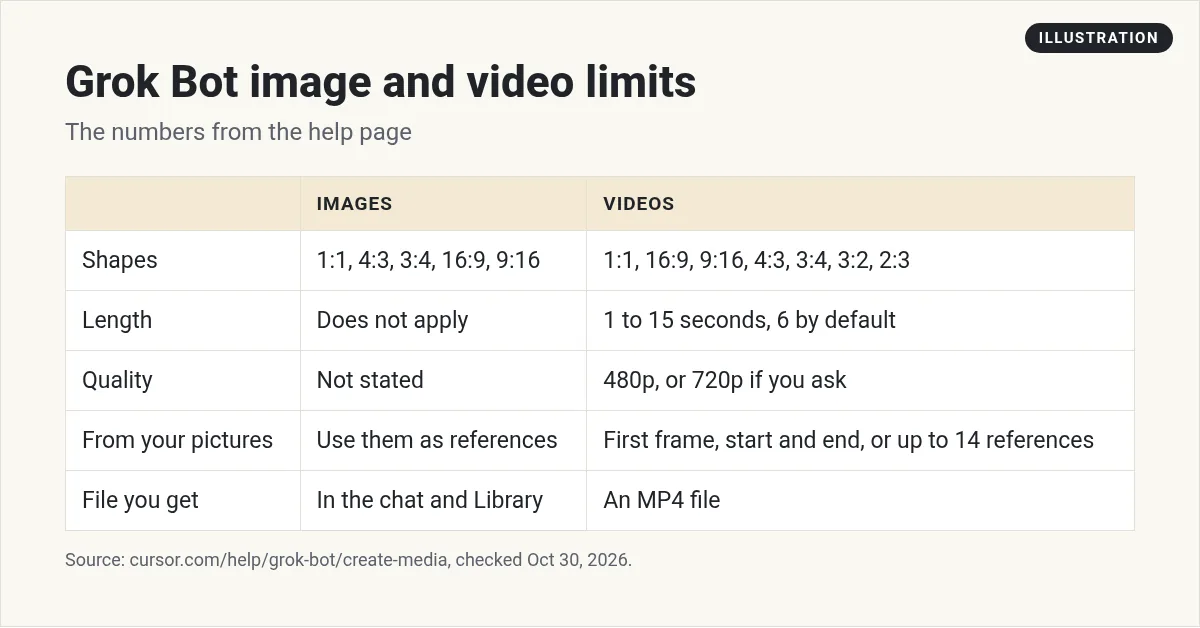
- Clips run 1 to 15 seconds. The default is 6 seconds.
- Clips are 480p unless you ask for 720p.
- Video shapes are 1:1, 16:9, 9:16, 4:3, 3:4, 3:2, and 2:3. A clip made from your image keeps that image's shape unless you ask for another.
- Images you share for a video must be JPEG, PNG, or WebP. All the images for one clip can add up to about 35 MB.
- Your Bot saves each clip as an MP4 file.
My tip: ask for 720p when the clip is going on social media. The default is fine for a quick draft.
What the videos are good at, and what they are not
The help page is honest about this. Videos look filmed. They suit a live scene, a still photo brought to life, or a character from your reference images.
They are not made for motion graphics, title cards, slideshows, product or app demos, charts, or anything that needs exact text, timing, or brand assets. So do not ask it for your logo animation or a screen demo of your app. For those, use a real screen recording.
Where to find what your Bot made
Your Bot sends each image and video to the chat. You can also find them in one place:
- On desktop, click the Bot's name at the top of the chat, then open the Library tab. Newest is first. Images you uploaded yourself are not listed.
- On the phone, tap the Bot's name, then tap Library.
To save on desktop, click the item to open it full screen and use the download button. You can also right click and save. On the phone, touch and hold an image or video and choose Save to Photos.
If your Bot hands work to a task, that task can create images and videos too, and your Bot sends them to the chat.
Why your Bot did not make what you asked
- Real people, places, or products. To show you what a real one looks like, your Bot finds a real image instead of making one.
- Content rules. Naming trademarked characters, brands, or real people often causes a block. Describe the subject in your own words and try again.
- Busy. If image creation is busy, the Bot may ask you to try again in a moment.
- Turned off. If it says creation is not available for your account, an admin may have turned it off. Ask your admin.
From the Sulfur channel (not mine): Sulfur shows a full workflow for short AI vlog style clips using Grok Bot together with another video model. Good for ideas on shot lists and reference images.
Five business uses I like
- Blog headers. A 16:9 image with no text, so it never has typos.
- Social backgrounds. A 9:16 image you put your own words on later.
- Bring a photo to life. One of your own photos as the first frame of a 6 second clip.
- Loops. The same image for the start and end, for a calm background clip.
- Mood boards. A few quick images to show a designer the feel you want.
Want a full posting plan around these? Read Grok Bot for content creators and Grok Bot for marketing.
Get a content team, not just a picture maker
A nice image is one piece. A business also needs someone to plan the posts, write the words, keep the brand voice, and track what works.
AIM Agent is an AI Chief of Staff for business owners. It comes with an AI C-suite (COO, CMO, CFO, CRO and CTO), a Business Bot Builder and 100+ business skills, and it runs on AIM OS, a private vault that holds your notes and memory. AIM Agent is a ready-made AI business team that works inside Grok Bot, so you skip the setup and get to work.
Here is what you get:
- An AI Chief of Staff that helps you plan and run your business
- An AI C-suite: COO, CMO, CFO, CRO and CTO
- A Business Bot for each business or project. Give it a real task and it brings the work back for you to review
- 100+ business skills for content, offers, research and more
- Step by step setup guides and email support
So your Bot makes images as part of a real content plan, and you stay the one who approves what goes out.

For ready to use requests, see my list of Grok Bot prompts. Want an AI team to help run your business? Meet AIM Agent, an AI Chief of Staff for business owners. I am a co-founder of AIM Agent and have a financial interest in the product.
Turn your images into a content plan
AIM Agent gives you an AI Chief of Staff, an AI C-suite, and 100+ business skills, including content and marketing work your Bots can run for you.
See AIM AgentFrequently asked questions
Can Grok Bot make images?
Yes. Ask in the chat and describe what you want. It can also use pictures you share as references.
What image shapes can I pick?
Square 1:1, 4:3, 3:4, wide 16:9, or tall 9:16.
How long can a Grok Bot video be?
Clips run 1 to 15 seconds. The default is 6 seconds.
What quality are the videos?
Clips are 480p unless you ask for 720p. Each clip is saved as an MP4 file.
Where do I find what my Bot made?
In the chat, and in the Library tab on the Bot's details on desktop or its profile on the phone.
Why did my Bot use a real photo instead?
To show a real person, place, or product, it finds a real image instead of making one.
Is there a faster way to get a Bot team for my business?
AIM Agent gives you an AI Chief of Staff, an AI C-suite, and 100+ business skills, so you start with a team built for business work.
Sources
Checked October 30, 2026. Plans, prices, and rules can change.
