
Grok Bot · Pages
Grok Bot pages turn a wall of chat into something you can read, sort, and share. Here is how to make a page, how to change it, where to find it later, and how to share it without leaking anything private.
Grok Bot pages are one of the newest features, and one of my favorites. You ask for a report, a dashboard, or a tracker, and the Bot builds a clean page you can open again later and share with your team.
I read the official help page on October 29, 2026, and watched the newest videos on it. Here is how pages work, step by step, plus page ideas for a small business.
TL;DR
A Grok Bot page is something a Bot builds for you to read, like a report, a memo, a dashboard, a tracker, or an explainer. It can hold text, tables, charts, and controls like filters and switches. You make one by asking the Bot in chat. You change it by asking again in the panel beside the open page. Pages live in the Bot's Library. A new page is private until you share it with people you invite, your team, or anyone with the link. Pages are rolling out, so update to version 0.60.0 or later on desktop and 1.14.0 or later on your phone. AIM Agent gives you a business team that can build reports like these for you.
What a page is
The help page puts it simply: "A page is something a Bot builds for you to read, such as a report, a memo, a dashboard, a tracker, or an explainer."
A page can hold text, tables, charts, and controls like filters and switches. It lives in the Bot's Library, so you can come back to it later. Think of it as the difference between a long chat reply and a real report you can hand to someone.
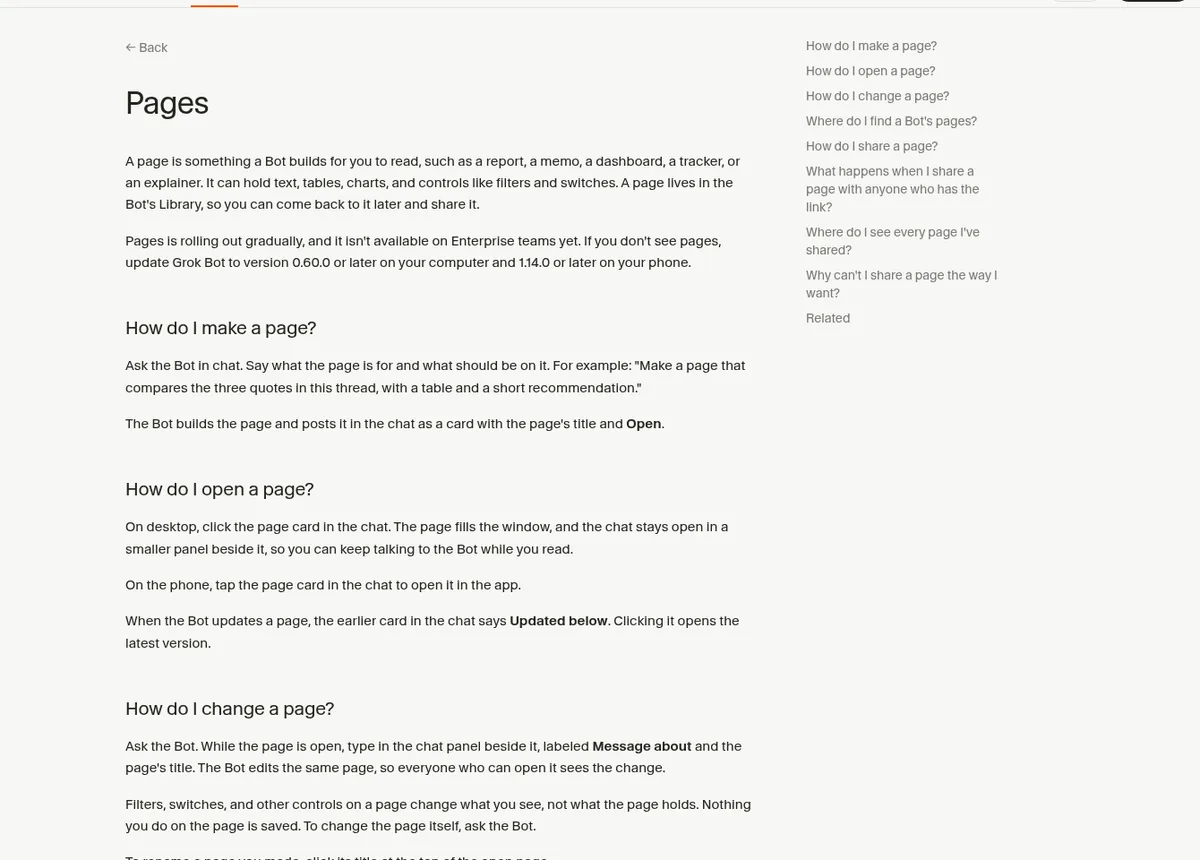
One note before you start. Pages is rolling out over time, and it is not on Enterprise teams yet. If you do not see it, update Grok Bot to version 0.60.0 or later on your computer and 1.14.0 or later on your phone.
How to make a page
Ask the Bot in chat. Say what the page is for and what should be on it. The help page gives this example: "Make a page that compares the three quotes in this thread, with a table and a short recommendation."
The Bot builds the page and posts it in the chat as a card with the title and an Open button.
Here is a starter prompt I would use:
Make a page that shows my sales leads from this week. Put a table at the top with name, source, and next step. Add a chart of leads by day. End with three things I should do Monday.
The more you say about the layout, the better the first version will be. But you do not need to get it perfect. You can change it in the next step.
From the Snapper AI channel (not mine): Snapper AI shows four real examples of pages you can build, from reports to trackers.
How to open and change a page
On desktop, click the page card in the chat. The page fills the window, and the chat stays open in a small panel beside it. That means you can keep talking to the Bot while you read.
On the phone, tap the page card to open it in the app.
To change a page, type in the chat panel beside it. The Bot edits the same page, so everyone who can open it sees the change. When it updates, the old card in the chat says Updated below.
A good tip from the docs: filters and switches on a page change what you see, not what the page holds. "Nothing you do on the page is saved." To change the page itself, ask the Bot.
To rename a page you made, click its title at the top of the open page.
Where to find your pages later
On desktop:
- Click the Bot's name at the top of the chat to open its details.
- Open the Library tab.
- Find your page. A page shared with your team or with anyone who has the link shows that on its row.
- Use the three dots menu to Open, Share, or Pin it. Pinned pages stay at the top.
The Library also lists files and apps the Bot made, so it is a handy place to check what a Bot has built for you.
How to share a page
A new page is private to you until you share it. Open the page and click Share at the top. Then pick who can view it:
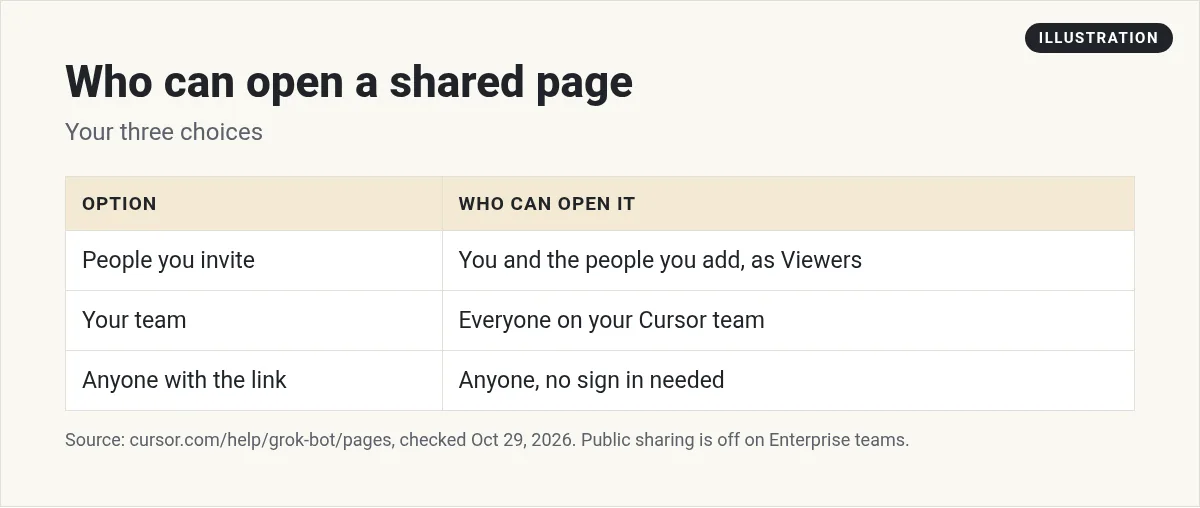
After you choose, click Copy link and send it. Everyone you share with can read the page and use its controls. Only the Bot can change it.
Please be careful with the last option. A page shared with anyone who has the link gets its own web address on pages.grok.bot. The help page says "Anyone with the address can open the page without signing in, so share it only when the page holds nothing private."
The address stays the same if you rename the page. You cannot pick a custom address yet. Public sharing is off on Enterprise teams.
See and remove pages you have shared
Go to Shared Canvases on your Cursor dashboard. Pages you have shared are listed under Grok Bot Pages. From there you can change who can view a page, or delete it. Deleting a page means anyone with the link loses access.
I check this list once a month. It is easy to forget that a link is still out there.
Page ideas for a small business
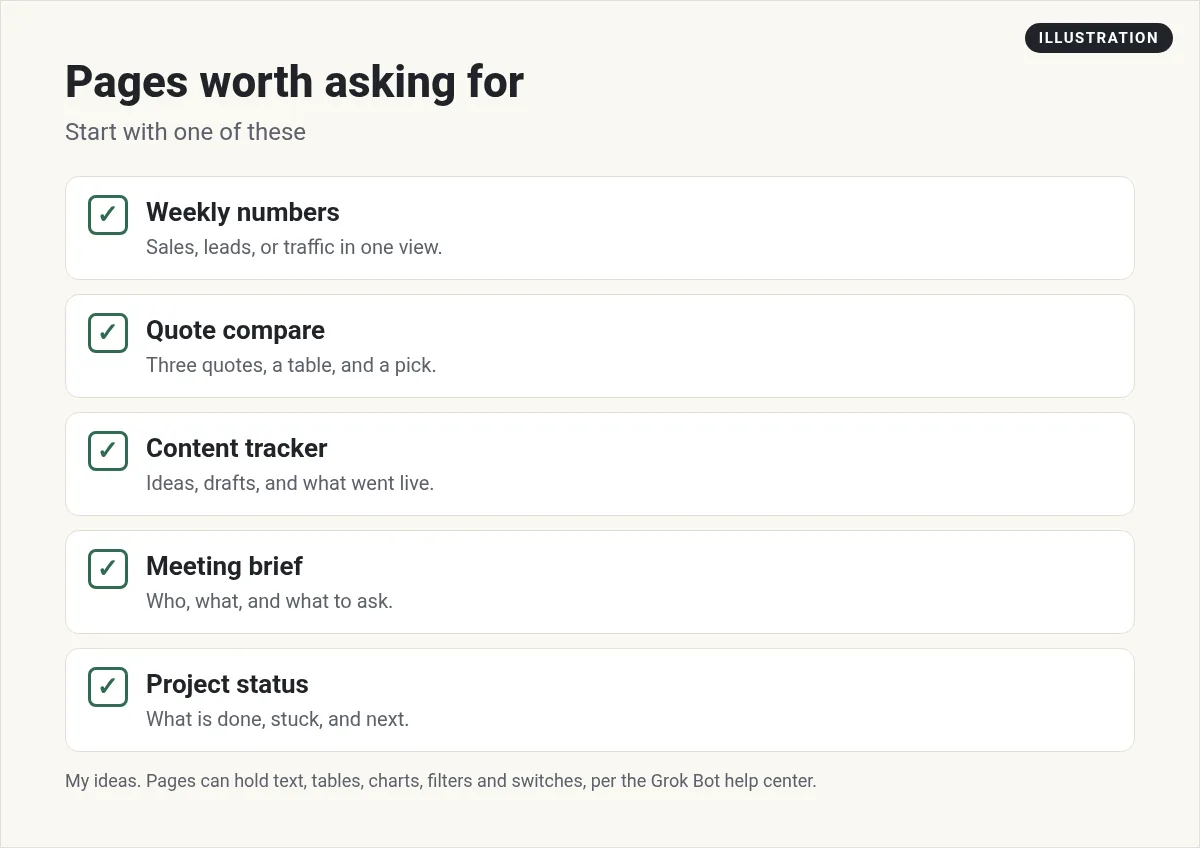
- Weekly numbers. Sales, leads, and traffic in one view, with a short note on what changed.
- Quote compare. Three vendor quotes side by side, with a pick and the reason.
- Content tracker. Ideas, drafts, and what went live this month.
- Meeting brief. Who is coming, what you last talked about, and what to ask.
- Research report. A brief with source links that you can share. My Grok Bot research guide shows how to ask for one.
Pages get even better on a schedule. Ask the Bot to update the same weekly numbers page every Monday with a routine. See Grok Bot routines for how.
From the Kacper Rutkiewicz | AI Made Simple channel (not mine): Kacper Rutkiewicz tries the new Pages feature and shows what it can build in a few minutes.
If you cannot share a page the way you want
The share menu tells you why. The common ones:
- Public sharing is off for Enterprise teams. Share it with your team or people you invite.
- Pages in your personal space can't be team shared. The page is on your personal account. Keep it private or share by link.
- Couldn't update access. The change did not save. Try again.
- This page's access changed. Someone else changed it while you had the menu open. Make your change again.
Reports that come with a team behind them
A page is a great way to see your business at a glance. But someone still has to decide what goes on it, pull the right numbers, and say what to do next.
AIM Agent is an AI Chief of Staff for business owners. It comes with an AI C-suite (COO, CMO, CFO, CRO and CTO), a Business Bot Builder and 100+ business skills, and it runs on AIM OS, a private vault that holds your notes and memory. AIM Agent is a ready-made AI business team that works inside Grok Bot, so you skip the setup and get to work.
Here is what you get:
- An AI Chief of Staff that helps you plan and run your business
- An AI C-suite: COO, CMO, CFO, CRO and CTO
- A Business Bot for each business or project. Give it a real task and it brings the work back for you to review
- 100+ business skills for content, offers, research and more
- Step by step setup guides and email support
So instead of building that from a blank Bot, you start with a team and skills made for business work, and you read the report and make the call.

Pages pair well with a chief of staff Bot that gives you a daily brief. For more ideas, see Grok Bot use cases and my Grok Bot Slack guide for sharing with your team. Want an AI team to help run your business? Meet AIM Agent, an AI Chief of Staff for business owners. I am a co-founder of AIM Agent and have a financial interest in the product.
Get business reports from a ready AI team
AIM Agent gives you an AI Chief of Staff, an AI C-suite, and 100+ business skills, so your weekly numbers come with a plan.
See AIM AgentFrequently asked questions
What is a Grok Bot page?
It is something a Bot builds for you to read, like a report, a memo, a dashboard, a tracker, or an explainer. It can hold text, tables, charts, and filters.
How do I make a page in Grok Bot?
Ask the Bot in chat. Say what the page is for and what should be on it. It posts the page in the chat as a card.
Why can't I see pages?
Pages is rolling out over time and is not on Enterprise teams yet. Update to version 0.60.0 or later on desktop and 1.14.0 or later on your phone.
Can people without an account see my page?
Only if you choose Anyone with the link. Then it gets a pages.grok.bot address that anyone can open without signing in.
Can others edit my page?
No. People you share with can read it and use its controls. Only the Bot can change it.
How do I stop sharing a page?
Open Share and choose a narrower option, or go to Shared Canvases on your Cursor dashboard to change access or delete it.
Is there a faster way to get business reports?
AIM Agent gives you an AI Chief of Staff, an AI C-suite, and 100+ business skills, so you start with a team built for business work.
Sources
Checked October 29, 2026. Plans, prices, and rules can change.
