
Grok Bot · Shortcuts
Ten shortcuts that make the desktop app fast.
Grok Bot keyboard shortcuts turn a slow app into a fast one. Once you know five or six, you stop reaching for the mouse. The official docs list them all, and the changelog adds a few.
I read the Message and collaborate page and the changelog on November 9, 2026. On Mac, use Cmd. On Windows and Linux, use Ctrl, unless a line says otherwise.
TL;DR
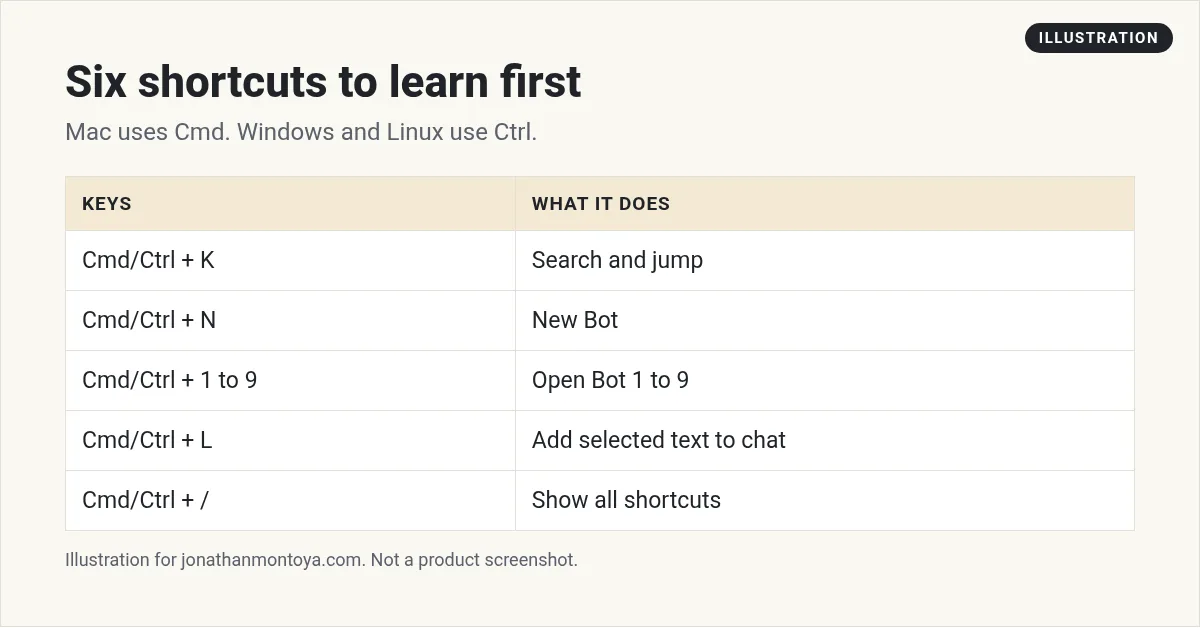
The big ones are Cmd or Ctrl plus K to search, plus N for a new Bot, plus 1 to 9 to jump to a Bot, plus L to add selected text to chat, and plus slash to show every shortcut.
The top six to learn first
- Cmd or Ctrl plus K: jump to anything, from the search palette.
- Cmd or Ctrl plus N: start a new Bot.
- Cmd or Ctrl plus 1 to 9: open sidebar Bot 1 through 9.
- Cmd or Ctrl plus L: add selected text to chat.
- Cmd or Ctrl plus F: find text in this chat.
- Cmd or Ctrl plus slash: show every shortcut.
Moving around
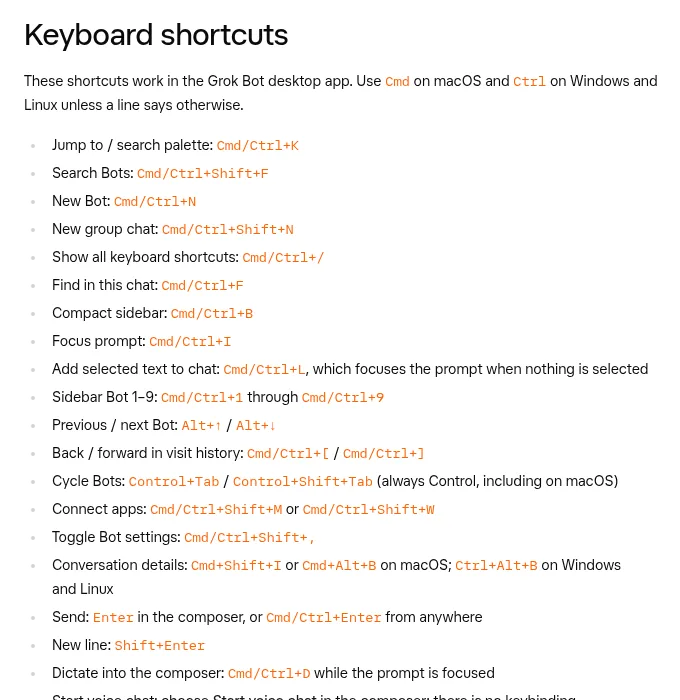
- Search Bots: Cmd or Ctrl plus Shift plus F.
- Previous or next Bot: Alt plus up or down.
- Cycle Bots: Control plus Tab, or Control plus Shift plus Tab. This is always Control, even on Mac.
- Back or forward in visit history: Cmd or Ctrl plus left or right square bracket.
- Compact sidebar: Cmd or Ctrl plus B.
- Connect apps: Cmd or Ctrl plus Shift plus M, or plus Shift plus W.
From the WorldofAI channel (not mine): A creator walks through the new Grok Bot app.
Any results mentioned in videos are not typical and are not a promise of income. Your results depend on your work and your market.
Writing and sending
- Send: Enter in the composer, or Cmd or Ctrl plus Enter from anywhere.
- New line: Shift plus Enter.
- Dictate into the composer: Cmd or Ctrl plus D while the prompt is focused.
- Focus the prompt: Cmd or Ctrl plus I.
- Paste without formatting: Cmd or Ctrl plus Shift plus V.
The changelog adds more writing tricks. Type a dash to start a bulleted list, or 1 and a period for a numbered list. Shift plus Enter adds an item, and Tab nests it. Type the greater than sign at the start of a line to start a block quote.
Quote and reuse text
Select text in a chat and press Cmd or Ctrl plus L, or choose Add to prompt, to quote it in your next message. If nothing is selected, the shortcut focuses the prompt. This is a quick way to ask a follow up about one paragraph.
Window and view
- Open Settings: Cmd or Ctrl plus comma.
- Zoom in, out, or reset: Cmd or Ctrl plus equals, minus, or zero.
- Fullscreen: F11. On Mac also Control plus Cmd plus F.
- Toggle Bot settings: Cmd or Ctrl plus Shift plus comma.
- Conversation details: Cmd plus Shift plus I or Cmd plus Alt plus B on Mac, Ctrl plus Alt plus B on Windows and Linux.
From the Brock Mesarich | AI for Non Techies channel (not mine): A long course video covering many Grok Bot features.
What has no shortcut
The docs say to start a voice chat by choosing Start voice chat in the composer. There is no key for it. To see every shortcut in the app, open the account menu, choose Support, then Keyboard shortcuts, or press Cmd or Ctrl plus slash.
How to learn them fast
Pick two shortcuts a day. Write them on a sticky note. Use them on purpose all day, then swap in two new ones tomorrow. In a week you will know ten.
How to learn them without stress
Do not try to memorize the whole list. Pick three keys and use them for one week. Cmd or Ctrl plus K, Cmd or Ctrl plus N, and Enter to send are a good start. Once those feel natural, add one more.
A simple trick is to tape a small note near your screen. Cross out each shortcut when it becomes a habit.
Mac, Windows, and Linux keys
On Mac, Cmd is the main key. On Windows and Linux, Ctrl takes its place. One exception is cycling between Bots, which always uses Control, even on a Mac.
A sample day with shortcuts
- Open the app and press Cmd or Ctrl plus K to jump to your inbox Bot.
- Press Cmd or Ctrl plus D and say your request out loud.
- Press Cmd or Ctrl plus Enter to send.
- Use Cmd or Ctrl plus N when a new job needs its own Bot.
Small wins add up. Each shortcut saves a few seconds, and you use them many times a day.
A business team inside Grok Bot
Fast clicks help. A business team that does the work helps more.
AIM Agent is an AI Chief of Staff for business owners. It comes with an AI C-suite (COO, CMO, CFO, CRO and CTO), a Business Bot Builder and 100+ business skills, and it runs on AIM OS, a private vault that holds your notes and memory. AIM Agent is a ready-made AI business team that works inside Grok Bot, so you skip the setup and get to work.
Here is what you get:
- An AI Chief of Staff that helps you plan and run your business
- An AI C-suite: COO, CMO, CFO, CRO and CTO
- A Business Bot for each business or project. Give it a real task and it brings the work back for you to review
- 100+ business skills for content, offers, research and more
- Step by step setup guides and email support
So your Bots work inside a business system, not a pile of chats.

Want an AI team to help run your business? Meet AIM Agent, an AI Chief of Staff for business owners. I am a co-founder of AIM Agent and have a financial interest in the product.
Get a business team inside Grok Bot
AIM Agent gives you an AI Chief of Staff, an AI C-suite, and 100+ business skills, with step by step setup guides and email support.
See AIM AgentFrequently asked questions
What is the search shortcut?
Cmd or Ctrl plus K opens the search palette.
How do I start a new Bot with the keyboard?
Press Cmd or Ctrl plus N.
How do I add selected text to my message?
Press Cmd or Ctrl plus L.
Is there a shortcut for voice chat?
No. Choose Start voice chat in the composer.
How do I see all shortcuts?
Press Cmd or Ctrl plus slash.
Do these work on the phone?
The docs say these shortcuts work in the desktop app.
What is AIM Agent?
AIM Agent gives you an AI Chief of Staff, an AI C-suite, and 100+ business skills inside Grok Bot, with step by step setup guides and email support.
Sources
Checked November 9, 2026. Plans, prices, and rules can change.
