
Grok Bot · Languages
The app speaks a lot of languages now. Here is the full list from the changelog.
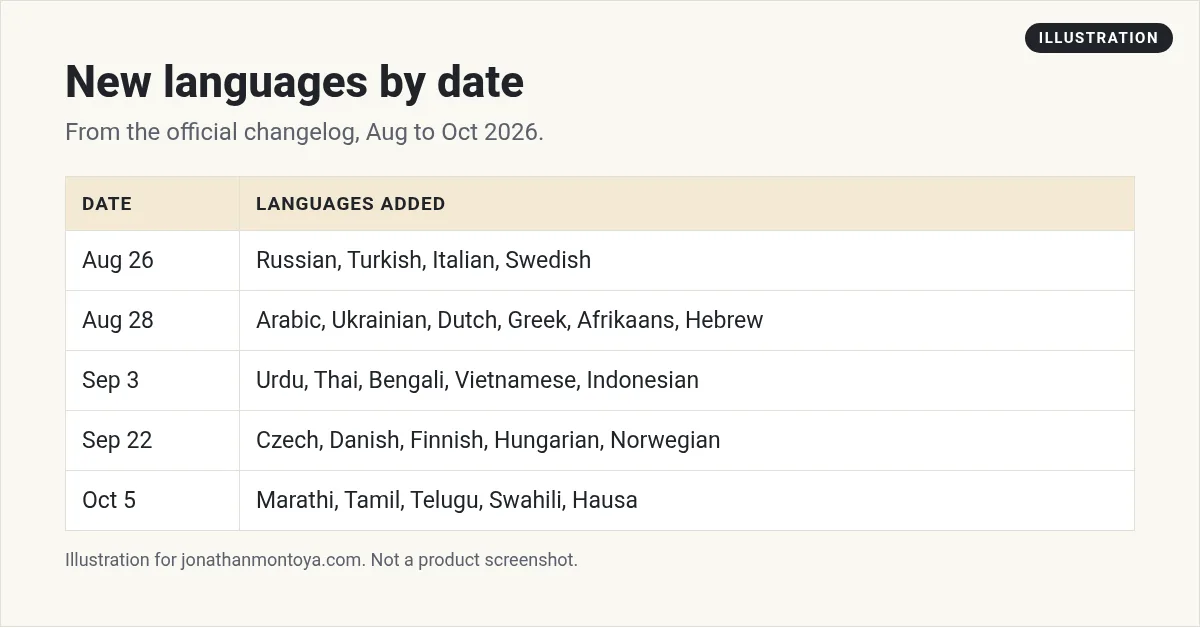
Grok Bot languages keep growing. Between late August and late October 2026, the changelog added more than thirty. If you or your customers work in another language, this list saves you a search.
I went through the official changelog on November 9, 2026 and wrote down each language by date. I also noted how voice, greetings, and status lines handle your language.
TL;DR
Open Settings and pick your language, or choose Follow System. The changelog adds languages in batches, including right to left layouts for Arabic and Hebrew. Voice input detects the language you speak.
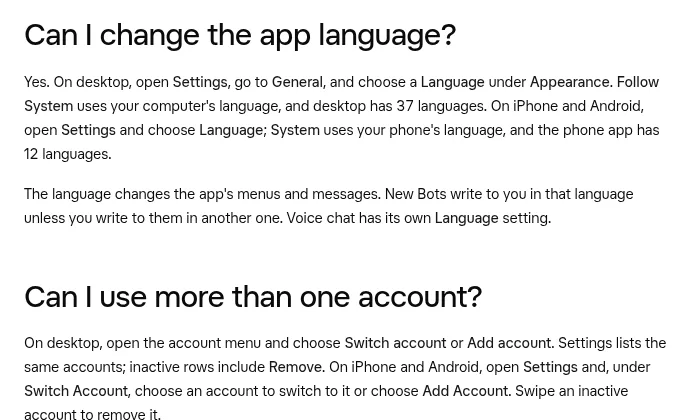
How to switch language
Open Settings and look for Language. Choose one, or choose Follow System to match your computer. The September 22 changelog says Follow System selects the new languages when your computer uses one. For Chinese, Follow System picks the right Traditional or Simplified form, including for Cantonese.
The language list shows each language's name in your current language and in its own.
The list, by date
- Aug 26: Russian, Turkish, Italian, and Swedish.
- Aug 28: Arabic, Ukrainian, Dutch, Greek, Afrikaans, and Hebrew, with right to left layouts for Arabic and Hebrew.
- Sep 3: Urdu, Thai, Bengali, Vietnamese, and Indonesian.
- Sep 22: Czech, Danish, Finnish, Hungarian, and Norwegian Bokmal.
- Oct 5: Marathi, Tamil, Telugu, Swahili, and Hausa.
- Oct 26: Portuguese (Portugal) joined, and Brazilian Portuguese is now labeled Portuguese (Brasil).
Earlier languages, such as Spanish, French, German, Japanese, and Korean, were in the app before this list. Check the language picker in your own app for the full set.
From the Parker Prompts channel (not mine): A beginner video on how to use Grok Bot.
Right to left languages
Typing in Arabic, Hebrew, and other right to left languages starts on the right. Replies that mix directions lay out each paragraph correctly. In right to left languages, the full screen viewer close buttons sit clear of the window controls.
Voice, greetings, and status lines
Voice input detects the language you speak, instead of assuming your app or system language. A new Bot greets you in the language Grok Bot is set to, and a Bot you create from a template greets you in your app language.
A Bot's working status is a short phrase in your language, in the app and in Slack. Plugin categories also appear in your language.
Typing and search in other scripts
Typing on your Bot's computer follows your input method, so Korean, Japanese, Chinese, and accented letters come through as you composed them. When you name an app in Chinese, Japanese, or Korean, plugin search finds it by those words or retries with its English name.
From the Mikey No Code channel (not mine): A full beginner tutorial on setting up and using Grok Bot.
Any results mentioned in videos are not typical and are not a promise of income. Your results depend on your work and your market.
Ask your Bot to write in another language
The app language and the language your Bot writes in are two things. Ask for what you need. Here are three examples.
Write this email in Spanish. Keep it friendly and short. Show me a draft.
Translate this page into Portuguese. Keep the headings the same.
Reply to this customer in the language they used.
Always read an important message with a native speaker before it goes to customers. Drafts are there for that reason.
Tips
- Pick one language for the app, and ask for other languages in your prompts.
- For customer mail, keep Ask first on sending.
- Tell the Bot to remember your preferred language for replies.
Tips for using Grok Bot in your own language
Pick the language you think in. You will read faster and spot mistakes sooner. If you share a computer or switch between English and another language, choose Follow System so the app matches your device.
Remember that the app language and the Bot's replies are linked, but you can still ask a Bot to write in any language. Say it in your first line, such as: write the email in Spanish, and keep the tone friendly.
Working with a mixed team
Each person sets their own app language. One teammate can read the app in Portuguese while another reads it in English. The Bots do not mind. They answer in the language each person writes in.
- Open Settings on your desktop.
- Go to General.
- Choose your language under Appearance.
- Check your menus. Then start a new chat.
A quick check
If a word looks odd after you switch, restart the app once. Then look at the changelog for new languages, since the list keeps growing.
A business team inside Grok Bot
Your Bot can speak many languages. A business team knows what to say.
AIM Agent is an AI Chief of Staff for business owners. It comes with an AI C-suite (COO, CMO, CFO, CRO and CTO), a Business Bot Builder and 100+ business skills, and it runs on AIM OS, a private vault that holds your notes and memory. AIM Agent is a ready-made AI business team that works inside Grok Bot, so you skip the setup and get to work.
Here is what you get:
- An AI Chief of Staff that helps you plan and run your business
- An AI C-suite: COO, CMO, CFO, CRO and CTO
- A Business Bot for each business or project. Give it a real task and it brings the work back for you to review
- 100+ business skills for content, offers, research and more
- Step by step setup guides and email support
So your Bots work inside a business system, not a pile of chats.

Want an AI team to help run your business? Meet AIM Agent, an AI Chief of Staff for business owners. I am a co-founder of AIM Agent and have a financial interest in the product.
Get a business team inside Grok Bot
AIM Agent gives you an AI Chief of Staff, an AI C-suite, and 100+ business skills, with step by step setup guides and email support.
See AIM AgentFrequently asked questions
Does Grok Bot work in Spanish?
Yes. Spanish is available in the app, and you can also ask your Bot to write in Spanish.
Does it support Arabic and Hebrew?
Yes. Both were added on August 28, 2026, with right to left layouts.
How do I change the app language?
Open Settings, choose Language, or choose Follow System.
Can I talk to my Bot in my own language?
Yes. Voice input detects the language you speak.
Does Follow System work for Chinese?
Yes. It picks the right Traditional or Simplified Chinese, including for Cantonese.
Are more languages coming?
The changelog added new languages almost every few weeks this fall.
What is AIM Agent?
AIM Agent gives you an AI Chief of Staff, an AI C-suite, and 100+ business skills inside Grok Bot, with step by step setup guides and email support.
Sources
Checked November 9, 2026. Plans, prices, and rules can change.
