
Grok Bot · Library
Stop scrolling old chats. The Library keeps what your Bot made.
Grok Bot Library is the tab where each Bot keeps the pages, files, images, videos, and links it made or sent you. If you ever lost a report in a long chat, this is the fix.
I read the Files and results docs and the changelog on November 9, 2026. Here is how to find things, pin them, and share a page safely.
TL;DR
Open the Bot's details and choose the Library tab. Items show under Today, This week, and Older. Pin the best ones. Share a page with people you invite, your team, or anyone with the link.
Where the Library is
Click the Bot's name at the top of the chat to open its details, then open the Library tab. It lists the pages, files, and apps the Bot made, plus the images, videos, and links it sent in your conversation, newest first. Groups are Today, This week, and Older. Each group shows five items at a time, so choose Show more to see more.
Things you sent, including images you uploaded, and files a Cloud Agent returned are not listed. On the phone, tap the Bot's name, then tap Library.
What a page is
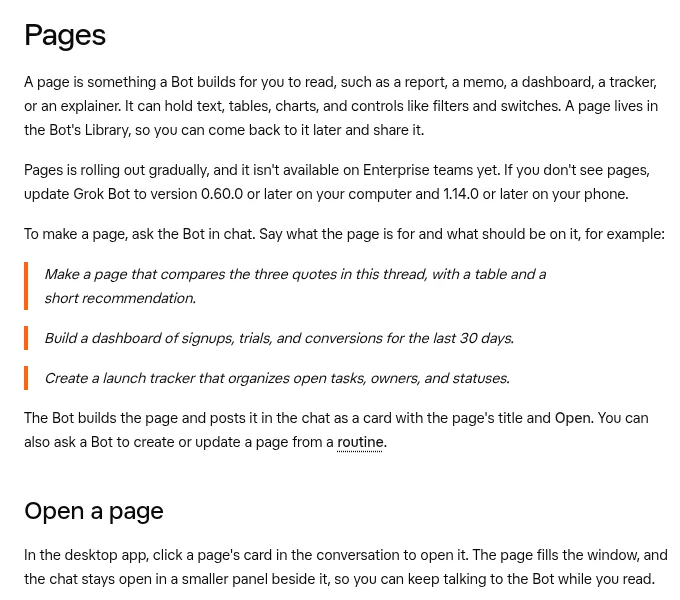
A page is something a Bot builds for you to read, such as a report, memo, dashboard, tracker, or explainer. It can hold text, tables, charts, and controls like filters and switches. The Bot posts it in the chat as a card with a title and an Open button.
Try prompts like these, which come from the docs:
Make a page that compares the three quotes in this thread, with a table and a short recommendation.
Create a launch tracker that organizes open tasks, owners, and statuses.
Pages is rolling out gradually and is not on Enterprise teams yet. If you do not see it, update the app.
From the Alex Finn channel (not mine): A creator reviews a large Grok Bot update.
Any results mentioned in videos are not typical and are not a promise of income. Your results depend on your work and your market.
Pin what matters
Click More actions, the three dots, on a row and choose Pin to keep the item at the top under Pinned. Choose Unpin to remove it. The October 22 changelog says pinned items sync across your devices, and hovering a row shows a preview with who sent the item and who can see a page.
Good things to pin: your weekly dashboard, your best prompt file, and a style guide your Bot should follow.
Search with the command palette
Press Cmd or Ctrl plus K and type a page's title to jump to it. The September 16 changelog says the palette shows matching Bots, settings, actions, and routines before messages, and quotes around your search show every matching message. Press Cmd or Ctrl plus F to find text inside the open chat.
Share a page the right way
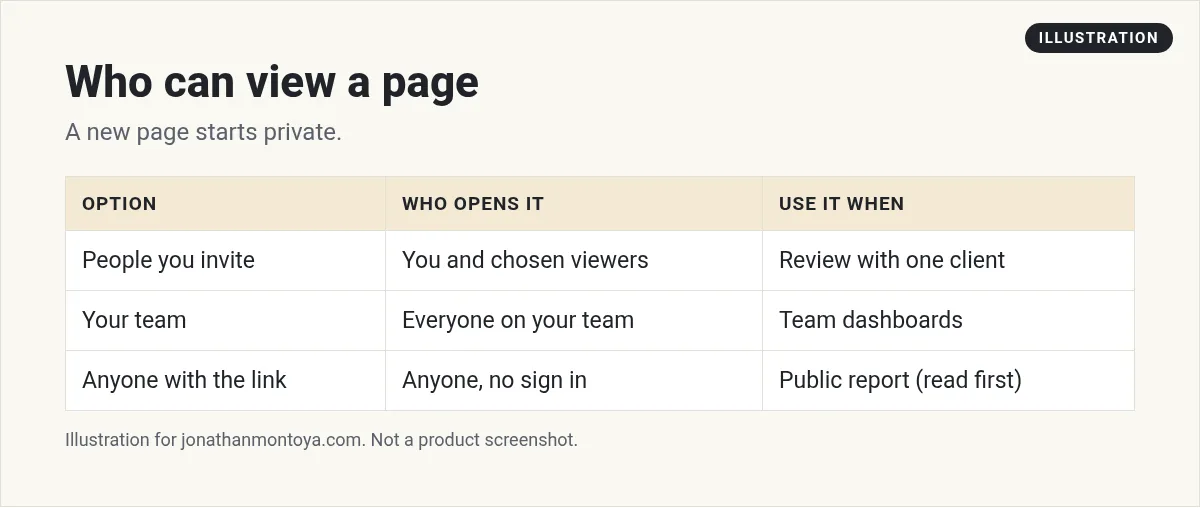
A new page is private to you until you share it. Open the page and click Share, or choose Share from the page's menu in the Library. You then choose who can view it.
- People you invite: you and the people or groups you add, each with Viewer access.
- Your team: everyone on your team.
- Anyone with the link: anyone, with no sign in.
Before you pick Anyone with the link, read the page like a stranger would. Remove names, numbers, and anything private.
From the Moritz | AI Systems channel (not mine): A video on five big Grok Bot updates.
Any results mentioned in videos are not typical and are not a promise of income. Your results depend on your work and your market.
Edit a page by talking to the Bot
While a page is open, type in the chat panel beside it. It is labeled Message about, followed by the page title. The Bot edits the same page. Filters and switches on a page change what you see, not what the page holds. When the Bot updates a page, the earlier card in the chat says Updated.
You can also rename a page by clicking its title at the top. Shared pages have a title bar with a Download button that saves a PDF.
A weekly habit
Once a week, open the Library, pin what you still need, and unpin the rest. Share only what someone else needs. If you are on a team, a team page also appears in the Library under every Bot that published it.
Example: a weekly report page
Say every Friday you want a one page summary of the week. Ask your Bot to build a page with three parts: what got done, what is stuck, and what is next. Open it, read it, and ask for changes in the chat panel beside it. Pin the page so it stays at the top.
When you are happy, share it with the one person who needs it, using People you invite. You do not need to send a file or a link to the whole world.
Mistakes to avoid
- Sharing with Anyone with the link before you read the page.
- Leaving old pages unpinned and unlabeled, so you cannot find them next month.
- Treating a page as a place to save your own edits. Filters and switches change what you see, not what the page holds.
A business team inside Grok Bot
Saved results are good. Better results come from a team with a plan.
AIM Agent is an AI Chief of Staff for business owners. It comes with an AI C-suite (COO, CMO, CFO, CRO and CTO), a Business Bot Builder and 100+ business skills, and it runs on AIM OS, a private vault that holds your notes and memory. AIM Agent is a ready-made AI business team that works inside Grok Bot, so you skip the setup and get to work.
Here is what you get:
- An AI Chief of Staff that helps you plan and run your business
- An AI C-suite: COO, CMO, CFO, CRO and CTO
- A Business Bot for each business or project. Give it a real task and it brings the work back for you to review
- 100+ business skills for content, offers, research and more
- Step by step setup guides and email support
So your Bots work inside a business system, not a pile of chats.

Want an AI team to help run your business? Meet AIM Agent, an AI Chief of Staff for business owners. I am a co-founder of AIM Agent and have a financial interest in the product.
Get a business team inside Grok Bot
AIM Agent gives you an AI Chief of Staff, an AI C-suite, and 100+ business skills, with step by step setup guides and email support.
See AIM AgentFrequently asked questions
Where do I find old pages?
Open the Bot's details and choose Library, or press Cmd or Ctrl plus K and type the title.
Does the Library show files I uploaded?
No. Things you sent and files a Cloud Agent returned are not listed.
Can I pin items?
Yes. Use More actions on a row, then Pin.
Who can see my page?
Only you, until you share it with people you invite, your team, or anyone with the link.
Can I download a page?
Shared pages have a Download button that saves a PDF.
Why do I not see Pages?
It is rolling out gradually and is not on Enterprise teams yet. Update the app.
What is AIM Agent?
AIM Agent gives you an AI Chief of Staff, an AI C-suite, and 100+ business skills inside Grok Bot, with step by step setup guides and email support.
Sources
Checked November 9, 2026. Plans, prices, and rules can change.
