
Grok Bot · Files
Your Bot can read PDFs, spreadsheets, decks, audio, and video, and hand work back as real files. Here is what to attach, the limits, where files go, and how to get results you can trust.
Grok Bot files are how you hand your Bot real work. You attach a PDF, a spreadsheet, or a recording, tell it what each one is, and it hands back a document, a sheet, or a draft you can check.
I read the official Files and results docs on October 30, 2026. This guide covers what you can attach, the size limits, how to move files to and from Google Drive or OneDrive, and the one habit that makes results easy to trust.
TL;DR
Drag files into the chat or use the attachment button. Grok Bot reads images, audio, video, PDFs, Word, Excel, PowerPoint, CSV, JSON, code, HTML, email files, and notebooks. On desktop you can attach 20 files per message, images up to 25 MB each, documents up to 250 MB, and video up to 1 GB. Tell the Bot what each file is and what to do with it. With Google Drive, OneDrive, SharePoint, Gmail, or Outlook connected, it can move files in and out for you. For big jobs, ask it to split its answer into facts, guesses, actions done, actions waiting for you, and open questions.
What files Grok Bot can read
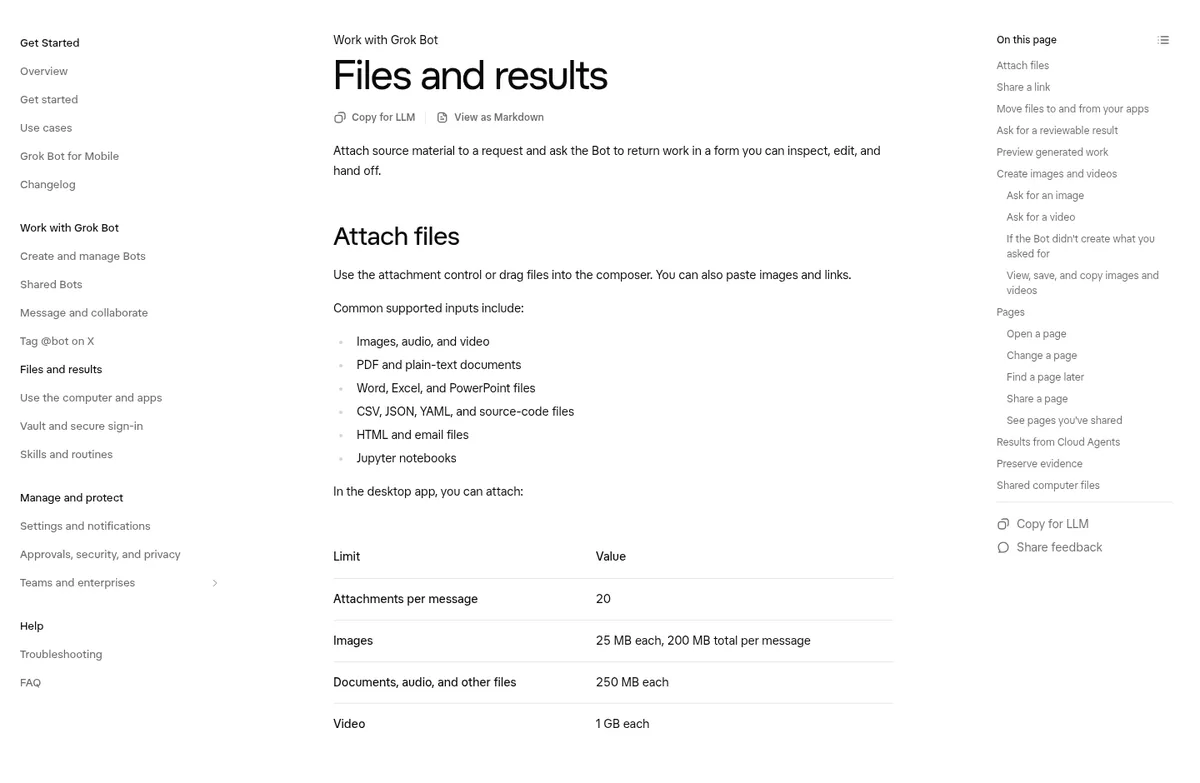
You can drag files into the message box, use the attachment button, or paste images and links. The docs list these common types:
- Images, audio, and video
- PDF and plain text documents
- Word, Excel, and PowerPoint files
- CSV, JSON, YAML, and code files
- HTML and email files
- Jupyter notebooks
If a file is odd, locked, or damaged, the Bot may not be able to read it. The fix is simple. Export it as a PDF, a CSV, plain text, or an image, then attach that.
Grok Bot file size limits
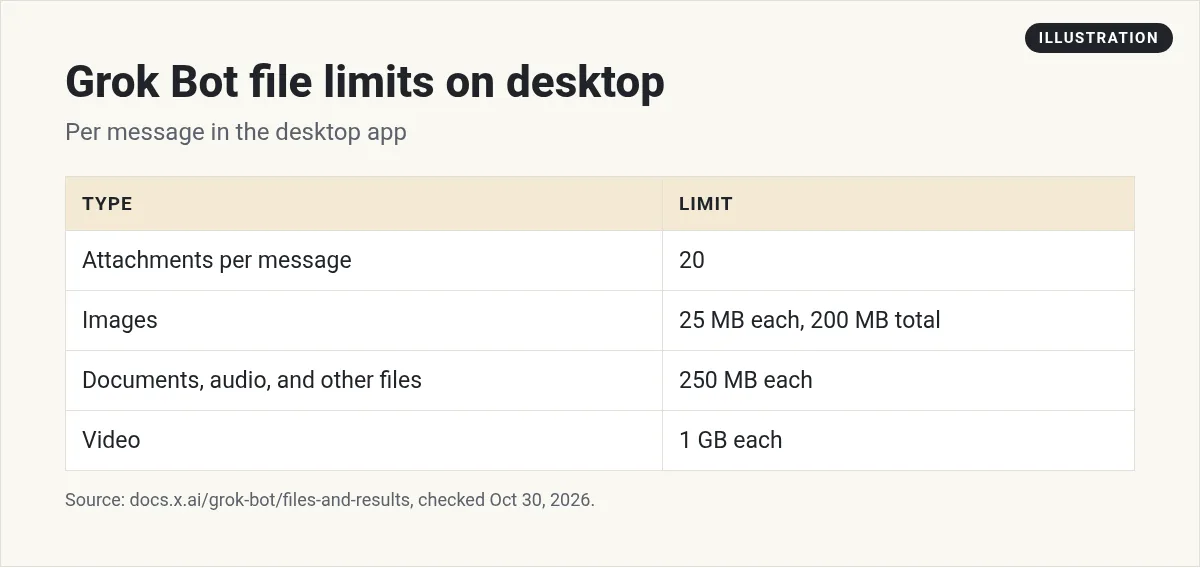
In the desktop app, one message can hold up to 20 attachments. Images can be 25 MB each, with 200 MB total per message. Documents, audio, and other files can be 250 MB each. Video can be 1 GB each.
If a file is over its limit, the message box says it is too large and leaves it out. Send the rest in another message.
On iPhone, you can also share a photo, file, link, or text from another app into Grok Bot with the share sheet. On Android, the share sheet takes text for now. My Grok Bot mobile app guide has more on the phone side.
Tell the Bot what each file is
This is the most useful tip in the whole post. Do not just drop files in and hope. Say what each one is and what to do with it. The docs give a good example, and here is my version for a small business:
The PDF is our refund policy. The spreadsheet is this month's refunds. Check each refund against the policy, list any that break it with the policy section, and return a new spreadsheet plus a short summary. Do not change the originals.
See how it names each file, the job, the output, and one rule? That last line, do not change the originals, saves a lot of worry.
From the Curio Cosmonaut channel (not mine): Curio Cosmonaut walks through 12 Grok Bot features most people skip, including the Bot's own computer, files, reports, and routines. A quick way to see what is possible.
Sharing a link instead of a file
You can paste a link when the Bot can reach the page from its computer or a connected app. If the page is private, you can sign in on the Bot's computer or connect the app.
Links in results open in your own browser. Hover over a link card to see a preview first. Always check where a link goes before you type a password or approve anything.
Moving files to Drive, OneDrive, and email
Once you connect Google Drive, OneDrive, SharePoint, Gmail, or Outlook, a Bot can move files without pasting them into the chat. It can:
- Save a file it made to Google Drive, OneDrive, or SharePoint.
- Attach a file to a Gmail or Outlook draft.
- Bring a file or an email attachment onto its computer to work on it.
Two details are worth knowing. Google Docs, Sheets, Slides, and Drawings arrive as Word, Excel, PowerPoint, and PNG files. And saving to Google Drive always makes a new file, even if one with the same name exists. OneDrive and SharePoint refuse a name that already exists unless you tell the Bot to overwrite it.
So always say where the file should go, like the Reports folder in your Drive. If you have not connected your apps yet, see Grok Bot connectors.
Ask for results you can check
The docs suggest you name the kind of result you want and what makes it done. For example:
- A document with headings and source links
- A spreadsheet with set columns and formulas
- A slide deck with speaker notes
- A draft message that has not been sent
- A short answer, then the proof under it
For important work, ask the Bot to split its answer into five parts. This is my favorite trick from the docs:
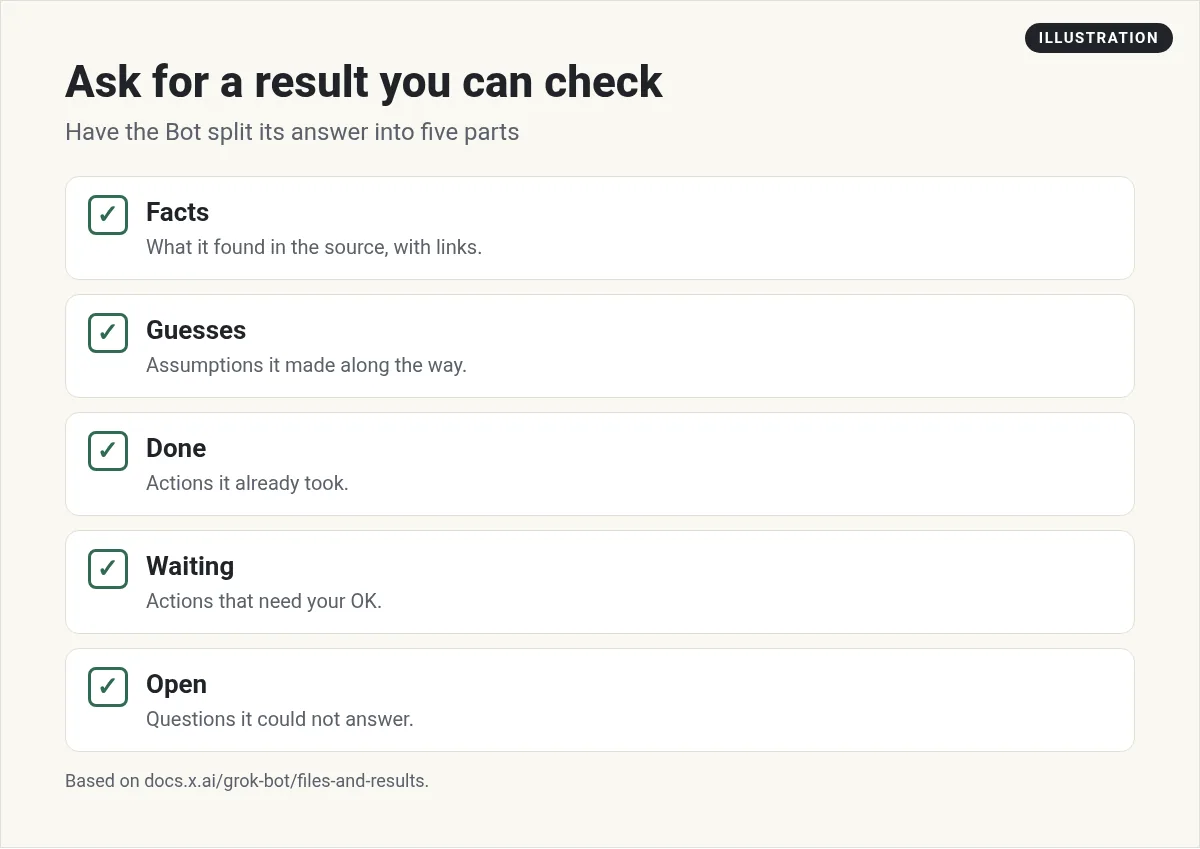
When the Bot keeps facts apart from guesses, and actions done apart from actions waiting for you, you can review a big job in two minutes.
Fix the same file, do not make copies
Files, images, and results show up as cards in the chat. Open one to preview it. If you want a change, ask the Bot to update that same file instead of making a new one. The docs give an example: update the report you just made, add source links to the first two claims, and swap the last table for a CSV file.
This keeps you from ending up with five versions and no idea which one is right.
Keep proof for important work
For anything that matters, ask for proof you can check yourself. The docs list direct source links, screenshots, times with time zones, file names in and out, a short action log, and a list of anything the Bot could not check.
One warning from the docs: do not trust a screenshot alone for data that changes fast. Keep a link or an export from the real system too.
Files shared between your Bots
Your Bots share one cloud computer. Bots can read files other Bots save in the workspace folder. Use project folders and clear names so handoffs work. But the chat should still hold the final result or a clear link to it. My guide to Grok Bot computer use explains the shared computer.
From the corbin channel (not mine): corbin gives a beginner tour of Grok Bot, including how it works on its own computer and comes back with finished work.
Get a team that knows what to make from your files
Attaching a file is easy. Knowing which report your business needs, how to lay it out, and what to flag for you takes experience.
AIM Agent is an AI Chief of Staff for business owners. It comes with an AI C-suite (COO, CMO, CFO, CRO and CTO), a Business Bot Builder and 100+ business skills, and it runs on AIM OS, a private vault that holds your notes and memory. AIM Agent is a ready-made AI business team that works inside Grok Bot, so you skip the setup and get to work.
Here is what you get:
- An AI Chief of Staff that helps you plan and run your business
- An AI C-suite: COO, CMO, CFO, CRO and CTO
- A Business Bot for each business or project. Give it a real task and it brings the work back for you to review
- 100+ business skills for content, offers, research and more
- Step by step setup guides and email support
So when you drop in a spreadsheet or a contract, your Bots already know the kind of result a business owner needs back.

For more ways to turn files into reports, read Grok Bot research and Grok Bot pages. Want an AI team to help run your business? Meet AIM Agent, an AI Chief of Staff for business owners. I am a co-founder of AIM Agent and have a financial interest in the product.
Hand your files to a real business team
AIM Agent gives you an AI Chief of Staff, an AI C-suite, and 100+ business skills, so your files come back as finished, checkable work.
See AIM AgentFrequently asked questions
What files can Grok Bot read?
Images, audio, video, PDFs, Word, Excel, PowerPoint, CSV, JSON, YAML, code, HTML, email files, and Jupyter notebooks.
How many files can I attach at once?
Up to 20 per message in the desktop app.
What is the Grok Bot file size limit?
On desktop, images are 25 MB each and 200 MB total per message, documents and audio are 250 MB each, and video is 1 GB each.
Can Grok Bot save files to Google Drive?
Yes, once Google Drive is connected. Saving to Drive always creates a new file.
Can I share files from my phone?
On iPhone, yes, with the share sheet. On Android, the share sheet takes text for now.
How do I check a big result fast?
Ask the Bot to split its answer into facts, guesses, actions done, actions waiting for you, and open questions.
Is there a faster way to get a Bot team for my business?
AIM Agent gives you an AI Chief of Staff, an AI C-suite, and 100+ business skills, so you start with a team built for business work.
Sources
Checked October 30, 2026. Plans, prices, and rules can change.
