
Grok Bot · Slide decks
Since October 7, 2026, Grok Bot can build a slide deck with you. It shows sample slides, lets you pick a look, and hands you a PowerPoint file or a Google Slides deck you can keep editing.
Grok Bot can make slide decks. You tell your Bot what the talk is about, it shows you a few sample slides to pick a style, and then it builds the full deck as a PowerPoint file or in Google Slides. You fix it the same way you made it: by asking in chat.
I read the Grok Bot changelog and docs on November 2, 2026, plus the official guides that use decks every day. Here is how to ask for a good deck, how editing works, and what to check before you present.
TL;DR
Ask your Bot for a deck and give it the audience, the main point, your sources, the length, and the format you want. Since version 0.68.1 on October 7, 2026, Bots build decks with you, show sample slides to choose from, and deliver PowerPoint files or Google Slides. For Google Slides, connect Google first in Connect apps. Ask for speaker notes if you will present it. Then review each slide, ask for changes in chat, and check every number and name before you share it.
What changed in October
The Grok Bot changelog for October 7, 2026, version 0.68.1, has a short line that matters a lot: Bots can build slide decks with you, show sample slides to choose from, and deliver them as PowerPoint files or Google Slides.
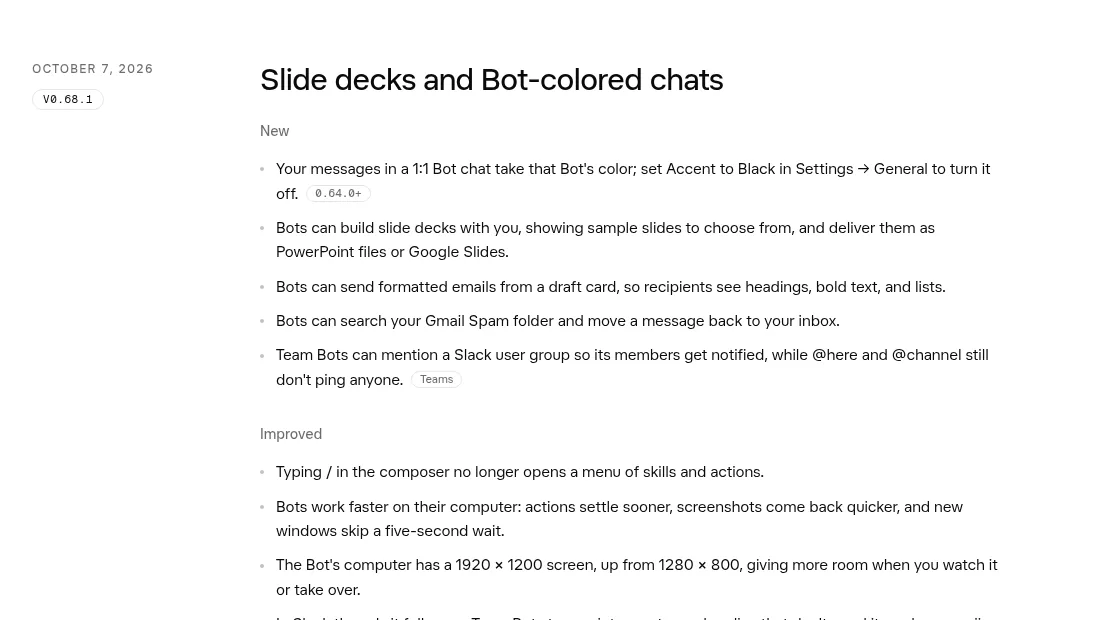
Before that, you could ask a Bot to write slide text, but you had to build the slides yourself. Now the Bot does the build. A later update on October 22 says large Google Slides edits update the live deck, so you do not end up with ten copies.
The docs also list a slide deck with speaker notes as one of the finished results you can ask for, along with Word, Excel, and PowerPoint files.
How to ask for a deck
The first message does most of the work. Here is what I put in it.
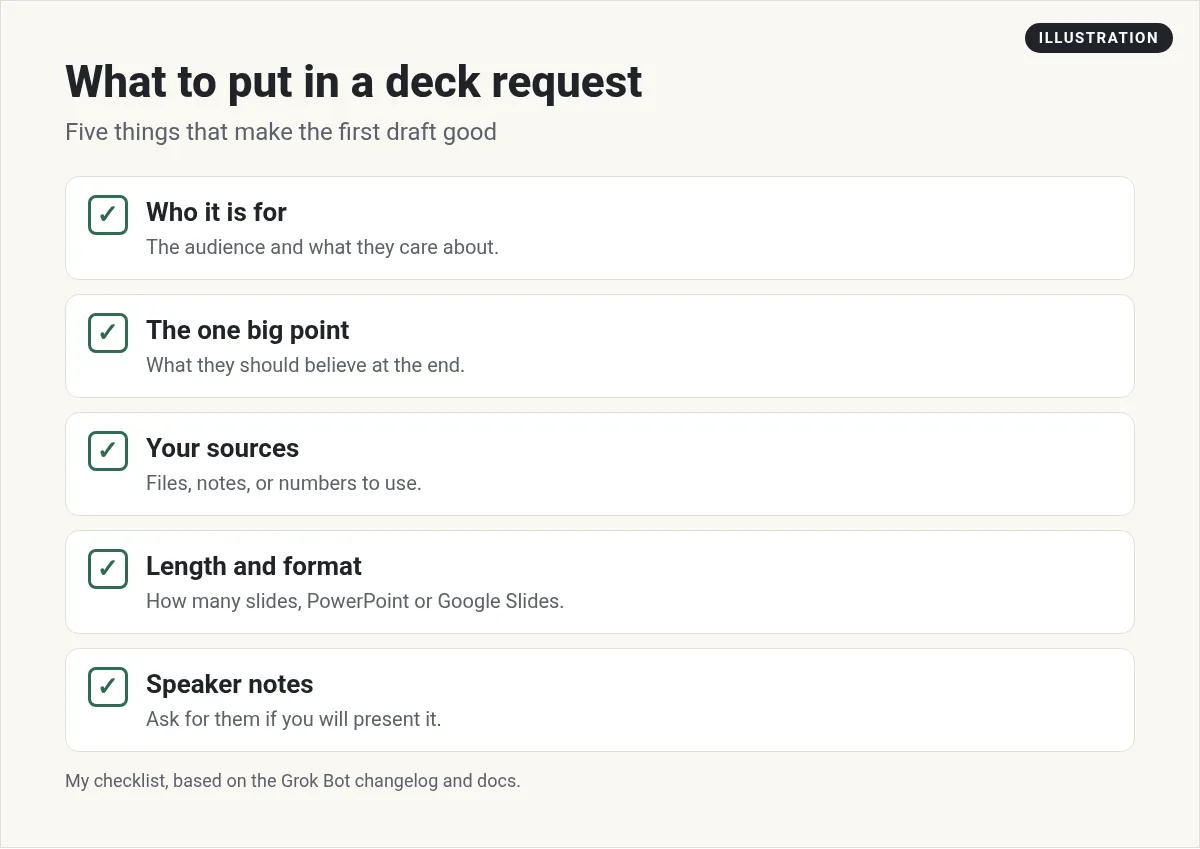
A sample request:
Build a 10 slide deck for new clients about how our onboarding works. They are busy owners who want to know what happens in week one. Use the Onboarding SOP page and the timeline in my Drive. Google Slides, simple and clean, with speaker notes. Show me sample slides first.
The Bot shows sample slides so you can choose a look. Pick one, or say what you want changed, like bigger text or fewer bullets. Then it builds the rest.
If you want Google Slides, connect Google first. Open Connect apps in the sidebar and add Google Slides or Drive. Company Google accounts may need an admin to approve the connection. My Grok Bot connectors guide covers that.
Edit the deck in chat
You do not need to open the file to make changes. Just ask:
- Make slide 3 shorter. Two bullets, max.
- Swap the order of slides 5 and 6.
- Add a slide with our three package options as a simple table.
- Make the title slide match our brand colors.
- Write speaker notes for every slide in a friendly tone.
Small fixes are faster to make yourself. Big ones, like a new section or a new style, are faster to ask for. The Bot keeps working in the cloud, so you can ask from your phone and check later.
From the Matt Palmer channel (not mine): Matt Palmer's What's new video for October 7, 2026 covers the updates from that week, including the knowledge work and Google connector changes. Slide decks shipped in the same release.
Bring your own files
A deck is better when the Bot works from real sources. The docs say a Bot can bring a Drive, OneDrive, or SharePoint file onto its computer to work on it, and that Google Slides arrive as PowerPoint files when it does.
So you can say:
- Use last quarter's deck in Drive as the style guide.
- Pull the numbers from the Sales sheet, and show the source on each chart.
- Read these three PDFs and make a five slide summary.
The Grok Bot files guide explains how files move in and out of a Bot's computer.
How the pros use it
The official Grok Bot guides show decks used every day:
- A go to market lead has a slides Bot that owns customer decks. It keeps a master deck, makes a copy for each customer, and can translate decks. Their chief of staff Bot calls the slides Bot when slides are needed.
- The same guide shows a skill that updates a slide from a call transcript before the call ends, so the wrap up uses what the customer just said.
- A customer success lead asks a chief of staff Bot to open a PowerPoint and say what works visually and what does not.
The lesson: give one Bot the deck job and your design rules up front. Then other Bots can hand it work. See Grok Bot for sales for more on call prep.
Check before you present
Bots are fast, but they can still get a number or a name wrong. Before you share a deck:
- Check every number against the source. Ask the Bot to list where each one came from.
- Check names and logos. Make sure you have the right to use any logo.
- Read it out loud with the speaker notes. If a slide is hard to say, it is hard to follow.
- Look at it on a small screen. Many people will see it on a laptop or phone.
Need a one page web page instead of slides? A Bot can build that too. See Grok Bot pages.
Limits to know
- Design taste is yours. The Bot follows rules well. Give it your colors, fonts, and a sample deck.
- Videos are not for slides. The docs say Bot videos are not made for title cards, slideshows, or charts. Use the deck feature for that.
- Google admin rules. A company Google account may block the connection until your admin approves it.
- Usage. Big decks with many images take more work. Start with a short deck and grow it.
Give your decks a team that knows your business
A Bot can build slides fast. What makes a deck land is the story: your offer, your proof, and the next step you want people to take.
AIM Agent is an AI Chief of Staff for business owners. It comes with an AI C-suite (COO, CMO, CFO, CRO and CTO), a Business Bot Builder and 100+ business skills, and it runs on AIM OS, a private vault that holds your notes and memory. AIM Agent is a ready-made AI business team that works inside Grok Bot, so you skip the setup and get to work.
Here is what you get:
- An AI Chief of Staff that helps you plan and run your business
- An AI C-suite: COO, CMO, CFO, CRO and CTO
- A Business Bot for each business or project. Give it a real task and it brings the work back for you to review
- 100+ business skills for content, offers, research and more
- Step by step setup guides and email support
So your Bots start from your real business, and your decks need less rework.

Want an AI team to help run your business? Meet AIM Agent, an AI Chief of Staff for business owners. I am a co-founder of AIM Agent and have a financial interest in the product.
Put a business team behind your decks
AIM Agent gives you an AI Chief of Staff, an AI C-suite, and 100+ business skills, so your Bots know your offer before they build a slide.
See AIM AgentFrequently asked questions
Can Grok Bot make a PowerPoint?
Yes. Since October 7, 2026, Bots can build slide decks and deliver them as PowerPoint files or Google Slides.
Can it edit Google Slides?
Yes, once Google is connected. The changelog says large Google Slides edits update the live deck.
Will it show me options first?
Yes. Bots show sample slides to choose from before they build the full deck.
Can I get speaker notes?
Yes. Ask for them. The docs list a slide deck with speaker notes as a result you can request.
Can it use my old deck as a guide?
Yes. Point the Bot to the file in Drive or attach it, and tell it to follow that style.
Should I check the deck before I present?
Always. Check numbers, names, and logos against your sources.
Is there a faster way to get a Bot team for my business?
AIM Agent gives you an AI Chief of Staff, an AI C-suite, and 100+ business skills, so you start with a team built for business work.
Sources
Checked November 2, 2026. Plans, prices, and rules can change.
